
You’ve probably got the outline half-written already. The topic is solid, the speaker is available, and you know webinars can pull in leads, educate customers, or train clients without the cost of an in-person event. What usually creates friction is everything around the idea itself. Which platform should you use, how polished do the slides need to be, what if attendance is low, and what happens if your webinar includes sensitive information?
That last question gets ignored far too often. Generic webinar advice treats platform choice like a convenience issue. In healthcare, education, consulting, and any business that handles personal information, it’s a risk decision. If you’re learning how to create a webinar, the job involves more than just getting a camera, deck, and registration page live. It’s building an event that people can join easily, stay engaged with, and trust.
Beyond the Basics of Creating a Webinar
Most webinar guides assume the hard part is presentation skill. It isn’t. The hard part is balancing security, usability, and cost without making the event harder to run.
The common assumption that causes problems
A lot of teams still assume they need to choose between two bad options:
- Cheap and lightweight: Easy to launch, but missing the controls needed for regulated or client-sensitive sessions.
- Enterprise and expensive: More secure on paper, but bloated, harder to administer, and often priced so webinar hosting becomes a separate budget fight.
That assumption breaks down fast in regulated sectors. A staggering 68% of healthcare organizations faced compliance breaches in virtual events in 2025, yet fewer than 5% of top-ranking “how to create a webinar” tutorials even mention HIPAA (Kaltura).
If you run telemedicine briefings, patient education sessions, training for clinics, or internal staff webinars, that gap matters. A registration page and a screen share aren’t enough.
Practical rule: If your webinar could expose patient, student, or client information, compliance isn’t a feature add-on. It’s part of the event design.
What professional webinars actually require
The webinars that feel smooth from the attendee side usually have a few things happening behind the scenes:
- A clear purpose: One audience, one problem, one promised outcome.
- A low-friction join experience: Browser access beats forcing downloads for many audiences.
- A moderator plan: Someone has to watch chat, Q&A, and access issues while the speaker presents.
- A secure environment: Encryption, waiting room controls, lock settings, and role-based moderation matter more than flashy templates.
- A budget model that makes repeat events possible: If webinar functionality is hidden behind add-ons, teams often stop after one or two campaigns.
Where most tutorials fall short
They teach presentation mechanics but skip operating reality. They tell you to “pick a platform,” but don’t ask whether your audience needs browser join, whether your event should be recorded, whether your host has enough upload speed, or whether your legal team would approve the setup.
That’s why affordable, secure webinar creation deserves its own playbook. You don’t need a giant production stack. You need a workflow that protects attendees, avoids technical surprises, and still works for a small team running events on a real budget.
Strategic Planning for a High-Impact Webinar
The strongest webinar setups start before anyone opens a webinar dashboard. A rushed team usually picks a date first and invents the strategy later. That leads to broad topics, weak registration pages, and sessions that attract curious sign-ups but not the right attendees.
Start with one business outcome
Pick the primary job of the webinar. Keep it singular.
A webinar can support many goals, but it shouldn’t try to do all of them at once. In practice, most good webinars fit one of these patterns:
| Webinar type | Best use | What to avoid |
|---|---|---|
| Lead generation | Attract new prospects around a specific pain point | Turning the session into a product pitch too early |
| Customer education | Teach users how to get value from a feature or workflow | Assuming existing customers need no structure |
| Thought leadership | Build trust with decision-makers | Going too broad and sounding generic |
| Internal or partner training | Standardize process and communication | Ignoring security and access controls |
A practical example helps. “How to reduce no-shows in clinic scheduling” is better than “Healthcare operations trends.” The first gives people a reason to register. The second sounds like a conference panel nobody finishes.
Define the attendee before the topic
A job title alone won’t shape a useful webinar. Build around pain, context, and urgency.
Ask these questions:
- What problem makes this person stop scrolling?
- What would make them feel the session was worth their time?
- What are they likely to ask in the last ten minutes?
- What would make them hesitate to register?
- What information can’t be shown or discussed casually?
If you’re serving healthcare providers, the attendee may be a clinic owner who wants a more secure patient education workflow. If you’re serving educators, it may be a school administrator who needs browser-based access because not every student can install software.
The audience doesn’t care that your team worked hard on the webinar. They care whether the session solves a problem they already have.
Build the promise before the agenda
A simple planning template works well:
- Problem: What’s frustrating the audience right now?
- Shift: What will they understand or do differently after attending?
- Proof: Why should they trust this speaker or approach?
- Action: What should happen next if the webinar lands well?
This keeps the event from drifting into a slide-heavy lecture.
Add compliance at the planning stage
Regulated teams often make their biggest mistake at this stage. They leave compliance review until after promotion starts. By then, the registration workflow, recording policy, and host platform may already be set.
Use a short compliance check before scheduling:
- Sensitive content check: Will the webinar include personal, medical, student, or financial information?
- Recording check: Can the event be recorded, and who should access the replay?
- Access check: Do you need waiting rooms, moderator approval, or attendee restrictions?
- Platform check: Does the platform support encryption and the controls your organization requires?
- Retention check: How long should files, chat logs, and recordings be kept?
For healthcare and education, these questions change the platform decision immediately. They also affect how you brief speakers. A subject matter expert may be comfortable presenting, but still need guidance on what not to display during demos, screen shares, or live Q&A.
Choosing Your Platform and Crafting Compelling Content
A webinar usually succeeds or fails on two fronts. The content has to earn attention, and the platform has to stay out of the way.
Build content people can follow in real time
Webinar content isn’t a whitepaper read aloud. People are watching while distracted, multitasking, or joining between meetings. Structure matters more than volume.
A simple agenda shape works well:
- Open with the problem: State the issue in plain language.
- Give the audience a map: Tell them what they’ll leave with.
- Teach in sections: Use three clear teaching blocks instead of ten mini-topics.
- Create interaction points: Pause for a poll, question, or short response.
- Close with application: Show what to do next, not just what to think.
Slide design should support speaking, not replace it. Dense slides create a split-attention problem. A better deck uses one idea per slide, short labels, screenshots, diagrams, and occasional live demonstration.
Platform decisions that matter in practice
The platform checklist should stay grounded in how attendees join and how hosts run events.
For optimal performance, a webinar platform should offer WebRTC for browser-based joining, end-to-end AES-256 encryption for HIPAA compliance, and have a tested upload bandwidth requirement of at least 5Mbps per host to avoid common buffering and dropout issues (webinars.rs).
That matters because these are real trade-offs:
- Browser join vs app install: Browser access reduces friction for external audiences.
- Encryption vs convenience shortcuts: If you handle sensitive material, encryption isn’t optional.
- Built-in webinars vs paid add-on webinars: Add-ons complicate budgeting and often limit how often teams run events.
- Unlimited duration vs time caps: Training, education, and Q&A-heavy sessions don’t fit well into hard limits.
- Moderator tools vs host overload: If the presenter has to teach, answer chat, admit attendees, and troubleshoot audio, quality drops.
Price and feature comparison that reflects real buying choices
The fastest way to overspend on webinars is to buy a meeting product first and discover later that webinar hosting sits behind an extra layer of fees or plan complexity.
| Feature | AONMeetings (Pro Plan) | Zoom (Pro Plan + Webinar Add-on) | Microsoft Teams (Business Standard) |
|---|---|---|---|
| Starting price model | ₹179/user/month | Higher combined cost because webinar capability typically requires an added webinar purchase | Higher business suite pricing structure |
| Webinar hosting included | Yes, included in plan | Not typically included in base Pro setup | Often tied to broader Microsoft stack and plan specifics |
| Meeting time limits | Unlimited meeting time | Common plan limitations can affect longer sessions | Depends on plan and tenant setup |
| Encryption | Bank-level encryption, AES-256 highlighted as a key security feature | Security varies by configuration and plan | Security features depend on Microsoft environment setup |
| Browser-based join | Yes | Available in many use cases | Available, but user experience often depends on organization setup |
| Waiting rooms and moderator controls | Included | Available | Available |
| Webinar branding options | Available on advanced tiers | Available with webinar products | Available through Microsoft ecosystem tools |
| Extra webinar fees | No separate webinar add-on required | Often yes | Can require broader licensing choices |
Here, value becomes practical, not theoretical. One option to look at is AONMeetings, which includes webinars in its plans, supports browser-based joining, offers bank-level encryption, and starts from ₹179 per user per month according to the publisher details provided for this article. For teams comparing tools with small-business constraints, this overview of webinar software for small business is a useful decision aid.
Cheap software gets expensive when webinar hosting, recordings, branding, and security all appear as separate line items later.
What works better than feature shopping
Don’t pick a platform because it has the longest feature list. Pick the one that fits your event model.
If you run patient education webinars, prioritize compliance controls and browser access. If you run product demos, prioritize screen sharing, recording, and moderation. If you run training, care more about unlimited time, breakout rooms, and clean attendee access than cosmetic extras.
A Step-by-Step Guide to Setting Up Your Webinar
A webinar usually feels broken before anyone says it out loud. Attendees hit the join link and wait too long. A presenter cannot find the right screen. Someone asks whether the session is being recorded, and the host is not sure what participants can see. In healthcare and education, those mistakes are not just awkward. They can create privacy risk.
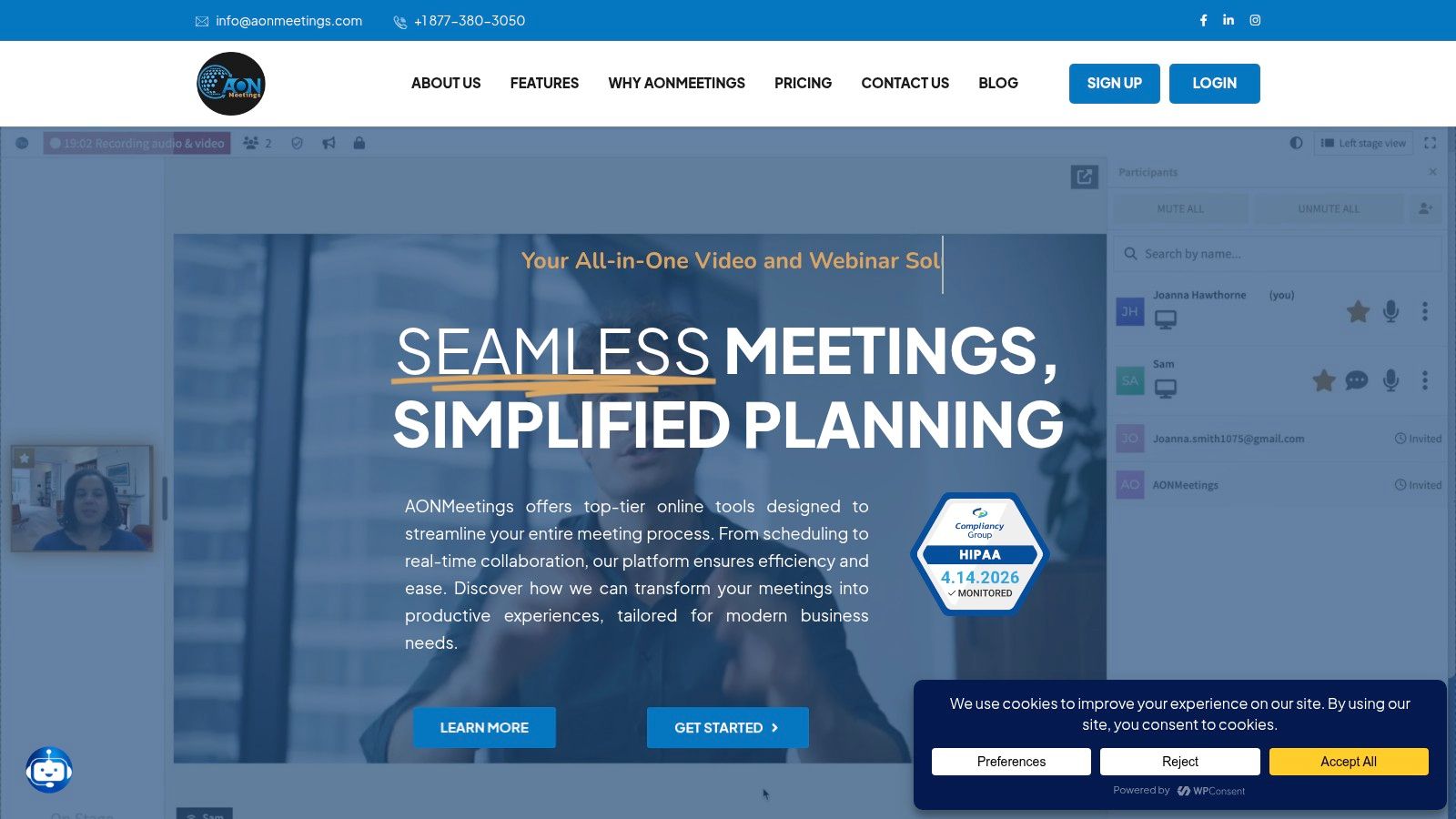
A good setup process prevents that drift. It gives the team a repeatable way to launch a webinar that feels organized, protects access, and does not require enterprise-level spend. With a browser-based platform like AONMeetings, that usually means fewer attendee support issues before the event even starts.
Step 1, build the event around how attendees will experience it
Set up the webinar in attendee order, not admin convenience.
Start with the registration page. The title should promise a result, not name a topic in broad terms. “How clinic teams can run secure patient education webinars” sets clearer expectations than “Clinic communications webinar.” Then write a short description that answers three questions fast: who should attend, what they will learn, and whether there is live Q&A.
Keep the registration form tight. Name, email, and one qualifying field is enough for many webinars. If you ask for department, organization size, phone number, job title, and region, completion rates often drop. For HIPAA-sensitive events, ask only for information you need and know how you will store it afterward.
Format matters here too. A training session needs different pacing and permissions than a panel or a product demo.
Step 2, configure the room before content gets loaded
The webinar room sets expectations before the first slide appears. A polished room reduces confusion. A controlled room reduces risk.
Set these items first:
- Branding: Add the logo, presenter names, and any approved visual treatment.
- Admission controls: Turn on waiting rooms or moderator approval if the session covers patient education, student information, or client-specific material.
- Presenter permissions: Decide who can share screen, launch polls, respond to Q&A, and admit attendees.
- Attendee settings: Confirm whether participants can use chat, unmute, or share video.
- Recording status: Decide whether the event will be recorded and who can access that file later.
Affordable software can cause trouble in these areas. Some low-cost tools make access control, branding, and recording management separate add-ons. AONMeetings includes those webinar basics inside the platform, which makes setup simpler for smaller teams that still need compliance-minded controls.
Step 3, assign roles with clear ownership
Shared responsibility usually turns into missed responsibility.
Give each person one primary job and one backup task. That keeps the event stable if someone loses connection or gets pulled into troubleshooting.
| Role | Primary responsibility | Common mistake |
|---|---|---|
| Host | Starts the event, keeps time, introduces speakers | Running slides, chat, and Q&A alone |
| Presenter | Delivers the material | Trying to fix technical issues while speaking |
| Moderator | Manages chat, Q&A, and attendee flow | Joining rehearsal too late to learn controls |
| Support person | Handles audio, access issues, and backup logistics | Being unavailable until something fails |
For a clinic webinar, I usually want the moderator focused on admissions and questions, not content delivery. For a school training session, the support person often matters more than a second presenter because browser, device, and network issues are common.
Step 4, load assets the way the platform will actually use them
Do not wait until the rehearsal to find out a video stutters, a poll was never saved, or a booking link points to the wrong page.
Prepare the room with the final assets:
- Slides: Use the final deck, in final order.
- Videos and demos: Test playback, audio share, and what is visible on screen.
- Polls and prompts: Save them in advance so the moderator is not building them live.
- CTA links: Keep links ready in chat, slides, and a separate document.
- Presenter notes: Store them outside the shared screen to avoid exposing internal comments.
If the webinar will become on-demand content later, write the opening and closing with that in mind. Time-sensitive references date the replay fast. Teams planning a replay library should also review practical steps for how to record webinars before launch day.
Step 5, rehearse for failure points, not just delivery
A rehearsal should test the parts that break under pressure. Audio switching. Screen sharing. Late presenter entry. The host admitting attendees while the speaker starts talking.
Run the rehearsal 24 to 48 hours before the webinar if possible. That gives you time to replace a bad headset, fix permissions, or update access instructions without rushing on event day.
Cover these checks in one pass:
- Microphone and camera quality for each speaker
- Screen-share permissions and window selection
- Poll timing and moderator handoff
- Q&A flow and escalation rules
- Waiting room admission process
- Recording settings and file ownership
- Backup internet or dial-in option
- What happens if the host drops
Good rehearsals do not make presenters sound stiff. They remove small points of confusion that make a live event feel sloppy.
Step 6, document the fallback plan
Every webinar needs a written backup plan, even a small one.
Keep it short and practical:
- Backup slide owner: A second person has the current deck.
- Backup connection: Presenters know which hotspot or second network they will use.
- Backup speaker order: The team knows who continues if one presenter drops.
- Backup attendee message: A ready-to-send email or chat note explains how to rejoin.
- Backup CTA delivery: Final links exist outside the slide deck.
That checklist matters even more for HIPAA-conscious webinars. If a speaker loses connection during a patient education session, the team should know exactly who continues, who handles admissions, and who confirms recording status. Clear fallback rules protect the audience experience and reduce the chance of exposing the wrong information to the wrong people.
Mastering Live Engagement and Driving Action
The live session starts, 120 people join, and by minute eight the chat is silent. That drop usually has one cause. The host is delivering information, but the audience has no job to do.
For a healthcare or education webinar, that problem gets worse fast. People are already cautious about what they type, what they ask, and whether the platform protects sensitive discussion. Good engagement does not mean pushing constant activity. It means giving attendees safe, useful ways to participate without creating compliance risk or dragging the session off schedule.
AONMeetings works well here because the host can control chat, Q&A, admissions, and recording settings from one place. That matters on a budget. You do not need expensive production to keep a session active. You need a moderator, a clear run of show, and interaction points that fit the topic.
How to make participation feel natural
Use the first five minutes to train the room.
If the webinar is for clinic administrators on secure patient communication, start with a narrow prompt: “Which part of virtual patient communication causes the most friction for your team today?” That question gives you three advantages. It confirms who is in the room, gives the moderator language to reuse later, and signals that the session will respond to attendee input.
Then place interaction at key decision points, not at random. A poll after the first teaching block helps you judge whether the audience needs more context or is ready for implementation details. Mid-session Q&A works better than saving every question for the end, especially when attendees need clarification before they can apply the next step.
For teams trying to improve turnout before the session even begins, this guide on how to increase webinar attendance without wasting your reminder cycle pairs well with a stronger live engagement plan.
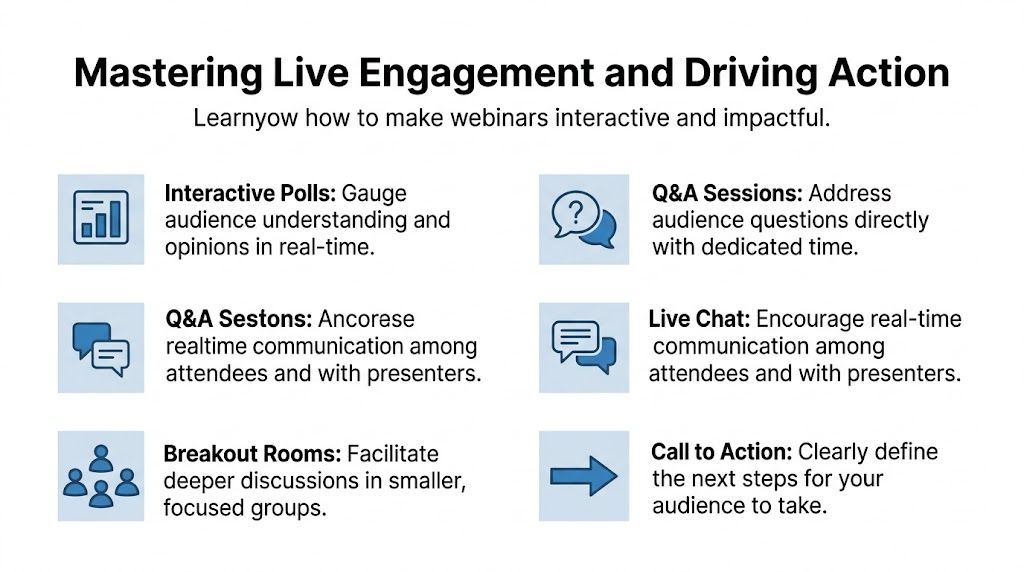
Five engagement moves that hold attention
Start with a low-risk prompt
Ask for role, department, or primary challenge. In regulated settings, avoid questions that invite people to share patient-specific or student-specific details in public chat.Use polls to shape the presentation
Poll results should change what you cover next. If half the room is still stuck on policy basics, spend another minute there instead of forcing everyone through advanced material.Let the moderator surface patterns
A strong moderator does more than collect questions. They group repeated concerns, remove anything inappropriate for public discussion, and bring the speaker the questions that move the session forward.Use breakout rooms selectively
Breakouts can help for staff training or internal workshops. They are often a poor fit for external webinars where people joined for concise guidance and may not want to discuss sensitive operational problems with strangers.Match the CTA to the session promise
If you taught a practical workflow, offer a checklist, template, replay, or consultation tied to that workflow. A sudden sales pitch feels disconnected and usually cuts response.
The best CTA answers the attendee’s next practical question.
What to protect during live engagement
Interactive webinars in healthcare and education need a tighter line than generic marketing events.
Set expectations early. Tell attendees where to ask public questions, when private follow-up is better, and what should not be posted in chat. If the topic touches HIPAA, patient education, counseling, or student services, remind speakers to discuss scenarios at the process level and avoid identifiable details. This is one of the trade-offs with live engagement. More audience input can improve relevance, but it also increases the chance that someone shares more than they should unless the host sets boundaries clearly.
This is also where your post-webinar workflow matters. Teams that rely on CRM and marketing automation tools like Hubspot can route follow-up based on poll answers, attendance duration, and questions asked, without making the live session feel like a lead form.
What live presenters should avoid
| What hurts | Why it fails | Better move |
|---|---|---|
| Reading every slide | Attendees stop processing and start multitasking | Summarize the slide, then add context not written on screen |
| Letting chat run without moderation | Off-topic or risky comments can distract the room | Have a moderator guide discussion and remove problematic posts |
| Saving all questions for the final minute | Important confusion stays unresolved too long | Answer high-value questions during topic transitions |
| Asking broad, sensitive questions | Attendees hold back or overshare | Ask role-based or workflow-based questions instead |
| Ending with an unrelated offer | Trust drops and conversion weakens | Present a next step that fits the problem you just solved |
A strong live webinar feels controlled without feeling rigid. Start on time. Get the audience involved early. Keep participation structured enough to protect privacy, especially on HIPAA-conscious sessions. That combination holds attention and makes the final call to action feel earned.
Optimizing Promotion Analytics and Follow-Up
The webinar doesn’t fill itself, and a single reminder email won’t rescue weak promotion. Promotion works best when it acknowledges real registration behavior.
Build the timeline around actual sign-up patterns
On average, only 40-50% of registrants attend a live webinar. Promoting your event four weeks in advance can increase registrations by 12%, and data shows that sending SMS reminders can boost the final attendance rate by an additional 12-20% (RingCentral).
That changes how you should promote.
If attendance is your concern, don’t wait until the final week to announce the event. Early promotion gives people time to plan, while reminder systems protect against the usual drop-off between registration and show-up.
A practical promotion sequence
Use a layered approach rather than one announcement.
- Week four: Publish the registration page and announce the core promise through email, social, and site placement.
- Week three to two: Share speaker credibility, a short agenda, and one practical takeaway people will gain.
- Final week: Send reminder emails with clear date, time, and join expectations.
- Final day: Use a concise reminder, and where appropriate, SMS notifications.
- Final hours: Keep the message short. Focus on access and value, not hype.
For teams managing this at scale, CRM and marketing automation tools like Hubspot can help organize segmented reminders, registration workflows, and post-event nurture without forcing everything into manual spreadsheets.
What to look at after the webinar
Often, teams only check registrations and attendance. That leaves useful insight on the table.
Review:
Attendance quality
Did the right audience show up, or did the topic attract broad but weak-fit interest?Drop-off points
If people left during a specific section, the issue may be pacing, relevance, or slide density.Engagement moments
Which poll, question, or demo segment generated the most response?CTA response
Did attendees take the next step, or did the offer arrive too late or feel disconnected?Replay value
Was the recording useful enough to send confidently to non-attendees?
If you want to improve future events, this kind of review is more useful than debating whether the webinar “felt good.”
Follow-up is where webinar value compounds
The live event is only one part of the workflow. The replay, summary, and segmented email follow-up often do the heavier lifting afterward.
A clean follow-up sequence usually includes:
| Audience segment | What to send | Why it matters |
|---|---|---|
| Attended live | Thank-you note, recording, resources, next step | Keeps momentum while intent is high |
| Registered but missed | Recording with a short summary | Recovers value from lost live attendance |
| Asked a question | Direct reply or grouped Q&A resource | Shows responsiveness and builds trust |
| Highly engaged attendees | CTA tied to the webinar topic | Moves qualified interest forward |
Keep the follow-up tied to the promise of the session. If the webinar taught a process, send the checklist. If it covered a decision framework, send the worksheet. If it raised detailed questions, send a Q&A recap.
For teams trying to improve turnout over time, this guide on how to increase webinar attendance is a useful operational reference.
The most valuable webinar asset often isn’t the live room. It’s the system you build around reminder timing, recording, segmentation, and next-step follow-up.
Your Blueprint for Webinar Success
Learning how to create a webinar gets easier once you stop treating it like a presentation problem and start treating it like an event system. The strongest webinars come from clear planning, a platform that fits the audience, a setup process that removes friction, and live delivery that invites participation.
For regulated industries, there’s an extra requirement. Security has to be built into the workflow from the start. That means encryption, access controls, browser-friendly joining, moderator roles, and a recording policy that doesn’t get improvised after launch.
For budget-conscious teams, the other lesson is just as important. Webinar hosting should be sustainable. If the platform makes webinars expensive to repeat, teams hesitate to run them often enough to improve. A model that includes webinar functionality, supports secure delivery, and avoids hidden extras is usually the more practical long-term choice.
Good webinars aren’t only polished. They’re deliberate. The topic fits the audience, the room is configured properly, the host rehearses, the moderator stays active, and the follow-up carries the value beyond the live session. Do that consistently and webinars stop feeling like one-off campaigns. They become a repeatable channel for education, trust, and pipeline.
If you need a secure, browser-based platform for running webinars without separate webinar add-on fees, AONMeetings is worth evaluating. It includes webinar hosting, unlimited meeting time, encryption, recordings, and moderation features in a straightforward pricing model that suits healthcare, education, and small business teams.
