
Microsoft Excel's subscription cost usually gets blamed for everything. That's not the whole problem. The bigger gap is fit. A student needs easy sharing. A finance lead may need desktop reliability. A clinic may care more about local control, access permissions, and whether files stay inside a managed environment than about flashy templates.
That's why the best free programs like Excel split into two camps. Cloud-first tools make shared editing simple. Desktop tools give you stronger offline control and less dependence on one vendor's platform. By 2025, software comparisons were already treating Google Sheets as the strongest free option for collaboration, while LibreOffice Calc stood out for offline desktop work across Windows, macOS, and Linux, according to Windows Forum's 2025 comparison roundup.
This guide is built as a migration guide, not just a feature list. It covers what each tool is good at, what breaks when you move from Excel, how to think about price and value, and where security questions matter more than marketing pages suggest. If your spreadsheet work overlaps with expenses, invoicing, or cash tracking, this pairs well with understanding free bookkeeping tools.
1. Google Sheets
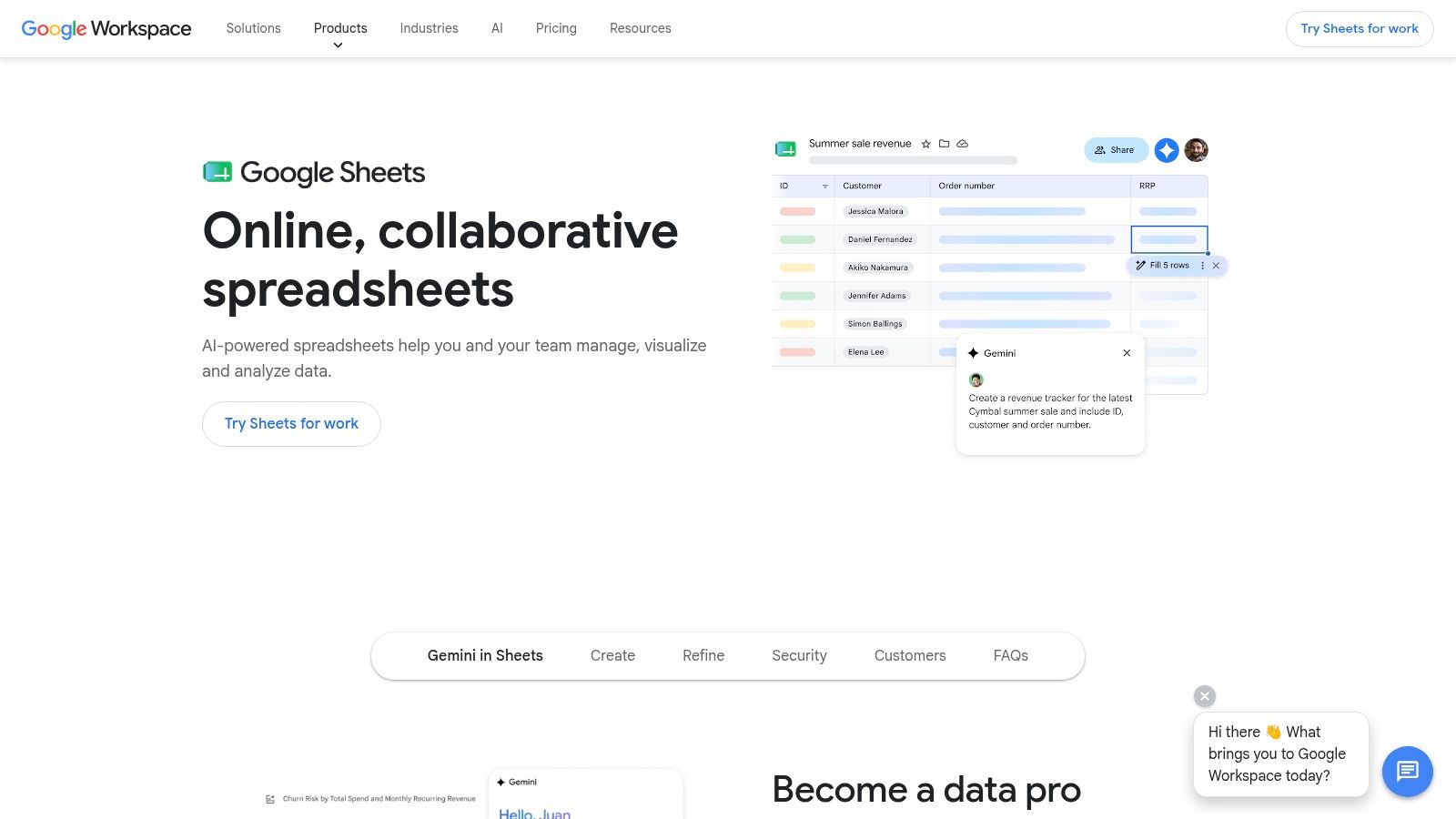
Need to replace Excel for a team that keeps passing around attachments and losing track of the latest file? Start with Google Sheets.
I recommend it first for shared work, not because it matches desktop Excel feature for feature, but because it removes the version-control mess fast. You create one file, assign edit rights, and everyone works in the same document. For student groups, nonprofit staff, startup operators, and small admin teams, that change alone usually matters more than advanced spreadsheet depth.
Google Sheets fits best when collaboration is the job. Shared budgets, content calendars, signup trackers, light project reporting, and approval workflows all work well here. If your team already reviews numbers live on calls, it pairs naturally with screen sharing during browser-based meetings.
Migration Reality
Most .xlsx files import cleanly if they are built around standard formulas, tabs, filters, charts, and basic pivot tables. The trouble starts with VBA macros, heavy Power Query use, complex formatting rules, external data connections, and workbooks that depend on Excel-specific functions or add-ins. In those cases, migration becomes a rebuild project, not a simple upload.
That trade-off is predictable.
If a workbook runs a monthly business process, test it line by line before switching the team over. Check formulas, named ranges, dropdowns, protected sheets, date handling, print layout, and any automation. Apps Script can replace some Excel automation, but it is a different scripting environment, so existing VBA logic does not come across intact.
- Best use case: Teams editing the same workbook every week and needing comments, version history, and permission controls.
- Less ideal for: Finance models, audit-heavy workbooks, and macro-driven files that depend on desktop Excel behavior.
- Migration advice: Pilot one real workbook first. Do not start with your messiest file.
- Cost advantage: The free tier is strong for shared work because contributors do not need to buy software.
Practical rule: If multiple people need to edit, review, and approve the same spreadsheet on a regular schedule, Google Sheets belongs on the shortlist.
Security needs a more careful look than the product page suggests. For general business use, school work, and internal planning, the default controls are often enough. For regulated environments, the decision should hinge on account management, sharing restrictions, retention settings, admin oversight, and whether storing files in Google's cloud fits your policy. A clinic, legal office, or compliance-sensitive team should involve IT before migrating live files with protected data.
I would also separate “Google is secure” from “our setup is secure.” Those are not the same thing. Public link sharing, personal Google accounts, and weak offboarding practices create more risk than the spreadsheet app itself.
Use Google Sheets if speed of collaboration beats perfect Excel compatibility. If your day job depends on accounting-heavy workbook logic, get training on what changes before you move. Boost your accounting career with Excel if you need a stronger foundation for evaluating those differences.
Use Google Sheets when collaboration is the job.
2. Microsoft Excel for the web
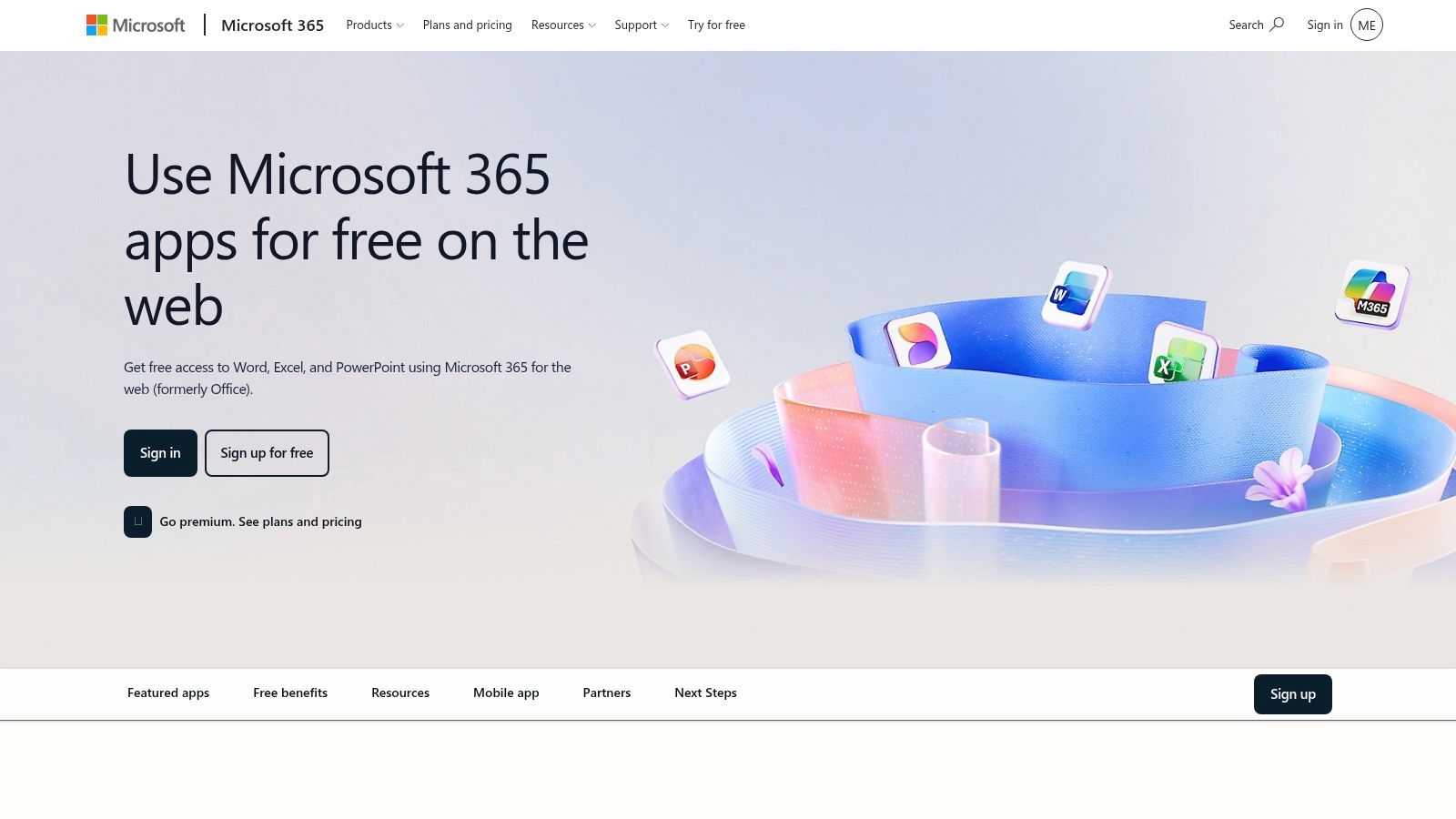
If you want the least cultural change from desktop Excel, Excel for the web is the obvious pick. The interface feels familiar, file handling is straightforward, and for many users it removes most of the “new tool” friction that comes with migration.
That matters in accounting, admin, and operations teams where people don't want a new spreadsheet philosophy. They just want to open a workbook, make edits, and share it without installing anything. It's also the easiest way to keep .xlsx as the center of your workflow while still getting browser access and coauthoring.
What Works and What Doesn't
The core experience is solid for everyday sheets, reports, schedules, and budget files. Autosave and browser access make it practical for quick edits from borrowed machines or locked-down office devices. During meetings, it's also easy to walk someone through a workbook using screen sharing in a browser-based call.
- Best use case: Teams already standardized on Excel files who want a free browser layer.
- Main trade-off: Some desktop-only capabilities, especially certain add-ins, data connections, and VBA-heavy workflows, don't fully carry over.
- Price comparison: Free to use with a Microsoft account, but the value is mostly in compatibility rather than in being a full replacement for every desktop Excel scenario.
For finance and bookkeeping learners, the biggest upside is continuity. Skills transfer cleanly, which is one reason Excel remains central in training and hiring paths such as Excel for accounting career development.
Security depends heavily on your Microsoft account setup and OneDrive sharing discipline. Encryption exists within Microsoft's cloud environment, but for regulated work you should verify storage location, access governance, and retention controls before treating the free web app as compliant by default. Webinars aren't included here either. This is spreadsheet software, not a meeting platform.
Use Excel for the web if you want “Excel, but free in the browser” more than you want a fresh alternative.
3. LibreOffice Calc
Need a spreadsheet that still works when Wi-Fi is unreliable, IT blocks cloud tools, or client data cannot sit in someone else's storage? LibreOffice Calc is usually the first free option I recommend.
Calc earns its place because it solves a different problem than browser-based spreadsheet apps. It is a full desktop spreadsheet inside the LibreOffice suite, free, open source, and available for Windows, macOS, and Linux. Teamwork's review of Excel alternatives includes it among the strongest no-cost replacements for people who want local software instead of a cloud-first workflow.
That distinction matters during migration. If you are leaving Excel because of licensing cost, vendor lock-in, or security policy, Calc is one of the few free tools that lets you keep working in a familiar desktop model. You save files locally, control where they live, and avoid making internet access part of the job.
Why Calc Makes Sense in Real Migrations
For students, freelancers, and small teams with straightforward workbooks, Calc handles the basics well. Formulas, sorting, filters, charts, pivot tables, and ordinary formatting usually come across with manageable cleanup. In offline environments, it is far more practical than a web app that assumes a browser tab is always available. LivePlan's comparison of Microsoft Excel alternatives also calls out LibreOffice as one of the clearer downloadable options for people who want local spreadsheet software across major desktop platforms.
The catch is compatibility at the edges. If your Excel files rely on VBA, niche add-ins, Power Query workflows, complex template behavior, or highly polished collaborative review cycles, test before you migrate. Calc has its own macro model, and some Excel-heavy workbooks need rewrites rather than a simple file open and save.
I trust Calc most for budgeting, operations tracking, inventory sheets, lab logs, academic work, and internal reporting that does not depend on Microsoft-specific automation.
It is a weaker fit for teams that co-edit the same file all day or pass around macro-driven models built by finance departments over many years.
LibreOffice also fits organizations that prefer local control across the stack. A small business that already evaluates self-hosted or privacy-conscious tools for meetings will often apply the same logic to documents and spreadsheets. That is the same buying mindset behind choosing video conferencing for small business with more control over deployment and data handling.
Use LibreOffice Calc if your priority is offline work, local file control, and zero subscription cost. Skip it if your spreadsheet process depends on live browser collaboration or deep Excel automation. For regulated work, the security question is less about Calc itself and more about your setup: disk encryption, device management, access controls, backup policy, and where exported files travel after they leave the spreadsheet.
4. Zoho Sheet
Zoho Sheet sits in the middle ground between Google's simplicity and a broader business software ecosystem. If you already use Zoho apps, it becomes more attractive fast. The spreadsheet itself is free to use, collaborative, and capable enough for mainstream business work without feeling stripped down.
What stands out in practice is workflow continuity. Teams using Zoho CRM, Zoho Forms, or other Zoho services can keep spreadsheet work closer to the rest of their stack instead of treating it as an isolated file.
Who Should Actually Pick It
Zoho Sheet makes sense for operations teams, sales support, small agencies, and startups that want cloud editing but don't want to build everything around Google or Microsoft. Its data cleaning tools and built-in intelligence features are useful for normal business spreadsheets, especially when imported data is messy.
- Best use case: Spreadsheet work connected to a wider Zoho-based workflow.
- Main downside: The ecosystem is smaller than Google's or Microsoft's, so add-ons and edge-case support won't be as broad.
- Price comparison: The value case is strong for users who can stay on the free product and avoid paying just to get collaborative spreadsheet basics.
Migration is generally smooth for common Excel files. The pain starts when you depend on advanced macros or highly specialized Excel behaviors. For security reviews, look beyond “encrypted” language and focus on admin settings, user permissions, export controls, and where shared files live. Zoho Sheet doesn't include webinar hosting on its own, so if the brief is “spreadsheet plus webinars,” that still requires another platform.
Use Zoho Sheet if you want a no-cost browser spreadsheet that fits into a broader business app ecosystem.
5. ONLYOFFICE Spreadsheet Editor
ONLYOFFICE is one of the more practical choices for people who care about .xlsx fidelity and don't want to live entirely in the browser. Its desktop editors are free, and it's built around compatibility in a way many alternatives only claim.
That matters when the spreadsheet isn't just numbers. It's a deliverable. Formatting, layout, workbook structure, and client-facing polish often survive the move better in ONLYOFFICE than in tools that reinterpret Excel files more aggressively.
Strong Choice for Hybrid Environments
This is a good fit for consultants, project teams, schools, and small firms that exchange Excel files with outside parties but want free software on their own side. If you pair it with compatible cloud backends, you can add collaborative editing without giving up the desktop app.
- Best use case: Users who receive and send lots of
.xlsxfiles and care about preserving appearance. - Main trade-off: Collaboration can be excellent, but the full experience may depend on hosting choices or a connected server environment.
- Value proposition: Free desktop editing is the main draw. It gives many users enough compatibility without forcing a subscription.
Security is where ONLYOFFICE can get interesting for more cautious teams. A self-hosted or controlled deployment can give organizations tighter control than consumer cloud spreadsheets. Encryption should be evaluated as part of the full stack, including storage, transit, and identity management. Webinar functionality is not part of the spreadsheet editor itself.
Use ONLYOFFICE Spreadsheet Editor if your migration priority is keeping Excel files looking like Excel files.
6. WPS Office Spreadsheets
WPS Office is the “fast and familiar” option. A lot of users try it because the interface feels comfortable right away, especially if they want something that resembles Microsoft Office and opens common file types without fuss.
In day-to-day use, WPS usually handles everyday spreadsheet tasks well. It's convenient for students, freelancers, and office users who want templates, mobile access, and a lightweight installation. For people moving from Excel, that lower learning curve is a real advantage.
Where the Convenience Has Limits
The free version works for core editing, but the upsell layer is part of the experience. That doesn't make it unusable. It just means the free offer can feel less clean than open-source alternatives.
If you hate being nudged toward premium features, WPS can get annoying even when the spreadsheet engine itself is good enough.
- Best use case: Personal productivity and general office work across desktop and mobile devices.
- Main downside: Some users raise concerns about privacy, telemetry, or the amount of premium promotion in the free tier.
- Price comparison: Free is still free, but the value equation depends on how much friction you're willing to tolerate before considering another tool.
Migration from Excel is usually straightforward for common files. Security-conscious teams should inspect account requirements, sync settings, sharing defaults, and data storage choices before adopting it at scale. Encryption may be present in connected services, but that shouldn't replace a real review of how and where files are stored. Webinars aren't included.
Use WPS Office if you want a familiar interface and broad device support without paying upfront.
7. Apple Numbers
Apple Numbers is the prettiest spreadsheet tool on this list, and sometimes that matters. If your work is presentation-heavy and you're inside the Apple ecosystem, Numbers can make spreadsheets feel less like ledgers and more like polished documents.
That strength is also its limitation. Numbers doesn't try to be a perfect Excel clone. It has its own layout logic, and users who want strict spreadsheet-grid behavior for advanced analysis may find it charming right up until the moment it gets in the way.
Best for Visual Business Files
Numbers is strong for proposals, classroom materials, personal planning, simple business reports, and documents where design matters almost as much as calculation. On a Mac or iPad, it's also pleasant to use, which shouldn't be dismissed. People stick with tools they don't mind opening.
- Best use case: Apple users building visually clean spreadsheets for light to moderate work.
- Main trade-off: Advanced Excel features, deep compatibility scenarios, and macro-driven workflows aren't its strength.
- Value proposition: Free on Apple devices gives it obvious appeal for households, teachers, and small teams already committed to Macs and iPads.
Migration is fine for common .xlsx exchange, but I wouldn't make Numbers the primary file owner for a complex Excel model shared with Windows-heavy teams. Security is tied closely to your Apple account and iCloud choices. Encryption is part of Apple's broader ecosystem story, but regulated teams still need policy-level review. No webinars are included here.
Use Apple Numbers if you prioritize ease, design, and Apple device integration over strict Excel parity.
8. Apache OpenOffice Calc
OpenOffice Calc still matters because some users don't need modern extras. They need a free, stable desktop spreadsheet that opens files, runs formulas, and stays out of the way. In one market review, Apache OpenOffice Calc was described alongside LibreOffice Calc as a major free desktop alternative, with OpenOffice called the most commonly used alternative to Microsoft Office in that review, according to IONOS's guide to free Microsoft Excel alternatives.
That doesn't make it the best default recommendation. It makes it a credible conservative choice for basic to intermediate offline work.
Why You'd Choose It Over Newer Options
OpenOffice Calc suits older hardware, simple business records, household budgeting, and users who don't care about modern cloud collaboration. It's lightweight and straightforward.
- Best use case: Basic offline spreadsheet work on systems where simplicity beats ecosystem depth.
- Main downside: Fewer modern conveniences and a slower-feeling pace of evolution than LibreOffice.
- Price comparison: Fully free, with the strongest value for users who want no-cost desktop basics and nothing more.
Security is mostly about your local environment because this is primarily an offline desktop choice. Encryption is something you'd usually manage at the file, disk, or system level rather than expecting the spreadsheet app alone to solve. Webinar capability isn't part of the package.
Use Apache OpenOffice Calc when you want an old-school free spreadsheet and don't need cloud-first collaboration.
9. SoftMaker FreeOffice PlanMaker
PlanMaker doesn't get as much attention as Google Sheets or LibreOffice Calc, but it deserves a look from people who care about speed. It opens quickly, feels responsive, and usually handles standard spreadsheet work without drama.
This is a practical desktop pick for users who want something closer to commercial office software ergonomics than some open-source tools provide. It's especially appealing if you value a familiar ribbon-style interface but don't need live coauthoring.
A Good Fit for Solo Productivity
PlanMaker is best for individual users, freelancers, office admins, and small businesses that mostly work alone in files rather than in live shared docs. It's also useful on older systems where performance matters.
- Best use case: Fast local spreadsheet editing with strong support for common Excel-style work.
- Main trade-off: No native real-time collaboration, and some higher-end features live in the paid SoftMaker product line.
- Value proposition: The free desktop license gives many solo users enough without forcing them into a browser workflow.
Migration from Excel is usually comfortable for ordinary formulas, reports, and tabular work. Security is similar to other desktop-first options. You gain more local control, but encryption and access protections still depend on how your organization stores, shares, and backs up files. There are no webinars included.
Use SoftMaker FreeOffice PlanMaker if your spreadsheet work is mostly solo and you want a quick desktop app.
10. EtherCalc
EtherCalc is what you use when setup friction is the enemy. You can open it, generate a shared sheet, and start typing. No account ceremony, no onboarding, no trying to convince five casual contributors to create logins before the meeting starts.
That makes it useful in exactly the situations where polished spreadsheet suites feel too heavy. Think temporary lists, live classroom exercises, rough meeting notes, ad hoc budget drafts, and quick operational coordination.
Fastest Path to Shared Editing
EtherCalc is browser-based, collaborative, and basic by design. That simplicity is the point. It's not competing with Excel on advanced analysis.
- Best use case: Quick shared sheets for temporary collaboration.
- Main downside: Feature depth is limited, and public instances may not be ideal for anything sensitive or long-lived.
- Value proposition: Free access and optional self-hosting give it unusual usefulness for lightweight teamwork.
For privacy-conscious teams, self-hosting is paramount. That's how EtherCalc becomes more than a throwaway tool. If you control the deployment, you control much more of the data path. Encryption then becomes a deployment question, not just an app question. Public instances are harder to recommend for confidential work. Webinar hosting is not part of EtherCalc.
Use EtherCalc when speed matters more than advanced spreadsheet capability.
Top 10 Free Excel Alternatives, Quick Comparison
| Product | Core features | Collaboration & compatibility | Best for | Unique selling point | Price |
|---|---|---|---|---|---|
| Google Sheets | Real-time editing, charts, Explore/AI, add-ons | Strong real-time coediting, broad cloud integrations, good Excel import | Teams, education, cloud-first users | Excellent live collaboration and Google ecosystem ties | Free (paid Workspace tiers) |
| Microsoft Excel for the web | Familiar Excel UI, autosave, broad functions | Real-time coauthoring; best fidelity with OneDrive | Excel power users needing browser access | Closest free browser experience to desktop Excel | Free with Microsoft account (M365 adds features) |
| LibreOffice Calc | Full-featured desktop functions, pivots, extensions | Offline-first; reads/writes Excel/ODF, limited live coediting | Analysts and offline power users | Open-source, no subscription, deep feature set | Free |
| Zoho Sheet | Cloud editing, data cleaning, Zia AI, automation | Real-time coediting, permissions, Zoho integrations | Small business & automation-focused teams | Built-in AI/cleaning and Zoho app ecosystem | Free (paid Zoho plans available) |
| ONLYOFFICE Spreadsheet Editor | Ribbon UI, strong .xlsx fidelity, pivot/charts | Real-time coediting with community/self-hosted clouds | Teams needing Excel fidelity + self-host options | Excellent Excel formatting compatibility; self‑hosting | Free desktop/community; paid cloud options |
| WPS Office – Spreadsheets | Fast UI, templates, cloud sync, PDF tools | Basic cloud sync; good format support on mobile/desktop | Users wanting lightweight cross-platform suite | Fast, familiar interface across devices | Free tier (ads/upsells); premium paid |
| Apple Numbers | Visual canvas, templates, iCloud sync | Collaboration via iCloud; best within Apple ecosystem | Mac/iPad/iPhone users who value design | Polished visual layouts and Apple integration | Free on Apple devices |
| Apache OpenOffice Calc | Core spreadsheet tools, DataPilot, extensions | File-based collaboration; supports ODF/Excel formats | Users needing a lightweight offline free app | Stable, simple open-source desktop option | Free |
| SoftMaker FreeOffice PlanMaker | 430+ functions, charts, pivot tables | Desktop-only editing; strong Excel import/export | Users wanting very fast local spreadsheets | Extremely fast lightweight desktop performance | Free (paid SoftMaker Office adds features) |
| EtherCalc | Instant shared sheets via URL; basic formulas | Zero-friction real-time editing; self-hostable for privacy | Ad-hoc collaboration, classrooms, privacy-conscious teams | Open, anonymous instant sharing; easy self-hosting | Free |
Your Best Spreadsheet Is the One That Fits Your Workflow
Free programs like Excel are no longer a backup plan for people who can't afford Microsoft 365. They're a real category with clear specialization. That's the main shift most buyers miss. You're not just choosing “the best free spreadsheet.” You're choosing a workflow model.
If your work is collaborative first, start with Google Sheets. It's the easiest answer for teams that need comments, live editing, and browser access from anywhere. If your priority is file continuity and low training friction, Excel for the web is the closest free experience to staying inside Microsoft habits. If you need local control, offline use, and broad operating system support, LibreOffice Calc is the strongest free desktop recommendation.
The rest of the field is more situational, but still useful. Zoho Sheet works best when the spreadsheet is part of a broader Zoho stack. ONLYOFFICE is strong when .xlsx fidelity matters and you want desktop software with optional collaborative infrastructure. WPS Office is convenient and familiar, but you should be comfortable with the free-tier experience and review its privacy posture carefully. Apple Numbers is excellent for polished, visual spreadsheets on Apple devices. OpenOffice Calc remains serviceable for users who want a simpler offline tool. PlanMaker is a good pick for solo desktop productivity. EtherCalc is the fastest way to get a temporary shared spreadsheet in front of a group.
Migration is where most spreadsheet moves succeed or fail. Start with a copy of your most typical workbook, not your ugliest one. Test formulas, conditional formatting, data validation, imports, exports, and any macros. Then test one workbook that represents your worst-case file. If a tool survives both, you've got a realistic candidate. If it fails on the hard file, don't rationalize it away. That limitation will come back later.
Security deserves more skepticism than feature pages usually get. “Encrypted” isn't enough by itself. Ask where files are stored, who controls access, whether links can be forwarded, how version history behaves, whether local copies remain on endpoints, and whether your team can enforce permissions consistently. For HIPAA-sensitive or similarly regulated workflows, don't assume a free spreadsheet alone solves the compliance question. Often the safer path is pairing the right spreadsheet with a controlled storage environment and a communications platform designed for regulated collaboration.
On price comparisons, the best news is simple. Every tool here has a genuine free path for at least some level of use. The value difference comes from what you avoid paying for later. Google Sheets and Excel for the web save collaboration costs. LibreOffice Calc and OpenOffice Calc reduce vendor dependence. ONLYOFFICE and PlanMaker can reduce compatibility pain without forcing a subscription. EtherCalc saves setup time. That's real value, even without a line item on an invoice.
Choose the tool that matches how you already work, then test it against the files that matter.
If your spreadsheet workflow ends in meetings, client reviews, telehealth sessions, or training events, pair it with a platform built for secure collaboration. AONMeetings gives healthcare providers, educators, and businesses HIPAA-compliant video meetings, built-in webinars, bank-level encryption, screen sharing, recordings, and straightforward pricing starting from ₹179 per user per month. For teams that want secure meetings and webinar hosting without enterprise-contract friction, it's a practical upgrade around any spreadsheet stack.
