
You’re usually not searching for how to record a webinar because recording is the hard part. You’re searching because something else is hard.
Maybe your live attendance was lighter than expected. Maybe your team needs a clean replay for training. Maybe you’re in healthcare and the usual webinar advice ignores consent, storage, and audit requirements. Or maybe you’ve already learned the expensive way that “recording included” often comes with strings attached such as storage add-ons, editing friction, or platform limits that only show up after the event ends.
A useful webinar recording has to do four jobs at once. It has to capture clear audio and video, preserve the right attendee interactions, stay easy to share, and avoid creating a compliance problem later. That mix is where most hosts get stuck.
Understanding Webinar Recording Essentials
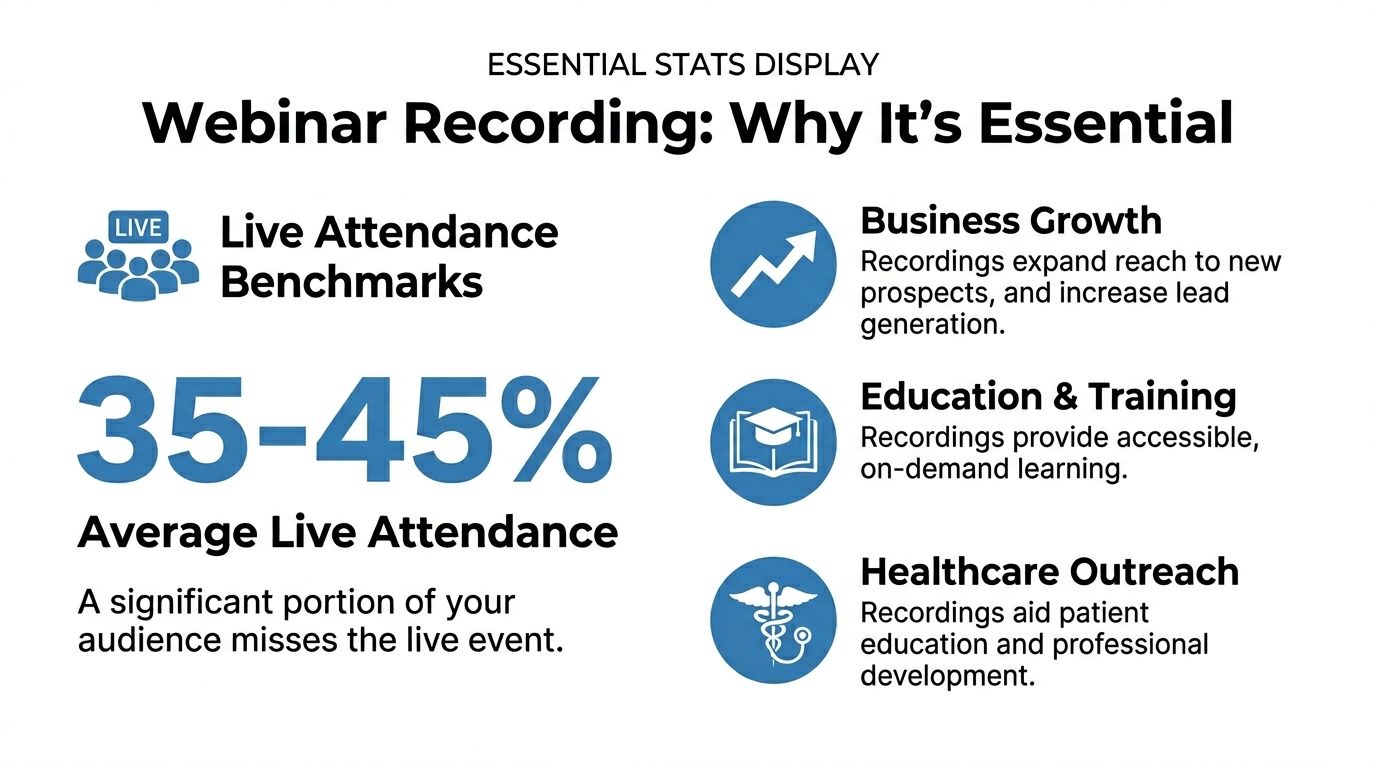
Live webinars are still valuable, but they’re only part of the audience picture. Industry data shows average attendance rates for live webinars range from 30 to 60 percent, with optimal rates of 35 to 45 percent for registrants, which is exactly why recordings matter for everyone who registered but didn’t join live, or joined late and missed the important part (EasyWebinar webinar metrics).
A recording also changes how you judge webinar performance. A live room tells you one story. The replay tells you another. If you only look at registrations and live attendees, you miss the value of people who consume the content later.
What to measure in a recording
The most useful webinar reports don’t stop at “how many showed up.” They help you inspect:
- Join and leave times so you can see where interest drops
- Total session duration to judge whether the pace worked
- Q&A and feedback activity to identify the moments that triggered response
- Registrant versus attendee behavior so replay performance doesn’t get mixed into live performance
That matters in practice. A training webinar with a strong registration count but short viewing sessions often has a pacing problem. A patient education webinar with modest live turnout but strong replay viewing may still be highly successful.
Why the replay often becomes the real asset
For education, healthcare, and B2B teams, the replay often outlasts the event itself. Sales teams reuse demos. instructors reuse lecture content. Clinics reuse educational sessions for patient onboarding and staff training.
Practical rule: Treat the webinar recording as a publishable asset, not as a leftover file.
That changes your decisions before you ever go live. You choose a cleaner microphone, simplify slides, leave room for a structured Q&A, and think about how the recording will be searched and shared later.
If you also create lecture-style sessions, this roundup of best recording lectures app options is useful because many of the same choices apply: local capture versus built-in recording, file handling, and ease of review after the session ends.
What works and what doesn’t
What works is simple. Use a platform that records natively, keeps the file in a widely usable format, and gives you enough analytics to improve the next session.
What doesn’t work is treating recording as a side task. Hosts who rely on a random screen recorder, a laptop mic, and no post-event workflow usually end up with a file that exists but isn’t usable.
Preparing Environment and Gathering Consent
Most webinar recording problems start before anyone clicks “Record.” They start with desktop notifications, bad mic placement, untested system audio, and vague participant consent.
Expert reports note that skipping a dry run leads to 60 percent of technical failures, and the recommendation is at least a 15-minute rehearsal with system-audio tests (RecordCast webinar recording guide). That’s not a theoretical best practice. It’s the difference between catching an echo in advance and discovering it after you’ve already sent the replay.
Get the room right first
A clean environment beats a fancy one.
Use this short pre-flight checklist:
- Silence distractions: Turn off desktop notifications, messaging popups, calendar alerts, and phone sounds.
- Control the background: A plain office wall, bookcase, or branded backdrop is easier to watch than a cluttered room.
- Place your light well: Put your main light in front of you and slightly off-center rather than behind you.
- Use an external microphone: USB microphones are easier to manage than built-in laptop mics for webinar work.
- Load presentation files early: Don’t hunt for decks after the room opens.
If your rehearsal reveals echo, fix that before you do anything else. This guide on how to stop echo on mic is worth keeping open during setup because echo is one of the most common issues in browser-based and hybrid-room webinars.
A practical consent workflow
Consent language should match the session type. Internal staff training needs one approach. A healthcare webinar involving patient questions needs a stricter one.
A simple starting point for a healthcare-oriented webinar registration page is:
By registering and attending, you acknowledge that this session will be recorded for authorized educational and operational use. Do not share personal health information in chat or Q&A unless expressly invited in a secure clinical context. Access to the recording will be limited according to organizational policy.
Then repeat it at the start of the webinar verbally. If attendees may appear on camera or speak live, make that explicit.
Rehearsal that actually helps
A good rehearsal isn’t just “does the software open.” It should include:
- Audio pass with host mic, guest mic, and any system audio
- Screen-share pass with slides, browser tabs, and video clips
- Recording pass where you stop, save, and replay a short segment
- Permission pass where the moderator checks waiting room language, recording notices, and host controls
A webinar host can recover from a brief visual glitch. Recovering from muddy audio is much harder.
One more trade-off is worth mentioning. The more apps you keep open, the more risk you introduce. Browser tabs, chat tools, design apps, and email clients all compete for attention and system resources. For recording day, less is better.
Comparing Cloud Recording and Local Recording
Cloud recording and local recording solve different problems. The mistake is assuming one is always better.
Cloud recording is easier for teams. It centralizes storage, simplifies sharing, and usually ties the recording to webinar analytics and transcripts. Local recording gives you tighter control over the raw file and can be useful when you want immediate manual editing or a backup independent of the platform.
Where each method fits
| Recording method | Best fit | Main advantage | Main trade-off |
|---|---|---|---|
| Cloud recording | Teams, recurring webinars, compliance-heavy use | Easier sharing and centralized management | Depends on platform storage and permissions |
| Local recording | Solo hosts, editors, backup workflows | Direct access to the source file | File handling is now your job |
| Dual recording | Important webinars, regulated use, client-facing events | Redundancy if one copy fails | Slightly more setup and storage discipline |
Recording options and pricing comparison
The author brief asks for price comparisons, but the verified data only provides one specific price. So the honest comparison looks like this:
| Platform | Price per User | Recording Type | Encryption |
|---|---|---|---|
| AONMeetings | ₹179/user/month | Cloud recording with built-in webinar recording and searchable archives | Built-in encryption and audit logs |
| Zoom | Qualitatively varies by plan | Local and cloud options depending on plan and setup | Encryption features vary by configuration |
| Microsoft Teams | Qualitatively varies by plan | Cloud-first workflow with admin-managed storage | Encryption and compliance depend on tenant setup |
That’s less flashy than a made-up savings table, but it reflects real buying decisions. If you’re comparing tools, the cost question isn’t just monthly price. It’s whether webinar hosting, recording, storage, searchable transcripts, and security controls are included or split across upgrades.
Hidden trade-offs hosts feel later
Cloud recording is usually the right default for healthcare, education, and internal training because it keeps the archive easier to govern. Local recording is useful when your editor needs immediate access to an MP4 or when you want an independent backup copy.
What doesn’t work well is picking a platform only on meeting price, then discovering that webinar features, storage, compliance controls, or archive management live behind separate tiers. That’s where “cheap” often stops being cheap.
Configuring Advanced Recording Settings
Once the room is prepared, the next step is to configure the recording so the file is worth sharing. When configuring the recording, many hosts under-spec the output, leave backups off, or ignore features that make the replay easier to use.
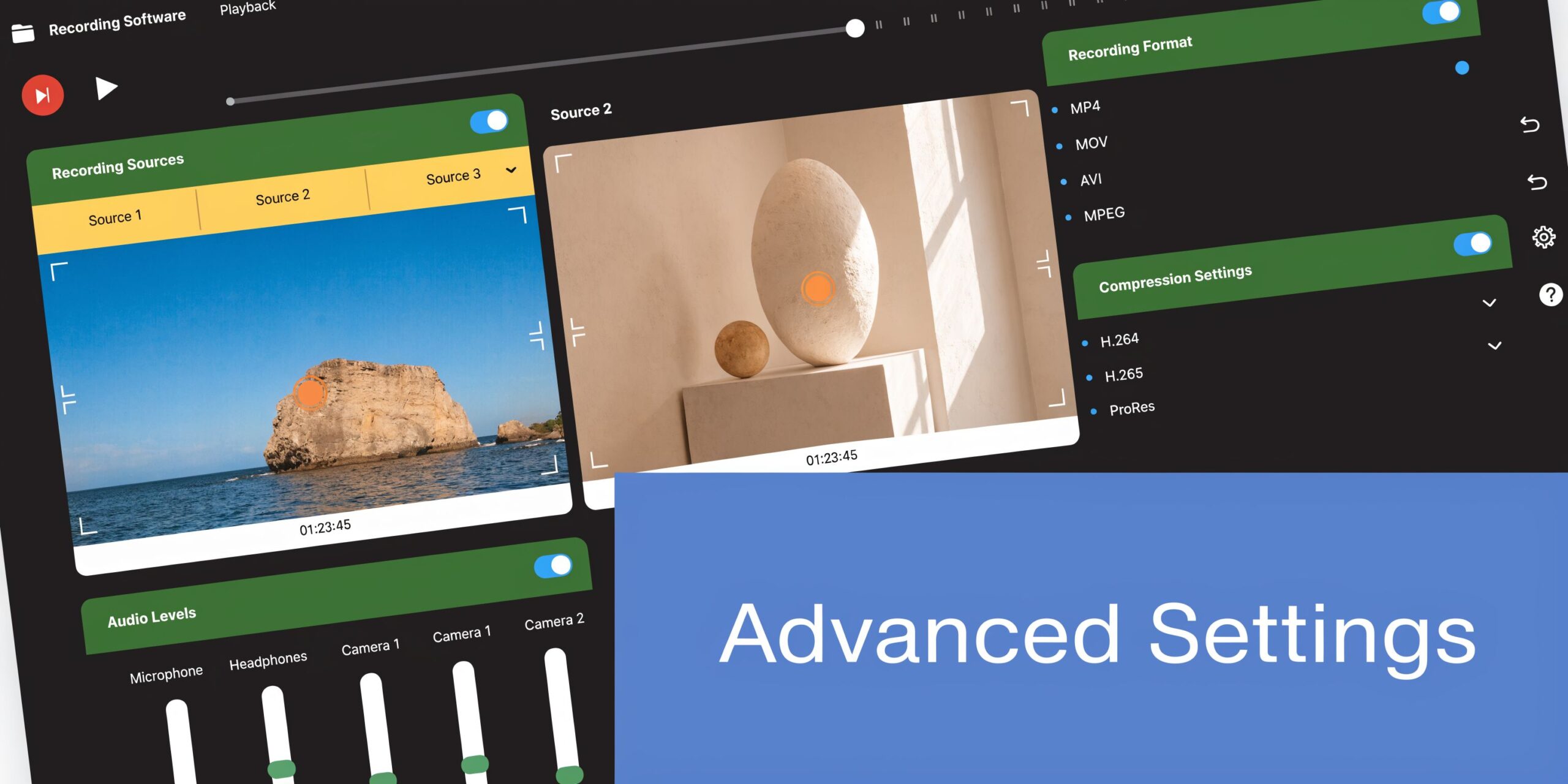
Benchmark specs for high-engagement recordings are 1920×1080 at 30 fps, H.264 video, and AAC audio at 128 kbps (LiveWebinar webinar mistakes guide). Those settings are practical because they balance quality with compatibility across browsers, embeds, and downloads.
The settings that matter most
If you want a recording people will watch, prioritize these:
- Resolution: Full HD is the safe baseline for slides, demos, and talking-head layouts.
- Frame rate: 30 fps is enough for most webinar motion without bloating the file.
- Codec choice: H.264 video and AAC audio travel well across platforms.
- Backup strategy: Use both local and cloud capture when the webinar matters.
- Recording layout: Decide whether you want speaker view, content-first view, or a mixed layout before the session starts.
A practical setup sequence
A reliable sequence looks like this:
- Turn on recording before attendees join.
- Confirm the storage location and naming pattern.
- Set the output to HD.
- Enable transcript or searchable archive features if your platform supports them.
- If you’re sharing slides or software, run a short sample and replay it.
- Keep a second audio path ready, usually a USB microphone or wired headset.
For platform-specific screen-sharing prep, this walkthrough on how to share your screen helps avoid one of the most common failures in recorded webinars: the host thinks they captured the presentation, but the final file only contains speaker video.
Multi-camera, transcripts, and searchable replays
Advanced settings are worth using when they solve a viewing problem.
Multi-camera helps when one angle shows the presenter and another shows a whiteboard, product demo, or physical teaching setup. Searchable transcripts help when viewers need to jump to specific segments such as “billing questions,” “treatment overview,” or “pricing discussion.”
If you’re evaluating dedicated capture tools in addition to built-in webinar recording, this guide to best screen recording software is a practical companion. It’s especially relevant if your workflow includes post-production outside the webinar platform.
“If a replay needs manual explanation before you send it, the recording settings were probably wrong.”
One platform mention that fits this use case
In this category, AONMeetings is one option for teams that need built-in webinar recording, searchable recordings, smart summaries, editing for dead air, webinar hosting included in the plan, and encrypted storage under a browser-based workflow. That’s most relevant when the buyer is trying to avoid stitching together one tool for meetings, another for webinars, and another for compliant storage.
What hosts usually overlook
The overlooked setting isn’t bitrate or codec. It’s file usability.
A technically perfect file still fails if viewers can’t search it, moderators can’t control who accesses it, or staff can’t quickly pull the segment where a key answer happened. The best recording setup is the one that keeps the replay useful after the event, not just watchable during a spot check.
Troubleshooting Recording Problems
Problems during webinar recording usually fall into three buckets: audio failure, unstable video, or missing output. The fastest fix comes from knowing which bucket you’re in.

Studies show multi-camera recordings boost engagement by 40 percent, while poorly configured setups without fallback mics incur a 50 percent glitch rate and lead to 25 percent lower retention (YouTube webinar setup reference). That sounds like an argument against advanced setups, but it’s really an argument for disciplined setup.
If audio drops out
When audio disappears mid-webinar, don’t start with software menus. Start with the signal chain.
Check, in order:
- Microphone connection: Re-seat the USB cable or switch from Bluetooth to wired.
- Input device selection: Confirm the webinar platform didn’t auto-switch to the laptop mic.
- Mute state: Check both hardware mute buttons and software mute icons.
- Backup source: Move to a secondary headset or microphone immediately if the primary one fails.
A common real-world problem is the Bluetooth microphone that works for ten minutes, then starts clipping or disconnecting. Wired USB gear is less elegant, but it’s more predictable for recording.
If video lags or stutters
Lag usually comes from system load, browser load, or network instability.
Try this sequence:
- Stop nonessential apps and browser tabs.
- Reduce visual load such as unnecessary virtual backgrounds.
- Turn off extra cameras if they aren’t important to the webinar.
- If the platform allows it, continue the session while preserving the cloud recording rather than restarting the room.
If the recording is incomplete or missing
This is usually a workflow issue. The host forgot to start recording, assumed auto-record was on, or saved only locally and couldn’t find the file after the event.
Field note: The fastest troubleshooting habit is assigning one person to watch the recording indicator, not just the chat.
That moderator role is often underestimated. Hosts focus on content. Moderators catch whether the session is being captured, whether a guest’s audio is weak, and whether viewers are reporting trouble in chat.
Keep your recovery steps short
Long troubleshooting scripts fail in live settings. Use short menu-path habits, a fallback microphone, and a backup recording path. The smoother your recovery routine, the less likely the audience is to notice the problem.
Editing Sharing and Compliance Best Practices
A raw webinar file is rarely the final asset. It usually needs trimming, labeling, access controls, and a sharing workflow that matches the audience.
Edit for usefulness, not perfection
The best edits are usually small.
Cut the first minute of host chatter. Remove the dead time after “Can everyone hear me?” Add a clean title slide if needed. Insert chapter markers or timestamps around the questions people are most likely to revisit.
Useful post-production often includes:
- Trimmed start and end: Remove setup noise and awkward exits.
- Q&A markers: Make policy, pricing, or treatment questions easy to revisit.
- Branded intro and outro slides: Helpful for public-facing webinars and training archives.
- Transcript cleanup: Correct names, product terms, and clinical terminology.
Sharing options have different risks
A public upload works for marketing webinars. It’s the wrong move for internal staff education or healthcare sessions.
Use this decision lens:
| Sharing route | Best use | Main caution |
|---|---|---|
| Public video platform | Marketing, awareness, broad education | Review all spoken and on-screen content before publishing |
| Embedded private page | Lead generation, customer education | Control who can access the page |
| Secure internal portal | Staff training, regulated content | Align access and retention with policy |
| Direct file download | Editor handoff, client delivery | Harder to govern once the file leaves the platform |
Compliance changes the editing workflow
If your webinar touches healthcare, regulated internal operations, or any participant data, editing isn’t just cosmetic. You need to think about whether the recording contains names, faces, chat messages, or screen shares that shouldn’t travel freely.
That’s why access controls, audit logs, and storage controls matter. Generic video workflows often assume the file can be moved anywhere. Regulated workflows can’t make that assumption.
For a stronger overview of the security side, this guide to HIPAA compliant video conferencing platforms is useful because the platform choice affects the recording workflow long after the webinar ends.
Keep the replay in the same governed environment whenever possible. The more times you download, re-upload, and move it, the more compliance work you create.
Price comparisons without fiction
The brief asks for price comparisons, but only one exact platform price is verified in the source material, so the practical takeaway is simple. Editing costs can rise quickly when the webinar platform doesn’t include basic trimming, searchable archives, or integrated sharing. In those cases, teams end up adding separate editing software, separate storage, and extra admin effort.
That’s the hidden cost trade-off most buyers miss. A cheaper meeting tool can create a more expensive recording workflow if you need regulated storage, secure sharing, and reliable archive management.
Encryption is not an extra detail
For healthcare-grade use, encryption isn’t a line item you glance at after purchase. It’s part of the recording design.
If your process requires attendee consent, restricted access, auditable sharing, and secure storage, then the editing and publishing workflow needs to preserve those protections. A polished replay is only useful if the right people can access it and the wrong people can’t.
Conclusion and Next Steps
To record a webinar well, focus on four decisions.
First, prepare the environment. Clean audio, muted notifications, proper lighting, and a real rehearsal prevent most avoidable mistakes. Second, choose the right recording method. Cloud, local, or both should match your sharing and governance needs. Third, configure the output properly so the file is usable after the event. Fourth, edit and distribute the replay in a way that fits the audience and the compliance context.
The healthcare angle changes the decision more than most webinar guides admit. Existing guides rarely address HIPAA compliance, leaving providers exposed, while AONMeetings addresses that gap with built-in encryption and audit logs at ₹179 per user per month (reference noted here). That matters because webinar recording isn’t just a content task for clinics and telemedicine teams. It’s also a storage, access, and accountability task.
For buyers comparing options, the value proposition is straightforward. You need to know whether webinar hosting is included, whether recordings are included, whether encryption is included, and whether the archive is searchable and manageable without extra tools. Hidden costs usually show up in those exact places.
A practical next step is to run one internal test webinar before your next public or patient-facing event. Check the consent language, record a short segment, replay it on another device, confirm the access settings, and make sure someone other than the host can find the final file without confusion.
That small test will tell you more than any feature checklist.
If you need webinar hosting, recordings, included webinar functionality, encrypted storage, and a straightforward starting price, take a look at AONMeetings. Run a test session, review the replay workflow, and confirm whether the compliance and cost trade-offs fit your team before your next live event.
