
The call has started. Your slides are ready. Someone says, “Go ahead and share,” and the button either does nothing, throws an error, or shows everyone a black rectangle.
That failure feels random, but it usually isn't. In support work, the fastest way to solve screen sharing not working is to stop treating it like one mystery and start treating it like a stack problem. The operating system may block capture. The browser may hold an old permission state. The meeting app may need a restart before it can see the new setting. Sometimes the share works, but the wrong monitor, wrong window, or wrong display scaling makes it look broken.
Time is often lost by jumping to the hardest fixes first. A better approach is simple. Clear the obvious stuff in under a minute, then check permissions in the right order, then test network and hardware behavior, then confirm the meeting platform itself isn't restricting what you can do.
That "I Can't Share My Screen" Moment
The most common version of this problem looks like user error, but often isn't. You click Share Screen, approve the prompt, and still get nowhere. Or you enabled access earlier, so you assume permissions can't be the issue. That assumption is where a lot of troubleshooting goes off track.

The failure users don't expect
A screen-sharing failure often comes from stale or mismatched permission state. One support guide highlights that the actual issue is often not missing permission, but permission states that don't match across the OS, browser, and app layers, especially on managed devices where policy settings can override what the user thinks they allowed, as noted in Whereby's screen sharing troubleshooting guidance.
That matters because the symptom is misleading. Users say, “I already allowed it.” They probably did. The browser may still need a full quit and relaunch. The app may still be reading the old state. The site permission may say allowed while the OS-level screen recording control is still denied.
Practical rule: If screen sharing fails every time, assume a permission mismatch before you assume the meeting platform is broken.
What this looks like in real meetings
A presenter on macOS allows screen recording for Chrome but only closes the browser window instead of quitting Chrome fully. The next meeting starts, and screen sharing still fails. Another user grants the browser permission but forgets that the meeting desktop app needs its own access. A third shares the wrong monitor and thinks the platform froze because attendees only see an empty desktop.
Those are frustrating problems, but they're fixable without guesswork if you work through them in order.
Start With the Quickest Fixes First
If screen sharing isn't working, start with the checks that take less than a minute. These don't solve every case, but they eliminate the easiest failures before you open system settings.
Do the restart that people skip
Fully close the browser or meeting app, then open it again. Not minimize. Not just close a tab. Quit it.
Temporary state gets stuck. This is why a clean restart helps these specific cases recover: a browser that lost permission, a tab that cached the wrong share state, or a call that started before the app was ready.
Narrow the fault fast
Try one of these quick isolation moves:
- Switch browsers: If Chrome fails and Firefox works, the issue is probably local to Chrome, not your meeting account.
- Start the meeting first: Some setups behave better when the call is fully established before you share.
- Use a second device: If your laptop fails but another computer can share in the same meeting, the problem is on the original device.
If your machine has broader issues beyond screen sharing, such as suspicious slowdowns, blocked browser behavior, or odd pop-ups, basic tips for computer virus cleanup can help rule out interference before you spend time on meeting settings.
Check what you're actually sharing
On dual-monitor setups, people often pick the wrong desktop. That creates a classic “black screen” complaint when the audience is seeing an idle monitor.
Use a simple test:
- Open a bright, obvious window like a webpage or slide deck.
- Share one screen at a time.
- Ask the other person which one they can see.
A surprising number of “screen sharing not working” tickets end right there.
If attendees can see something, the share path is alive. Then you're troubleshooting selection or layout, not total failure.
For a plain walkthrough of the share flow itself, AONMeetings has a guide on how to share your screen that's useful when the specific issue is choosing the correct window, tab, or display.
Untangling System and Browser Permissions
When the quick fixes don't resolve it, permissions move to the top of the list. This is the highest-yield part of the process for repeat failures.
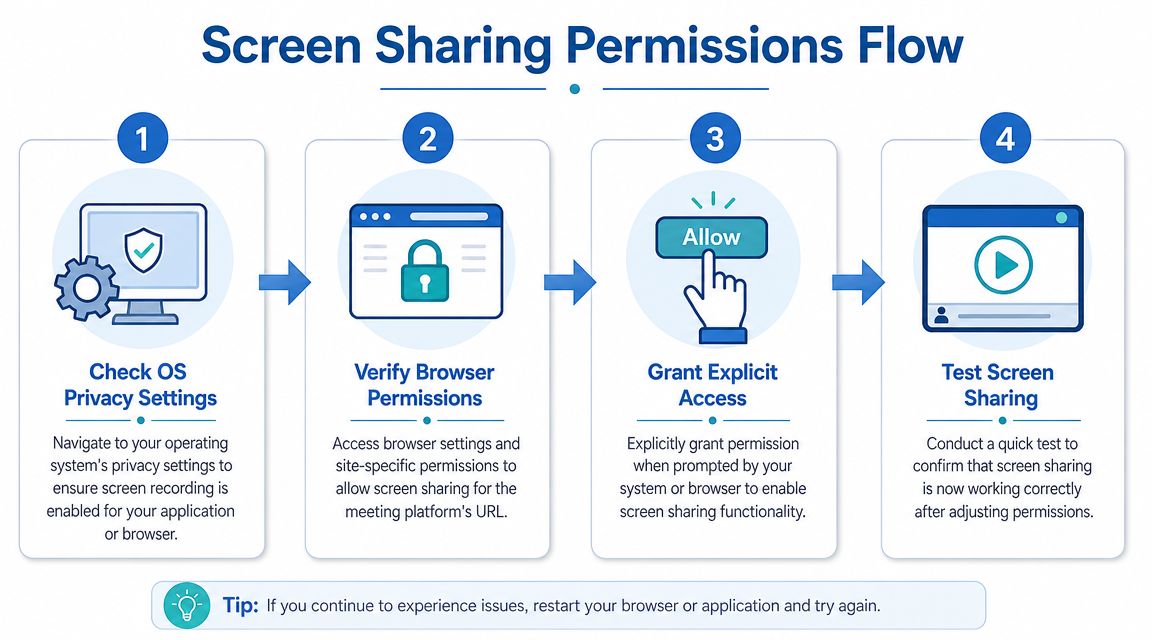
A Microsoft support discussion on repeated share failures notes that a solid workflow starts with permission checks at both the OS and browser or app layers. On macOS, apps must be explicitly allowed under Privacy & Security → Screen Recording, and after changes, the browser must be restarted before retesting. That's why permission fixes are one of the highest-yield steps for “fails every time” cases in Microsoft's troubleshooting guidance.
On macOS
macOS is strict about screen capture. Even if your meeting platform is web-based, the browser still needs OS-level permission to record the screen.
Check this path:
- Open System Settings
- Go to Privacy & Security
- Open Screen Recording
- Make sure your browser or meeting app is enabled
Then do the step people miss. Fully quit the browser and reopen it.
If you only close the meeting tab, macOS may not hand the new entitlement to the browser process. That's why users swear they already fixed the setting but the share still fails.
Common Mac mistakes
- Allowing the wrong app: You enabled Safari, but you're meeting in Chrome.
- Changing the setting mid-call: The browser won't always pick it up live.
- Forgetting separate app paths: Desktop apps and browsers can need separate approval.
On Windows
Windows failures are usually less dramatic than on macOS, but browser and app privacy settings still matter. If sharing fails, check that the browser or app isn't blocked by privacy settings and then restart it before retesting.
In managed business environments, local settings may look correct while device policy still prevents screen capture. When that happens, the user often sees generic failure messages with no clear explanation. That's when IT needs to confirm whether endpoint controls or browser policies are overriding user choices.
Browser-level permissions matter too
After the OS check, inspect the browser itself.
- Chrome and Edge: Click the lock icon in the address bar and review site permissions.
- Firefox: Confirm the site isn't blocked from using needed permissions, then refresh or restart if required.
- Desktop apps: If the platform offers both app and browser versions, test both once. That quickly tells you whether the block is browser-specific.
Stale permission state often manifests as follows: The site says allowed. The OS says denied. Or the OS says allowed, but the browser session still behaves like it's blocked because it hasn't restarted.
Treat permissions like a chain. If one link is denied or outdated, the whole share fails.
A practical sequence that works
Don't bounce between settings randomly. Use this order:
| Step | What to verify | Why it comes first |
|---|---|---|
| 1 | OS screen recording permission | The browser can't bypass this |
| 2 | Browser site permission | The site may still be blocked |
| 3 | Full app or browser quit | New permissions may not apply until restart |
| 4 | Fresh meeting test | Confirms whether the state actually changed |
That sequence is faster than trying ten fixes at once, and it avoids the most common trap: changing the right setting but never giving the app a chance to reload it.
Investigating Network and Hardware Conflicts
If permissions are correct and the share button still leads to lag, a black screen, or repeated failure, the problem may sit lower in the stack. Network uplink quality and browser rendering behavior are common hidden causes.

Vendor troubleshooting guidance consistently points to hardware acceleration and network quality as frequent failure modes. Common recommendations include testing bandwidth, switching to wired Ethernet, and disabling browser hardware acceleration. If a browser reports that hardware acceleration is unavailable, screen sharing may fail altogether, according to Zight's troubleshooting overview.
Test the network like a support lead
A weak download connection can still look fine in a meeting. Screen sharing depends heavily on upload stability. That's why a user can hear everyone, see everyone, and still fail when they try to present.
Use practical isolation steps:
- Switch to wired Ethernet: This removes Wi-Fi instability from the equation.
- Try a different network: A phone hotspot or alternate office network can reveal whether the issue is local network behavior.
- Join from another device on the same network: If both fail, look at the network first.
If you're also thinking about privacy on public or shared networks, this explainer on securing your internet connection gives useful background. Just remember that adding network layers can also change latency, so test initially before adding complexity.
Disable hardware acceleration for one test
Hardware acceleration is supposed to help video and graphics. Sometimes it does the opposite, especially with browser-based screen sharing and certain graphics driver combinations.
If sharing fails, try one controlled test with hardware acceleration turned off in the browser, then restart the browser and rejoin the meeting. If the black screen disappears, you've narrowed the cause to GPU rendering behavior rather than permissions.
A related clue is audio trouble showing up alongside share trouble. When users report lag, echo, or unstable media behavior together, it often points to a broader device or browser performance issue. AONMeetings has a separate guide on how to stop echo on mic that can help if the call itself is unstable beyond the share feature.
Not every failure is a transport failure
Sometimes the screen share is technically working, but what viewers receive is cropped, cut off, or distorted. That's a display scaling and presentation problem, not a connection problem.
Apple's display guidance separates overscan and underscan issues from connection issues and notes that content may not fit properly on a TV or projector until users adjust underscan, picture settings, or display resolution in Apple's display fit troubleshooting.
That distinction matters in conference rooms. A laptop can share perfectly to the meeting while the room display shows a cut-off image because the projector or TV is scaling incorrectly. Users describe both situations the same way: “screen sharing isn't working.” The fix is completely different.
Checking In-App Settings and Host Controls
By this point, you've checked the device, browser, and network. The remaining culprit may be the meeting platform itself, or more specifically, the meeting settings inside it.
Confirm the host didn't block sharing
Many platforms let hosts restrict screen sharing to moderators or presenters. When that setting is on, participants may click Share and get no usable result, or they may not see the share option at all.
Ask the host two direct questions:
- Can participants share screens in this meeting?
- Did the host change sharing permissions after the meeting started?
That sounds basic, but it's a common failure in classes, telehealth sessions, and webinars where moderators lock down controls on purpose.
Security controls create a real trade-off
A security analysis of screen sharing notes that desktop sharing can expose everything from confidential documents to private exchanges. That risk is why organizations use selective document sharing, virtual desktops, and DLP controls. The same analysis also points out a trade-off: real-time data-loss checks can introduce “massive video lag,” which means the controls designed to reduce data exposure can also degrade meeting performance in EYESON's analysis of screen-sharing data risk.
That trade-off is real in enterprise environments. If your share works at home but struggles on a corporate laptop, endpoint controls may be inspecting screen content or restricting what can be captured. In that case, the meeting app isn't necessarily failing. It may be colliding with security policy.
Compare what actually matters
If your team keeps running into host restrictions, hidden feature gates, or confusing plan limits, compare meeting tools based on workflow, not branding. Pricing and included features matter most when screen sharing is tied to training, demos, and webinars.
One option in this space is AONMeetings, which the publisher states starts at ₹179 per user per month, includes unlimited meeting time, built-in webinars, and bank-level encryption, along with screen sharing, whiteboards, document sharing, and recordings.
| Feature | AONMeetings | Zoom (Pro Plan) | Microsoft Teams (Essentials) |
|---|---|---|---|
| Starting price | ₹179 per user per month | Not specified here | Not specified here |
| Unlimited meeting time | Included | Not specified here | Not specified here |
| Webinar hosting | Included in all plans | Not specified here | Not specified here |
| Encryption | Bank-level encryption | Not specified here | Not specified here |
| Screen sharing | Included | Not specified here | Not specified here |
| Whiteboards and document sharing | Included | Not specified here | Not specified here |
| Contracts or hidden fees | Publisher states no contracts and no hidden fees | Not specified here | Not specified here |
If you compare tools internally, include the settings that affect day-to-day support load: host-only sharing defaults, browser compatibility, whether webinars are included, and whether security controls are transparent or buried.
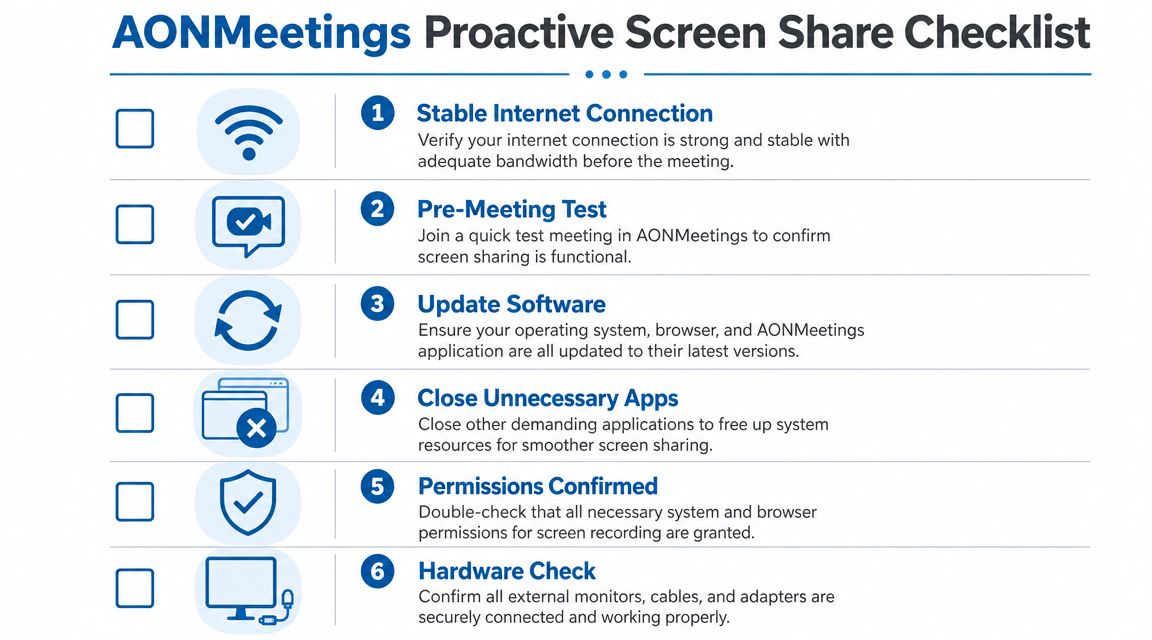
Your Proactive AONMeetings Screen Share Checklist
Reliable screen sharing starts before the meeting. Most failures are preventable if the presenter checks the right things in advance instead of improvising once everyone has joined.
Pre-meeting habits that prevent panic
Use a short preflight routine:
- Confirm permissions early: Check screen recording permissions before the day of the demo or class.
- Use the browser you already tested: Don't switch browsers five minutes before go time.
- Run a brief test share: Open the deck, share it, and verify another person can see the right screen.
- Confirm host permissions: If you're not hosting, ask whether participant sharing is enabled.
- Use wired internet for important sessions: Especially for live training or client-facing presentations.
- Check external displays and adapters: Docking stations and display adapters introduce their own quirks.
A simple rehearsal catches most presentation-day problems before they become public.
Separate meeting prep from content prep
People spend time polishing slides and forget to test the environment that delivers them. Those are different tasks. A perfect presentation file doesn't help if the browser still holds stale permission state or the room display is cropping the output.
For teams running frequent online sessions, it helps to standardize the routine and document it. A practical reference point is this guide to virtual meeting best practices, especially if you're trying to make prep consistent across hosts, trainers, and support staff.
The calmest presenters aren't lucky. They test the exact device, browser, and network they'll use before the meeting starts.
The broader backdrop also matters. Screen-heavy work has intensified over time. In the United States, average daily screen time increased from 6 hours 52 minutes in 2014 to 7 hours 18 minutes in 2020, and an AOA/Deloitte estimate said more than 104 million working-age Americans spend over 7 hours per day on screens, with $151 billion in annual costs tied to health, productivity, and wellbeing impacts. The same report estimated 31.8 million people exposed to excessive screen time had not seen an optometry professional in the prior 12 months, according to the AOA Cost of Unmanaged Screen Time report. In practical terms, tired eyes and long screen days make fine troubleshooting harder, not easier.
If you're trying to reduce screen-sharing friction across meetings, classes, telehealth sessions, or webinars, AONMeetings is one platform to evaluate. It offers browser-based meetings, screen sharing, built-in webinars, and bank-level encryption, with pricing stated by the publisher from ₹179 per user per month.
