

Your call freezes right when you need a clean answer. The other person says, “You’re breaking up,” your screen share stalls, and suddenly a routine meeting feels risky. If you run telehealth visits, client demos, online classes, or internal reviews, an internet connection not stable problem isn’t a minor annoyance. It changes how professional you sound and how much trust the other side has in the call.
The frustrating part is that unstable internet often has nothing to do with effort. People can pay for decent service and still deal with jitter, packet loss, random drops, weak Wi‑Fi in one room, or congestion at the exact hour they need to be online. That’s one reason this problem is so widespread. The ITU’s Facts and Figures 2025 notes that 5G now covers 55% of the world’s population, but access is sharply uneven, with 84% access in high-income countries versus 4% in low-income countries. The same ITU summary also highlights that reliability gaps remain uneven within and across regions, which is why connection quality can vary dramatically from one area to another, not just one country to another (ITU Facts and Figures 2025).
Even inside developed markets, people in remote or underserved areas feel the problem first. In office parks, apartment towers, older buildings, and edge-of-town neighborhoods, the issue is often consistency, not mere access. If you want a useful benchmark for what professionally managed connectivity often includes, it helps to look at services that guarantee stable internet in environments where calls and support work can't afford avoidable drops.
A stable call is still achievable on an ordinary budget. You don’t need a perfect network. You need a method. Start by tightening your meeting habits, such as basic virtual meeting best practices, then work through your setup in the right order. That usually means checking whether the problem is Wi‑Fi or the wider connection, reducing interference, and choosing more reliable call conditions before the meeting starts.
Your Video Call Is Freezing But It Does Not Have To Be
A doctor joins a follow-up consult from a clinic room. A tutor is halfway through a lesson. A founder is sharing numbers with a prospect. Then the audio starts clipping, the image stalls, and everyone loses rhythm at once.
That’s the part many guides miss. A weak call doesn’t just interrupt speech. It breaks confidence. People repeat themselves, talk over each other, and skip details because they don’t trust the line.
What unstable internet usually looks like in real life
Most non-technical users describe the issue as “the internet cuts in and out.” In support terms, that can mean several different things:
- Audio drops first: You can still see the other person, but words break apart. That often points to packet loss or short bursts of interference.
- Video freezes but recovers: The meeting continues, but faces lock up for a few seconds. That often means the connection is hanging on, not healthy.
- Everything disconnects at once: The app reconnects, or the browser says network changed. That usually means a broader router, modem, or ISP issue.
- Only one room or one device has trouble: That often means the problem is local. Weak Wi‑Fi, bad placement, or one device behaving badly.
Unstable calls are usually fixable once you stop treating them as one problem and start isolating where the failure begins.
What works better than guessing
When people are under pressure, they try random fixes. They move rooms, restart the laptop, switch apps, toggle Wi‑Fi, and hope one of those changes sticks. That wastes time because it mixes network issues, device issues, and meeting-app issues together.
A better approach is simple:
- Check whether the problem affects one device or all devices
- Test wired versus Wi‑Fi
- Restart the network chain in the right order
- Watch the connection over a few minutes, not one speed test
- Tune the router and the device before the next important call
That’s the sequence support teams use because it narrows the fault fast. If your internet connection not stable problem only appears on Wi‑Fi, the fix is very different from a problem that appears on Ethernet too.
Diagnosing Your Unstable Connection in the First Five Minutes
When a client, patient, or hiring manager is waiting on a video call, five minutes is enough to tell whether the problem is inside your home network or outside it. The goal is not to prove every possible cause. The goal is to get to a stable call fast, with enough evidence to make the next fix obvious.
Run one controlled test
Use the same laptop, the same room, and the same meeting platform for each check. Open a short test call, preferably the one you plan to use. If you rely on AONMeetings for business or telehealth, test there instead of assuming a generic speed test reflects real call performance.
Start on your normal connection. Then, if you can, plug the laptop into the router or modem with Ethernet and repeat the same test.
That comparison gives you a clean answer quickly.
If the call is stable on Ethernet but unstable on Wi‑Fi, the issue is usually inside the home. Signal strength, interference, band switching, or router placement are common causes. If both connections struggle in the same way, look harder at the modem, the ISP connection, or a wider outage.
For live video, consistency matters more than peak download speed. A connection can post a respectable speed test result and still fail during a telehealth appointment because latency jumps or packets drop for a few seconds at a time.
Restart the network chain properly
A rushed reboot often wastes time. Unplugging one box for ten seconds may not clear a stuck modem session or a bad router state.
Use this order instead:
- Unplug the modem
- Unplug the router
- Wait 60 seconds
- Plug the modem back in first
- Wait until its status lights are stable
- Plug the router back in
- Reconnect your device and test again
This sequence separates the ISP-facing connection from the Wi‑Fi layer. In support work, that matters because a router can come back online before the modem has fully re-established service, which creates a fresh round of false symptoms.
Check stability, not just speed
A single speed test is a snapshot. Video calls fail because of brief interruptions that snapshots miss.
Open Command Prompt on Windows or Terminal on Mac and run a ping test for a few minutes during a practice call or while other people in the home are using the network. You are looking for three things:
- Latency spikes: response times jump sharply for a moment
- Packet loss: some replies time out
- Patterns: problems appear only when someone streams, uploads files, or walks to a weak Wi‑Fi area
If websites load but your meeting audio breaks up, this test is often more useful than another speed test. Web browsing can hide short connection failures. Video conferencing exposes them immediately.
Write down what changed
Keep a simple record while you test. It saves time if the issue returns ten minutes before a board meeting or if you need to call your provider later.
| Time | Connection type | What happened | Result |
|---|---|---|---|
| 9:10 AM | Wi‑Fi | Video froze during test call | Unstable |
| 9:15 AM | Ethernet | Same test call | Stable |
| 9:22 AM | Wi‑Fi | Ping spikes and one timeout | Unstable |
That small log helps you avoid random fixes. It also gives an ISP or IT contact something concrete to work from instead of “the internet kept acting up.” For high-stakes calls, that difference matters.
The Wired vs Wireless Debate for Video Conferencing
Your video call can look fine for ten minutes on Wi-Fi, then fall apart the moment someone else in the home starts streaming or your laptop shifts to a weaker signal path. For a telehealth visit, client presentation, or job interview, that kind of inconsistency is the primary problem. Stability matters more than peak speed.
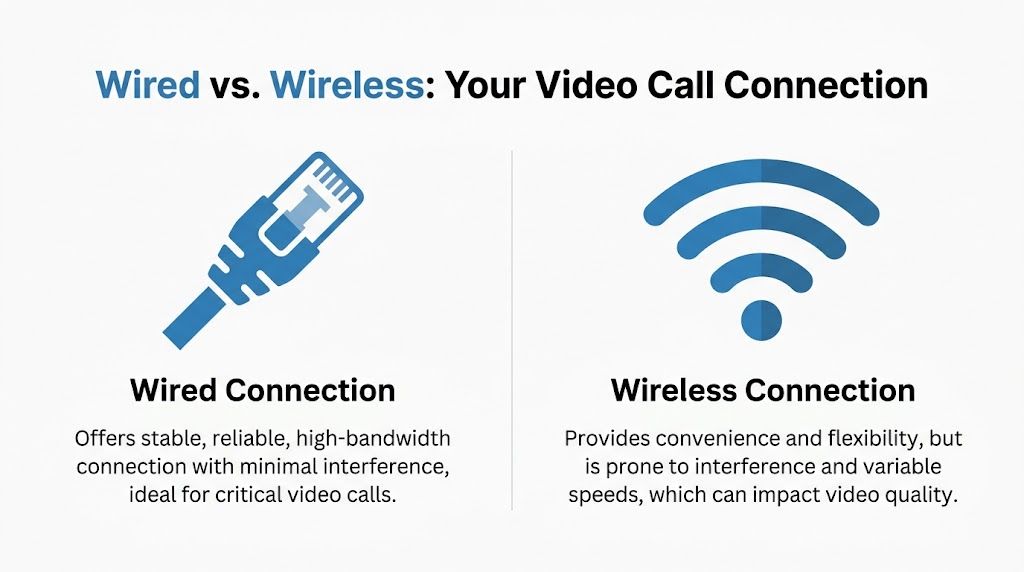
Ethernet gives your device a direct path to the router. Wi-Fi has to share space with walls, distance, nearby networks, Bluetooth accessories, and every other wireless device competing for attention. In support work, I usually recommend a wired connection first for any call that affects revenue, care, or compliance, because it removes several common failure points in one step.
The practical trade-off
Convenience is the only real advantage Wi-Fi has in this situation. You can work from the couch, move between rooms, and avoid running cable. The cost is unpredictability.
A wired connection keeps the last few feet of your setup boring, and boring is exactly what you want before an important meeting. If a user tells me, “the internet is fast, but my calls keep freezing,” I stop looking at the plan speed and start looking at how the meeting device reaches the router. Very often, the weak spot is not the ISP. It is the wireless hop inside the home or small office.
Comparison for real calls
| Metric | Wired Ethernet (Cat 6) | Wi‑Fi (5 GHz AC/AX) | Recommendation for Critical Calls |
|---|---|---|---|
| Stability | Consistent and less affected by the room | Can vary with distance and interference | Choose wired |
| Interference | Minimal | Sensitive to nearby devices and neighboring networks | Choose wired |
| Mobility | Fixed position | Easy to move around | Choose Wi‑Fi only if mobility matters more |
| Setup effort | Requires cable routing or adapter | Fast and easy | Use wired for planned meetings |
| Security posture | Physical link reduces wireless exposure | Depends more on wireless configuration | Wired is simpler for sensitive sessions |
A low-cost way to get closer to enterprise reliability
Enterprise meeting rooms do not rely on luck. They reduce variables. You can do the same at home without spending much.
A basic Ethernet cable and, if needed, a USB Ethernet adapter usually improve call reliability more than paying for a faster internet tier. That is the budget trade-off people often miss. They buy more bandwidth, keep the same unstable Wi-Fi path, and still get frozen video in the middle of a board meeting or patient consult.
If running cable across the room is not practical every day, keep one ready for important calls. Treat it like part of your meeting kit, along with your charger, headset, and a backup power outlet. For platforms such as AONMeetings, that simple setup change can make screen sharing, camera video, and two-way audio behave more like they would in a managed office. It also helps to practice sharing your screen cleanly during meetings before the live call, so you are not adding device strain and user error at the same time.
If the meeting carries real consequences, use Ethernet. Wi-Fi is acceptable for casual calls. Wired is the safer choice when the call has to hold.
Optimizing Your Router and Home Network
A shaky home network often shows up most clearly during the call that matters most. The video freezes when you are presenting to a client, or the audio cuts out during a telehealth appointment. If the earlier checks point to your local network, the router is the next place to fix.
Fix the router placement first
Start with the physical setup before touching settings. Router location affects signal strength, interference, and consistency, especially if you are relying on Wi-Fi for a work call.
Poor placement is common. I regularly see routers tucked behind TVs, placed on the floor, or hidden inside cabinets because that keeps the room tidy. It also weakens the signal right where the call needs stability.
A better position is usually:
- Central in the home or office
- Off the floor
- Away from microwave ovens and crowded electronics
- Not hidden in enclosed furniture
- Closer to the room where important calls happen
This step costs nothing, and it often improves call quality more than people expect.
Separate the Wi-Fi bands so your meeting device stays put
Many routers use one network name for both 2.4 GHz and 5 GHz. That convenience can create problems during video calls because some devices bounce between bands when the signal changes.
Give each band its own name if your router allows it. Then connect the meeting laptop or desktop to 5 GHz when you are close enough to the router to get a strong signal. Keep lower-priority devices, especially ones farther away, on 2.4 GHz.
If your router also lets you choose channels manually, use a cleaner channel instead of leaving everything on crowded defaults. In apartment buildings and dense neighborhoods, nearby networks often interfere with each other. On 2.4 GHz, channels 1, 6, and 11 are the usual starting points because they reduce overlap.
For budget-conscious setups trying to get closer to office-grade call stability, this matters. AONMeetings and similar platforms do well on ordinary home internet when the local Wi-Fi path is stable. The problem is often interference inside the home, not raw internet speed.
Turn on QoS if your router supports it
QoS, short for Quality of Service, lets the router give meeting traffic higher priority when several devices are active at once.
That matters in real homes. A video call can compete with a TV stream, a game download, cloud backups, security cameras, and someone uploading photos from a phone. Without traffic priority, the router may treat those tasks too similarly. During a business meeting or remote consultation, that can mean choppy audio, delayed speech, or frozen video at the worst moment.
Set the work laptop, conferencing device, or real-time traffic class as the priority target if your router provides that option. Different router brands label this differently, so look for terms like QoS, Traffic Priority, or Device Priority in the admin panel.
Mutedeck also notes that router firmware updates and QoS settings can improve video and VoIP reliability in unstable home networks (router firmware and QoS guidance).
Update firmware and reduce avoidable load
Old router firmware can cause dropped connections, compatibility issues, or strange slowdowns that are hard to explain from the user side. Check for updates in the router dashboard and install them when you are not about to join a call.
Then reduce unnecessary traffic during work hours:
- Pause heavy sync tasks on backup and storage apps
- Disconnect low-value devices you do not need online
- Move smart TVs and consoles to off-hours if the connection strains under load
- Use wired links for fixed devices so Wi-Fi stays available for mobile devices
This is the trade-off that matters on a budget. A household with a modest internet plan and a well-managed network often gets more stable calls than a household paying for faster service while every device fights for airtime.
Know when the router is the bottleneck
Consumer routers can handle basic browsing for a family. They can struggle when the same network is supporting back-to-back video meetings, smart home devices, guest phones, printers, tablets, and streaming boxes all day.
If call problems keep showing up at busy times, the issue may be local capacity and control, not your internet package. Upgrading the router can be more effective than upgrading the broadband tier, especially for home offices, small practices, and solo professionals who depend on stable video conferencing for income or patient care.
A router is traffic control for your calls. If it cannot manage the load, the meeting platform never gets a fair shot at running smoothly.
Fine-Tuning Your Device and Apps Before an Important Call
A good network can still produce a bad meeting if the laptop is overloaded, the browser is bloated, or the app stack is fighting itself. This is the last layer before the call starts, and it’s often where users get quick wins.

Clean up the device before you join
Right before an important meeting, close anything that competes for bandwidth, memory, or CPU.
That usually means:
- Cloud sync tools: pause large uploads and downloads
- Streaming tabs: shut them down completely
- Software updates: postpone them until later
- Unneeded browser tabs: close the pile, not just the loudest tab
- Background apps: messaging, launchers, and anything else you don’t need live
If your machine feels sluggish in general, it’s worth handling that separately. A practical repair checklist like how to fix a slow laptop can help if the device itself is contributing to choppy meetings.
Prefer browser-based joining when app conflicts appear
For many users, the installed meeting app is fine. But when one device keeps misbehaving, the browser version is a smart test because it removes one layer of software variables. You bypass some driver quirks, local app corruption, and update mismatches.
That’s one reason browser-native platforms can be useful in mixed environments. AONMeetings runs in the browser, includes unlimited meeting time, webinar hosting, and bank-level encryption, and pricing starts at ₹179 per user per month according to the publisher information provided. For teams handling healthcare, business, or training calls, that combination matters because stability is only half the requirement. The other half is keeping sessions secure and easy to join.
A short pre-call checklist that actually helps
Use this before any high-stakes call:
- Restart the laptop if it’s been running all day
- Join from the room with the strongest connection
- Use Ethernet if the meeting is important
- Close sync and update tools
- Keep only meeting-related tabs open
- Test camera, mic, and speakers
- Have a backup browser ready
- Keep your phone nearby as a hotspot backup
Audio problems can look like connection problems, especially when people hear echo or clipping and assume the internet is failing. If you want a clean audio-side check before joining, this guide on how to stop echo on mic is a useful companion.
Before blaming the internet, make sure your computer isn’t the one creating the chaos.
Why webinars and encryption belong in the same conversation
The author brief specifically asks for value propositions, webinars included, and encryption as an added feature. In practice, these matter because important calls aren’t only one-to-one meetings. Teams also run training sessions, patient education, internal announcements, and public webinars on the same setup.
A platform that includes webinar hosting saves users from juggling separate tools and separate failure points. Encryption matters for the same reason. If you work in healthcare, finance, education, or client services, you don’t just need the call to stay up. You need the session to stay protected.
When to Escalate the Issue to Your Internet Provider
At some point, you’ve done enough. You tested wired and Wi‑Fi. You restarted the network properly. You tuned the router. You stripped the device down to essentials. If the internet connection not stable problem still appears across devices or at recurring times, it’s time to call the ISP.
A common mistake is calling with frustration but no evidence. That leads to a basic script, a quick reboot request, and a vague promise to monitor the line. You’ll get farther if you call like someone who has already isolated the fault.
What to collect before you call
Bring a small record, not a long story.
- Times and dates of drops: especially if they cluster at certain hours
- Screenshots of tests: enough to show the issue is recurring
- Results from wired and Wi‑Fi tests: this helps prove whether the problem is local wireless or not
- Notes on what you already tried: power cycle, firmware check, device test, router relocation
- Examples of impact: telehealth call interrupted, class dropped, meeting disconnected
You don’t need perfect diagnostics. You need enough to show that the problem is consistent and that you’ve ruled out the obvious home-side fixes.
A script that gets better support
Try something close to this:
My connection is unstable, not just slow. I’ve tested multiple devices, and I’ve compared Wi‑Fi with wired. The issue still happens at specific times, and I have screenshots and notes. Can you check the line quality, modem history, and whether there’s a recurring issue in my area?
That wording matters. “Slow internet” often leads to one speed test. “Unstable connection” points the conversation toward drops, packet loss, line quality, and intermittent faults.
You can also ask direct questions:
- Can you see disconnects in the modem history?
- Are there signal issues or line noise on your side?
- Is there congestion or maintenance affecting this area?
- Can this be escalated if the basic checks don’t explain the drops?
Know when to push for a technician or escalation
If support only repeats first-level steps you already completed, be polite and firm. Explain what you tested and ask for escalation. If the issue affects wired connections too, that’s a strong reason to push beyond “move closer to the router” advice.
A technician visit makes sense when:
| Situation | Likely next step |
|---|---|
| Wired and Wi‑Fi both fail | ISP line check |
| Problem appears at the same times repeatedly | Congestion or neighborhood issue review |
| Modem loses connection entirely | Modem, ONT, or line inspection |
| One-off support resets don’t hold | Escalation to higher-tier support |
What not to do with the ISP
Avoid vague complaints like “nothing works” or “the internet is terrible.” Those statements are emotionally accurate but technically unhelpful.
Also avoid changing five variables right before you call. If you swapped the modem, moved the router, changed channels, changed computers, and changed browsers all at once, support has no clean signal to work with. Make changes in sequence and keep notes.
The practical path is straightforward. Isolate the issue. Use wired for any call that matters. Tune the router. Trim the device. Then escalate with evidence if the line still won’t hold.
If your work depends on secure video communication, the meeting platform matters too. A browser-based option with HIPAA-focused design, webinar capability, and strong encryption reduces friction on the software side while you solve the network side.
If you need a meeting platform that keeps setup simple while supporting secure professional use, AONMeetings is worth a look. It runs in the browser, includes webinars, unlimited meeting time, and bank-level encryption, and it’s built for organizations that need dependable calls without piling on unnecessary complexity.
