

A curriculum director is looking at next semester’s timetable. The IT lead is looking at license options, browser support, and support tickets waiting to happen. Teachers are asking simpler questions. Will this platform be easy to run? Will students participate? What happens when a lesson depends on a lab demo, a discussion, or a group task instead of a lecture?
This is the starting point for video conferencing for education. Not crisis response. Not a temporary workaround. A durable part of how schools teach, support, and connect with students.
The New Digital Classroom
Schools are no longer deciding whether video has a place in teaching. They are deciding how to use it well.

Districts now treat live online instruction the way they treat Wi-Fi, device management, and the LMS. It is infrastructure. That shift shows up in spending and adoption. The global video conferencing market is projected to reach $12 billion in 2026, with government and education accounting for $2.3 billion of that spend, and most higher education institutions now use video calling as a standard tool, according to Electro IQ’s video conferencing statistics.
What this changes for school teams
The first mistake many institutions make is buying for meetings instead of buying for learning.
A staff meeting platform and a classroom platform are not the same thing. In education, the tool has to support instruction, student participation, parent communication, office hours, tutoring, small-group work, and often schoolwide events. It also has to work for people with very different levels of technical confidence.
A practical district lens usually includes:
- Instructional fit: Can teachers share screens, annotate, use whiteboards, and move students into breakout groups without friction?
- Student access: Can learners join from a browser, a tablet, a managed Chromebook, or a family phone without a long setup process?
- Operational consistency: Can IT preconfigure settings so every teacher is not reinventing the wheel?
- Security: Can the school protect student sessions with waiting rooms, moderator controls, and encryption?
A permanent part of delivery
The schools that get the most from video do not treat it as a digital substitute for seat time. They use it to make learning more flexible.
That can mean a snow-day continuity plan. It can mean virtual guest speakers. It can mean tutoring after school, parent conferences during work hours, or hybrid programs for students who need more scheduling flexibility. It can also mean supporting teachers with shared templates and fewer moving parts.
Key takeaway: The strongest deployments connect three decisions at once. Platform choice, classroom design, and support workflows.
When a district gets those aligned, video conferencing stops feeling like extra work and starts functioning like part of the teaching system.
Choosing Your Educational Video Conferencing Platform
Platform selection usually gets framed as a feature checklist. That is too narrow. A better question is this: which platform helps teachers run classes reliably, helps students join with the least friction, and gives IT enough control to keep the environment secure?
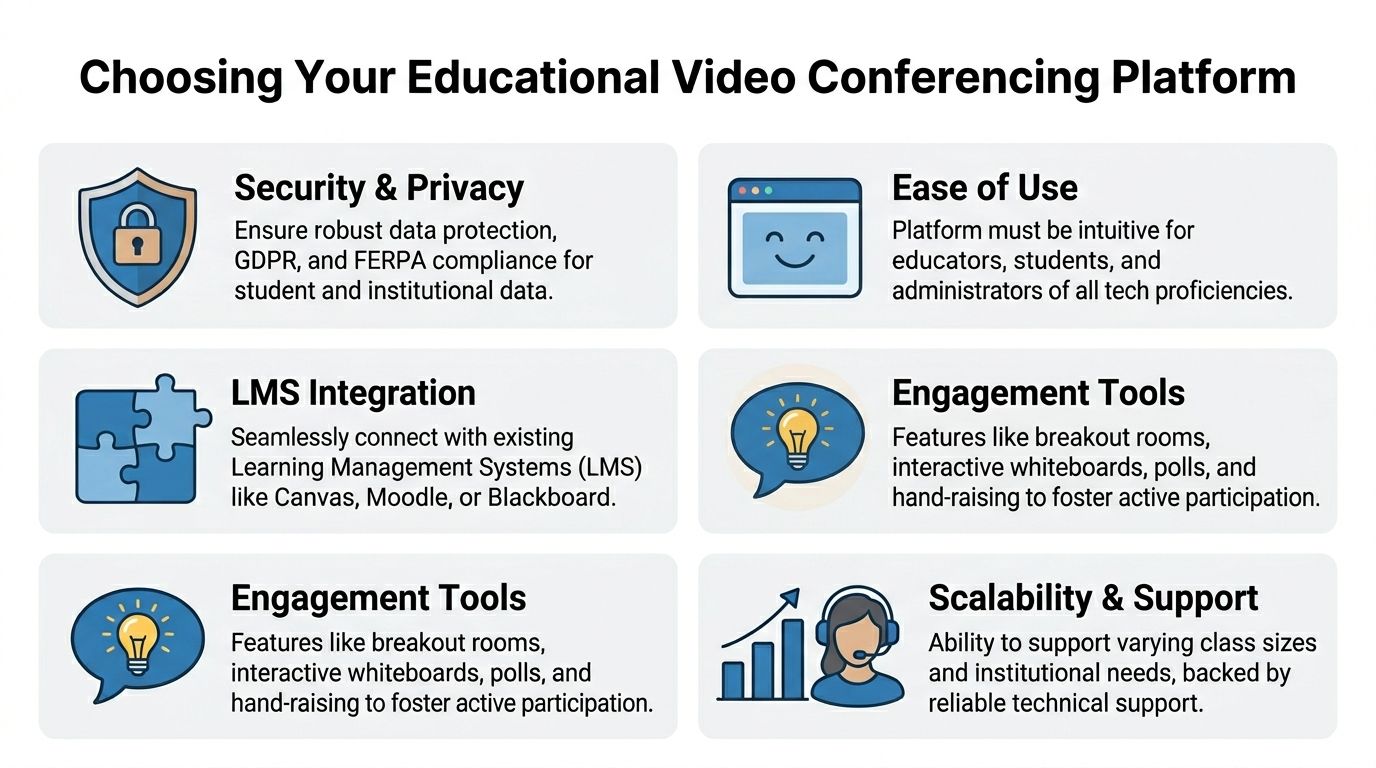
The five criteria that matter most
Some features look impressive in a demo and barely matter in day-to-day teaching. Others sound basic and determine whether adoption succeeds.
Security and privacy
For schools, end-to-end encryption matters because student sessions are not ordinary business calls. You also want waiting rooms, host controls, meeting locks, participant permission settings, and clear administrative policies for recordings and chat retention.
If a platform buries these controls or makes teachers decide them one by one, expect inconsistent practice across classrooms.
Ease of use
Students should not need a support article to join class. Teachers should not need a second monitor just to manage controls.
A simple join flow, clear mute and hand-raise controls, stable screen sharing, and predictable layouts matter more than flashy extras. Browser access is especially valuable in school environments where devices are mixed or tightly managed.
LMS integration
Many purchasing decisions depend on this. If the platform does not work cleanly with Canvas, Moodle, or Blackboard, teachers end up posting links manually, students miss sessions, and support requests climb.
A platform with strong LMS compatibility reduces teacher setup time and creates one obvious place for students to find recordings, links, and assignments. Schools comparing options often also review broader teaching stack choices, and resources like this guide to best online teaching platforms can help frame that conversation.
Engagement tools
At minimum, schools should look for screen sharing, digital whiteboards, breakout rooms, reactions, chat moderation, polls, and recording. These are not “nice to have” classroom decorations. They are the controls teachers use to shift from passive delivery to participation.
Scalability and support
A platform may work for a tutoring center and fail at district level. Support matters just as much as licensing. If your school will run assemblies, parent webinars, staff training, and classes on the same platform, you need confidence that user roles, room limits, and support channels will hold up.
Price comparisons and value trade-offs
The author brief asks for practical price comparisons, so here is the honest version. Public pricing and packaging change. Schools should confirm current terms before procurement. What matters most is how each vendor bundles core classroom needs, webinar capability, limits, and contract expectations.
| Feature | AONMeetings (Pro Plan) | Zoom (Pro Plan) | Microsoft Teams (Essentials) |
|---|---|---|---|
| Starting price approach | Starts from ₹179 per user per month | Pricing varies by region and plan structure | Pricing varies by region and Microsoft billing structure |
| Meeting time limits | Unlimited meeting time | Often plan-dependent | Plan-dependent |
| Webinar hosting | Included in all plans | Often a separate add-on or separate product tier | Often handled through broader Microsoft event tools or higher-tier packaging |
| Encryption | Bank-level encryption | Security features vary by plan and settings | Security features vary within Microsoft environment and admin setup |
| Browser-based join | Yes | Available in many workflows | Available in Microsoft ecosystem |
| Whiteboard and screen sharing | Included | Available | Available |
| Breakout rooms | Advanced tiers add breakout rooms | Available in supported plans | Available in supported education workflows |
| Contracts | No contracts | Terms depend on purchase path | Terms depend on Microsoft agreement structure |
| Hidden fees | Positioned as no hidden fees | Add-ons can affect total cost | Bundle complexity can affect total cost |
| Webinar value proposition | Included webinars improve value for schools running parent events, PD, and public sessions | May require separate budgeting | May depend on existing Microsoft licensing footprint |
What works in real schools
The best choice depends on the district’s operating model.
If your school already runs heavily inside Microsoft 365, Teams may reduce administrative complexity. If your teachers already know Zoom well, retraining costs matter. If budget flexibility, built-in webinars, contract-free purchasing, and unlimited meeting time are important, a platform that bundles those by default may offer better value.
A few common buying mistakes show up repeatedly:
- Buying for the IT demo, not the classroom: A clean admin console does not guarantee smooth breakout room transitions in a Year 8 science class.
- Ignoring webinar needs: Schools often forget staff training, admissions events, parent orientations, and community briefings until later.
- Underestimating setup friction: If joining a session takes too many clicks, attendance and punctuality suffer.
- Comparing sticker price only: Add-ons, event tools, storage, and support can change the actual total.
Procurement tip: Ask every vendor to show three workflows live. A teacher launching class from the LMS, a student joining from a managed Chromebook, and an administrator hosting a large parent session.
That simple test reveals more than a polished sales deck.
Configuring Your Platform for Security and Seamless Workflows
Once a district picks a platform, the next risk appears fast. Every teacher starts building sessions differently. Some use passwords, some do not. Some allow screen sharing for everyone, some lock everything down. Students get one experience in English, another in math, and a third in counseling.
That inconsistency causes avoidable problems.

Build a district default, not a teacher-by-teacher setup
A strong rollout starts with a standard meeting template. The practical way to shape it is the PACT framework: People, Activities, Contexts, Technologies. That matters because implementation failures are often not random. According to Vibe’s guide to video conferencing for education, 40% of problems are technology-related, latency over 150ms can drop comprehension by 25%, and effective LMS integration can boost attendance from 75% to 92%.
The lesson is simple. Schools should not ask teachers to solve infrastructure from inside a live lesson.
A security checklist that schools should set centrally
Use admin controls to create a default profile for classroom meetings:
- Enable waiting rooms by default. This gives teachers a gate before participants enter.
- Require authenticated access where appropriate. Especially for internal classes and staff sessions.
- Turn on encryption options and confirm end-to-end encryption settings. Do not assume they are active by default.
- Limit participant screen sharing until the host grants it. This prevents disruptions.
- Restrict recording permissions. Decide who can record, where files are stored, and who can access them.
- Control chat behavior. Some classes need open chat. Others need host-moderated chat only.
- Set a meeting lock procedure. Teachers should know when and how to lock a room after attendance.
- Preload display names and roster logic when possible. It makes attendance cleaner and reduces impersonation issues.
LMS integration is not optional
The operational win comes when the video tool sits inside the LMS, not beside it.
For a district using Canvas or Moodle, the ideal flow is straightforward. A teacher creates the session from inside the course shell. The meeting link appears where students already check assignments. Recordings post back to the same place. Office hours, small-group support, and lesson links stay tied to the course instead of scattered across email threads.
That lowers confusion and reduces “Where is the link?” support traffic.
A workable district template
A district-wide template often includes:
- Classroom session preset: Waiting room on, recording off by default, host-only screen sharing, chat moderated.
- Office hours preset: Open access window, student queue handling, optional recording disabled.
- Parent conference preset: Strong identity checks, waiting room, private one-to-one flow.
- Webinar preset: Presenter controls, attendee view restrictions, moderated Q&A.
Operational tip: Train teachers on two or three approved templates only. Too many choices create inconsistency, not flexibility.
One more trade-off matters. The most locked-down environment is not always the best learning environment. If a teacher runs collaborative seminars, breakout activities, or student presentations, permissions need to expand intentionally. IT should make those changes easy to request, not leave educators choosing between poor pedagogy and poor security.
Designing Engaging Lessons for the Virtual Classroom
A weak online lesson usually follows one pattern. The teacher talks for most of the period, students watch boxes on a screen, and participation gets reduced to “Any questions?”
A stronger lesson has rhythm. Students do something every few minutes.
A practical 45-minute live class model
Long live sessions drain attention. The better move is to break the lesson into short blocks with clear transitions.
A workable pattern looks like this:
- Opening hook: Start with a prompt in chat, a quick poll, or a visual on the whiteboard.
- Short direct instruction: Explain one concept, not the whole unit.
- Check for understanding: Use reactions, a poll, or one-sentence responses.
- Student application: Put students into pairs or small groups for a task.
- Whole-class debrief: Bring back examples, errors, and questions.
- Exit task: End with a short submission, reflection, or quiz item.
This structure works because it treats live class as an interaction space, not a broadcast channel.
A virtual science lesson example
Take a middle school science lesson on states of matter.
The teacher opens with three images on a shared slide and asks students to type one observation in chat. Then comes a short explanation with screen share and annotation. Students label particle behavior using the whiteboard. Small groups move into breakout rooms to compare examples from home. The class returns for discussion. The teacher ends with a quick formative check in the LMS.
The content is familiar. The design is what changes.
What teachers should prepare in advance
Virtual teaching improves when teachers prep interaction points before class, not during it.
That usually means:
- Pre-build slides for annotation
- Draft poll questions ahead of time
- Write breakout room instructions on the slide itself
- Decide who reports back from each group
- Prepare one backup task if audio or sharing fails
If teachers need a clean walkthrough for presenting content, this practical guide on how to share your screen is useful because screen sharing failures often interrupt momentum more than any other classroom glitch.
Community is part of lesson design
Students learn better when they feel seen by peers, not just monitored by a teacher.
That is why social routines matter, especially in online environments. Small opening check-ins, partner talk, rotating discussion roles, and low-stakes collaboration create belonging. For teachers looking for adaptable ideas, these virtual social learning activities are worth reviewing and reshaping for your own grade level.
Teaching tip: If a task would be passive in a physical classroom, it becomes even more passive online. Add a visible student action to it.
A virtual lesson does not need more slides. It needs more well-timed student moves.
Driving Student Engagement and Assessing Online Learning
Engagement drops fast when online classes become a sequence of long explanations. Students do not just get bored. They disconnect socially.
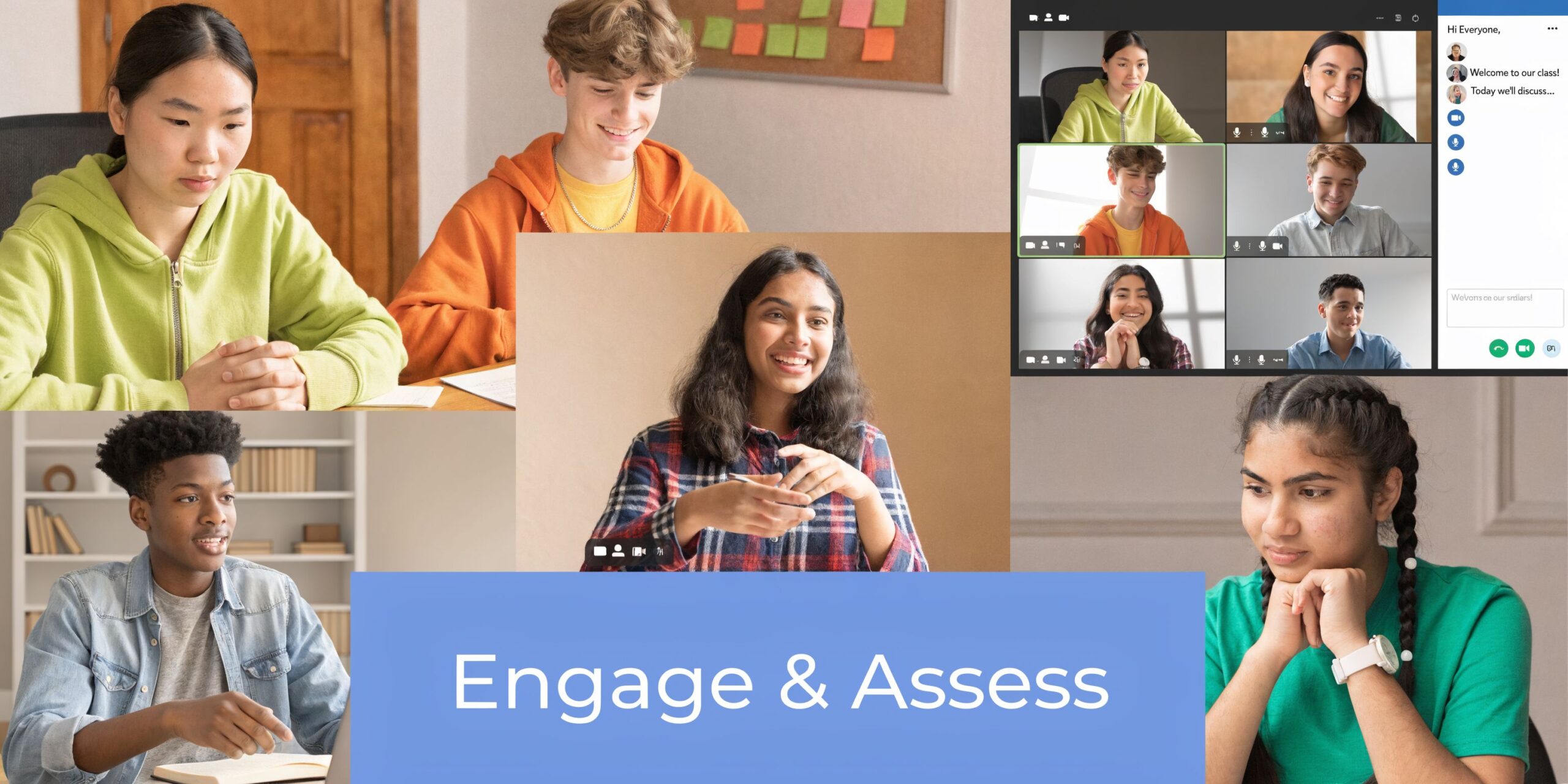
That pattern is especially visible in higher education. According to Verbit’s analysis of video conferencing in education, 65% of students experience “Zoom fatigue” in sessions longer than 45 minutes, and engagement drops by 40% without interactive elements. Students also report feeling isolated and wanting the peer discussion and community that interactive features can support.
Use interaction as course design, not decoration
The most effective teachers build participation into the lesson so often that students expect to contribute.
Three approaches work well across subjects.
Shared whiteboard tasks
A whiteboard can become a collaborative “graffiti wall.” Ask students to post one word, one question, or one example. In literature, they can map themes. In chemistry, they can sort observations. In history, they can place causes and effects into columns.
This works best when the prompt is narrow. “Add one thing that surprised you” gets better participation than “Share your thoughts.”
Fishbowl discussions online
Breakout rooms can support a fishbowl format. One small group discusses a prompt in the main room while others observe with a note-taking task. Then groups rotate.
This keeps discussion visible and creates accountability for listening, not just speaking.
Reaction-based checks
Emoji reactions and quick chat responses are useful because they are low-friction. Students who will not volunteer on camera often will click a reaction or answer with a short post.
Use these for quick checks such as confidence, agreement, or identifying the next step in a problem.
Assessment has to match the medium
Online assessment works best when teachers separate what needs to happen live from what does not.
A practical model looks like this:
| Assessment need | Better live approach | Better async approach |
|---|---|---|
| Understanding during lesson | Polls, chat prompts, verbal checks | Short reflection post |
| Skill practice | Breakout task, guided whiteboard work | LMS assignment, recording response |
| Discussion quality | Fishbowl, seminar, peer feedback | Discussion board follow-up |
| End-of-unit evidence | Oral defense, presentation, timed explanation | Project, quiz, written submission |
Teachers refining this balance often benefit from revisiting the difference between formative and summative assessment, especially when deciding what belongs in a live session versus what students can complete more thoughtfully afterward.
A routine that reduces fatigue
Instead of asking “How do I keep them engaged?” ask “How often do students have to act?”
A healthier live session usually includes:
- Frequent switches in activity
- Visible peer interaction
- Brief teacher talk segments
- Clear tasks with time limits
- A closing artifact, even if it is just one sentence
Practical rule: If students can sit for most of the session, the design is doing too little work.
Strong engagement in video conferencing for education is not about turning every lesson into a game. It is about reducing isolation and making thinking visible.
Troubleshooting Common Issues and Advanced Best Practices
Most schools assume the hardest problems are technical. In practice, the hardest problems are technical, instructional, and access-related at the same time.
A class with bad audio fails quickly. A class with clear audio but weak structure also fails. A class designed well but inaccessible to part of the student population fails at the system level.
Quick fixes teachers can use during class
When something goes wrong mid-lesson, teachers need fast moves.
- Echo or feedback: Ask participants to mute unused devices, check whether two tabs are open, and use a headset where possible. This guide on how to stop echo on mic is a useful support reference for staff help pages.
- Student cannot hear: Check whether the student joined the wrong audio source, muted device output, or browser permissions.
- Video lag: Turn off nonessential cameras, reduce background apps, and shift briefly to audio-plus-chat if needed.
- Screen share fails: Have the content link ready in chat as a fallback so instruction can continue.
- Breakout confusion: Put the task, time limit, and deliverable on the slide before rooms open.
Accessibility needs planning, not goodwill
Schools often say they want inclusive online classes, then leave accessibility to the individual teacher.
A better approach is operational. Turn on live captions where available. Choose platforms that work with screen readers. Train staff to describe visuals aloud, post materials in advance, and avoid giving critical instructions only verbally.
Recorded sessions also need a policy. Decide which classes are recorded, who can access them, and how long they remain available.
Digital equity needs school-led intervention
The weakest advice in this area is “offer loaner devices” and stop there. That is incomplete.
Reports indicate that blended learning in K-12 has become widespread, but rural and low-income areas often experience significant dropout rates linked to technology access. That calls for school-led intervention beyond generic suggestions.
Practical district moves include:
- Schedule-aware access: Offer live sessions at times that fit shared-device households.
- Low-bandwidth backup paths: Provide dial-in, downloadable materials, and asynchronous alternatives.
- Family communication supports: Use multilingual updates and clear joining instructions.
- Device triage policies: Prioritize students in synchronous-heavy courses first.
- Building-based access windows: Keep media centers or supervised spaces available when possible.
Best practice: Equity planning should sit in the same meeting as platform planning. If those teams work separately, students feel the gap.
Privacy also belongs here. Student data governance, recording retention, and role-based access should be written down before the first large rollout, not after a complaint.
The Future of Learning Is Hybrid
Hybrid learning is no longer a compromise model. For many students, it is the preferred one.
That preference is strong. LiveWebinar’s hybrid learning statistics report that up to 82% of students prefer a hybrid learning environment, students retain between 25% and 60% more information through well-designed online courses, and 95% express satisfaction with web-based learning.
Those numbers do not mean every class should move online. They mean schools should stop treating video as a secondary channel. When the platform is chosen carefully, configured securely, integrated into daily workflows, and used with interactive lesson design, it supports real teaching goals.
The most successful deployments are not the most complex. They are the most coherent. IT sets reliable defaults. Teachers use repeatable lesson patterns. Students know how to join, participate, and get help. Families understand the expectations. Leaders build access plans for the students most likely to be left out.
That is what makes video conferencing for education worth doing well. It gives schools a flexible teaching model that can support continuity, widen access, and create stronger options for how learning happens.
If you need a platform that combines secure meetings, built-in webinars, unlimited meeting time, browser-based access, and straightforward pricing starting from ₹179 per user per month, AONMeetings is worth a close look. It is especially relevant for schools, coaching centers, and training teams that want encryption, classroom essentials, and predictable costs without contracts or hidden fees.
