
Your internet looks fine until the one call that matters.
A client is waiting for a demo. A patient is trying to explain symptoms. A teacher is halfway through a paid online session. Then the screen freezes, voices turn robotic, and someone says, “Can you hear me now?”
Many people blame “bad internet.” Sometimes that’s true. Often, the bigger problem is not understanding video conferencing bandwidth requirements well enough to match the call, the device, and the platform to the connection you already have.
The good news is that you usually do not need a massive enterprise internet plan to run dependable video meetings. You need the right expectations, a few practical checks, and software that uses bandwidth efficiently.
Why Your Video Calls Keep Freezing
A frozen call usually starts with a simple mismatch.
A small clinic may have enough internet for browsing, email, and billing software, but not enough stable upload capacity when several clinicians start video appointments at the same time. A small business may pay for “fast internet,” yet still struggle during a team meeting because the advertised speed mostly describes download, not upload.
That difference matters. In a video call, you are not just receiving video. You are also sending your own camera, microphone, screen share, and sometimes recordings to the cloud. If your outgoing lane is narrow, the call breaks first on your side.
The hidden bottleneck is often upload
Think about a common morning.
One person is in a meeting. Another is uploading files to cloud storage. A phone is backing up photos. Someone in the waiting room is streaming video. The connection may still feel acceptable for web browsing, but live conferencing reacts badly to congestion because it needs a steady flow, not occasional bursts.
Problems also stack. A poor microphone setup can make people think the network is failing when part of the issue is local audio configuration. If echo is part of the mess, this guide on fixing microphone echo can help: https://india.aonmeetings.com/how-to-stop-echo-on-mic/
Freezing is usually a symptom, not the root cause
These are the patterns I see most often:
- Too many simultaneous calls: A connection that handles one meeting may struggle when several staff members join at once.
- Wi-Fi interference: The bandwidth may exist on paper, but the signal gets unstable between router and device.
- High-demand meeting modes: Gallery view, HD video, and screen sharing all add load.
- Busy upstream traffic: Cloud backups and file sync tools can consume upload capacity your camera needs.
If your call freezes only during important moments like screen sharing, turning on HD, or putting several people on camera, bandwidth is probably not “down.” It is probably being divided badly.
That distinction matters because it points to a fix. You may not need a more expensive plan. You may need a better setup, different meeting defaults, or a platform that handles quality more efficiently.
Decoding Bandwidth What Your Internet Speed Really Means
Bandwidth sounds technical, but the idea is simple.
Use a highway analogy. Your internet connection is a road system. Download speed is the number of lanes bringing traffic to you. Upload speed is the number of lanes leaving your office or home. Latency is the travel time.

If you want a plain-English primer before going deeper, SES Computers has a useful explanation of what is network bandwidth.
Download is what you receive
Download handles what comes to your device.
That includes other people’s video, shared screens, chat messages, and files. If your team joins a group call and everyone is visible on screen, your device is receiving multiple streams at once. That uses download capacity.
People often notice download first because internet providers advertise it heavily. It is important, but it is only half the story.
Upload is what you send
Upload is the lane many buyers ignore.
Every time you speak on camera, share a presentation, or send your webcam feed into the meeting, you use upload. A clinic manager may buy a connection that feels fast for web browsing, only to discover that patient calls become choppy because several staff members are trying to send video at the same time.
This is why a connection that seems fine for streaming movies may still perform poorly for live meetings. Streaming mostly pulls data down. Video conferencing does both directions at once.
Real-world usage is lower than peak specs
The good news is that many calls use less than the scary top-end figures people see online.
NetForecast’s analysis recommends 5 Mbps download and 3 Mbps upload per user for acceptable quality in real-world use, based on 95th percentile measurements across popular apps rather than only theoretical peaks (NetForecast). That matters because it means many teams can run solid meetings on standard broadband when the network is managed well.
Latency is about timing, not raw speed
A highway with many lanes still fails if traffic keeps stopping.
That is what latency feels like in meetings. You hear people talk over one another, replies arrive late, and facial expressions do not match audio. High speed does not always fix this. A stable connection matters as much as a fast one.
For a small business owner, the practical takeaway is simple:
- Download supports viewing
- Upload supports being seen and heard
- Latency supports natural conversation
If one of those breaks, the meeting feels bad even when the other two seem acceptable.
Calculating Your Video Conferencing Bandwidth Needs
Teams often make this harder than it needs to be.
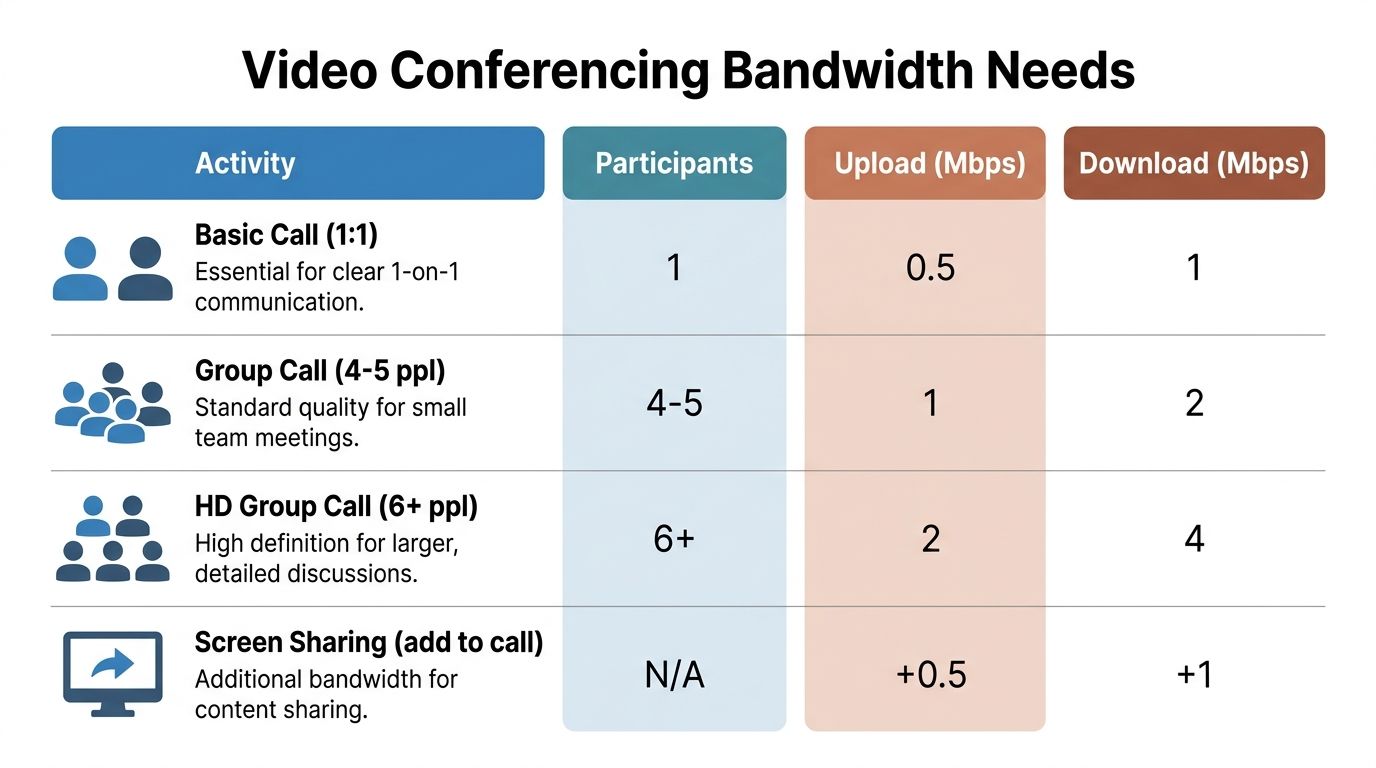
Start with one question. How many people will be on calls at the same time, and what quality do those calls need? A counseling session, a sales demo, and a large training session do not place the same demands on a network.
This infographic gives a quick visual summary.
A practical table for per-user planning
Cloudbrink notes that SD calls can need as little as 128–512 Kbps, while HD calls can require 1.5–6 Mbps per participant. For group calls with 3–5 people, 2–4 Mbps per user is a typical benchmark (Cloudbrink).
Using that range, this table gives a planning view.
| Video Quality | Resolution | 1-on-1 Call (Download/Upload) | Group Call (Download/Upload) |
|---|---|---|---|
| Standard Definition | SD | 128–512 Kbps / 128–512 Kbps | Typical benchmark rises with participants |
| High Definition | HD | 1.5–6 Mbps / 1.5–6 Mbps | 2–4 Mbps per user / 2–4 Mbps per user |
| Full HD | 1080p class | Up to 6 Mbps / up to 6 Mbps | Plan on the higher end of HD needs |
This is not a promise that every platform will use exactly the same amount. It is a planning range. The safer approach is to size for your busiest realistic period, not your average quiet hour.
A simple way to estimate office needs
Use this rule of thumb:
- Count how many simultaneous calls happen during your busiest period.
- Pick the likely quality level for those calls.
- Add extra room for screen sharing, cloud backups, and normal office traffic.
Here are a few practical examples without pretending every office is identical.
Example one for a small telemedicine clinic
A clinic with 3 doctors simultaneously on HD video calls should plan around the HD per-user range rather than the minimum. If each call lands somewhere in the 1.5–6 Mbps range, the clinic should make sure both upload and download can support three active sessions at once, plus normal office traffic such as scheduling software and file access.
In plain language, this means a plan that handles “one good call” may still fall apart when all three doctors are live together.
Example two for a small team stand-up
A startup with several employees joining one morning meeting from the same office may not need broadcast-grade quality. If the meeting is mostly talking heads, moderate HD is often enough. But if everyone also uses gallery view, shared dashboards, and cloud collaboration tools, the connection can feel crowded even if the raw headline speed looks generous.
Why “per user” can be misleading
Business owners hear “per participant” and assume they only need to think about one person’s laptop.
In reality, the network sees the whole building. If multiple users share one office connection, total usage matters more than a single user number. The same is true in a home office where family members are streaming, gaming, or backing up devices while you are in a call.
Buy bandwidth for your busiest overlap, not your calmest hour.
Three common planning mistakes
- Using advertised speed as the only number: What the provider sells and what you receive during work hours are not always the same.
- Ignoring upload: This is the classic reason your video looks blurry to others while their video looks fine to you.
- Forgetting feature load: Screen sharing, recordings, and multiple visible participants add demand beyond a simple face-to-face call.
A cost-aware way to think about it
If your calls are mostly one-to-one consultations or small team check-ins, you may not need to jump straight to a premium business fiber package. Many organizations can get reliable results by matching meeting settings to actual needs, limiting unnecessary HD, and choosing software that adapts well to ordinary broadband.
That is the heart of video conferencing bandwidth requirements. It is not about buying the biggest pipe. It is about sizing the pipe for the work you perform.
Key Factors That Consume More Bandwidth
Two offices can have the same internet plan and get very different call quality.
The reason is usually not the plan alone. It is the combination of features people use during the meeting. A basic one-to-one appointment is light compared with a staff meeting where everyone has cameras on, the presenter is sharing a browser full of moving charts, and several people keep gallery view open.
Group calls stress upload more than people expect
Gobrolly notes that in group calls, upstream bandwidth per participant can surge 2-3x over a 1:1 call, and Google Meet can reach 2.6-3.2 Mbps upload in gallery view as multiple feeds are involved (Gobrolly).
That explains a common complaint: “One-on-one calls are fine, but team meetings fall apart.” The shift from single-stream conversation to multi-person viewing changes the load pattern.
Features that add pressure
Some bandwidth demands are obvious. Others are sneaky.
- Gallery view: Seeing many people at once increases the amount of video your device has to handle.
- Screen sharing: A static slide deck is lighter than fast-moving software demos, video clips, or scrolling spreadsheets.
- Virtual backgrounds: These can add processing strain on the device, which can make a connection problem look worse than it is.
- Cloud recordings and sync tools: They compete with your upload during the same meeting.
- High-motion content: Training sessions, product demos, and online classes with lots of movement can push quality settings upward.
If you work in education or collaborative learning, this becomes even more noticeable during interactive sessions and online multiplayer activities, where shared media and participant interaction can increase traffic beyond a simple lecture format.
Why your screen share may trigger the problem
A small business owner often tests the connection with a quick camera check and thinks everything is fine.
Then the important meeting starts. They open a dashboard, share the screen, move through tabs, and show a short video. Suddenly the call degrades. That is because the network is no longer carrying only a webcam feed. It is carrying changing visual information that may be harder to compress cleanly.
If your team needs a quick walkthrough on presenting content more cleanly, this guide on screen sharing basics is useful: https://india.aonmeetings.com/how-to-share-your-screen/
When a meeting starts breaking only after screen sharing begins, lower motion first. Stop scrolling rapidly, close extra apps, and pause any background uploads before blaming the internet plan.
A simple way to reduce load without hurting communication
Try a meeting policy instead of a network upgrade.
For example, ask non-speakers to turn cameras off during large internal meetings. Encourage presenters to share a single window instead of an entire desktop. Use standard definition for routine check-ins and reserve higher-quality video for patient-facing, client-facing, or detail-heavy discussions.
That approach usually costs nothing. It also gives you more control than buying additional bandwidth and hoping the problem disappears.
How to Test and Optimize Your Network Performance
Before you upgrade your internet plan, test what you already have.
A ten-minute check often reveals whether the issue is bandwidth, Wi-Fi, device load, or traffic from other apps. Each problem requires a different fix.
Start with a basic test
Use a common speed test tool from a wired computer if possible. Then repeat the test from the exact room where meetings usually happen over Wi-Fi.
You are looking for three things:
- Upload speed that matches the kind of calls you run
- Download speed that stays consistent
- Latency that does not jump around wildly between tests
If the wired result looks healthy but the Wi-Fi result does not, the problem is probably not your internet package. It is local wireless performance.
Fixes that cost nothing
These are the first moves I recommend because they are simple and often effective.
- Plug in with Ethernet: A cable removes many wireless interference issues immediately.
- Close cloud sync apps: File backup and storage tools can consume upload capacity.
- Stop unnecessary streaming: A TV or phone in the same space can compete for the same connection.
- Restart the router and main device: Not glamorous, but sometimes the right first step.
- Move closer to the router: Distance and walls matter more than people think.
Fixes that involve settings
If the easy changes help but do not solve the issue, check the network itself.
Use router quality controls
Many routers let you prioritize conferencing traffic with Quality of Service settings. Even basic prioritization can help your call stay stable when other devices are active.
Review meeting defaults
If your platform allows it, set routine meetings to standard quality, then increase quality only when needed. Clinics may reserve higher settings for visual exams. Sales teams may use them for product walkthroughs. Internal status calls often do not need the highest video mode.
Check device health
A laptop under heavy CPU load may stutter even when the connection is fine. Browser tabs, screen recording tools, and virtual backgrounds can all add pressure.
A practical test routine for offices and clinics
Run your tests at the time you experience problems.
A noon test on an empty network tells you very little if the freezing always happens at 9 a.m. when staff log in, cloud systems sync, and meetings begin. Test during busy periods. Then test one workstation at a time.
If one room always has the problem, check Wi-Fi coverage. If one device always has the problem, check that device. If the whole office struggles at the same time, check the shared connection.
Teams that want a broader operations checklist for meetings can use these virtual meeting habits as a companion guide: https://india.aonmeetings.com/virtual-meeting-best-practices/
The goal is not to become a network engineer. The goal is to identify the weak link before spending money in the wrong place.
Secure and Efficient Conferencing with AONMeetings
Bandwidth planning is only half the decision.
The other half is choosing software that fits your use case without forcing you into an oversized internet plan or a costly enterprise bundle packed with features you will not use. That is especially important in healthcare, education, and small business settings where reliability and privacy matter just as much as price.

Why efficiency matters for sensitive calls
TechTarget notes that for HD1080 video at 30 fps, a platform may need to handle up to 7.2 Mbps of network bandwidth after protocol overhead, and underprovisioning can lead to artifacts and latency over 150ms, which can affect diagnostic quality in telemedicine (TechTarget).
That does not mean every appointment needs maximum-quality video all the time. It means the platform and network need to work together sensibly so that when detail matters, the call remains usable and secure.
For a clinic manager, this becomes a practical budgeting question. Do you buy more bandwidth than you need, or do you choose a platform that works well on ordinary broadband and still supports secure care delivery?
Cost comparison is about total value, not only monthly fees
Many buyers compare meeting tools by headline price and miss the true cost drivers.
A low sticker price can become expensive if you need add-ons for webinars, recordings, longer meetings, or stronger admin controls. The opposite is also true. A product with a slightly higher visible seat cost can be cheaper overall if the core plan already includes the tools your team needs.
AONMeetings is relevant here because its pricing starts at ₹179 per user per month, and the platform includes unlimited meeting time, webinar hosting, bank-level encryption, screen sharing, whiteboards, document sharing, and recordings as part of the broader offer described by the publisher. That changes the buying decision for a training business, telemedicine practice, or small company that would otherwise piece together several tools.
What that means in day-to-day use
For a small clinic, one stack can cover:
- Secure patient consultations
- Staff huddles
- Recorded internal training
- Webinar-style patient education sessions
For an educator or coach, the same environment can support:
- Live classes in the browser
- Whiteboard sessions
- Content sharing
- Longer sessions without a hard cut-off timer
- Webinar delivery for larger audiences
For a small business, it can handle:
- Client demos
- Internal meetings
- Recorded presentations
- Webinar-based lead generation
- Team collaboration without making guests install complicated software
Security should not be treated as a premium extra
This matters most in healthcare and professional services.
If your meetings involve patient data, legal discussions, financial reviews, or sensitive client information, encryption is not a “nice to have.” It is part of the minimum standard for responsible communication.
The useful detail here is not marketing language. It is practical risk reduction. Bank-level encryption and HIPAA-compliant meeting support mean a clinic or business can look for reasonable bandwidth use without accepting a security downgrade.
Browser access also affects adoption
There is another cost that rarely appears in pricing tables. Friction.
If participants struggle with downloads, account creation, or confusing join steps, meeting quality suffers before the call even begins. Browser-based access can reduce that friction for patients, clients, parents, and guest speakers. That is especially helpful for telemedicine and education, where the other side of the call may not be technical.
A smarter buying question
Do not ask only, “Which platform is cheapest?”
Ask this instead:
- Does it handle secure calls appropriately?
- Does it include webinars if we need them?
- Does it avoid short meeting limits?
- Does it work in the browser?
- Does it let us run stable calls without overspending on internet upgrades?
That is the better filter for organizations trying to balance call quality, privacy, and operating cost.
In practical terms, the most cost-effective setup is often not the one with the biggest internet plan or the most famous software logo. It is the one where the network, meeting habits, and platform are aligned.
Frequently Asked Questions About Bandwidth Requirements
Does an audio-only call use much less bandwidth
Yes. Audio-only calls usually use far less bandwidth than video calls.
That is why switching a struggling meeting from video to audio often stabilizes it quickly. If a conversation matters more than facial detail, audio-only mode is a useful fallback for weak connections.
Is mobile internet good enough for important meetings
Sometimes, but treat it as situational rather than guaranteed.
Mobile connections can work well in one building and poorly in another. Signal quality, network congestion, and movement all affect consistency. For important clinical, legal, or sales calls, a wired or stable fixed broadband connection is usually the safer choice.
Why do I look blurry to others when they look fine to me
That usually points to an upload problem on your side.
You are receiving their video through your download lane, but your own outgoing stream is being squeezed. This is common on residential connections where download is much stronger than upload.
Should I buy the fastest internet plan available
Not automatically.
Start by matching your plan to your real meeting patterns. If your organization mainly runs routine one-to-one calls and small team meetings, optimization may solve the problem without a costly upgrade. Upgrade when repeated testing shows the shared connection is consistently the bottleneck.
How many simultaneous calls can an office connection support
It depends on the quality setting, the number of people sharing the line, and what else the office is doing at the same time.
A connection can support several ordinary calls and still struggle if people add screen sharing, recordings, cloud backups, and large file transfers during the same hour. The safest way to estimate is to count peak simultaneous meetings, then leave room for normal work traffic.
Does encryption use extra bandwidth
Encryption adds processing and protocol work, but from a planning point of view, most buyers should focus first on call quality settings, participant count, screen sharing, and upload capacity. Those are usually the bigger day-to-day drivers of meeting performance.
Is Wi-Fi always worse than Ethernet for video calls
Not always, but Ethernet is generally more predictable.
Wi-Fi can work very well when coverage is strong and interference is low. It becomes less dependable in crowded offices, buildings with thick walls, or locations where many devices compete for the same wireless space.
What is the easiest way to improve call quality today
Try this order:
- Use a wired connection for critical meetings.
- Close backup, sync, and streaming apps.
- Reduce cameras in large internal meetings.
- Share a single window instead of a full desktop.
- Lower video quality for routine calls.
- Test during your busiest hour, not only when the network is quiet.
Do webinars change bandwidth planning
Yes, especially for the host side.
Webinars often involve presentations, screen sharing, recordings, moderation, and larger audience management. The attendees may not all be sending video, but the host still needs a stable connection and a platform designed to manage that format cleanly.
Can a small clinic or business avoid enterprise internet pricing and still get reliable calls
Often, yes.
The key is to combine realistic quality settings, simple network housekeeping, and a platform that includes secure meetings, webinars, and essential collaboration features without forcing you into expensive add-ons or oversized connectivity.
If you want a secure, browser-based option that includes unlimited meeting time, webinars, recordings, and bank-level encryption without typical enterprise complexity, take a look at AONMeetings. It starts at ₹179 per user per month and is built for healthcare, education, business, and other teams that need dependable video calls without overbuying internet or software.
