
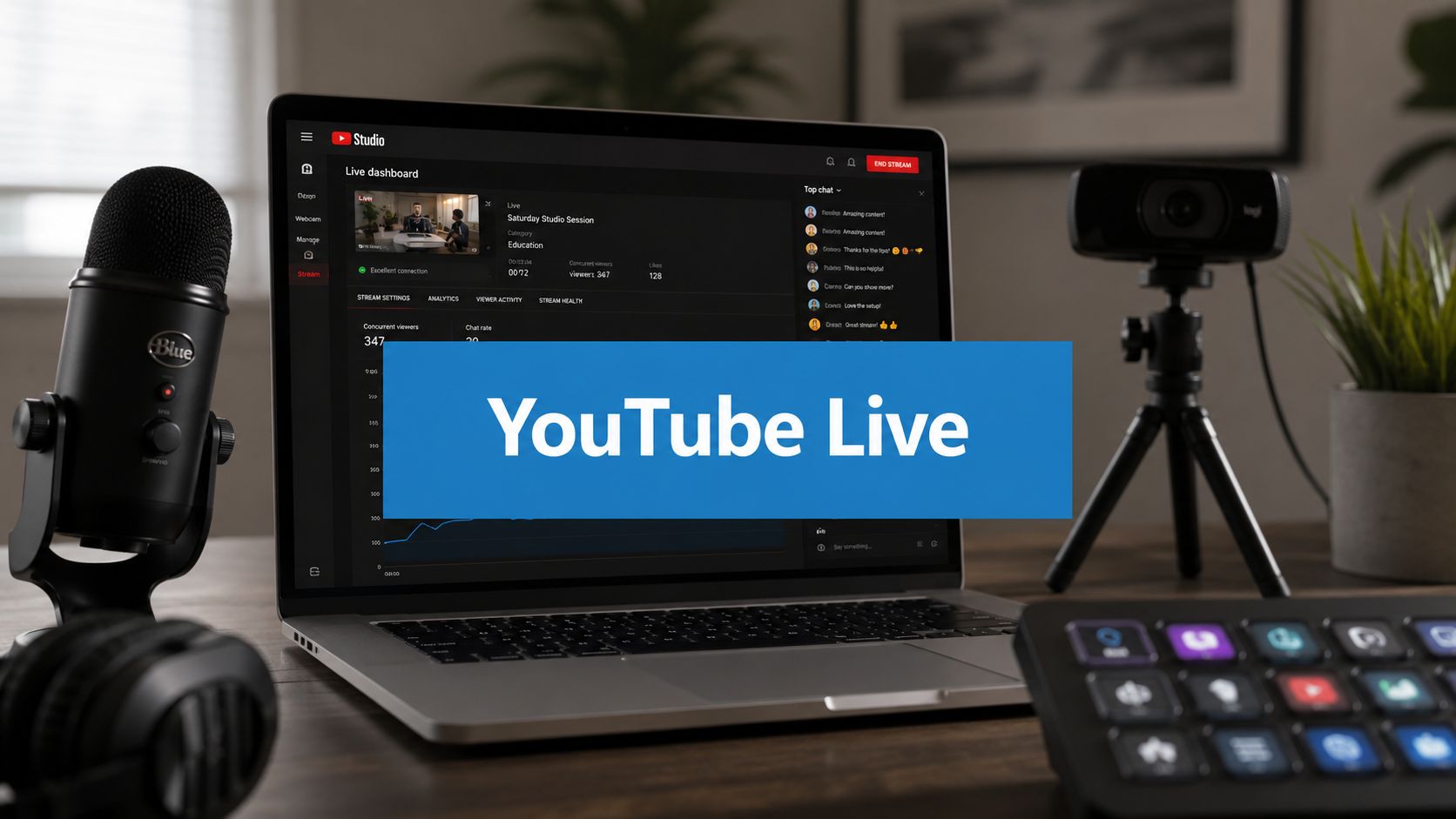
You've got an event on the calendar, the speaker is ready, and someone has already asked, “Can we put this on YouTube live?” That's usually the point where a simple meeting turns into a broadcast job.
Live streaming to YouTube is easy to start and surprisingly easy to get wrong. The usual failures aren't dramatic. They're small operational mistakes. A channel that wasn't enabled in time. A stream key pasted into the wrong event. An office Wi-Fi network that looked fine until guests joined. An otherwise solid webinar ruined by echo, clipped audio, or privacy settings that exposed a test stream to the public.
The good news is that YouTube gives you a huge distribution environment. As of May 2026, YouTube had more than 2.70 billion monthly active users, an estimated ad reach of 3.35 billion users, more than 500 hours of content uploaded every minute, and users watch almost 5 billion videos every day according to YouTube user statistics compiled by Global Media Insight. For practical live work, that scale matters because your stream sits inside a platform people already use daily.
Preparing Your YouTube Channel for Live Streaming
The most common first-stream failure happens before you connect a camera or open encoder software. The channel itself is not ready.
If you are streaming a product demo, a class, an investor briefing, or a public-facing medical session, start inside YouTube Studio and confirm that the channel can go live. I have seen teams spend an hour checking microphones and scene layouts, only to find out the broadcast account was never verified or live access was not activated early enough.
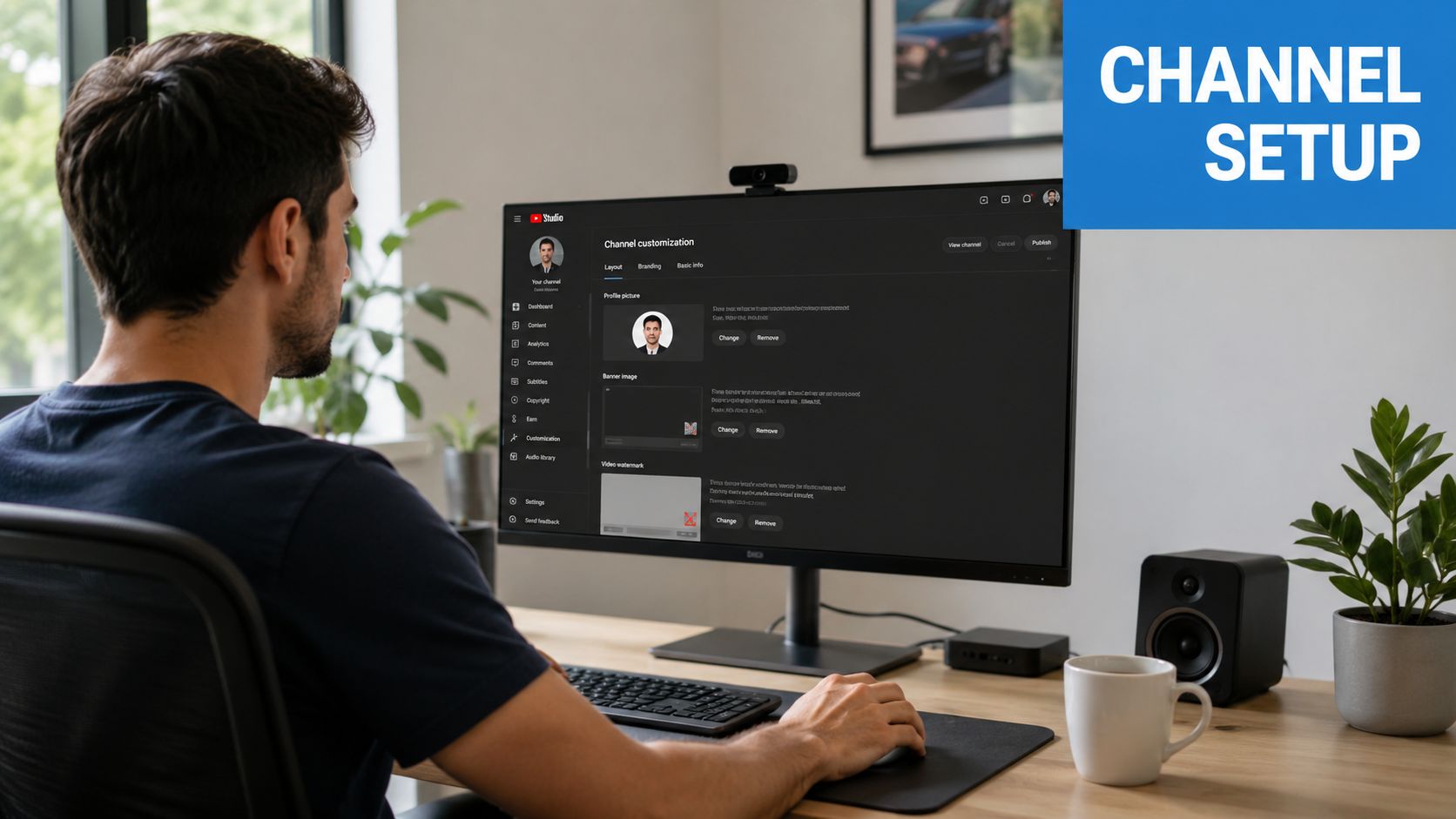
Get the channel ready before you touch production gear
Use a clean setup order.
- Verify the correct channel. Use the account that will own the broadcast long term, not a personal login someone used for a quick test.
- Enable live streaming ahead of schedule. Treat activation as pre-production, not day-of-show work.
- Open the Live Control Room. Here, schedule the event, set metadata, preview the feed, and monitor stream health.
- Set the right privacy level at creation. Public, Unlisted, and Private each serve different jobs. Pick one on purpose.
That order saves time because it settles ownership, access, and audience visibility before the technical build starts. It also prevents a common handoff problem in business environments where marketing creates the event, IT manages credentials, and production handles the actual stream.
For regulated or client-sensitive use cases, this is also the point to decide what should never appear on the public feed. If you are using AONMeetings to bring in presenters or run the private session behind the scenes, map out who stays inside the secure meeting and what gets pushed to YouTube. For teams that need to present slides during that workflow, this guide on sharing your screen during a meeting or broadcast prep helps avoid last-minute confusion.
Practical rule: Build the YouTube event first. If the destination is wrong, every camera, mic, and graphic downstream is pointed at the wrong place.
Learn the parts of YouTube Studio that affect the broadcast
The Live Control Room is straightforward once you know where problems usually show up.
Focus on these areas first:
- Event details. Title, description, category, schedule, and privacy.
- Ingest details. Stream key and server information.
- Preview and health status. Watch this before you publish anything to viewers.
- Chat and moderation. Assign this role before the host goes live.
A simple example shows why this matters. A training company running weekly classes should create each event early and use a naming format that stays consistent from week to week. A hospital communications team streaming a public health update should confirm privacy settings, moderator access, and guest naming before anyone joins, because a wrong click can expose a rehearsal feed or identify participants who should remain private.
YouTube also rewards clean event setup. A clear title, accurate description, correct category, and useful thumbnail give viewers context fast. That does not create an audience by itself, but it improves the odds that the right people recognize the stream, trust it, and join without confusion.
Browser Streaming vs Encoder Software
Your next decision shapes the whole production. Do you use YouTube's browser-based webcam option, or do you send the stream through encoder software?
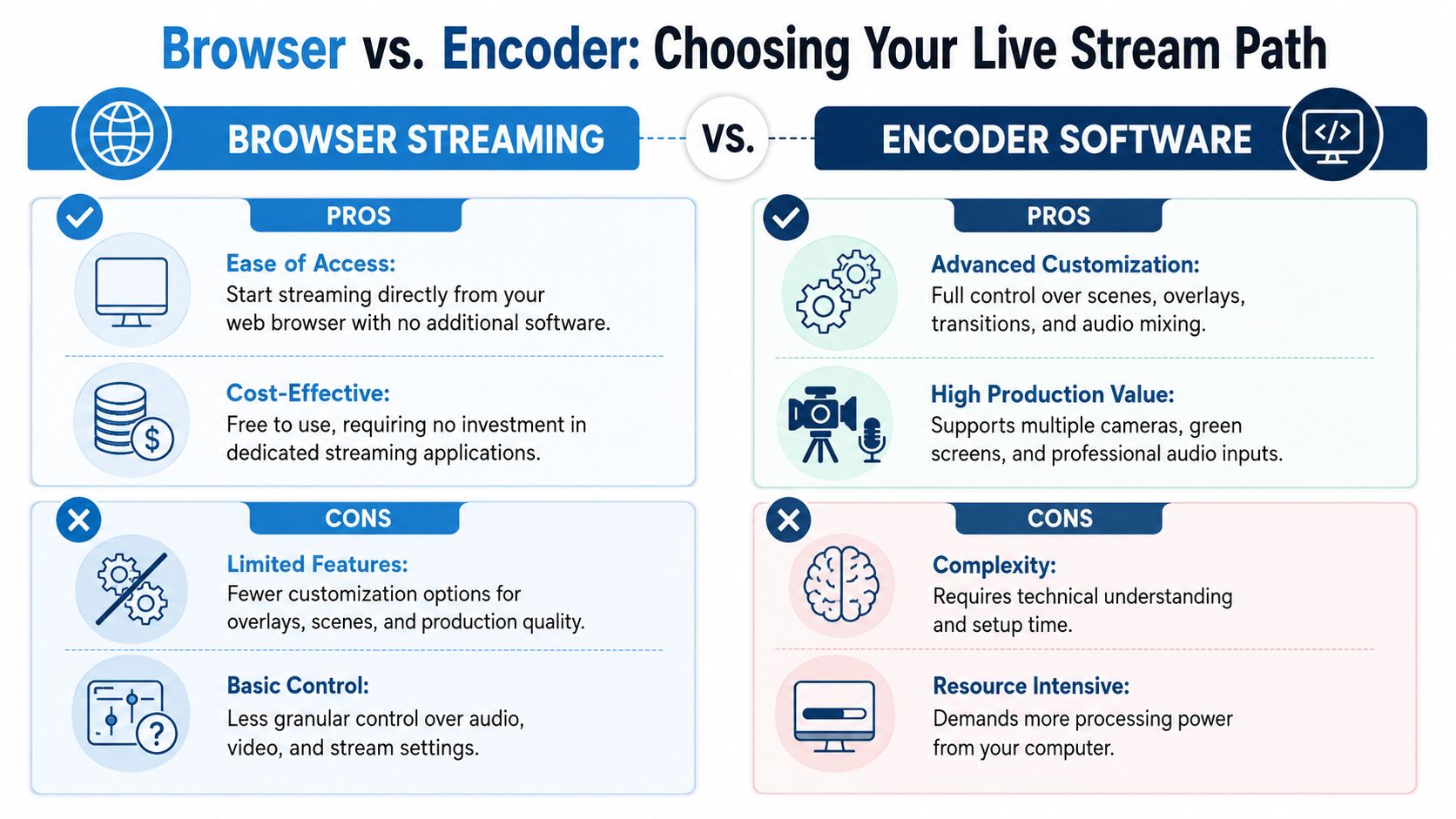
For a quick update from a laptop camera, browser streaming is fine. For anything with multiple speakers, slides, scene changes, branded overlays, lower-thirds, or production timing, use an encoder.
When browser streaming is enough
Browser streaming is the fast path. Open YouTube, allow webcam and microphone access, and go live from the browser with almost no setup.
That works well for:
- Short Q&A sessions where one speaker talks directly to the audience.
- Internal updates that don't need branding or scene switching.
- Low-risk first tests when you want to confirm the channel, audio path, and permissions.
The upside is simplicity. The downside is control. You won't get the same flexibility for layered graphics, polished transitions, complex audio routing, or serious show structure.
A common mistake is trying to force a webinar workflow through a browser-only setup. If you need slides, host camera, guest camera, branded holding screen, and a closing call to action, a browser feed becomes cramped fast.
What an encoder gives you
Encoder software is the production layer between your sources and YouTube. That can be OBS, vMix, Wirecast, a hardware encoder, or a conferencing platform that can publish to YouTube.
This route makes sense when you need:
- Scene changes between camera, slides, sponsor slate, and interview layout
- Audio control so microphones, videos, and system sound don't fight each other
- Screen sharing with cleaner presentation workflows
- Multi-camera operation for classes, events, panel discussions, and demos
If your event includes software demos, pay close attention to screen-sharing behavior. A platform's screen-share workflow affects everything from text readability to presenter confidence. For teams using browser-based meeting tools in the production chain, this walkthrough on sharing your screen during a live presentation is worth reviewing before rehearsal.
Browser streaming is for getting on air. Encoder workflows are for running a show.
Side-by-side decision guide
| Workflow | Use it for | What usually goes wrong |
|---|---|---|
| Browser webcam stream | Quick announcements, basic Q&A, single-speaker updates | Weak audio control, no polished graphics, limited scene options |
| Software encoder | Webinars, classes, interviews, product launches | Setup complexity, CPU load, operator error |
| Conferencing platform to YouTube | Panels, remote guests, secure business events | Mismanaged permissions, wrong output mix, privacy mistakes |
Price matters too, especially for teams comparing tool stacks.
| Option | Typical cost profile | Value trade-off |
|---|---|---|
| Browser-only YouTube stream | No added software cost | Lowest control and branding flexibility |
| OBS-style software workflow | Often low software cost, but higher setup time | Strong value if you have an operator |
| Business conferencing platform with YouTube output | Subscription cost, but bundled meeting and webinar tools | Better fit when the same platform also handles speakers, registration, and audience sessions |
For many organizations, the actual cost isn't the app. It's staff time on rehearsal, troubleshooting, and support during the event.
Configuring Your Stream for Quality and Stability
A first YouTube live stream usually fails in predictable ways. Slides look soft, the presenter sounds fine in the room but distorted online, or the stream drops frames the moment someone else in the office starts a backup. Good results come from matching the stream settings to the weakest part of the chain, which is usually upload bandwidth, CPU headroom, or audio routing.
For a professional starting point, aim for a stable connection that can hold your chosen bitrate with margin, use 1080p if the content includes text or slides, and choose 30 fps unless the program includes fast motion. YouTube Live optimization guidance summarized by Team5pm aligns with that approach.
The settings that matter
Three controls shape the viewer experience more than anything else:
- Resolution. Frame size such as 720p or 1080p.
- Frame rate. Usually 30 fps or 60 fps. Webinars, training, and panel discussions rarely benefit from 60 fps.
- Bitrate. The amount of data sent upstream. Set it too high for your network, and you get dropped frames, buffering, or encoder instability.
Leave headroom. If a line tests well in an empty office, that does not mean it will behave the same way during business hours. I usually set bitrate conservatively, then verify that the encoder can hold steady for a full rehearsal without spikes, skipped frames, or audio drift. That matters even more if the source is a conference platform such as AONMeetings feeding YouTube, because the meeting side and the outbound stream both need clean, stable performance.
Good, better, best presets
| Use case | Resolution | Frame rate | Practical note |
|---|---|---|---|
| Good for classes and talking-head sessions | 720p | 30 fps | Easier on shared office internet and older laptops |
| Better for business webinars | 1080p | 30 fps | Keeps slides and screen shares readable |
| Best for motion-heavy demos | 1080p | 60 fps | Use only if the network and system stay stable in rehearsal |
For healthcare briefings, legal webinars, internal training, and client-facing demos, 1080p at 30 fps is usually the right trade-off. It preserves slide detail and names on lower-thirds without pushing the connection harder than necessary. If the event includes protected discussions before the public stream starts, keep the private meeting environment locked down and test the public output separately.
Stability checks before the audience arrives
Build setup time into the run of show. Starting the encoder early gives you time to confirm preview, check sync, and catch routing mistakes before viewers see them.
Run this pre-flight list every time:
- Test upload from the production machine. Use the same room, network, and connection type you will use for the event.
- Listen to the program feed on headphones. Meters help, but they do not catch echo, gating, or room noise.
- Close unnecessary apps and browser tabs. Background sync, updates, and screen recording tools can steal CPU and bandwidth.
- Check for echo before guests join. Laptop speakers, duplicate audio devices, and open conference mics cause trouble fast. This guide on how to stop microphone echo before a live session covers the usual fixes.
- Preview on a phone. Fine text, charts, and UI demos often look worse on mobile than they do on the operator screen.
- Record a short local test if your encoder supports it. A local file reveals audio sync and graphics issues that are easy to miss in a fast preview.
One practical rule saves a lot of bad streams. Set the stream one notch below the maximum your connection can handle in perfect conditions. Viewers will tolerate ordinary lighting. They will leave when the video freezes.
Secure Professional Streaming with AONMeetings
A public YouTube stream solves distribution. It doesn't automatically solve privacy, meeting security, webinar handling, or regulated-use concerns.
That gap matters most for healthcare providers, educators, internal training teams, and companies that need more control over who joins the source session before that session is sent to YouTube. In those cases, the meeting platform becomes part of the broadcast chain, not just a place where speakers gather.
Where a conferencing platform fits in the workflow
A practical setup looks like this: speakers join a secure meeting room, the producer manages permissions and presentation flow, and the platform sends the final program output to YouTube.
That model is useful when you need:
- Controlled speaker entry through waiting rooms or moderator controls
- Webinar structure so presenters and attendees don't occupy the same role
- Encryption for the live production environment
- HIPAA-capable workflows when the source meeting involves sensitive participants or protected discussions before broadcast
- Built-in webinar tools instead of bolting together separate products
One option in that category is AONMeetings, which supports live streaming to YouTube, includes webinars in its plans, and is described by the publisher as offering bank-level encryption, unlimited meeting time, recordings, screen sharing, breakout rooms on advanced tiers, and pricing starting from ₹179 per user per month. That combination changes the value calculation for teams that would otherwise pay separately for meetings, webinar features, and streaming workflow tools.
Price comparison and value view
The cleanest comparison isn't “which app has a live button.” It's “what do you need to run the event end to end?”
| Feature | AONMeetings (Pro Plan) | Zoom (Pro + Webinar Add-on) | Microsoft Teams (Business Standard) |
|---|---|---|---|
| Live streaming to YouTube | Available | Available in broader webinar/event workflows | Available in broader Microsoft event workflows |
| Webinar capability | Included | Typically tied to added webinar tooling | Often tied to broader Microsoft environment |
| Encryption | Included | Available | Available |
| Unlimited meeting time | Included per publisher information | Varies by plan structure | Varies by Microsoft licensing and policy setup |
| Contracts | Publisher states no contracts | Depends on purchase path | Depends on purchase path |
| Price clarity | Starting price stated publicly by publisher | Can require combining products | Can require comparing Microsoft bundles |
This isn't just about saving money. It's about reducing moving parts. If the same platform handles the speaker room, webinar operations, recording, and YouTube output, you remove several common failure points.
For business broadcasts, the safest stream is often the one with fewer handoffs between tools.
Stream Keys Privacy and Going Live
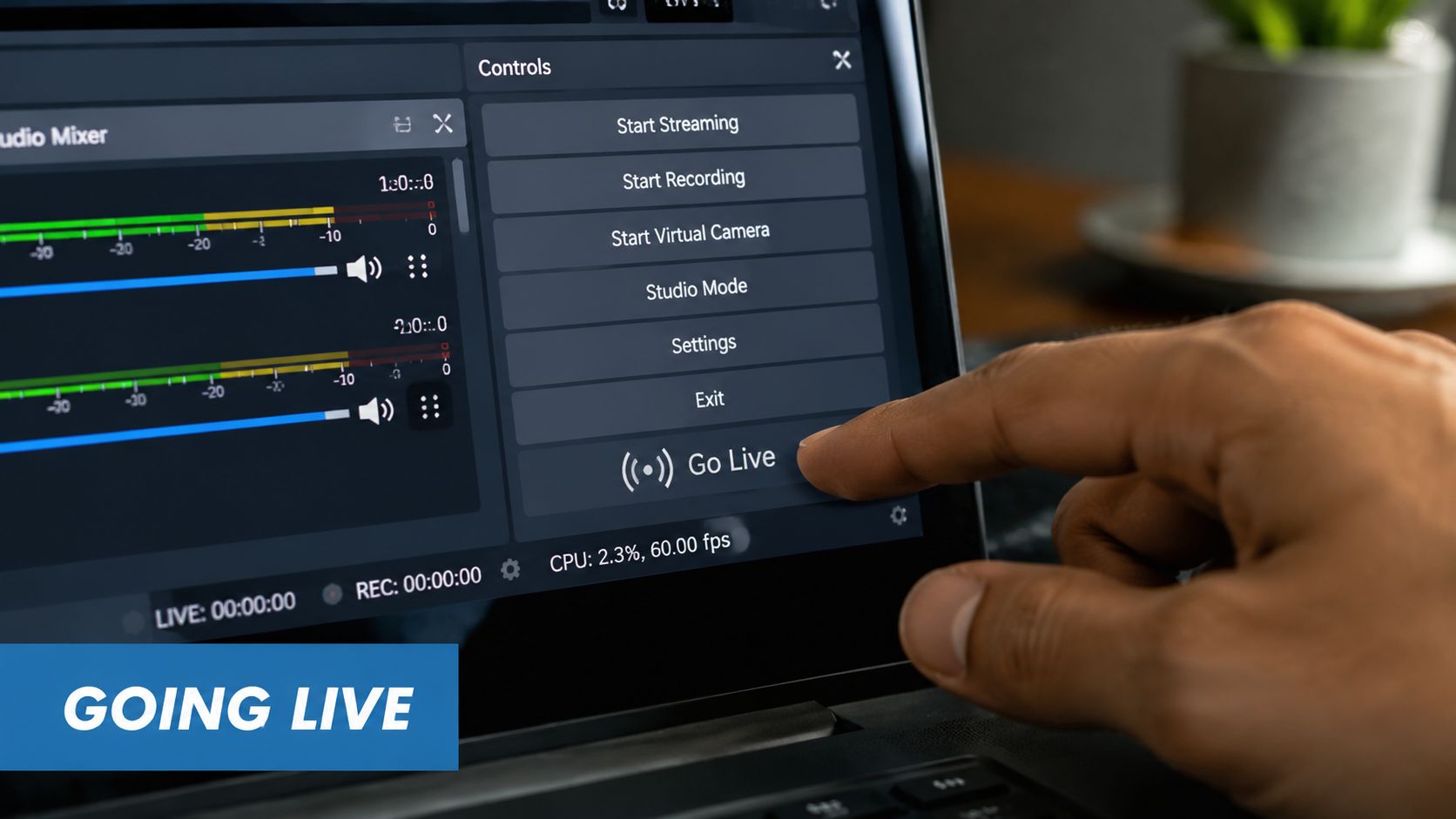
Five minutes before air is when small mistakes turn into public ones. The wrong stream key sends your show to the wrong destination. The wrong privacy setting exposes a rehearsal, a client briefing, or a healthcare education session that was only meant for invited viewers.
A stream key is the credential that connects your encoder or streaming platform to a specific YouTube event. Treat it like a password with publishing rights. Anyone who has it can potentially push video to that destination until you rotate it.
Handling the stream key safely
The safest workflow is simple and controlled.
- Copy the key from the exact YouTube event you plan to use.
- Paste it once into the encoder or streaming platform.
- Keep it out of general team chat and email threads.
- Regenerate it if there is any doubt about where it was pasted or who saw it.
- Name saved encoder profiles clearly so an older event does not inherit the wrong destination.
This goes wrong more often than camera setup. A producer duplicates last month's profile, leaves the old key in place, and the preview never appears where expected. Check the key and server destination first.
If you are feeding YouTube from AONMeetings, apply the same rule. Limit access to the streaming settings to the operator who is responsible for the outbound feed. That matters more in regulated environments, where access control and link distribution need to stay tight. HIPAA-sensitive conversations should stay inside the meeting platform. YouTube should receive only the content you have already decided is safe to broadcast.
Pick the right privacy setting
The privacy setting controls who can find the stream. It does not replace access policy.
- Public fits open events, marketing broadcasts, and community sessions where discovery matters.
- Unlisted fits client updates, paid training, internal education, and invitation-based healthcare education where viewers should need the direct link.
- Private fits internal tests and tightly restricted viewing.
For professional use, Unlisted is usually the practical middle ground. It keeps the stream out of search and public channel browsing, but it still relies on careful link sharing. If the content is confidential, do not assume YouTube privacy settings alone solve the problem. Keep sensitive discussion in AONMeetings, record the session under your own controls when needed, and use a documented workflow for recording webinars for internal review and compliance.
Final launch routine
Set up early enough to catch operational mistakes while there is still time to fix them. I prefer a quiet preflight window instead of a rushed countdown.
| Check | Why it matters |
|---|---|
| Confirm event title and privacy | Prevents publishing a test stream or exposing a restricted session |
| Verify the YouTube preview is receiving signal | Confirms the correct event and key are in use |
| Monitor audio on headphones | Catches hum, echo, missing channels, and accidental mute states |
| Test playback on a phone | Reveals mobile framing, caption, and readability problems |
| Brief the host on platform delay | Prevents people from talking over the return feed or reacting to chat too late |
Run those checks in the same order every time. Repetition reduces operator error.
If the preview is not stable, do not go live and hope it sorts itself out. Check upload consistency, local routing, and office network congestion before blaming YouTube. A structured network troubleshooting guide helps isolate whether the problem is the local network, hardware, or the upstream connection.
The opening seconds matter too. Start with a title card or a clear verbal introduction so late joiners and accidental viewers know what they are watching, who it is for, and whether questions will be handled live.
Troubleshooting Common Issues and Optimization
The failure usually shows up a few minutes after you start. Viewers report buffering. The host hears an echo in the return feed. Slides that looked sharp on the operator monitor turn soft on mobile. In practice, these problems usually come from four places: unstable upload, bad audio routing, an overloaded machine, or settings that were too ambitious for the connection available at that moment.
Start with the symptom you can observe, then change one variable at a time. That matters under pressure. If you lower bitrate, switch audio devices, and change resolution all at once, you will not know which fix solved the problem.
Quick fixes that hold up in a live event
- Dropped frames. Reduce bitrate first and watch whether the encoder stabilizes. If frame loss continues, lower frame rate before cutting resolution.
- Echo or doubled audio. Check for two active audio paths, such as a conferencing app feeding program audio while a browser tab also returns sound. Headphones for the presenter usually solve speaker spill fast.
- Slides look blurry. Small text is the first thing YouTube compression punishes. Enlarge text, simplify the layout, or send slides as a cleaner source scene instead of screen sharing a crowded desktop.
- CPU spikes. Close browser tabs, stop background sync tools, and reduce animated overlays. On older laptops, 1080p at 60 fps is often the setting that pushes the system over the edge.
- Network instability. Shared office Wi-Fi and VPN overhead are common causes. Use a structured checklist like this network troubleshooting guide to isolate whether the issue is local congestion, hardware, or the upstream connection.
Audio deserves extra attention because it fails in ways video does not. A stream with mediocre picture can still be watchable. A stream with clipping, echo, or drifting sync loses people fast. For professional sessions, especially healthcare or internal briefings, I prefer one defined audio owner in the workflow. If AONMeetings is handling the secure meeting side and YouTube is the public distribution layer, decide which platform owns the final program mix and mute every duplicate path.
Use YouTube analytics to improve the next stream
During and after the event, YouTube gives operators a practical set of signals: concurrent viewers, peak concurrent viewers, chat rate, views, and average view duration. YouTube also notes that some vertical live metrics appear about 24 hours after the stream ends in YouTube's live analytics documentation.
Use those numbers to diagnose production choices, not just audience size.
- If concurrent viewers drop during a demo or slide-heavy segment, the pacing or visual clarity probably needs work.
- If chat rate jumps, the audience is asking for interaction. Stop and answer while attention is high.
- If average view duration stays weak across several events, tighten the opening minute and get to the value faster.
- If retention is solid for secure client briefings or compliance sessions, keep the format stable and document the settings that produced it.
Post-event review is where teams get consistent. Record every session, note the timestamp where quality slipped or engagement changed, and compare that against your operator log. If your team needs a repeatable process for archiving and review, this guide to recording webinars for replay and analysis is a useful reference.
A clean YouTube stream comes from repeatable operating habits. The secure version of that workflow adds one more layer: protect the meeting, limit who has production access, and keep private discussion inside the conferencing platform while YouTube carries only the feed meant for the audience. That trade-off matters in healthcare, education, and client-facing broadcasts where privacy rules matter as much as picture quality.
