
If you're running a clinic, a training business, or a small company, you've probably had this moment. Someone needs to join a meeting quickly. One person is on a phone, another is at home on weak Wi-Fi, and someone else can't install software because their office laptop is locked down by IT. The meeting starts late, screen sharing fails, and what should've been a simple conversation turns into a support ticket.
That frustration is one reason so many organizations moved toward video conferencing in the cloud. Instead of buying and maintaining room systems or local servers, teams can use a browser, a link, and a service that handles the heavy lifting elsewhere. For a clinic manager, that can mean easier patient visits. For a school, it can mean fewer barriers for students. For a small business, it can mean more predictable costs and less dependence on in-house technical staff.
The Rise of Cloud-Powered Meetings
A few years ago, professional video meetings often felt like a special event. You booked the conference room, hoped the camera worked, and called someone from IT if the bridge wouldn't connect. Smaller organizations usually had two bad options: spend heavily on hardware, or settle for consumer-grade tools that didn't fit business needs.
Cloud delivery changed that rhythm. A manager can now send a meeting link for a staff huddle in the morning, a client review in the afternoon, and a public webinar later that week, all from the same platform. That's a very different model from buying equipment for a fixed room and guessing future capacity in advance.
The shift isn't just anecdotal. One market report says the cloud video conferencing market was valued at $9,514.06 million in 2024 and is projected to reach $18,973.4 million by 2031, with a 10.3% CAGR according to MetaStat Insight's cloud video conferencing market report. That tells you cloud conferencing isn't a niche convenience anymore. It's part of the normal communication stack for modern organizations.
Why the change felt so big
Traditional systems asked businesses to think like infrastructure owners. Cloud systems ask them to think like service users.
That difference matters in everyday work:
- For a clinic: Staff can focus on patient scheduling and privacy workflows instead of maintaining meeting servers.
- For a tutoring center: Teachers can send browser-friendly links to students who use mixed devices at home.
- For a growing company: Sales, support, and operations can all use the same meeting layer without adding room hardware first.
Practical rule: If your main goal is to help people join meetings quickly and reliably, simplicity often creates more business value than custom infrastructure.
People also get confused by the word "cloud." It can sound abstract, expensive, or less secure by default. In practice, it usually means the provider hosts the computing resources remotely and delivers the service over the internet. You don't have to own the engine to drive the car.
How Cloud Video Conferencing Actually Works
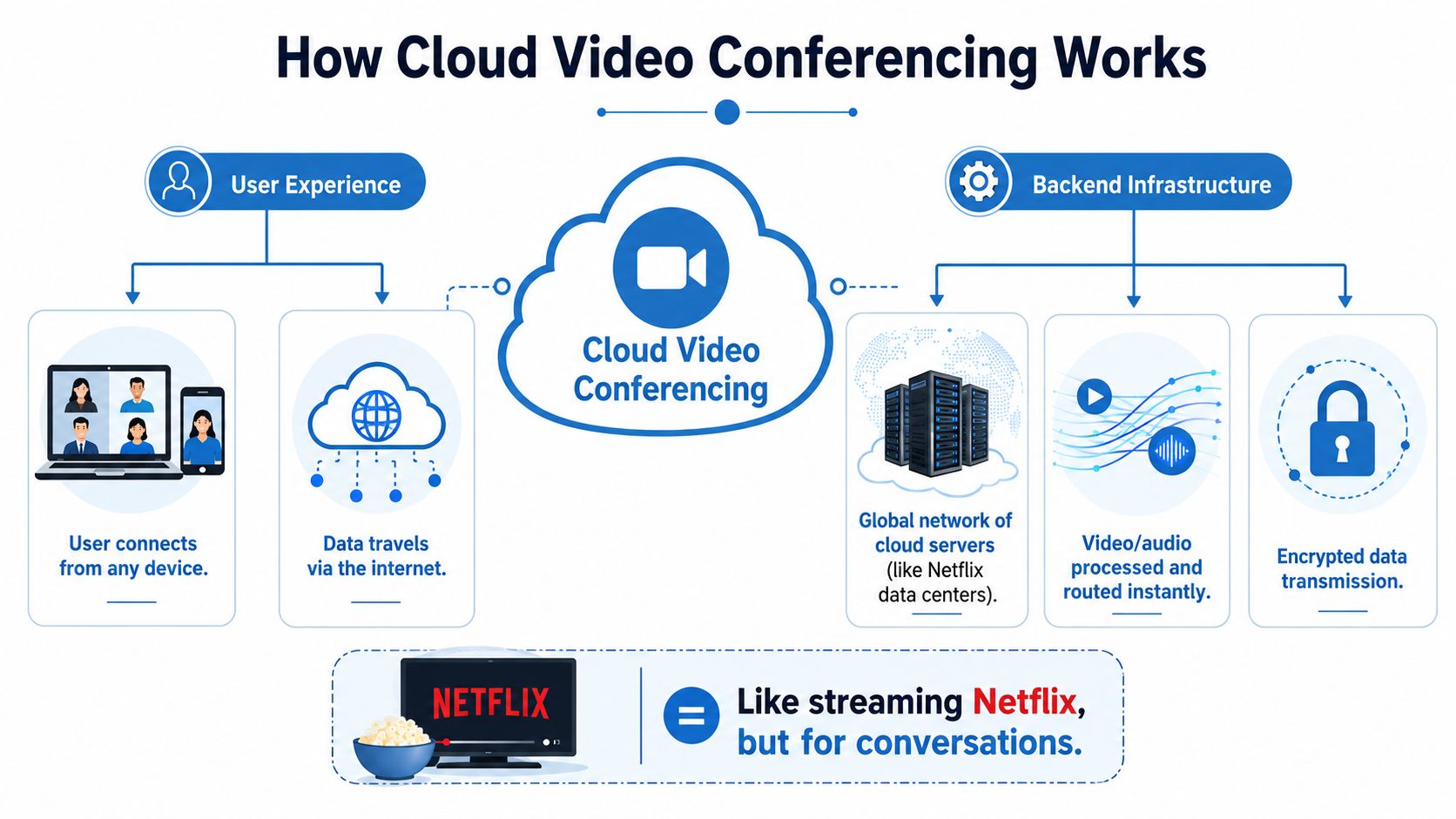
Cloud video works a lot like streaming a movie. With Netflix, you don't keep a server rack in your office to deliver each film. You open an app or browser, press play, and remote systems handle storage, processing, and delivery. Video conferencing in the cloud works similarly, except instead of streaming a movie, you're streaming live conversation.
What happens when you join a meeting
When you click a meeting link, several things happen behind the scenes.
First, your device captures your audio, video, and shared content. Then that data travels over the internet to the provider's cloud systems. Those remote servers process and route the streams in real time so everyone in the meeting can see and hear one another. That's the core model described in this overview of cloud video conferencing infrastructure, which also notes that providers such as AWS and Microsoft Azure became the infrastructure layer for real-time routing and scaling.
A simple way to picture it:
- You speak into your mic
- Your device sends that signal outward
- Cloud servers organize and distribute it
- Other participants receive the right mix of streams
- The platform adds features like recording, chat, and screen sharing
You don't manage the engine room. The provider does.
Why browser access matters
Many people assume video meetings require a desktop app. Sometimes apps help, but browser-based access removes a lot of friction. A patient can join from a phone. A job candidate can click from a borrowed laptop. A parent joining a school meeting doesn't need to call support first.
Technical terms can distract people. You may hear words like WebRTC. For most buyers, the practical meaning is simpler: modern web technology can let people join real-time calls from a browser without a complicated install process.
Cloud delivery feels easier because the difficult parts live away from the user's device.
That doesn't mean your local internet stops mattering. It does. But it changes who handles scale, routing, updates, and service architecture.
How this differs from the old model
In an on-premise setup, your organization buys and runs much of the meeting infrastructure itself. That can mean local servers, networking work, updates, maintenance, and capacity planning. If your meeting demand grows, you often need more hardware, more configuration, or both.
In the cloud model, the service is built to use shared remote infrastructure. That's why a small team meeting and a much larger webinar can often run on the same platform architecture.
Think about a small medical practice. Under an older model, the office might need dedicated systems and technical help just to support routine remote consultations. With cloud delivery, the practice mainly needs a secure platform, staff training, and a reliable internet connection. That's a very different operational burden.
Cloud Versus On-Premise A Practical Comparison
The easiest way to compare these two models is to stop thinking about features and start thinking about responsibility. Who buys the infrastructure? Who maintains it? Who absorbs the pain when demand changes?
The business tradeoff in plain English
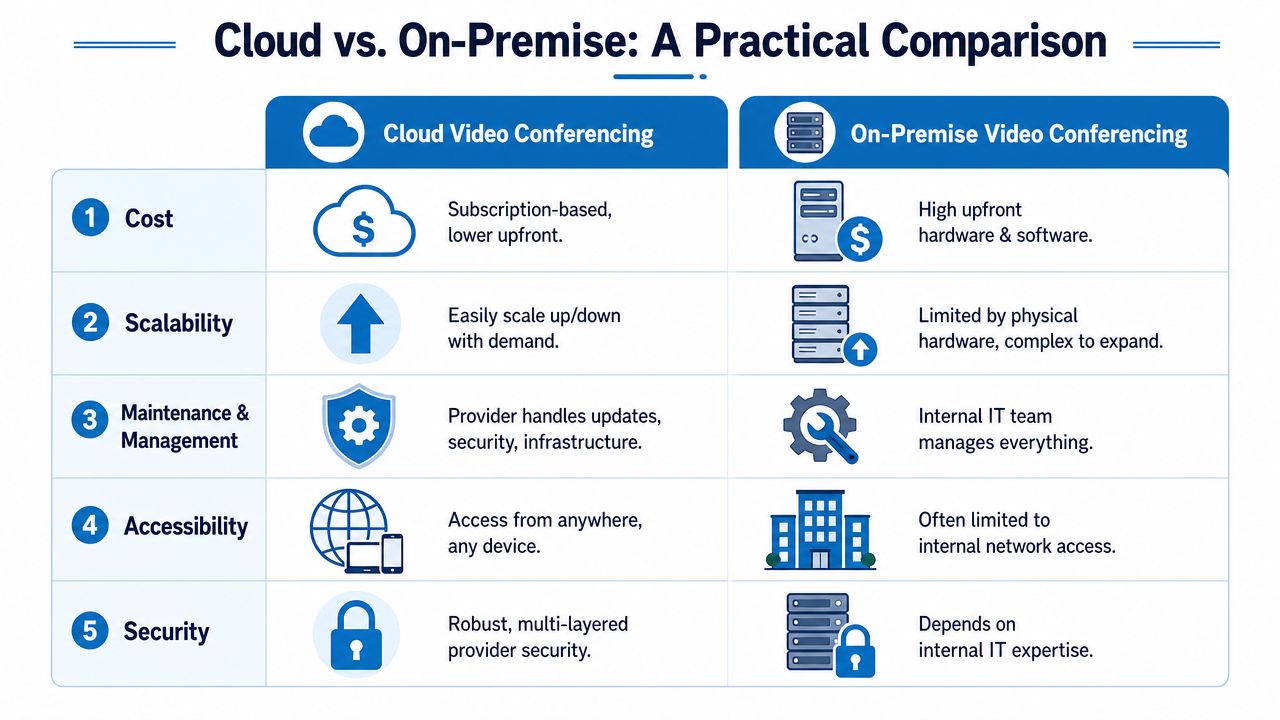
With on-premise video conferencing, your organization has more direct control over the environment, but you also inherit more work. With cloud video conferencing, the provider handles much of the infrastructure and operational maintenance, which reduces setup friction for many teams.
A useful source on deployment design notes that cloud video conferencing systems scale through centralized cloud infrastructure and that browser-based systems typically use standard port 80, which makes deployment across varied networks and devices easier according to the NIH-hosted review of video conferencing architecture.
Side-by-side decision points
| Decision area | Cloud video conferencing | On-premise video conferencing |
|---|---|---|
| Upfront cost | Usually lower to start because you subscribe | Usually higher because you buy and deploy infrastructure |
| Scalability | Easier to expand for more users or webinar-style events | Expansion often depends on new hardware or deeper configuration |
| Maintenance | Provider handles updates, platform uptime, and much of the backend | Internal IT team manages servers, upgrades, and support |
| Access | Often easier for remote workers, patients, students, and guests | Access may depend more on internal systems or network design |
| Security work | Shared with the vendor, which means careful vendor review matters | Handled more directly by your organization, which requires expertise |
A practical example
Take a small college running evening classes. If it uses an on-premise system, the IT team has to think about user provisioning, server health, room compatibility, and remote access pathways. If the college moves to a cloud platform, instructors can often invite students by link, record sessions, and expand capacity without buying new local hardware.
That doesn't mean cloud is always better. A risk-sensitive buyer may still prefer some hybrid or self-managed components. But for many small and mid-sized organizations, cloud removes more barriers than it creates.
Essential Features and Security Protocols
A video platform shouldn't be judged only by whether faces appear on screen. A key question is whether it supports the way your organization functions. A clinic needs privacy controls. A school needs teaching tools. A small business may need client meetings, internal calls, and webinars from one service.
The features most teams use every week
Some features sound basic until they're missing. Then work slows down fast.
Look for platforms that handle these everyday tasks well:
- Screen sharing: Essential for demos, lesson plans, patient education, and document review. If your team needs help with presentation flow, this guide on how to share your screen in meetings is a useful reference.
- Recording: Helpful for training, follow-ups, and absent participants.
- Chat and file sharing: Keeps quick links and notes inside the meeting.
- Waiting rooms and host controls: Gives staff a way to manage who enters and when.
- Meeting lock: Useful once all expected participants have joined.
For healthcare and education, these aren't just convenience tools. They're workflow tools.
Why webinars included matters
A lot of buyers compare plans based on basic meeting access and miss a major value question. Are webinars included, or do they require a separate product, a different tier, or added administration?
That matters because organizations don't hold only one type of session. A dental group may run patient consultations on Monday, a staff training on Wednesday, and a community education webinar on Friday. A coaching business might use one-to-one calls for clients and webinar sessions for lead generation. If webinars are built in, the platform can serve more departments without forcing another purchase decision.
A platform that includes webinars can replace tool sprawl, not just host meetings.
For cost-conscious teams, that's often where value shows up. You're not only buying camera time. You're buying one communication layer that can cover internal meetings, external presentations, classes, and event-style sessions.
Security features people should ask about
Security language gets fuzzy fast, so keep it practical. Ask how data is protected while moving across the internet and while stored by the provider. In plain language, buyers often describe this as encryption in transit and at rest. Many providers also highlight stronger encryption as a premium security feature.
Then ask about access control:
- Who can join
- Who can record
- Who can share screen
- Who can remove participants
- Whether hosts can lock meetings
- Whether waiting rooms are available
These controls matter because many real-world security problems aren't about cinematic hacking. They're about the wrong person joining, the wrong person sharing, or the wrong file being exposed.
What HIPAA means in practice
Healthcare buyers often hear "HIPAA-compliant" used loosely. Treat that phrase as a starting point, not the end of the conversation.
A clinic should ask questions like these:
- Will the vendor sign a Business Associate Agreement if needed?
- Are access controls strong enough for patient sessions?
- Can staff manage waiting rooms and participant admission?
- Are recordings controlled and governed appropriately?
- Can the system support audit and administrative oversight?
A pediatric clinic, for example, may care less about flashy meeting effects and more about stable browser access for parents, secure admission controls, and staff-friendly settings that reduce mistakes during telehealth appointments.
Understanding Pricing and Total Cost of Ownership
Price is where many buyers make a fast decision and a costly mistake. They compare the visible monthly fee and assume the lowest sticker price is the cheapest option. It often isn't.
A better question is the one many guides skip: When does cloud conferencing stop being cheaper than it looks? That's the hidden-cost problem highlighted in this discussion of cloud-based video conferencing costs and tradeoffs. The article points to hidden expenses such as admin time, bandwidth upgrades, security controls, and meeting overages.
Start with transparent plan design
For a small business owner, the cleanest pricing model is easy to explain to finance and easy to predict month to month. That usually means clear per-user pricing, no surprise time caps, and an obvious answer to whether webinars, recordings, and controls are included.
The publisher behind this article states that AONMeetings starts at ₹179 per user per month and includes unlimited meeting time, webinar hosting, screen sharing, recordings, and encryption in its plans. That kind of transparent bundle is useful as a comparison point because it shows what an all-in-one offer can look like.
A practical price comparison doesn't always need a long spreadsheet. It can be as simple as asking:
- Does the base plan include webinars or charge extra for them?
- Will time limits force an upgrade?
- Are advanced security controls reserved for higher tiers?
- Do you need extra tools for support and audio operations?
If your team also handles high call volume or support desks, it's smart to review related operational costs such as pricing for support operations, because meeting software is only one piece of the communication budget.
The hidden costs that change the real bill
These are the costs buyers often discover after rollout:
- Admin effort: Someone has to manage users, permissions, training, and troubleshooting.
- Network readiness: Poor bandwidth can force upgrades or policy changes.
- Security governance: Compliance reviews, access policies, and recording rules take staff time.
- Feature fragmentation: Separate webinar, streaming, or event tools can create extra subscriptions.
- Usage surprises: Overage logic or tier boundaries can make growth feel expensive.
Cheap software gets expensive when the missing features force you to buy around it.
For a clinic, the wrong platform can create hidden labor costs at the front desk. For a school, it can create support burden for teachers. For a small business, it can push webinar and live event work into separate products, which raises both spend and complexity.
Choosing the Right Platform for Your Audience
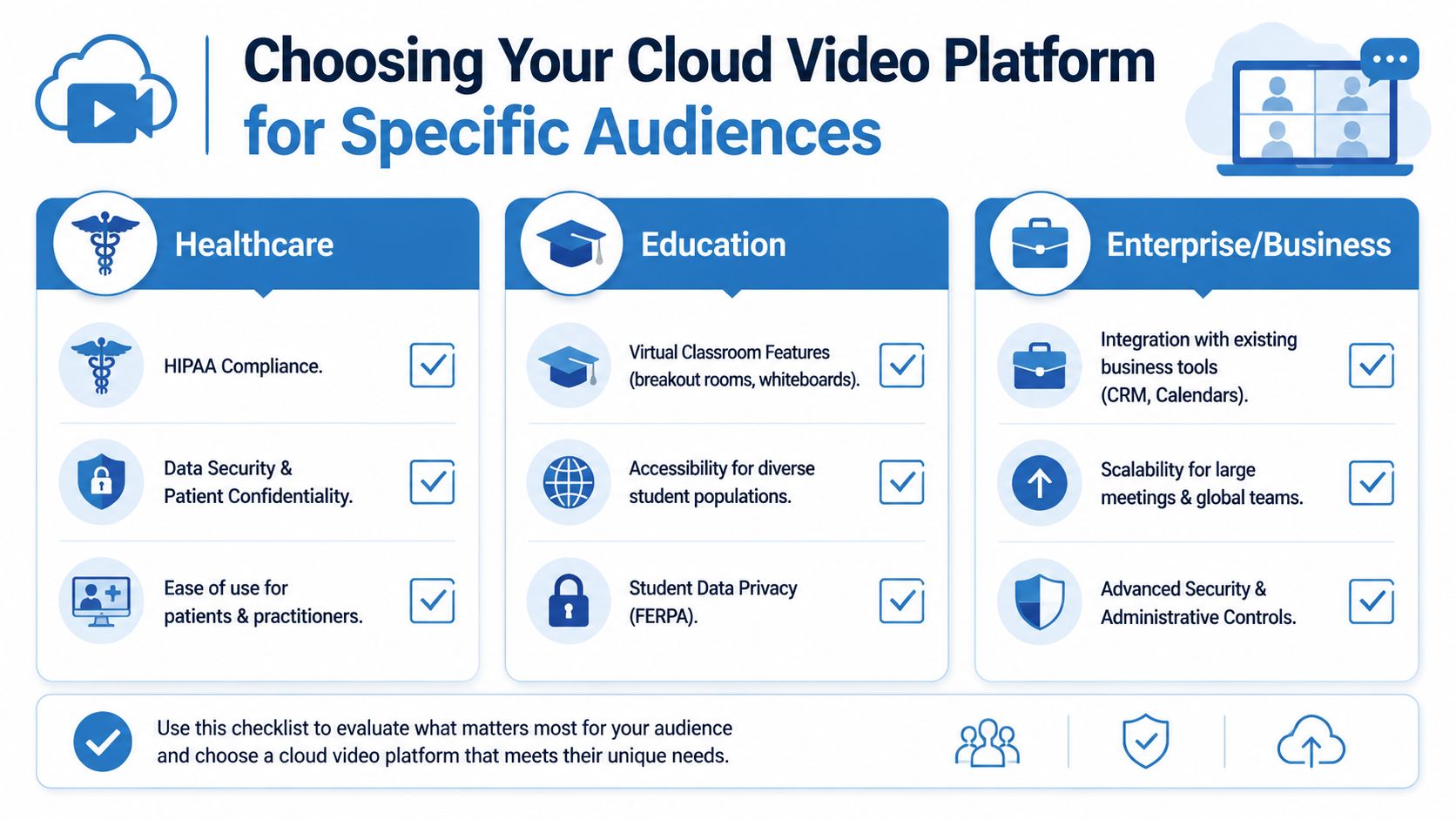
The right platform depends less on marketing language and more on who needs to use it under pressure. A patient joining from a phone has different needs from a teacher running group discussion. A sales team hosting a product webinar has different priorities from a therapist running confidential sessions.
Healthcare buyers
Healthcare teams should start with privacy, access control, and patient simplicity.
A useful healthcare scenario is a follow-up appointment after a procedure. The clinician needs the session to start on time. The patient may be using an older phone. Front-desk staff need a simple way to admit the right person, and the practice may need controls that align with HIPAA expectations.
Priorities usually include:
- HIPAA readiness: Ask about agreements, administrative controls, and handling of patient information.
- Simple join flow: Patients shouldn't need a long install sequence.
- Host moderation: Waiting rooms, participant admission, and meeting lock features matter.
- Reliable screen sharing: Clinicians often need to review reports, instructions, or care plans.
Education teams
Education platforms live or die by usability. If students struggle to join, the lesson starts late. If teachers can't manage participation, class quality drops.
For schools, tutors, and coaching centers, look for:
- Breakout rooms: Useful for small-group work or oral practice.
- Whiteboards and content tools: Helpful for explaining live concepts.
- Recording options: Good for students who miss class.
- Cross-device access: Students often join from mixed hardware and network conditions.
A tutoring center, for instance, may not need enterprise-heavy customization. It may need dependable recording, easy screen sharing, and low-friction student access far more.
Small businesses and growing teams
For businesses, the biggest question is often whether one platform can support internal collaboration and outward-facing growth.
That means checking for:
- Client-friendly join experience
- Webinars included
- Branding options for public sessions
- Calendar and workflow integrations
- Administrative controls for managers
A software reseller might use the same platform for weekly staff syncs, customer onboarding, sales demos, and educational webinars. If those functions sit in one product, operations stay simpler.
For buyers comparing event-focused tools, this review of a virtual event platform comparison can help frame what matters when meetings start to blend into webinars and online events.
A vendor selection checklist
Before you sign anything, use a checklist that forces concrete answers.
- Security fit: Does the platform offer encryption, role-based controls, waiting rooms, and clear admin settings?
- Compliance fit: If you're in healthcare or education, can the vendor support your specific privacy obligations?
- Pricing clarity: Are webinars, recordings, and moderation tools included, or parked behind upgrades?
- Ease of use: Can guests, patients, parents, and customers join without friction?
- Operational fit: Will your staff need lots of training, or can they run it comfortably after brief onboarding?
- Resilience planning: What happens if the provider, login service, or regional network has problems?
That last point gets ignored too often. Convenience matters, but continuity matters too.
Your Questions Answered
Cloud video conferencing is attractive because it reduces hardware burden, simplifies joining, and can combine meetings, recordings, and webinars in one place. The smartest buyers, though, look beyond convenience. They check pricing transparency, security controls, compliance fit, and what the organization will do when the cloud side has a bad day.
Common questions
What should we do if the provider has an outage?
This is one of the most overlooked buying questions. A major gap in many buyer guides is cloud-dependence risk and outage resilience, especially when the cloud provider, identity service, or regional network fails, as discussed in AVIXA's discussion of cloud video conferencing benefits and overlooked risks. Ask vendors about fallback workflows, backup communication channels, and how staff should continue critical operations during service disruption.
Do we need a lot of internet bandwidth?
You need a stable enough connection for the type of meeting you're running. A one-to-one internal call is different from a webinar with screen sharing and recording. In practice, test from the kinds of devices and networks your users have, not just from the head office.
What's the difference between MCU and SFU?
Both are approaches for handling multiple video streams. For most buyers, the practical issue isn't memorizing the acronym. It's whether the platform performs well for your meeting sizes, devices, and network conditions.
How do we reduce meeting problems for staff and guests?
Set defaults well. Use waiting rooms, clear host permissions, simple join links, and basic meeting etiquette. These virtual meeting best practices are a solid starting point for cleaner sessions.
If you want a platform built for secure, browser-based meetings with webinar hosting, HIPAA-ready workflows, transparent pricing, and no unnecessary friction, take a look at AONMeetings. It's designed for clinics, educators, businesses, and teams that want reliable video conferencing in the cloud without hidden complexity.
