
You're mid-call, you start talking, and everyone stares back with that familiar look. Then the chat message lands: you're muted.
That moment feels worse when you're presenting, teaching, interviewing, or trying to speak to a patient. The good news is that most “I can't unmute” problems are simple once you check them in the right order. Random clicking usually makes it worse. A clean top-down check fixes it faster.
I handle this the same way in support. Start with the meeting app. Then check your headset or microphone. Then check browser or mobile permissions. Last, check system audio. If the problem still isn't gone, you're usually dealing with a host control, device conflict, or a flaky connection. If you're also troubleshooting call quality, this guide on stable internet speeds for home offices is a useful companion because weak bandwidth can make audio controls feel delayed or inconsistent. For meeting habits that prevent these problems before they start, keep a short pre-call routine like the one in these virtual meeting best practices.
You're Talking But No One Can Hear You
The most common version goes like this. You join on time, your camera works, the meeting starts, and you can hear everybody else. So you assume your microphone is fine. Then you speak, nobody reacts, and you start hunting through icons while the conversation moves on without you.
In practice, “how to unmute” is rarely one mystery. It's usually one of a few predictable failures. The app muted you on join. Your headset has a physical mute switch. Your browser never got microphone permission. Your computer is listening to the wrong mic. Or the host has you muted and can only ask you to unmute.
What usually fails first
Most users jump straight into device settings too early. That wastes time. Start with the controls closest to the meeting.
Practical rule: Check the meeting window first, then the device in your hand, then the browser, then the operating system.
A quick example. If you joined a class from a laptop with Bluetooth earbuds, the app may show “unmuted” while the earbuds are muted at the hardware level. In a telehealth session, the opposite can happen. Your headset is live, but the platform joined you muted by default, or the host hasn't allowed open mics yet.
The hierarchy that works
Use this order every time:
App mute button
Look for the microphone icon inside the meeting window. If it's crossed out, fix that before anything else.Hardware mute control
Check the inline button on wired earphones, the boom mic button on a headset, or the switch on a USB microphone.Permission and device selection
Confirm the app or browser is allowed to use your mic, and that it's using the correct one.System-wide audio settings
If everything above looks right, check whether Windows or macOS is muting or prioritizing a different input device.
That order saves time because each layer can override the one below it. If you stick to it, you won't need to guess.
The Universal Unmute Checklist First Steps
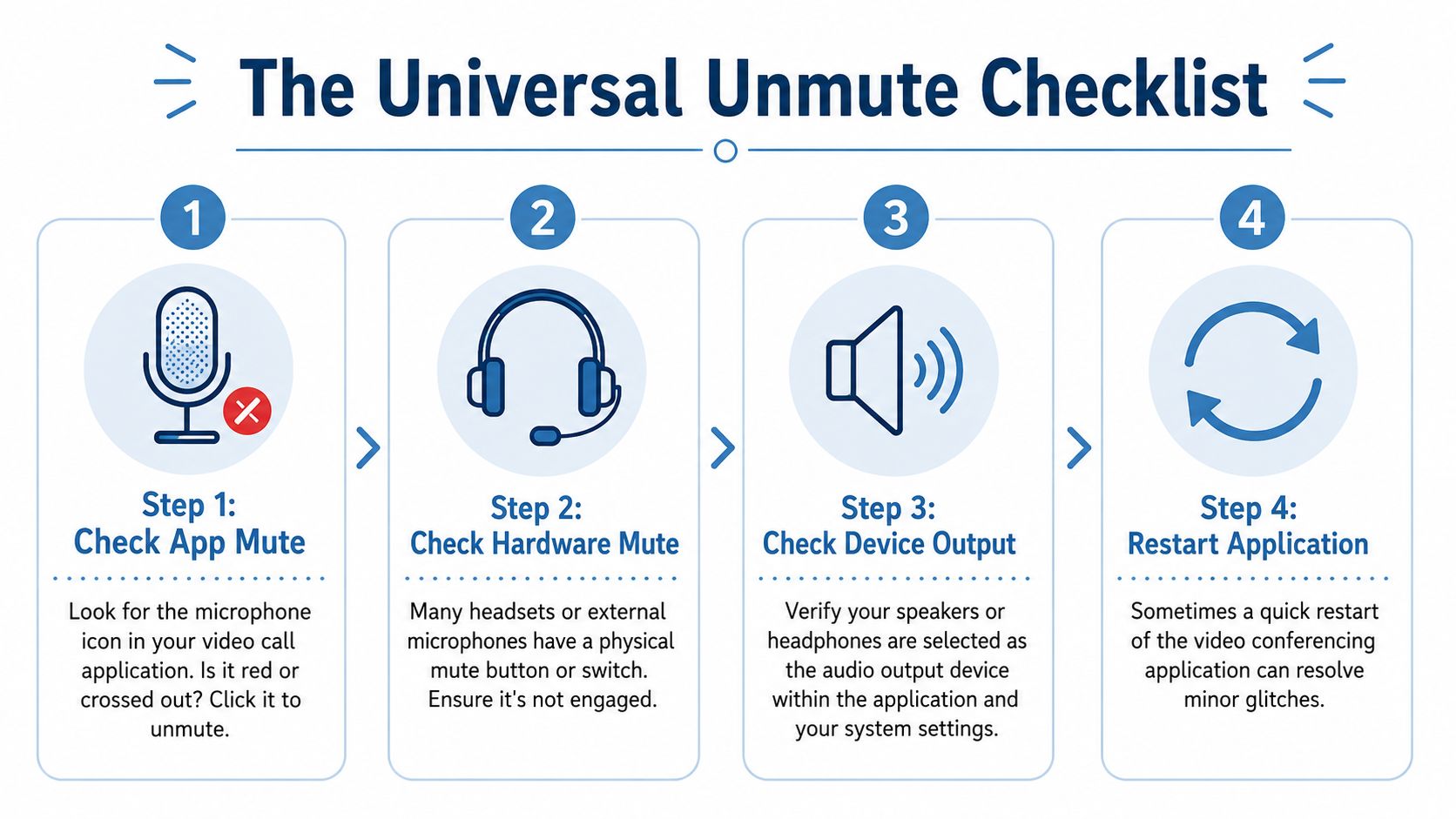
When someone asks me how to unmute, this is the first-minute triage I use. It solves a surprising share of cases without touching advanced settings.
Start with what you can see
If the microphone icon in the app is red, crossed out, or labeled muted, click it once. Don't click it repeatedly. Repeated clicks can toggle you back into mute, especially on a laggy connection.
Then watch for visual confirmation. Many platforms flash a small “You are now unmuted” message or animate the mic icon when audio is live.
Then check what you can touch
A lot of users miss the hardware mute because they trust the on-screen icon too much. USB microphones, gaming headsets, conference speakerphones, and even some laptop keyboards have separate mute controls.
Look for these:
- Inline headset buttons that mute the mic on wired earbuds
- Boom-arm buttons on office headsets
- Touch panels on USB speakerphones
- Keyboard media keys that may control system mute rather than app mute
If you bumped a hardware button by accident, the app may still show you as ready to talk while nobody hears anything.
Four checks in under a minute
- Check app mute: Your first target is always the meeting window.
- Check headset or mic switch: Physical mute beats software in many setups.
- Check output and input devices: Some apps switch devices after you plug in headphones without notifying you.
- Restart the app: A fast restart clears small audio-state glitches.
Restarting the meeting app is often faster than digging through five menus when the controls look correct but audio still won't pass.
Don't forget push-to-talk
Some platforms and webinar tools use push-to-talk behavior. If that's enabled, you won't stay live unless you hold the assigned key. In support calls, I see users mistake this for a broken mic all the time.
A fast symptom table
| What you see | What it usually means | What to do |
|---|---|---|
| Mic icon has a slash | You're muted in the app | Click the mic once |
| App says unmuted, nobody hears you | Hardware mute or wrong input device | Check headset switch, then mic selection |
| You can hear others but can't speak | Browser permission or host control | Check browser mic access and host prompt |
| Audio worked, then stopped | Device changed mid-call | Re-select the microphone in app settings |
Unmuting on Specific Video Conferencing Platforms
The basic logic stays the same across platforms, but each one hides controls a little differently. That's where people get stuck. They know they need to unmute. They just can't find the right button fast enough.
Zoom
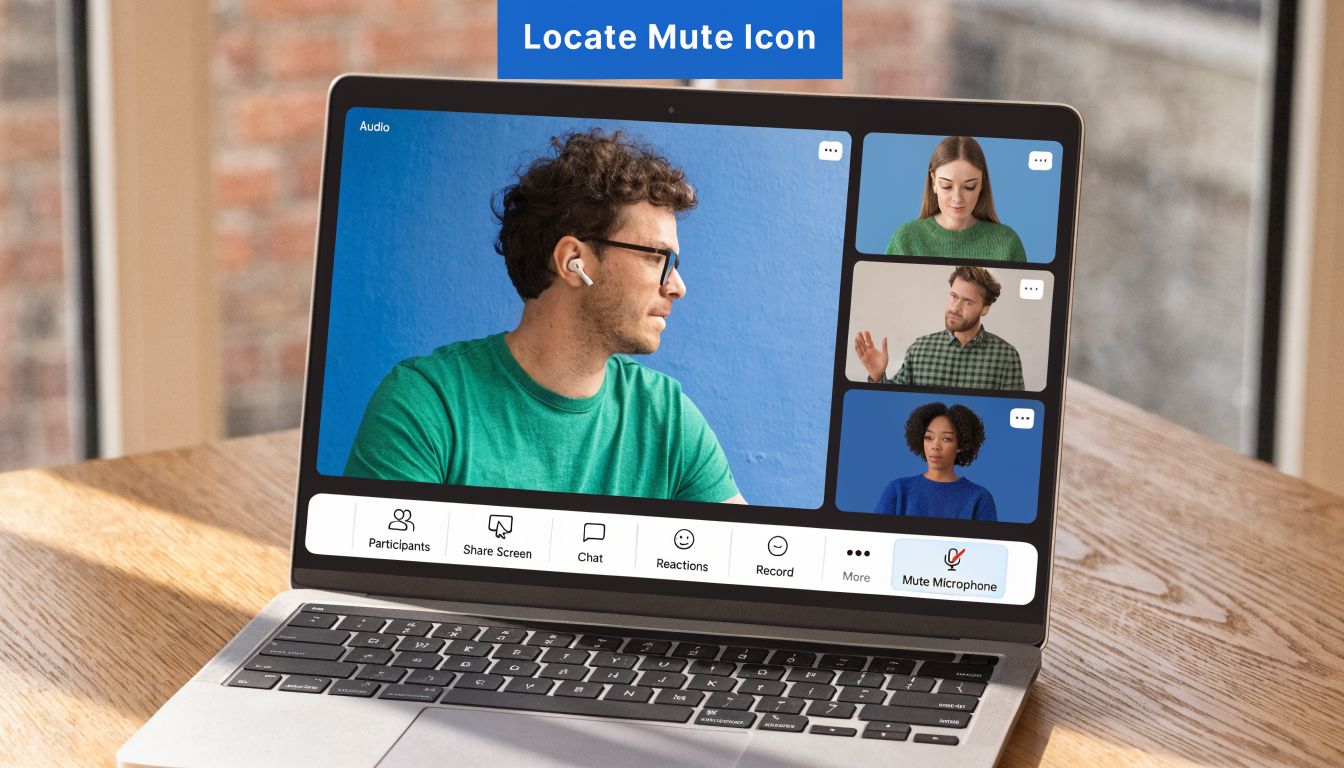
In Zoom, the mute button is usually in the bottom-left toolbar. If the microphone shows a red slash, you're muted. Click it to unmute. On many setups, Alt+A on Windows is the quickest toggle. On Mac, many users rely on Cmd+Shift+A for fast audio control during calls.
A common Zoom issue isn't the mute button itself. It's joining with audio not fully connected, or joining while the wrong microphone is selected. If the mic icon looks fine but no one hears you, open the audio settings inside Zoom and verify the active input device.
Microsoft Teams
Teams keeps the mic control in the meeting toolbar. Depending on screen size, it may stay in the center or collapse into more controls on smaller windows. Click the microphone icon once and wait for the state change.
Teams users often run into device conflicts because Windows changed the default microphone after a headset was connected or disconnected. If you're switching between laptop mic, USB headset, and Bluetooth earbuds during the day, Teams can latch onto the wrong source.
Browser-based professional platforms
Browser-based meeting tools usually put mute controls in a visible bottom bar, but browser permission is part of the flow. If you denied mic access when joining, clicking unmute won't fix it because the browser itself is blocking the microphone.
That matters in higher-stakes calls. In secure environments like telehealth, audio problems are not a minor annoyance. A 2025 HIMSS survey found that 32% of telehealth disruptions stem from audio issues (reference). That's why moderator controls, clear mute states, and predictable participant permissions matter more in clinical and regulated meetings than they do in casual calls.
What changes in webinars and managed events
Webinars are different from open meetings. In many webinar setups, attendees can't unmute themselves whenever they want. The host has to promote them, invite them to speak, or send an ask-to-unmute prompt.
That's why “the button is missing” doesn't always mean something is broken. It may mean your role in the session doesn't allow live audio.
Price and value matter more than most teams admit
Software choice directly affects day-to-day friction. Some platforms split core meeting features across tiers, so teams end up juggling separate plans for meetings, webinars, security controls, or longer sessions. Others keep the workflow simpler.
If you're comparing business tools, look beyond the mute button and compare what you get:
| What to compare | Why it affects unmuting and meeting flow |
|---|---|
| Browser join | Fewer app installs means fewer audio-driver surprises |
| Included webinars | Hosts don't need a second tool with different audio rules |
| Unlimited meeting time | Long sessions don't force reconnects and audio resets |
| Encryption | Sensitive conversations need secure audio transport |
| Moderator controls | Hosts can manage speaking privileges without chaos |
For small teams, clinics, coaching businesses, and training teams, cost and usability converge here. AONMeetings, for example, starts at ₹179 per user per month, includes unlimited meeting time, webinar hosting, and bank-level encryption, which makes the value comparison straightforward for organizations that don't want separate tools or hidden add-ons. If you're evaluating conferencing options for a lean team, this breakdown of the best video conferencing for small business is a practical place to compare fit.
A good meeting platform doesn't just let you unmute. It makes it obvious when you can speak, when you can't, and why.
Solving Browser and Mobile Unmuting Glitches
Browser and phone joins are where the clean logic of desktop troubleshooting starts to get messy. The app may be fine. Your microphone may be fine. But the browser or mobile OS is blocking access.
The browser permission problem
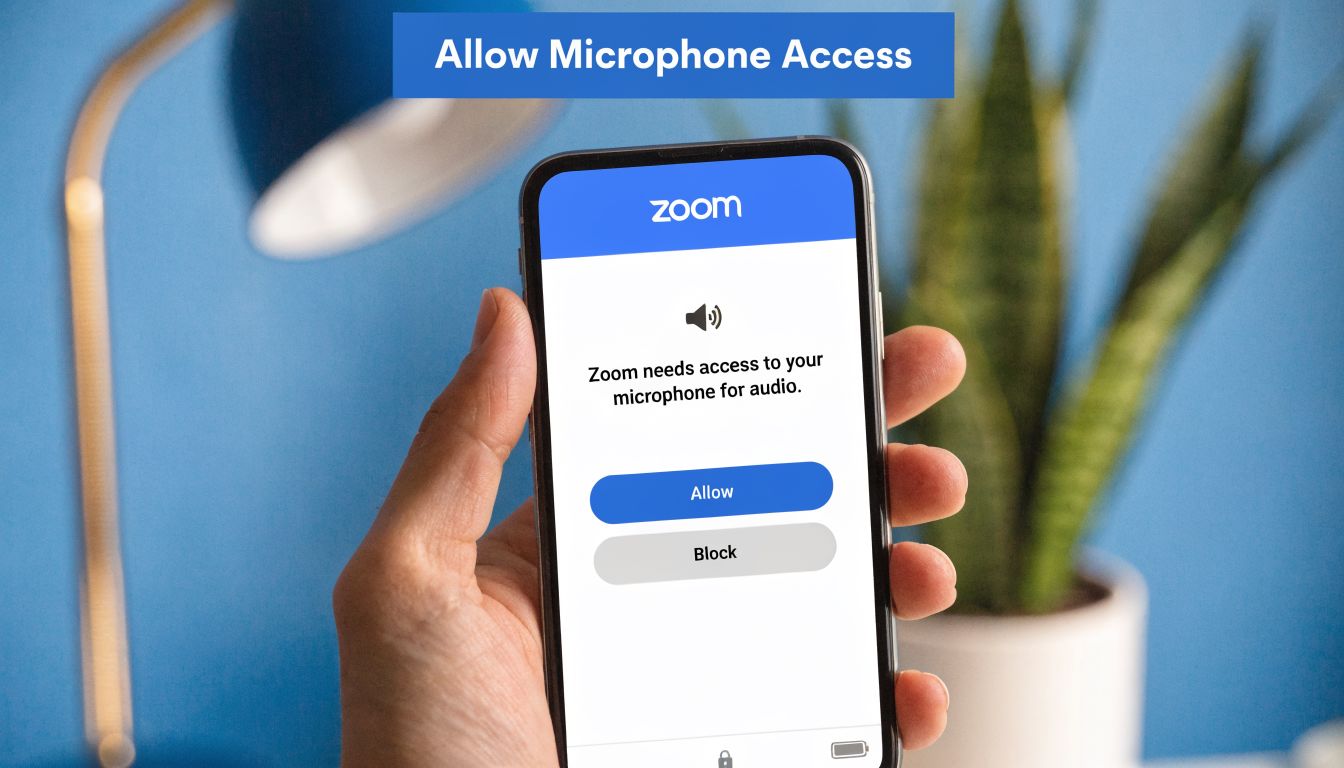
You click a meeting link, the browser asks for microphone access, and you hit “Block” without thinking. From that point on, clicking the unmute button inside the meeting often does nothing useful. The site can't access the microphone.
This is a known friction point. A 2026 EdTech Magazine survey found 40% of educators report microphone permission prompts as a barrier in browser-based platforms (reference). If you're teaching, presenting, or joining from shared school or office devices, this comes up often.
How to fix browser permissions
Use the lock icon beside the site address and look for microphone permissions.
- In Chrome or Edge: Click the lock icon, find site settings, and set Microphone to Allow.
- In Safari: Open website settings for the active site and allow microphone access.
- If it still fails: Close the tab completely, reopen the meeting link, and accept the permission prompt again.
If you've ever tested your mic with another app and it worked there but not in the meeting, permission mismatch is a strong suspect.
Mobile problems feel random, but they usually aren't
On phones and tablets, switching apps is a common trigger. You join a meeting, jump to Messages to grab a code or link, come back, and your audio state changes. The mic may need permission again, or the OS may have reduced background access.
Android users also run into vendor-specific behavior. Battery optimization, privacy controls, and audio routing to Bluetooth can all interfere. If you want to confirm whether the microphone itself is functioning before rejoining, a simple test recording helps. This guide on how to record audio on Android is useful for ruling out a hardware or OS-level mic problem.
A quick browser and mobile troubleshooting grid
| Scenario | Likely cause | Best fix |
|---|---|---|
| Unmute button does nothing in browser | Mic permission blocked | Allow mic for that site |
| Worked once, fails after tab or app switch | Session lost device access | Refresh or rejoin the call |
| Phone joins with no voice input | OS permission denied | Enable microphone access in app settings |
| Bluetooth headset connects but mic fails | Wrong input route | Disconnect and re-select audio device |
If the meeting is in a browser, the browser is part of the audio chain. Treat it like part of the app, not just a window.
Checking System-Wide Audio Controls on Your Computer
If the app looks right and your headset isn't muted, the next place to look is the operating system. App-level troubleshooting ends at this point and system-level troubleshooting begins.
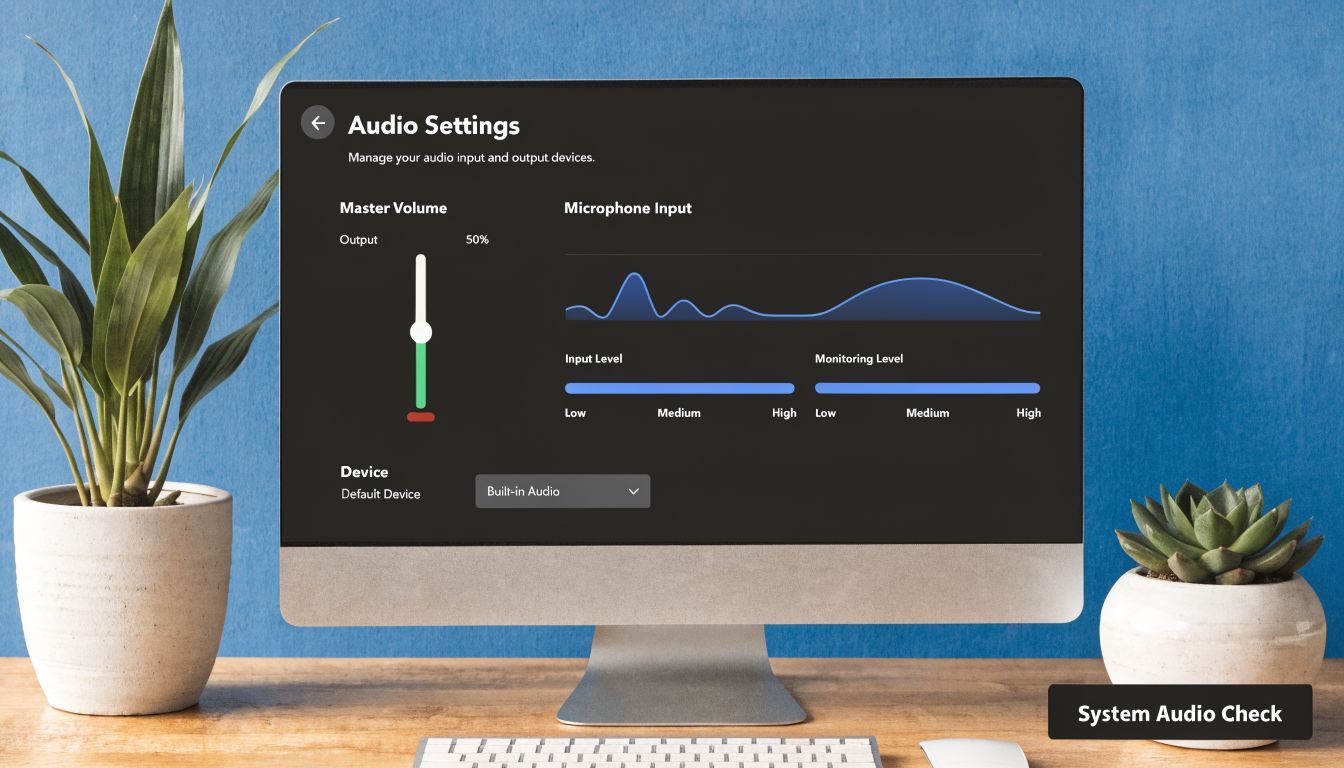
Windows checks
On Windows, open Sound settings and confirm two things. First, the correct microphone is selected as the input device. Second, the input level is active when you speak.
This matters more than users expect because Windows can switch defaults when you connect USB gear, docks, webcams, or Bluetooth devices. A webcam microphone might become active without you noticing.
There's also a keyboard angle here. Standardized Windows keyboard combinations like CTRL+SHIFT+M for mute and CTRL+SHIFT+U for unmute became an accessibility milestone, giving users a fast way to control audio without digging through menus (reference). If your dedicated media keys are unreliable, those shortcut-based workflows can be more dependable.
macOS checks
On a Mac, open System Settings, then Sound, then check the input device. Speak and watch the input meter move. If it doesn't move, you're either on the wrong mic, muted at hardware level, or blocked earlier in the chain.
Mac users sometimes assume that selecting AirPods or a USB headset as output automatically makes it the correct input too. That's often true, but not always. Check both.
Why system mute overrides the app
An app can only use the devices the operating system exposes. If the system is muting the mic, or routing the call to the wrong device, the meeting platform can look perfectly normal while audio still fails.
Use this short sequence:
- Confirm the active input device
- Speak and watch the input meter
- Disconnect extra USB or Bluetooth audio devices
- Rejoin the meeting after changing the default mic
Media keys versus custom shortcuts
Many keyboards have built-in media controls for mute and volume. They're convenient when they work. But they don't behave consistently across every keyboard, driver, and app combination.
That's why some users prefer software remaps or utility-based shortcuts. In support environments, I've seen these help users who need predictable controls across many apps, especially when they move quickly between meetings all day.
One more thing if people hear you badly
Sometimes “I can't unmute” is really “my mic is live but unusable because of noise, echo, or the wrong pickup device.” If your unmute issue turns into feedback or room echo the moment audio starts working, this guide on how to stop echo on mic is the next fix to apply.
A Guide for Hosts and Moderators Unmuting Others
Host-side audio problems are different. The participant may be doing everything right and still not be able to speak because the session rules don't allow it.
What hosts can and can't do
Most platforms won't force-unmute a participant outright for privacy reasons. The normal workflow is an ask to unmute prompt. The participant still has to accept it.
That's the right design for most professional environments. In classes, webinars, and regulated calls, hosts need control, but participants still need agency over their microphone.
What hosts should check first
- Participant role: Attendee, guest, panelist, and presenter roles often have different audio permissions.
- Mute on entry settings: Useful for order. Easy to forget when someone needs to speak.
- Webinar mode versus meeting mode: Webinar attendees often can't freely unmute.
- Waiting room or staging flow: Participants may join with restricted permissions until admitted fully.
Moderator controls matter more in serious meetings
In healthcare, education, and business events, host controls aren't just convenience features. They prevent crosstalk, protect session order, and reduce security mistakes. That includes mute-on-entry, meeting lock, waiting rooms, and controlled speaking privileges.
A reliable setup also improves the value of included webinars. If your platform includes webinars and meeting controls in the same product, hosts don't have to retrain themselves on a second interface every time they switch from a team call to a live event.
Hosts should never assume silence means the participant is confused. Sometimes the platform is doing exactly what the host configured it to do.
If your team runs client calls, online classes, telehealth visits, or webinars, AONMeetings is worth a close look. It combines secure browser-based meetings, bank-level encryption, moderator controls, webinar hosting, and unlimited meeting time in one platform, starting at ₹179 per user per month. That makes it a practical option for teams that want fewer audio headaches, clearer controls, and predictable pricing without contracts or hidden add-ons.
