
If you've ever tried to share a video during a meeting only to have your audience stare back in confused silence, you know the pain. It's a small technical glitch that can completely derail your presentation and kill your momentum. Knowing how to properly share audio isn't just a neat trick; it's a fundamental skill for anyone who wants to communicate effectively online.
The secret is a simple checkbox, usually labeled "Share system sound" or "Include computer audio", that you need to select before you start sharing your screen. This tells the software to broadcast the sound coming from your applications, not just the sound going into your microphone.
Why High-Quality Audio Sharing Is Non-Negotiable
In a world run on remote collaboration, mastering audio sharing is a must. It's the difference between a crisp, professional presentation and an awkward, frustrating one.
Let’s quickly clear up the most important concept: the distinction between your microphone and your computer's system sound. When you speak, that’s your mic. But the sound from a YouTube video, a song from Spotify, or even the "ding" of a notification—that’s all system sound. To let others hear it, you have to tell your meeting platform to capture and stream that specific audio output.
The Value of Secure and Clear Audio
For many professionals, clear audio is only half the battle; security is just as critical. Imagine a therapist sharing a calming audio track with a client, or a financial advisor walking a team through a market analysis video. In these cases, the audio stream absolutely must be protected from eavesdropping.
This is where a truly secure platform proves its worth. For instance, AONMeetings provides end-to-end encryption on all its plans, which isn't just a marketing bullet point. It’s a core feature that ensures any sound you share—from confidential patient information to proprietary training materials—stays completely private.
We're also seeing some great quality-of-life improvements on the hardware side. A newer "shared audio" feature on some Windows 11 machines, for example, lets you stream audio to two different Bluetooth headsets at once. This is perfect for two colleagues quietly reviewing an audio file in a shared office or for students collaborating on a multimedia project.
The ability to share clean, encrypted audio transforms a standard video call into a dynamic and secure presentation. It's the difference between a frustrating, amateur experience and a professional, engaging one.
Choosing the right tool can make this entire process effortless. Many platforms now bundle high-end features without a high-end price tag. AONMeetings, for example, includes webinar hosting in all its plans. That's a service that competitors like Zoom often charge extra for, giving you the power to host large, audio-rich events without needing a separate, expensive subscription.
To help you get started, the table below breaks down the main ways you can share audio, which we'll explore in detail.
Audio Sharing Methods at a Glance
This table gives you a quick look at the primary methods for sharing audio from different devices, helping you choose the right one for your situation.
| Sharing Method | Primary Use Case | Supported On | Key Benefit |
|---|---|---|---|
| System Audio (Desktop) | Playing a video clip with sound during a presentation. | Windows, macOS | Highest fidelity for pre-recorded media. |
| Specific Application Audio | Sharing sound from one app (e.g., Spotify) without broadcasting system notifications. | Windows, macOS | Reduces distractions for the audience. |
| Mobile Screen Share Audio | Showing a social media video or app demo from your phone. | iOS, Android | Ideal for on-the-go presentations and quick shares. |
| Mixed Audio (Mic + System) | Narrating over a software demo or video playback. | Windows, macOS (with software) | Creates a professional, broadcast-style presentation. |
Once you've mastered the techniques in this guide, you can take your meetings to the next level by incorporating other virtual meeting best practices.
Sharing Audio From Your Windows or macOS Computer
Ever tried to play a video during a meeting, only for your team to see the visuals but hear… absolute silence? It’s a classic online meeting blunder, but one that’s easy to avoid.
The secret lies in telling your meeting software to broadcast your computer’s audio directly. It doesn't matter if you're on a Windows machine or a Mac; the concept is the same. Without this step, your audience will miss out on all the rich audio from videos, presentations, or software demos.
Think about a corporate trainer showing off a new software platform. If that demo has critical audio cues to guide users, sharing just the screen isn’t enough. You want everyone to hear the software’s sounds, not your email notifications popping up in the background.
When Does Desktop Audio Sharing Make a Difference?
Knowing how to share your audio is only half the battle. Knowing when is what separates a good presentation from a great one. It all comes down to your goal.
Here are a few practical examples where this feature is a game-changer:
- Elevating a Sales Demo: Imagine playing a powerful customer testimonial video within your PowerPoint. Sharing your system audio lets the prospect hear that testimonial loud and clear, adding a layer of social proof your voice alone can't provide.
- Creating Engaging Training: An online educator using a quiz app with fun sound effects for right and wrong answers can make learning more interactive and memorable. Sharing only the app's audio keeps the session lively without broadcasting any distracting dings from other programs.
- Collaborating on Creative Projects: A music producer can play a track for a client in real-time, getting instant feedback on the mix. Sharing high-fidelity audio directly from the source avoids the muffled, low-quality sound you'd get from just playing it into your microphone.
In AONMeetings, we've made this incredibly simple. When you go to share your screen, just look for the "Include computer audio" checkbox. One click, and you're all set.
Don't Forget Encryption: Why It’s Critical for Audio
Sharing audio seamlessly is great, but security is essential. Any time you stream audio—whether it's a proprietary training video or a sensitive client recording—that data is flying across the internet. Without the right protection, it's exposed.
This is where end-to-end encryption becomes a non-negotiable. It works by scrambling the audio data as it leaves your computer, making it completely unreadable to anyone who might intercept it. Only the intended participants can decrypt and hear it.
At AONMeetings, we include end-to-end encryption as a standard feature on all our plans—even the free one. This ensures every conversation and every piece of shared audio is protected, giving you peace of mind, especially if you work in industries like healthcare or finance.
You shouldn't have to be a security expert or pay for a premium plan to get top-tier protection. If you want to dig deeper into the best practices for sharing content safely, our guide on how to share your screen is a great place to start.
The AONMeetings Value: What You Get vs. The Competition
When picking a platform, it's easy to get lost in feature lists. What really matters is the overall value proposition—what you get for your money.
A perfect example is webinar functionality. Many platforms lock this feature behind a pricey, separate subscription. We think that’s an outdated model.
| Feature Comparison | AONMeetings | Competitor A (Basic Plan) | Competitor B (Pro Plan) |
|---|---|---|---|
| Price (per user/month) | Starts at ₹179 | Often free with limits | ~$15-20 |
| Webinar Hosting | Included in all plans | Not available | $40+ extra per month |
| Meeting Time Limits | Unlimited | 40-60 minutes | Unlimited |
| Encryption | End-to-end standard | Standard | Standard |
By including webinar hosting in our standard plans, we save trainers, marketers, and educators a significant amount of money. It’s a huge value proposition, allowing you to host large, audio-rich events without worrying about extra costs. This focus on delivering real value, combined with rock-solid security, lets you concentrate on your message, not your meeting tool.
How to Share Audio From Your Phone or Tablet
Let's be honest, most of us are working from our phones or tablets more than ever. Being able to share audio on the fly isn't just a neat trick anymore—it's essential for anyone who needs to present, train, or collaborate while away from their desk.
Here are some practical examples of this in action. A real estate agent on a virtual tour needs to play a promotional video with slick music from their iPad. A project manager wants to share a quick podcast clip during a team sync. Even a therapist might play a guided meditation for a client during a telehealth call.
The good news is that your device is already built for this. It all piggybacks on the built-in screen sharing function. However, the way iOS and Android handle this is slightly different, and knowing the quirks can save you a lot of headaches.
Mastering Audio Sharing on iOS
If you're using an iPhone or iPad, sharing audio is baked directly into the screen sharing feature in your Control Center. When you start a screen share from an app like AONMeetings, iOS is designed to automatically grab and broadcast whatever sound is playing on your screen.
Here’s the muscle memory you need to build:
- Bring up the Control Center: On newer iPhones, just swipe down from the top-right corner of your screen. On older models with a home button, you'll swipe up from the bottom.
- Find the Screen Recording button: It's the icon with two nested circles. Press and hold it—don't just tap it. This is the step most people miss.
- Pick your app and go live: A menu will pop up showing the apps you can broadcast to. Just tap on your meeting app (like AONMeetings) and hit "Start Broadcast."
As soon as the broadcast begins, any audio from a video, an app, or even a browser tab you have open will be sent right into your meeting.
Sharing Audio From an Android Device
Android’s approach is a bit more straightforward, which is nice. Most modern meeting apps will ask you if you want to include audio right when you start sharing your screen. When you tap the "Share Screen" button inside your meeting, keep an eye out for a system pop-up.
This pop-up is asking for permission to capture your screen, but it also has a critical little checkbox. You’re looking for an option that says something like "Share audio" or "Share device audio." You have to check that box. If you don't, your team will see your screen but won't hear a thing.
Pro Tip from the Trenches: If you're sharing your screen on Android and everyone's saying they can't hear your audio, this is almost always the problem. You just missed the checkbox. Stop the share, start it again, and look carefully for that "Share audio" option in the pop-up before you hit confirm.
Why Mobile Security Is Non-Negotiable
Sharing from a mobile device opens up a different set of security concerns, especially for anyone handling sensitive information. A healthcare professional sharing patient data or a consultant sharing confidential business plans can't afford to have that audio stream compromised.
This is where the security of the platform itself really matters. AONMeetings, for instance, protects all mobile sessions with the same end-to-end encryption as its desktop app. When a provider shares an audio file from their tablet during a HIPAA-compliant telehealth session, that data is completely locked down from their device all the way to the patient's. No eavesdropping possible.
Value Beyond the Basics: Webinars on the Go
A great platform knows how to combine its features in useful ways. For example, AONMeetings includes full webinar functionality in all plans, and this works perfectly from a mobile device. This is a huge leg up on competitors, who often bolt on webinar hosting as a pricey add-on.
Think about it: a marketing expert can run a live webinar from their tablet while traveling. They can seamlessly share a promotional video with perfect audio, field questions from hundreds of people, and manage the whole event without being chained to a laptop. Your phone doesn't just become a meeting tool; it becomes a broadcast studio.
Here’s a quick price comparison to show the value proposition:
| Feature | AONMeetings (Mobile) | Competitor A (Mobile) | Competitor B (Mobile) |
|---|---|---|---|
| Price | Starts at ₹179/month | Free (with limits) | ~$20/month |
| Webinar Hosting | Included | Add-on for $40+ | Add-on for $79+ |
| Encryption | End-to-end standard | Standard | Standard |
| Mobile Audio Share | Yes (iOS & Android) | Yes (iOS & Android) | Yes (iOS & Android) |
By bundling these enterprise-level tools and making them work flawlessly on mobile, we can offer a solution that's both powerful and practical for today's professionals.
Mixing Your Microphone and System Audio Like a Pro
Sometimes, just sharing your system audio isn't enough. When you need to talk over a video or give commentary during a product demo, you have to combine your voice with your computer’s audio. The goal is to create a seamless, professional broadcast without any distracting echoes or sounds clashing.
For a practical example, think of a healthcare professional walking colleagues through a new medical animation. They need their voice to be front and center, with the animation's own audio playing softly underneath. Getting that kind of quality mix is easier than you might think, but it does require the right approach.
Essentially, you're creating a virtual bridge between your microphone and whatever sound your computer is playing. By using a bit of specialized software, you can channel both of these sources into a single audio stream that your meeting platform sends out to everyone.
Virtual Audio Cables and Software Mixers
The trick to this whole setup lies in software that works as a “virtual audio cable” or a “software mixer.” These tools create a brand-new audio device on your computer that you can then select as your microphone inside your meeting app. You simply route both your real mic and your system audio into this virtual device, giving you total control over the final mix.
Here are a few of the go-to options I've seen people use successfully:
- Voicemeeter Banana (Windows): This is a beast of a tool, and it's donation-based. A corporate trainer, for example, could use its "ducking" feature to automatically lower the volume of a training video anytime they start speaking, making sure their voice is always crystal clear.
- Loopback (macOS): If you're on a Mac and want something incredibly intuitive, Loopback is the answer. It has a simple drag-and-drop interface. I've seen musicians use it to share audio straight from their production software while talking a collaborator through their changes.
- OBS Studio (Windows/macOS/Linux): Many people know OBS for streaming, but it's also a fantastic—and free—audio mixer. You can add your mic and specific apps as separate audio sources, tweak their volumes, and then send that perfect mix to a "Virtual Camera" that most meeting platforms recognize as an input.
While these tools are for desktop, the core principle of selecting the right audio source is universal. You always have to start by enabling the correct permissions and choosing your audio channel, whether you're on a computer or a mobile device.
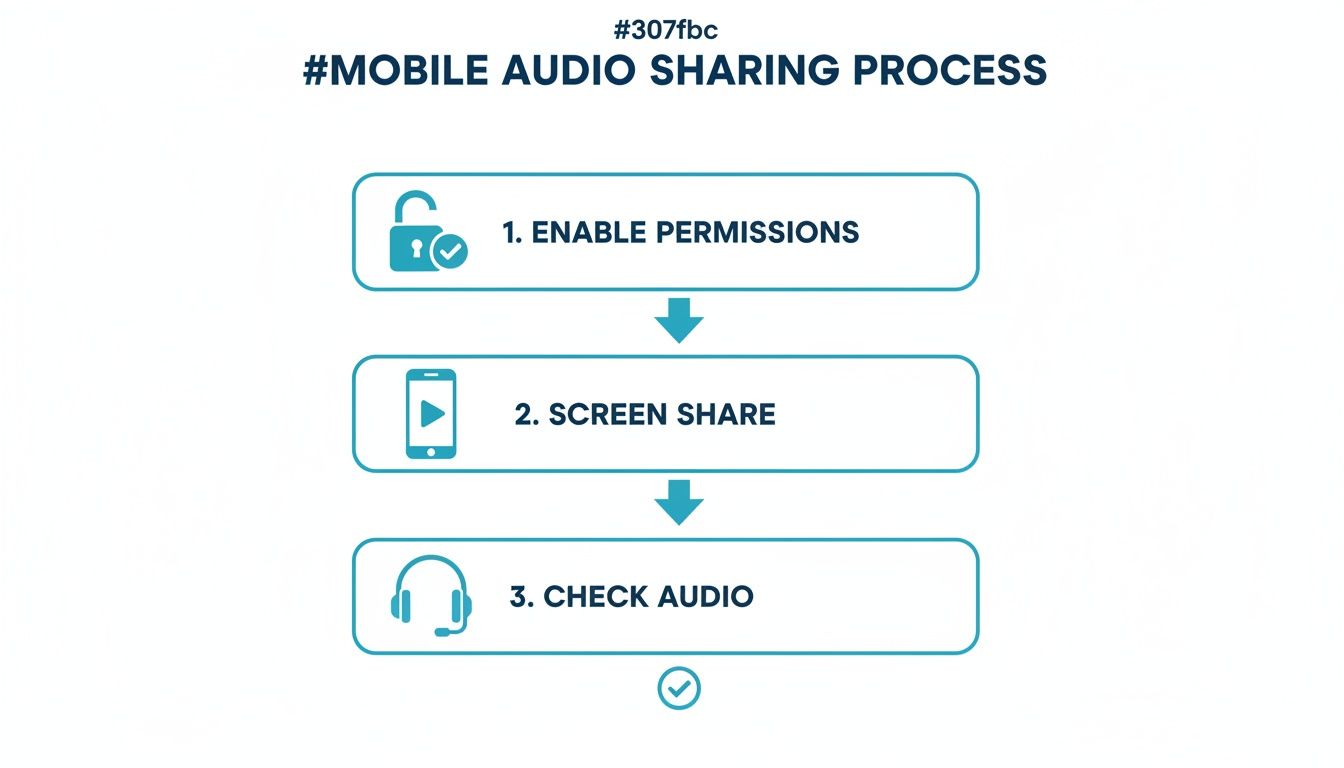
This process highlights a key step that trips people up: you have to actively grant permissions and select the right source before anyone can hear what you're sharing.
Price and Value Comparison
So, which tool should you choose? It really boils down to your budget and how much time you want to spend tinkering.
| Software Tool | Platform | Price Comparison | Value Proposition |
|---|---|---|---|
| Voicemeeter Banana | Windows | Free (Donationware) | Incredible power at no cost. It's the best choice for tech-savvy users who want precise control over their audio mix. |
| Loopback | macOS | ~$99 (One-time) | The user interface is as clean as it gets. It's worth every penny for Mac users who need a solution that just works without a steep learning curve. |
| OBS Studio | All | Free (Open Source) | A true Swiss Army knife for audio and video, but be prepared for a steeper learning curve. Ideal for those who want to eventually stream content publicly. |
A common trap when mixing audio is creating an echo or feedback loop. This happens when your meeting's audio output gets picked up by your microphone input. If you run into this, we have a complete guide on how to stop echo on a mic.
Your meeting platform itself can also make a huge difference here. For instance, AONMeetings includes full webinar functionality in all its plans. This is a massive plus, especially when competitors often charge an extra $40-$80 per month for the same features. These built-in tools are designed for professional presentations, simplifying how you manage audio for a large audience without needing complicated third-party software.
The Rise of Broadcast-Quality Expectations
The demand for better audio mixing is climbing because, frankly, everyone's expectations are higher now. Just look at the world of podcasting. As of January 2026, there are over 4.58 million podcasts and a global audience of 584.1 million listeners. This explosion in high-quality audio content means people are less tolerant of poor sound, even in a work meeting. Many organizations now repurpose webinars into podcasts, which makes broadcast-quality sound a necessity. You can learn more about the growth of podcasting from Limelight Digital.
Finally, a quick note on security. If you're mixing and sharing audio that contains sensitive or proprietary information, end-to-end encryption is non-negotiable. Make sure your platform, like AONMeetings, provides this feature to protect the final audio stream, keeping both your voice and any shared system audio secure.
Simple Tips for Professional-Quality Audio
You've figured out how to share your audio, which is a great start. But making it sound truly professional is what will make your presentation stand out. Let's be honest, sharing audio is one thing, but if it's choppy or muffled, it can be just as bad as having no audio at all.
The real goal isn't just to be heard; it's to be heard clearly. For a practical example, whether you're dropping a high-energy video into a sales pitch, leading a quiet guided meditation, or walking through critical financial data, the quality of your audio says a lot about your professionalism. Here are some simple, effective ways to make sure your sound is always crisp and clean.
Start with a Stable Foundation
Before you even think about software settings, take a look at your physical setup. I’ve found that most audio problems don’t start with the computer—they start in the room you’re in.
Kill the Background Noise: If you're mixing your mic with system audio, every little sound gets picked up. A barking dog, a TV in the next room, even a loud air conditioner can be incredibly distracting for your audience. Your first step should always be to find a quiet space and shut the door.
Go Wired: Wi-Fi is great for convenience, but it can be a nightmare for audio streaming. Signal drops and interference lead to that dreaded choppy, robotic sound. If you can, plug an Ethernet cable directly into your router. A stable, wired connection is the bedrock of high-fidelity audio.
Get a Decent Mic: Your laptop's built-in microphone is made for basic calls, not for professional-quality sound. For a surprisingly small investment, you can dramatically improve your audio. In my experience, even investing in a quality gaming headset can make a world of difference without costing a fortune.
Nailing these basics will give you a solid foundation to build upon.
Choosing a Platform Built for Quality and Value
The software you choose has a massive impact on your audio quality. Some platforms aggressively compress audio to save bandwidth, which can suck the life right out of your shared media, leaving it sounding flat and tinny. A platform built for high-fidelity sound, on the other hand, preserves the richness and clarity you need.
Great audio isn't a luxury; it’s an expectation. When your audience can hear every detail without straining, they stay more engaged and receptive to your message. This is why HD audio and end-to-end encryption should be standard, not premium add-ons.
This is where you have to look closely at the value proposition of your meeting tool. Many platforms will charge you extra for features that should be included. AONMeetings flips this script by bundling enterprise-grade tools into one affordable package. We’re talking about more than just HD audio and end-to-end encryption; powerful features like webinar hosting are included right out of the box.
AONMeetings vs Competitors Price and Feature Comparison
Let's break down exactly how the value stacks up. When you put the numbers side-by-side, the difference becomes incredibly clear.
| Feature | AONMeetings | Zoom (Pro) | Microsoft Teams (Business) |
|---|---|---|---|
| Price (per user/month) | Starts at ₹179 | ~₹1,300 | ~₹330 |
| HD Audio Quality | Included | Included | Included |
| Webinar Hosting | Included | Add-on for ~₹5,700/mo | Requires higher-tier plan |
| Unlimited Meeting Time | Included | Included | Up to 30 hours |
| End-to-End Encryption | Included | Included (manual enable) | Included |
As you can see, the savings are massive. For less than the price of a fancy coffee, AONMeetings provides features that could cost a small business thousands of rupees every month on other platforms.
This approach makes professional-quality audio accessible to everyone, from teachers to small business owners. With the global consumer audio market valued at USD 58.9 billion in 2025 and projected to hit USD 61.6 billion in 2026, it's clear that audiences expect better sound. Having a robust audio setup is no longer just a nice-to-have. You can dive deeper into this trend with this consumer audio market analysis.
Solving Common Audio Sharing Problems
We’ve all been there. You’ve queued up the perfect video clip, ready for your big moment. You share your screen, hit play, and… silence. Just a sea of confused faces staring back at you. Or maybe it’s the dreaded echo, that maddening loop that sends everyone scrambling for their mute button.
Even with the best preparation, audio sharing can trip you up. Let’s walk through the most common headaches I see and, more importantly, how to fix them so you can get your meeting back on track.
The Case of the Silent Share
This is, without a doubt, the #1 issue people run into. You’re sharing your screen, but nobody can hear the audio from your video or app. It almost always boils down to a single missed click or a hidden permission setting.
As a practical example, think of a marketing manager trying to get feedback on a new ad. They share their screen, play the video, and get nothing. The impact is completely lost.
Here’s my go-to checklist when this happens:
- Look for the Magic Checkbox: When you first initiated the screen share, did you remember to tick the "Share system sound" or "Include computer audio" box? This is the culprit 90% of the time. The fix is simple: stop sharing, start again, and find that checkbox. Don't click anything else until you do.
- The macOS Permission Wall: If you're a Mac user, you've probably run into this before. macOS is very protective of its audio. You often have to manually grant your meeting app permission to capture your computer’s audio. You’ll find this in System Settings > Privacy & Security > Screen Recording. Make sure your app is toggled on.
- Check the Audio Driver: Sometimes, the meeting software uses a special virtual audio driver to grab the sound. If that driver gets corrupted or disabled, things go silent. This is where a tool like AONMeetings really helps, as its built-in diagnostics can quickly tell you if the correct driver is active, saving you from a frustrating dive into your system’s device manager.
Tackling Echoes and Feedback Loops
You start talking, and a moment later, you hear your own voice repeating back at you. That’s a feedback loop, and it happens when your microphone picks up the sound coming out of your speakers. It's disorienting for everyone and a classic sign someone isn't using headphones.
For example, imagine a trainer narrating a live software demo. If their computer's speakers are up, the audio from the meeting—including their own voice—plays out loud, gets picked up by their mic, and is broadcast a second time. Instant chaos.
Pro Tip: Always, always use headphones if you plan to be unmuted in a meeting, especially when you're sharing any kind of audio. This one simple habit solves the problem completely by isolating the sound.
Choppy Audio and Sync Issues
Another killer for any presentation is when your shared audio is choppy, sounds robotic, or drifts out of sync with the video. This is usually a symptom of a weak internet connection or an overworked computer.
One common, but often overlooked, cause is audio latency—basically, a delay between when a sound is produced and when your audience actually hears it. It’s a complex topic, but if you want to get into the technical weeds, there’s an excellent guide on understanding and fixing audio latency that explains it all.
For a quick fix right now, here’s what I recommend:
- Plug In. A wired Ethernet connection is always going to be more stable than Wi-Fi. If you’re leading the meeting, make it a non-negotiable.
- Close Everything Else. Video encoding and audio streaming are resource-intensive. Shut down every app and browser tab you aren’t actively using. This frees up precious CPU and RAM for the meeting app to do its job properly.
- Review Your Security Software. On rare occasions, an overzealous firewall or antivirus program can interfere with the audio stream. You don't need to disable your protection, but check the software's settings to make sure it's not blocking your meeting app's access to audio hardware.
This is another area where a well-designed platform makes a difference. AONMeetings was built to be lightweight and efficient, minimizing the strain on your system. Its diagnostic tools can also help you quickly determine if the lag is on your end or a wider network problem, so you can fix it and get back to your presentation.
Ready to leave audio issues behind for good? With AONMeetings, you get a reliable, secure platform with HD audio, included webinar hosting, and straightforward tools that just work. Make the switch and see how simple professional presentations can be. Discover AONMeetings today!
