

Your phone is charging in the other room. Or it's buried in a bag. Or the battery died right before you needed to ring a patient, a client, or your own number to find the device. That's usually when people search how to call my phone from my computer.
The good news is this isn't a workaround anymore. It's normal. You can do it with tools already built into Windows and macOS, with browser-based calling apps, or with business-grade platforms built for secure voice and video. The best option depends on one thing: why you need to call.
If you just want convenience, the built-in tools are usually enough. If you want a separate number and browser dialing, a web app makes more sense. If the call includes health information, student records, or client data, convenience alone isn't enough. You need proper security, encryption, and a setup you can trust when something goes wrong.
Why Calling From a Computer Is Easier Than Ever
Calling from a computer used to feel niche. Now it's routine because VoIP made it routine. Its commercialization began in 1995, and adoption accelerated after the FCC's February 12, 2004 deregulation decision that classified VoIP as an information service. By 2023, 40% of business phone systems worldwide had transitioned to VoIP, with the market valued at $143 billion according to RingCentral's overview of calling phones from computers.
That shift matters because it changed the question from “Is this possible?” to “Which method fits my job?” If you're calling your own mobile from a laptop, you might want the fastest free option. If you're calling patients, you'll care more about compliance and encryption. If you're running a small team, you'll probably want one tool that handles calls, meetings, and webinars instead of stacking separate apps.
Why this feels simpler now
A modern laptop already has most of what you need: microphone, speakers, browser, Bluetooth, and a stable internet connection. The software layer has also matured. Windows can relay calls through your phone. Mac can hand off calling through Apple's ecosystem. VoIP apps can place calls without your phone sitting nearby.
Practical rule: Pick the method based on the call's risk level, not just the setup speed.
That's also why security comes up so often in this conversation. A casual personal call and a telehealth call shouldn't be treated the same way. If you want a deeper technical look at secure voice traffic, this guide to implementing secure SIP on IP networks is a useful primer on the plumbing behind safer VoIP deployments.
For teams that need meetings and calling in the same workflow, it also helps to compare platforms that go beyond basic voice. This roundup of best video conferencing for small business is useful when your “phone call from a computer” is really part of a wider communication stack.
What's changed for everyday users
The big change isn't just technology. It's expectation. People now assume they should be able to click a number on screen and talk immediately. That expectation is mostly reasonable. The main friction points are hardware pairing, browser permissions, network restrictions, and the security level required for the conversation.
That's why the right answer isn't one tool. It's the shortest path to a call that's reliable enough, secure enough, and priced appropriately for what you're doing.
Choosing Your Method A Quick Comparison
Some people want free and fast. Others want independence from their phone. Others need browser-based calling with encryption and administrative controls. Those are different jobs, so they need different tools.
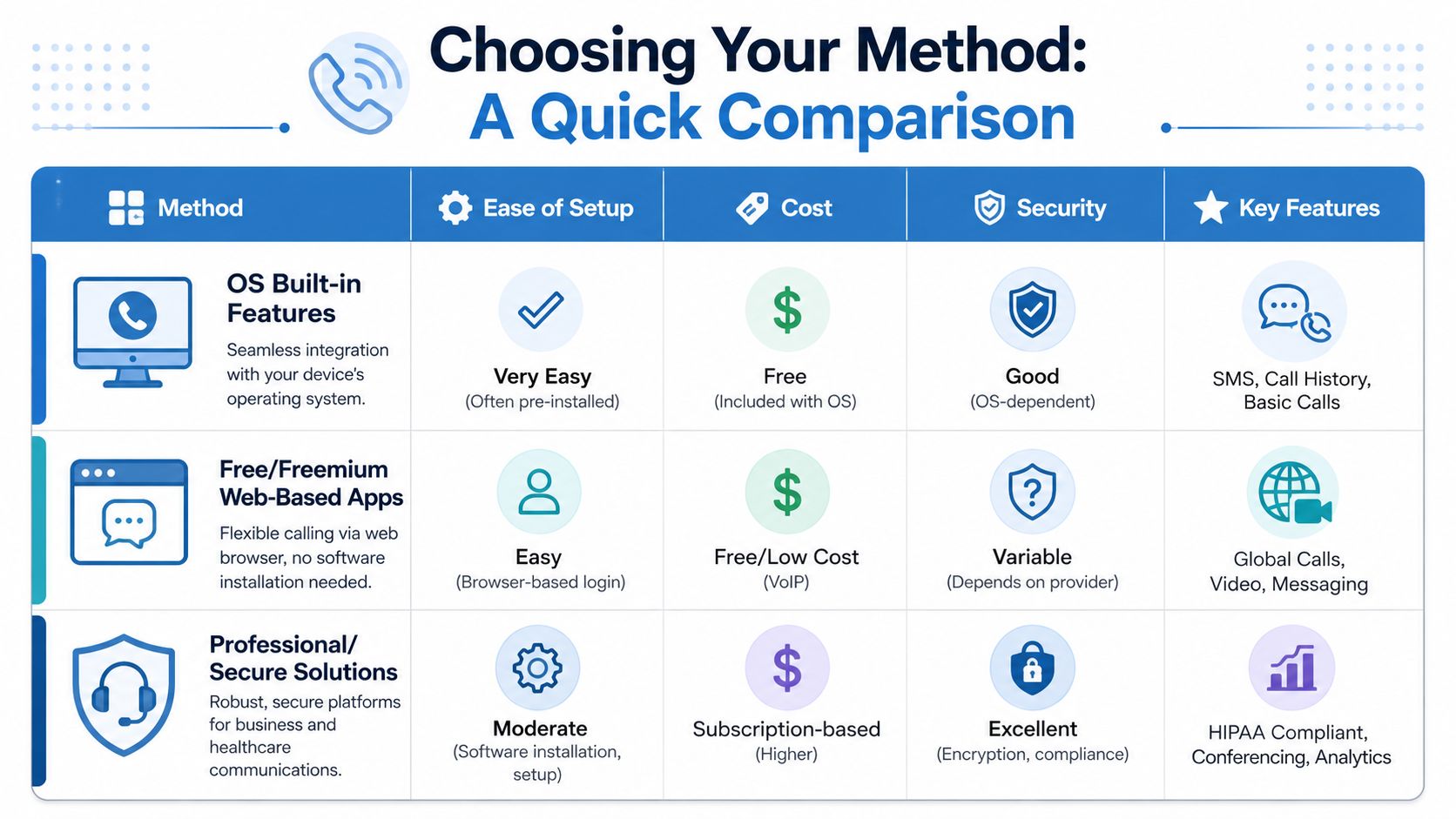
Computer-to-Phone Calling Methods Compared
| Method | Cost | Security | Best For |
|---|---|---|---|
| OS built-in features | Free, included with your device | Good for personal use, depends on your phone and OS | Calling your own phone, quick personal calls, using your existing mobile line |
| Free or freemium web apps | Free or low cost depending on provider and destination | Varies by provider, usually fine for everyday use | Browser calling, separate number, light business or personal use |
| Professional secure platforms | Subscription-based | Strong encryption and compliance-focused controls | Healthcare, education, client communication, teams, webinars |
How to choose in practice
Use the built-in option if your priority is speed. You already have the computer and the phone. There's nothing new to buy, and in the best case you're making a call a few minutes after pairing.
Use a browser or desktop VoIP app if your priority is flexibility. These services aren't tied to your handset in the same way, so they're good when you want a dedicated calling workflow on a laptop or desktop.
Choose a professional platform if your priority is security and accountability. That's the category for healthcare providers, coaches handling sensitive client info, schools, and businesses that need encryption, controlled access, recordings, and often webinar capability in the same subscription.
Convenience is cheapest up front. Compliance is cheapest over time when you factor in fewer workarounds and less tool sprawl.
The trade-offs people usually miss
A free method can still cost you time if it fails at the wrong moment. A business platform can look expensive until you compare it with paying separately for calling, video meetings, recordings, webinars, and admin controls. Likewise, encryption matters even when you're “just calling from a computer,” because the risk isn't the click itself. The risk is what gets discussed during the call.
Price comparison matters too, but only in context. A free OS feature is hard to beat for a simple “call my phone from my laptop” use case. A low-cost VoIP app can be better if you need a dedicated number. A subscription can deliver stronger value if it bundles secure calling, meetings, recordings, and webinars rather than making you assemble those features one by one.
Use Your OS Built-in Calling Features
Often, this is the first method to try. It's already on your machine or baked into your ecosystem, and it doesn't ask you to change your phone number or buy a separate service.
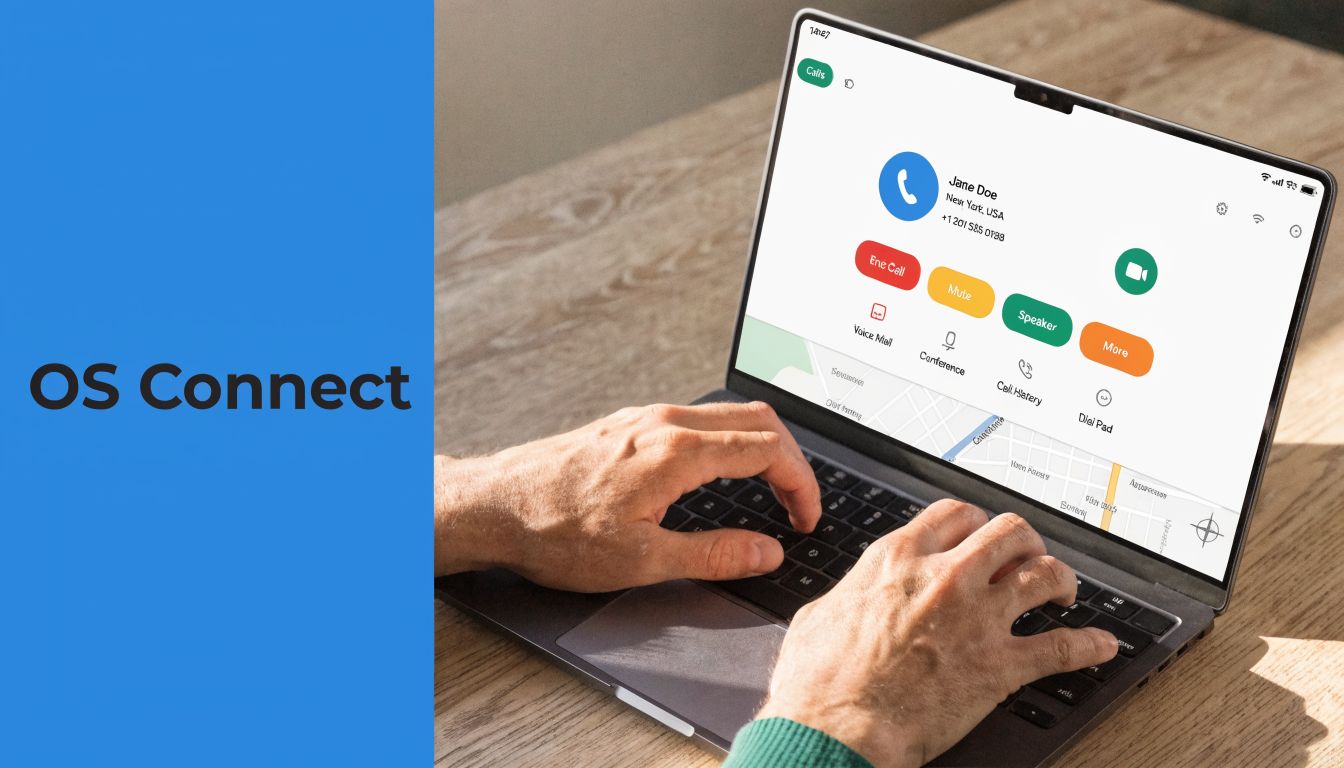
Windows with Phone Link
On Windows, the main option is Microsoft Phone Link. It enables phone-to-PC call relay through Bluetooth and requires Windows 10 or 11, Bluetooth 5.0+, and Android 7.0+ or iOS 15+. Microsoft reports a 95% first-time setup success rate on compatible hardware, and 45% of failures come from firewall blocks on ports 135/445, which can be fixed with a Windows Defender exclusion, as noted in this Phone Link setup and troubleshooting summary.
Here's the practical setup flow:
Install the app
Open Phone Link on Windows or install it from the Microsoft Store if needed. On your phone, install the companion app if your device requires it.Pair the devices
Turn on Bluetooth on both devices. Sign in with the appropriate account and approve pairing prompts.Grant permissions
Allow access to calls, contacts, and messages. If you skip this step, the app may connect but won't place calls.Open the Calls tab
Use the on-screen dial pad or search for a saved contact.Dial from the PC
Your computer becomes the control surface. Your phone still handles the underlying call path.
A real example: if your phone is charging across the office and you need to call your own mobile to check whether the ringer is on, you can open the Calls tab on your laptop and dial without leaving your desk.
Why this method works well
The value here is simple. It's free, it uses your existing mobile service, and it keeps your normal caller identity. If you already trust your handset and cellular plan, this feels familiar because it is familiar. You're not learning a new phone system. You're extending the one you already use.
For personal use, that's often enough. For light office use, it can also be perfectly fine, especially if your calls are short and you don't need advanced routing or analytics.
If your goal is “make one call right now,” built-in tools usually beat dedicated platforms on setup speed.
Mac and Apple ecosystem options
Mac users can do something similar through Apple's continuity features. If your iPhone and Mac are signed into the same Apple account and calling permissions are enabled, your computer can act as an extension of the phone. In daily use, that means you can click a number from contacts, a website, or recent calls and handle it on your Mac.
The strongest part of the Apple route is consistency. If you already live inside the Apple ecosystem, it tends to feel natural. The weak point is the same as with any tightly integrated system. It's excellent when all your devices cooperate, less fun when one setting is off and the handoff fails.
Where OS calling falls short
This method is best for convenience, not for every professional scenario. It depends on your phone being available and paired. It's also less flexible if you want a separate business identity, a shared team number, or calling that isn't tied to one person's handset.
Security is another distinction. Your phone and OS provide a reasonable baseline for ordinary use, but this isn't the route I'd choose for regulated conversations where policy, compliance, and formal controls matter as much as audio quality.
Free and Freemium Web-Based Calling Apps
If you don't want your computer calling setup tied to your physical phone, web-based VoIP apps are the next step. They're useful when you want to open a browser, sign in, and call from a number that lives with the service rather than with your handset.
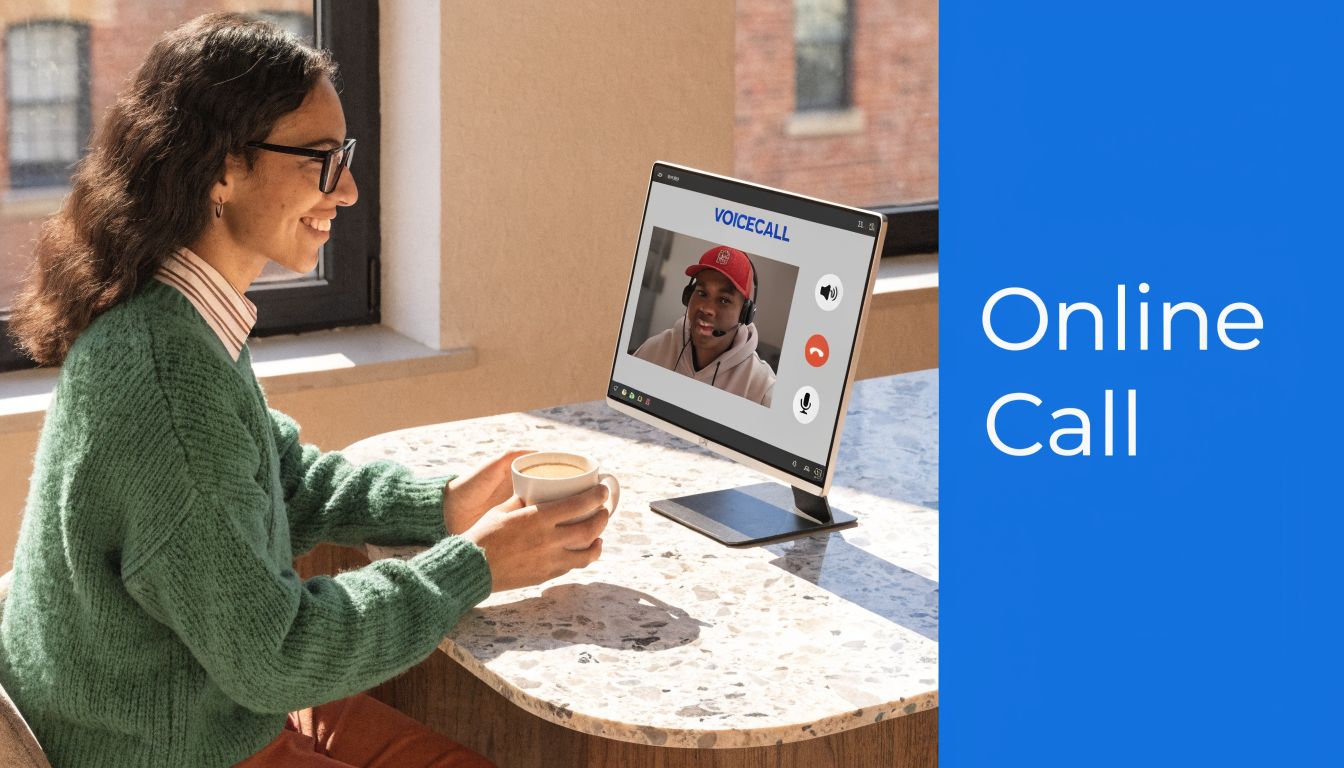
Google Voice for easy browser dialing
Google Voice is one of the cleanest examples. You go to the web app, claim a number where available, verify it with a real mobile number, and then place calls through the browser using a PSTN bridge. According to Nextiva's guide to phone calls from a computer, Google Voice has a 97% success rate in the US and 85% internationally due to carrier blocking. The same source notes that 28% of user-reported issues come from NAT or firewall problems, often solved with STUN or TURN configuration.
In plain English, that means Google Voice is usually smooth for domestic use, but international calling can be less predictable depending on the destination.
A practical example: if you freelance and don't want clients calling your personal mobile, a browser-based number keeps that boundary clean. You can answer from your laptop during work hours and ignore it when you're done.
What's good about this category
Web-based apps solve three common problems:
Device independence
You're not relying on your phone being in range, charged, or paired.Separate identity
You can use a service number instead of your personal mobile.Low-friction access
Logging into a browser is often easier than dealing with Bluetooth pairing.
Many of these services also include standard encryption protections appropriate for ordinary personal and light business communication. That's useful, but it's still different from choosing a platform specifically built around regulated or highly sensitive conversations.
Browser calling is usually the sweet spot when you need more flexibility than Phone Link but less formality than an enterprise voice stack.
What to watch before you commit
The first limitation is geography. Some services are great in one country and awkward in another. The second is support. Free products are wonderful until they become part of your job and you need dependable help during a problem.
The third limitation is feature depth. For simple calls, messages, and occasional video, freemium tools can be enough. If you need call controls, admin settings, branded communications, browser-based meetings, recordings, or webinar hosting in the same place, you'll start feeling the edges quickly.
Price and value in real life
The obvious advantage here is cost. Some tools let you start without paying anything upfront. That's excellent for students, families, solo professionals, and anyone testing a setup before they commit.
But “cheap” only stays cheap if the service fits the job. If you add separate apps for meetings, webinars, and secure file sharing, the low sticker price becomes less impressive. For casual use, freemium is often the right answer. For operational use, it's often a stepping stone.
Professional and Secure Calling for Business and Healthcare
Consumer tools are fine until the call content matters. Once you're discussing patient information, student issues, contracts, financial details, or any conversation that needs tighter control, the decision shifts from convenience to risk management.

Why secure platforms matter
There's been 41% growth in compliant telehealth calls, and 68% of healthcare providers report friction setting up compliant calling with traditional tools. Platforms with built-in HIPAA video and voice plus PSTN gateways directly in the browser address that gap, and AI call summaries can cut administrative time by 30%, according to this overview of compliant calling needs and browser-based voice options.
That combination matters because secure communication isn't just about call encryption. It's about reducing the number of places where staff can make a mistake. If one platform handles voice, meetings, browser access, recordings, and workflow support, there are fewer handoffs and fewer opportunities for someone to use the wrong tool.
What good value looks like
Price comparisons get more interesting in this category. AONMeetings starts at ₹179 per user per month, while the author brief also points to Zoom pricing above $200+ in the relevant comparison context from the verified material. That kind of gap changes the conversation when you're buying for a clinic, school, or growing business.
The better value story isn't just lower subscription cost. It's what's included:
Encryption as a baseline
Bank-level encryption and secure browser access matter when conversations contain sensitive details.Webinars included
If your plan includes webinar hosting, you don't need a second platform for training, onboarding, community education, or patient information sessions.Meetings plus calling
Teams often need voice one moment and a full video consult the next. Keeping those in one environment reduces friction.No extra app burden
Browser-first access is a practical advantage for mixed-device teams and external participants.
For readers evaluating regulated workflows, this guide to HIPAA-compliant video conferencing platforms is worth reviewing alongside your phone-calling shortlist.
Where AI fits in
AI can help, but only if it sits inside the right security model. In healthcare and service environments, summaries and call assistance reduce admin load when they're implemented thoughtfully. If you're exploring automation around intake or follow-up, these examples of AI voice agents for healthcare calls are helpful for understanding what can be handled before or after a human conversation.
Secure calling earns its keep when it replaces three or four separate tools, not when it only imitates a phone.
When to choose this route
Pick a professional secure platform if any of these are true:
- You handle protected or sensitive information
- You need browser access for staff or guests
- You want meetings, recordings, and webinars bundled
- You need predictable admin controls and cleaner compliance workflows
For a healthcare clinic, the choice is obvious. For educators, coaches, and consultants, it becomes obvious the moment a simple call turns into a recorded meeting, shared screen session, or webinar registration flow. That's where “calling from a computer” stops being a handy trick and becomes part of your operating system.
Troubleshooting Common Calling Problems
When calling from a computer fails, the issue is usually boring. That's good news. Boring problems are fixable. Most come down to permissions, Bluetooth, Wi-Fi, firewall rules, headset selection, or browser access to the microphone.
For iPhone and Windows users in particular, pairing can be the annoying part. “Pairing rejected” errors are reported by 35% of users in Microsoft forums, and common fixes include clearing the Phone Link cache and making sure both devices are on the same Wi-Fi network, not just connected over Bluetooth, according to this Bluetooth troubleshooting summary for Phone Link.
Start with the fastest checks
Use this checklist before you reinstall anything:
Check the audio path
Make sure your headset, speakers, and microphone are the selected devices in both the OS and the app. A call can connect perfectly and still appear “broken” because the wrong mic is active.Confirm permissions
Browser and desktop apps both need microphone access. If the app can't hear you, permissions are often the first thing to inspect.Look at Wi-Fi and Bluetooth together
With phone relay setups, Bluetooth alone may not be enough. Same-network behavior can matter, especially on mixed iPhone and Windows setups.Clear stale app state
On Windows, clearing the Phone Link cache can resolve weird pairing loops that survive ordinary restarts.
If calls connect but sound bad
Poor audio usually means one of three things: the wrong microphone, acoustic echo, or an unstable connection. Start by switching to a wired or better-quality headset. Then test again with every unnecessary audio device disconnected.
If echo is the main problem, this practical guide on how to stop echo on mic walks through the common causes and fixes in plain language.
A bad headset creates “network problems” that aren't network problems at all.
If calls won't connect
Network controls are often the likely culprit. Firewalls and NAT behavior often interfere with desktop calling apps and browser voice sessions. In office environments, I'd check whether the network is restricting the app before I blame the service itself.
A simple pattern helps:
- Test on another network.
- Test with another headset.
- Test with another browser or app instance.
- If one of those works, you've isolated the class of problem.
Don't overcomplicate this. If the built-in option keeps failing and you need reliability now, switch methods. Use a browser VoIP app or move to a platform designed for managed calling. The best troubleshooting decision is sometimes to stop fighting the wrong tool.
If you need secure browser-based calling, HIPAA-ready meetings, included webinars, recordings, encryption, and straightforward pricing starting at ₹179 per user per month, AONMeetings is worth a close look. It's a practical option for clinics, educators, and small teams that want calling from a computer without stitching together separate apps for voice, video, and webinar hosting.
