
Your video call freezes right when you start sharing your screen. The fan spins up. The browser feels sticky. You click around faster, but the lag gets worse.
That's usually when guidance on how to enable hardware acceleration is required.
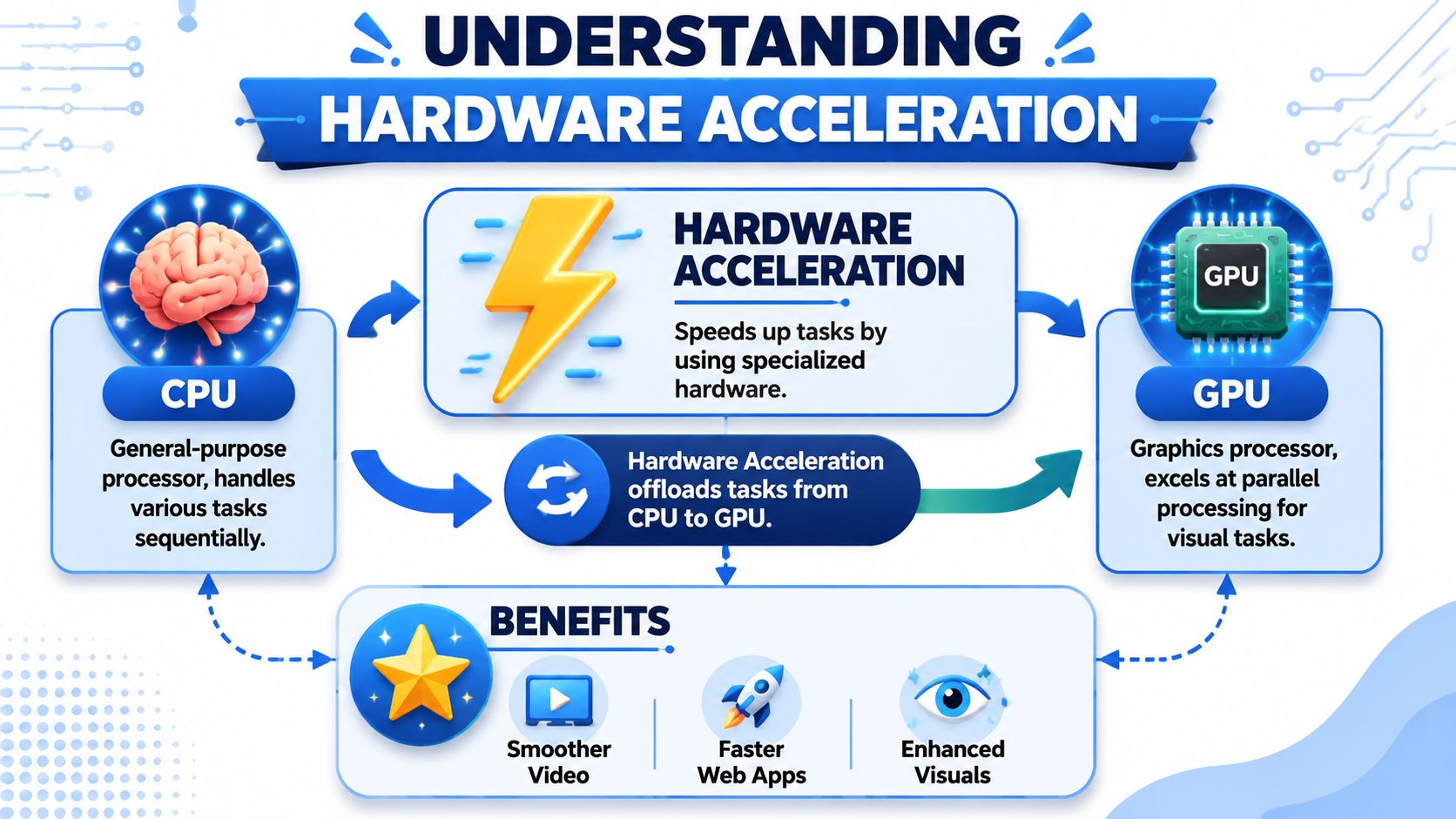
In plain English, hardware acceleration tells your computer to stop making the CPU do every visual job by itself. Instead, it hands the graphics-heavy work to the GPU, which is built for that kind of load. When it's working properly, video calls feel smoother, animations stop stuttering, and browser-based apps behave more like installed software.
The catch is simple. Ticking the setting is only the first layer. The browser, operating system, graphics driver, and sometimes even the session type all have to cooperate. If one layer is broken, you can have the box checked and still get software rendering.
What Is Hardware Acceleration and Why It Matters
When someone asks me about hardware acceleration, I usually explain it like this. The CPU is your general handyman. It can do almost anything. The GPU is the specialist you call when the job involves drawing, rendering, decoding video, and pushing lots of visual work at once.
That matters most when your browser is doing more than loading web pages. A video call, screen share, webinar dashboard, whiteboard, or browser tab full of animation can put real pressure on the system. If the CPU handles everything, you often get dropped frames, delayed clicks, and that washed-out feeling where the whole machine seems one step behind.
Why modern apps expose this setting
Hardware acceleration stopped being a niche graphics tweak a long time ago. A major milestone was the move from software-only rendering to GPU-assisted graphics, which became widely standardized in the 2010s. Microsoft Edge includes a setting called “Use graphics acceleration when available” and requires a restart for the change to take effect, which shows it's treated as a core performance path, not a decoration (Microsoft Edge hardware acceleration guidance).
That shift changed how software vendors build products. Once GPU acceleration became common, they also had to provide off switches, policy controls, and troubleshooting paths for compatibility issues across large device fleets.
Practical rule: If your issue involves video, animation, browser rendering, or screen sharing, hardware acceleration is one of the first settings worth checking.
Where you'll run into it
You'll see this setting in places you might not expect.
- Browsers: Chrome, Edge, and Firefox all expose some version of the graphics acceleration toggle.
- Office apps: Microsoft Office apps include display options to disable hardware graphics acceleration when needed.
- Managed devices: IT teams can control acceleration centrally in some environments, which tells you this isn't an obscure enthusiast feature.
- Android apps: On Android, hardware acceleration is enabled by default from API level 14, and developers can control it at the app, activity, window, or even view level through settings such as
android:hardwareAcceleratedandFLAG_HARDWARE_ACCELERATED(Android hardware acceleration documentation).
If you're checking whether an older office laptop is even worth tuning, a provider like REDCHIP IT SOLUTIONS INC. computing can be useful as a baseline for comparing hardware classes before you spend time optimizing a machine that's underpowered.
How to Enable Hardware Acceleration in Your Browser
Your video call is breaking up, screen sharing feels sticky, and the browser tab suddenly starts eating CPU. Start with the browser setting, because it is the quickest fix you can test. Then verify the browser restarted. If you skip the relaunch, the graphics path usually stays exactly as it was.
Hardware acceleration shifts visual work such as video decode, page rendering, and animation to the GPU when the browser and operating system can use it properly. That matters most during browser-heavy tasks like meetings, screen sharing, and webinar recording. If you also create on-demand content, this ties directly into how to record webinars without overloading your browser session.
Google Chrome
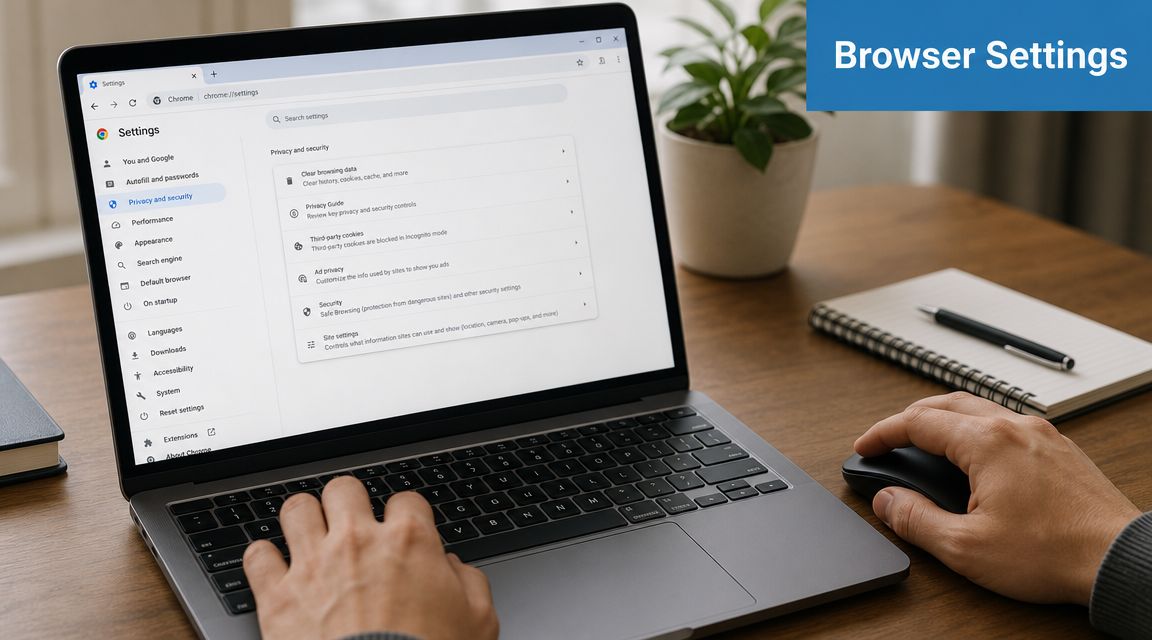
Open Settings > System. Turn on Use graphics acceleration when available. Click Relaunch.
Chrome is usually the fastest browser to test because the setting is easy to find and the behavior is predictable. If a meeting platform like AONMeetings feels rough only when video is on, Chrome with acceleration enabled often reduces CPU pressure right away after restart.
A few practical checks help:
- Video is jerky or dropped frames are obvious: Enable acceleration first.
- You see flicker, black boxes, or odd tab rendering: Disable it and test again.
- Nothing improves after relaunch: The browser may be asking for GPU help, but the OS or driver may still be blocking the faster path.
Microsoft Edge
Open Settings > System and performance. Turn on Use graphics acceleration when available. Restart Edge.
Edge behaves a lot like Chrome because both use Chromium underneath. The difference on work machines is policy control. IT can force this setting, lock it, or override local changes. If the option is greyed out or keeps switching back, stop there and check whether your device is managed.
That saves time.
Mozilla Firefox
Open Settings and scroll to Performance. Clear Use recommended performance settings if needed. Then enable Use hardware acceleration when available and restart Firefox.
Firefox hides the setting one layer deeper than Chrome or Edge, so people often assume it is missing. It is there. You just need to expose the manual performance options first.
Use the same real task before and after the restart so the test means something:
| Task | What you may notice with acceleration enabled |
|---|---|
| Video call | Smoother motion and fewer visual glitches |
| Screen sharing | Less delay when switching apps or moving windows |
| Browser dashboard | Faster redraws for charts, animations, and live updates |
Apple Safari
Safari is different. You usually will not find one obvious hardware acceleration toggle in the normal settings flow like you do in Chrome, Edge, or Firefox.
On a Mac, Safari performance depends more on the macOS graphics stack, browser version, and which GPU the system is using at that moment. If Safari struggles during meetings, treat it as a browser-plus-system issue rather than hunting for a missing checkbox.
What usually improves right away
The clearest wins show up during tasks that stress both the browser and the GPU:
- Live meetings: The browser can offload more video and rendering work from the CPU.
- Screen sharing: Window movement and tab switching feel more responsive.
- Busy tab sessions: A call, a shared screen, and several open apps are less likely to bog each other down.
- Visual web apps: Editors, dashboards, whiteboards, and streaming tools redraw more cleanly.
If you also care about front-end performance outside meetings, the best website speed optimization tools are useful for checking whether sluggish behavior is coming from the page itself, not just the browser's graphics path.
If enabling acceleration makes the browser less stable, that does not automatically point to bad hardware. It often points to a driver conflict, an older GPU, or a browser build that does not get along with the current graphics stack. The checkbox is the first test, not the whole diagnosis.
Optimizing Your System for Peak Performance
If the browser setting is the steering wheel, the operating system and graphics driver are the engine underneath it. You can enable hardware acceleration in Chrome or Edge all day long, but if the GPU driver is outdated or the OS is choosing the wrong graphics path, the browser won't get the result you expect.
Start with the graphics driver
This is the first system-level check I'd make on any laggy machine.
Open Device Manager on Windows or System Information on macOS and identify whether the machine is using Intel, AMD, or NVIDIA graphics. Then get the current driver from the official vendor path your organization uses. On managed machines, that may mean going through your IT team instead of downloading it directly.
A stale graphics driver creates strange symptoms:
- Browser video stutters even though acceleration is enabled
- Screen sharing feels delayed when dragging windows
- The browser reports acceleration on, but real rendering still falls back to software behavior
Tune the operating system, not just the app
Windows gives you more control than is commonly appreciated. In Graphics settings, you can set a graphics performance preference for specific apps. For machines with both integrated and discrete graphics, that can make a real difference for meeting software, browsers, and recording tools.
On macOS, the issue is often less about a visible toggle and more about power behavior. Some Macs switch graphics modes automatically, which is fine until a demanding browser session lands on the lower-power path at the wrong moment.
Here is a practical perspective:
| Layer | What to check |
|---|---|
| Browser | Acceleration toggle and relaunch |
| OS | App graphics preference or graphics switching behavior |
| Driver | Current GPU driver and vendor support |
| Hardware | Whether the laptop is capable enough for your workload |
Don't treat browser acceleration like a magic trick. It works best when the browser, OS, and driver all agree on who should handle the graphics load.
Match the system to the workload
A lightweight laptop can usually handle documents, email, and basic browsing. Add a browser meeting, screen share, multiple tabs, and a webinar control panel, and the system has a different job now.
That same thinking applies to website performance work too. If you deal with browser responsiveness from both the user side and the site side, this roundup of best website speed optimization tools is a useful companion because slow front-end behavior isn't always just a local machine problem.
If your work includes training sessions or live event content, it also helps to tighten up the whole workflow around capture and playback. This guide on how to record webinars is worth bookmarking when you're tuning for smoother browser-based event delivery.
Boost Your AONMeetings Experience with Acceleration
Browser-based meeting platforms live or die on smooth rendering. If the browser can't lean on the GPU effectively, you feel it fast. Video gets less fluid. Screen sharing develops a slight drag. Even simple actions like opening chat or switching layouts can feel heavier than they should.
That's why hardware acceleration matters so much in real conferencing use. It doesn't add a flashy feature. It removes friction from the features you already rely on.
Where the difference shows up first
In live meetings, people usually notice three improvements before anything else:
- Camera motion looks steadier: Faces and gestures feel less jumpy.
- Screen sharing reacts faster: Window changes and slide transitions are cleaner.
- The session feels more professional: Attendees notice the lack of glitches more than they notice technical settings.
That matters even more for webinar hosts. Presenters often have the browser meeting open alongside notes, slides, admin controls, and a few extra tabs. Hardware acceleration helps the browser cope with that visual load more gracefully.
Better performance improves the value of your plan
There's also a practical budget angle. Hardware acceleration is one of the few performance upgrades that usually costs nothing but a few minutes to enable and verify. Pair that with a platform that already starts at ₹179 per user per month and includes webinars, and the value proposition becomes very straightforward.
If you're comparing options, the point isn't just lower monthly cost. It's getting a browser-based setup that feels dependable without having to jump to a heavier or more expensive stack just to fix stutter.
A few value points stand out:
| Consideration | Why it matters in daily use |
|---|---|
| Pricing | Starts at ₹179 per user per month |
| Webinar capability | Included, so you're not adding a separate event tool |
| Encryption | Bank-level encryption adds security without extra setup |
| Browser access | Easier for guests and mixed-device teams |
Performance and security should travel together
A fast meeting that isn't secure is still a bad meeting. That's why encryption belongs in the conversation. When teams handle telehealth, education, client reviews, internal planning, or recorded webinars, they need both stable delivery and strong protection.
If your sessions rely on demos or live training, smooth screen sharing matters as much as audio clarity. It helps to keep a practical walkthrough like how to share your screen close at hand so hosts don't lose momentum during live sessions.
Troubleshooting When Acceleration Is Not Working
The most frustrating situation is this one. You enable hardware acceleration, restart the browser, and nothing improves. Sometimes performance is identical. Sometimes it gets worse. Sometimes the browser says acceleration is available, but diagnostics still show software-only paths.
That's not rare.
In Chromium-based browsers, users often need backend-specific flags such as ANGLE, VAAPI, or OpenGL to get real GPU offload. Community troubleshooting reports also show that acceleration may remain unavailable even when the setting is enabled, often because of a driver or compositing incompatibility rather than a simple browser checkbox problem (Chromium acceleration troubleshooting discussion).
Verify instead of guessing
On Chrome and other Chromium browsers, open chrome://gpu. On Firefox, open about:support.
You're looking for whether the browser is using hardware-accelerated paths, not just whether the toggle is on. That distinction matters.
Check these signs:
- Hardware acceleration enabled but features still disabled: Usually points to driver, OS, or compatibility blocks.
- Software-only rendering reported: The browser is not successfully offloading the workload.
- Disabled features with warnings: Often indicates the browser deliberately blacklisted a path because it detected instability.
A checked box is not proof. The diagnostic page is proof.
Common failure points
Most real-world failures fall into a short list.
- Outdated graphics drivers: The browser wants to use the GPU, but the driver stack can't support the path cleanly.
- Virtual machines or remote sessions: GPU passthrough and display composition can behave very differently from a local desktop.
- Linux backend mismatches: You may need flags like
--use-gl=eglor feature toggles tied to VAAPI before actual offload works. - Mixed graphics laptops: The browser may land on integrated graphics when you expected the higher-performance path.
If you're troubleshooting meeting quality, don't isolate video from audio. A bad call often has more than one issue at once. This quick guide on how to stop echo on mic pairs well with acceleration checks when users complain that a session feels “broken” without knowing whether the problem is video, sound, or both.
When advanced flags are worth trying
Most users should stop at the standard setting, browser relaunch, OS checks, and driver updates. Power users can go further.
Examples include trying a different graphics backend, enabling video decode features, or changing the OpenGL path in Chromium-based browsers. Those fixes can work, but they're not universal. A flag that helps on one machine can break another because the primary dependency is the combination of browser version, OS, driver, compositor, and hardware.
That's why generic guides often disappoint. They show the checkbox but not the verification step, and they don't acknowledge that “enabled” and “working” aren't always the same thing.
Balancing Performance Quality and System Stability
Your meeting starts in two minutes. Video looks fine for a moment, then the browser flashes black, screen sharing stutters, and the fan spins up like a hair dryer. That is the point where hardware acceleration stops being a simple on or off setting and becomes a trade-off.
In the best case, acceleration shifts video decode, rendering, and parts of screen sharing to the GPU so the CPU has less work to do. On a healthy system, that usually means smoother AONMeetings calls, steadier frame rates, and less strain during long sessions. On a messy system, with older drivers, mixed graphics, or a browser build that does not play nicely with your GPU, the same setting can cause instability.
When turning it off makes sense
Disabling acceleration is a reasonable test if the machine is showing clear graphics trouble, such as:
- Flickering windows, black screens, or corrupted video
- A browser update that suddenly breaks playback or screen sharing
- Crashes that only happen during meetings or video-heavy tabs
- Battery-focused use where cooler, quieter operation matters more than maximum visual smoothness
I usually treat this like any other support check. If acceleration improves call quality without side effects, keep it on. If it introduces glitches, turn it off, restart the browser, and compare the result in the same workload, ideally the same meeting platform, camera, and screen sharing setup.
The practical mindset
The goal is not to force the GPU into every task. The goal is stable performance you can trust.
A browser can show hardware acceleration as enabled while the underlying video path still falls back to software because of a driver issue or codec mismatch. That is why the checkbox alone is never the full answer. What matters is whether your actual AONMeetings session feels better. Clearer motion, fewer dropped frames, smoother screen share, and fewer browser crashes are the signs to watch.
If your system is stable with acceleration on, use it. If turning it off gives you a more reliable workday, use that instead. The right choice is the one that keeps meetings usable, screen sharing predictable, and the rest of the machine responsive.
If you want a browser-based meeting platform that pairs well with these optimizations, AONMeetings is worth a look. It starts at ₹179 per user per month, includes webinars on all plans, offers bank-level encryption, and keeps the setup simple for secure meetings, screen sharing, recordings, and day-to-day collaboration.
