
A meeting request looks simple until it isn't. You need your lead engineer in Bengaluru, a sales director in London, and a client team in New York on the same call. One person wants video, another needs a room booked at the office, and someone always replies, “Can we push by 30 minutes?”
That's where knowing how to set up a meeting in Outlook stops being admin work and starts becoming operational skill. Outlook can do much more than send a calendar block. Used properly, it helps you find workable time, avoid obvious conflicts, choose the right meeting format, and keep hybrid teams aligned without the usual email ping-pong.
Beyond the Invite Navigating Modern Meeting Scheduling
Outlook is often treated as a digital version of writing an appointment on a paper diary. Open calendar, click a button, type a subject, send. That works for a one-on-one. It breaks down fast when the meeting matters.
A client demo is a good example. You're not just picking a slot. You're coordinating availability, deciding whether the session is in-person, hybrid, or fully online, and making sure the invite contains enough context that people arrive prepared. A weak invite creates confusion before the meeting even starts.
What changes when you use Outlook well
A solid Outlook workflow does three things at once:
- Cuts the back-and-forth: You stop asking, “What time works?” and start checking availability before you send.
- Improves attendance quality: A clear subject, useful meeting body, and correct join method reduce no-shows and late arrivals.
- Supports hybrid work properly: Microsoft now separates simple online meetings from hybrid and in-person event handling, which matters because work patterns are still flexible and expectations are mixed.
The invite is not the meeting. It's the operating instructions for the meeting.
That distinction matters more than it used to. Hybrid work hasn't gone away. Microsoft notes that 73% of workers say they need flexible work options to stay productive, and its newer Outlook guidance reflects that by distinguishing online, hybrid, and in-person event setup in different flows in Microsoft's Outlook meeting guidance for Windows.
The practical standard
The efficient approach is straightforward. Start in Calendar, build the meeting there, treat attendee selection and time choice as one task, and only then finalize the meeting format. That's the habit that separates organized calendars from chaotic ones.
If you already know the clicks but still end up with scheduling friction, the problem usually isn't Outlook. It's the order of operations.
The Core Workflow for Creating Outlook Meetings
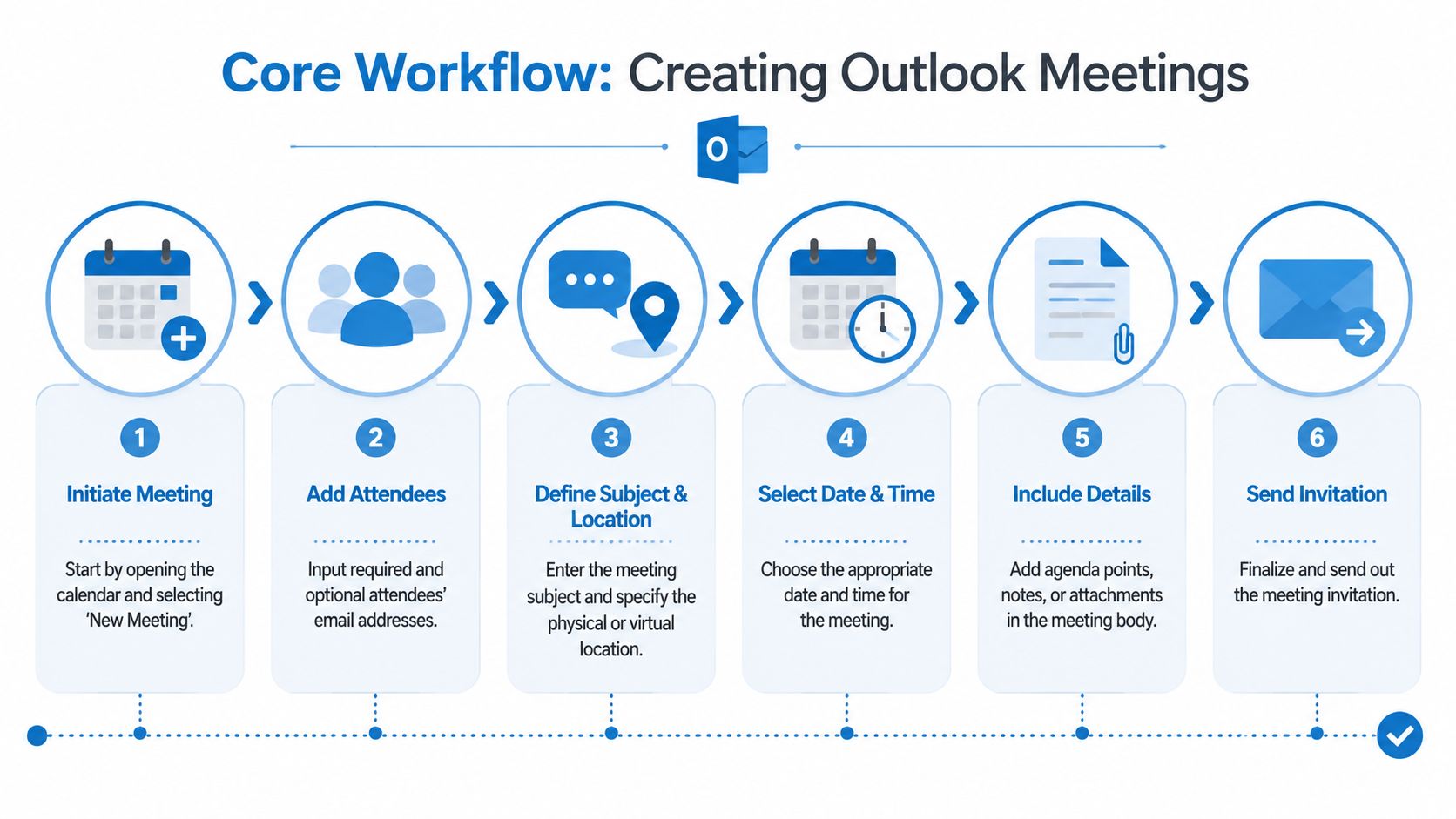
Microsoft's current guidance is consistent on the fundamentals. You create a meeting from Calendar, choose New Meeting or New Event, add attendees in the To field, enter the Subject, Location, Start time, and End time, and optionally use Scheduling Assistant before sending, as shown in Microsoft's Outlook scheduling instructions.
Start from the calendar, not the inbox
This sounds minor, but it isn't. When people create meetings from email threads without thinking through timing, they often send invites before checking the bigger calendar picture. Starting from Calendar keeps time, attendees, and meeting type in the same workspace.
On Windows, Mac, and the web, the names vary slightly, but the logic stays the same. Open Calendar first. Then create the event there.
Fill the fields like they matter
The required fields aren't just boxes to complete. Each one affects how quickly people understand and accept the meeting.
- To field: Put required attendees here. If the meeting can't happen without someone, they belong in this list.
- Optional attendees: Use this for people who should stay informed but don't need to shape the decision live.
- Subject: Write what the meeting is for, not just the project name. “Q4 Pricing Review” works better than “Catch-up.”
- Location: Add a physical room, “Microsoft Teams,” or a third-party virtual link. Leave it vague and someone will ask where to join.
- Start and end time: Protect attention spans. A shorter, sharper meeting usually gets better engagement than a long placeholder block.
A practical example helps. If you're scheduling a product demo, “Client demo for Apex rollout” is stronger than “Meeting with Apex.” If you're booking a weekly operations review, “Ops review. blockers, decisions, next-week owners” gives people a reason to attend prepared.
Add useful detail in the meeting body
The body of the invite should answer three questions quickly:
- Why are we meeting?
- What do attendees need to bring or review?
- What decision, update, or outcome is expected?
You don't need a memo. You need enough context to prevent wasted time.
Practical rule: If someone opens your invite on a phone two minutes before the meeting, they should still know the purpose and what they need to do.
A simple body might include:
- Agenda: Intro, requirements review, final decision on launch date
- Pre-read: Attach deck or link to document
- Owner notes: “Finance to confirm budget assumptions”
Send the meeting, don't let it linger
Drafts create false confidence. A draft feels done, but nobody has received anything. If the meeting matters, complete the invitation in one pass and send it once the details are accurate.
That's the foundation of how to set up a meeting in Outlook properly. The next level is choosing time with intent rather than guesswork.
Mastering Time with the Scheduling Assistant
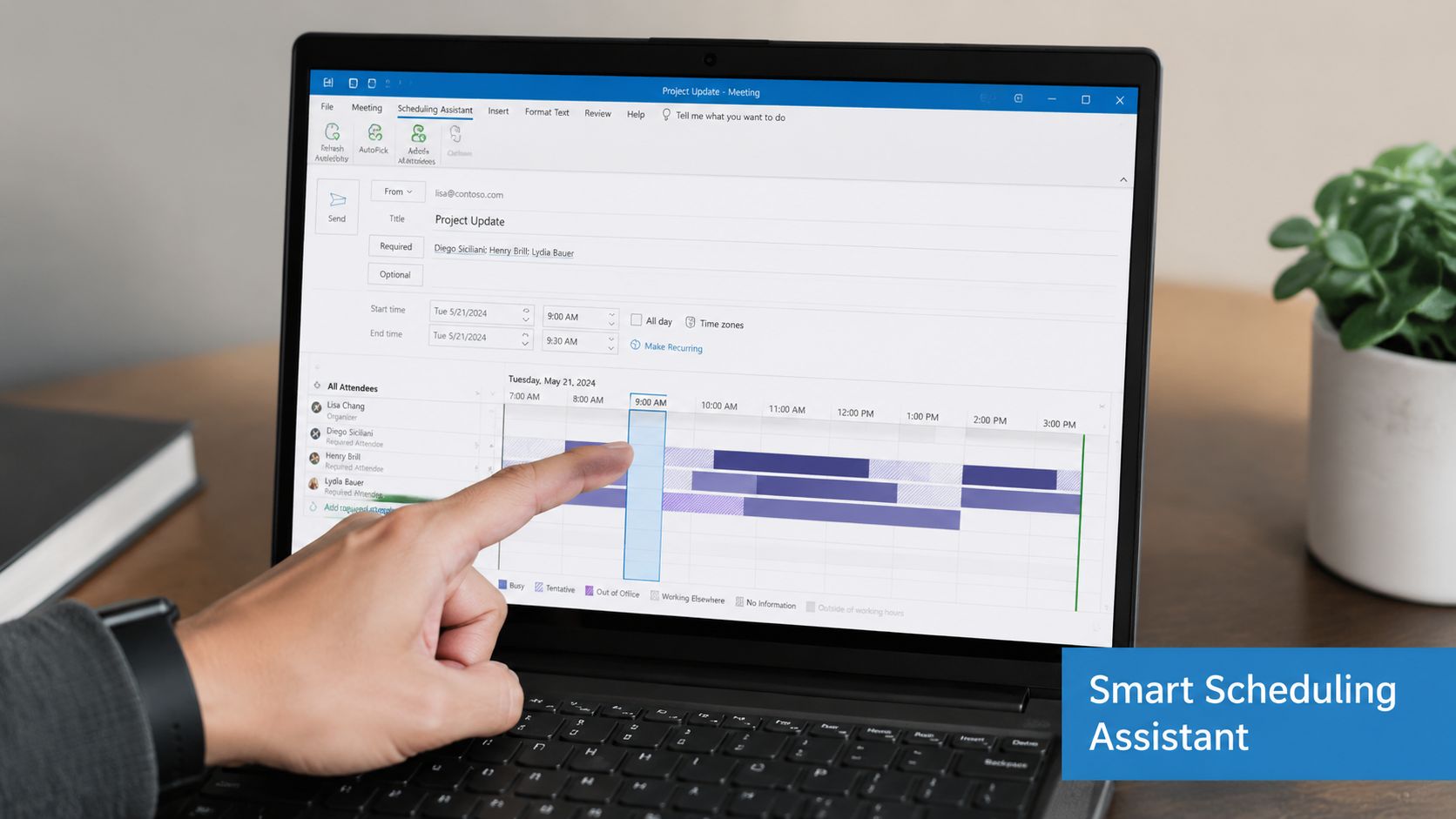
The Scheduling Assistant is where Outlook earns its place. For any meeting with more than two people, it's the fastest way to stop the “Are you free then?” loop before it starts.
Microsoft community guidance highlights why it's so useful. The Scheduling Assistant shows attendee conflicts visually, which lowers the chance of sending an invite into known busy blocks in this Outlook meeting workflow guide from CiraSync.
Use it when the meeting has consequences
Suppose you need a project kickoff with a product manager in London, an engineering lead in Bengaluru, and a customer contact in New York. If you guess, you'll probably land on a time that is perfect for one region and painful for another.
The Scheduling Assistant gives you a grid view of attendee availability. You don't need to decode every detail. You need to identify three things fast:
- Clear free blocks: Slots with the least conflict among required attendees
- Known busy periods: Obvious collisions you should never ignore
- Edge-of-day timing: A meeting that technically fits but lands too early or too late for one region
What the visual grid is really telling you
The tool works because it turns hidden calendar data into a quick decision surface. You can see whether someone is free, tentatively busy, or booked, then adjust without sending a single email.
That matters professionally. Sending a meeting into a visible conflict says you didn't check. Rescheduling after the fact tells everyone the first invite was premature.
A practical rhythm works well:
- Set your required attendees first
- Open Scheduling Assistant before finalizing time
- Move the proposed slot until the group has a clean or acceptable window
- Only then finish the invite body and send
What works and what doesn't
What works is using the assistant early. What doesn't work is filling out the entire meeting, attaching documents, and then discovering the lead decision-maker is busy.
A few trade-offs are worth knowing:
| Situation | Better move in Outlook | Poor move |
|---|---|---|
| Cross-time-zone meeting | Check availability before writing the full invite | Send a “placeholder” and fix it later |
| Large meeting | Prioritize required attendees' availability first | Try to satisfy every optional attendee |
| Limited calendar visibility | Confirm key attendees manually if needed | Assume blank space means available |
If Outlook shows a conflict, treat that as a decision point, not a suggestion.
Common friction points
The biggest issue isn't the tool. It's incomplete calendar information. Some attendees may not share full availability, and external guests often won't appear the same way internal coworkers do. In those cases, use the assistant for your internal team first, then propose one or two realistic options to the external side.
Another common mistake is over-optimizing. Don't waste ten minutes searching for a mythical perfect slot. Find the cleanest workable time for the people who must be there, and move on.
That's usually the difference between a meeting that gets booked today and one that drifts for a week.
Choosing Your Virtual Room Teams vs AONMeetings
A calendar invitation without a join method is just a promise. For online meetings, the “where” matters as much as the “when.”
If you use Microsoft's built-in path, Outlook supports a Teams meeting toggle in the new Outlook desktop and web experience, and a Teams Meeting command in classic Outlook. Microsoft also notes an important operational detail. The join information is added after you click Send, and Save as draft doesn't generate the conferencing metadata, as described in Microsoft's explanation of Teams meeting setup in Outlook.
When Teams makes sense
Teams is the default choice for organizations already deep in Microsoft 365. It's convenient because the meeting link sits inside the same scheduling workflow. That convenience is real, especially for internal meetings where everyone already uses the same system.
The trade-off is that default doesn't always mean ideal. Some teams need a simpler guest experience, more predictable webinar access, stronger fit for regulated conversations, or pricing that avoids hidden expansion with broader suite requirements.
If your colleagues struggle with navigation after the invite is sent, this guide on finding items within Microsoft Teams is worth sharing. It addresses a practical issue many admins see after rollout. People can get the invite and still lose time locating files, chats, or meeting artifacts.
Comparing the two approaches
For healthcare, education, and smaller businesses, the decision often comes down to workflow fit rather than brand familiarity. Some teams want browser-based joining, included webinars, unlimited meeting time, and straightforward security controls without wrapping everything around a larger collaboration stack.
Here's the practical comparison.
| Feature | Microsoft Teams (Standard Business) | AONMeetings (Pro Plan) |
|---|---|---|
| Outlook setup | Built-in Outlook toggle or command | Add meeting link to Outlook invite |
| Join details | Added after sending from Outlook | Added by pasting the meeting link in the invite |
| Webinar capability | Depends on Microsoft environment and setup | Built-in webinars included |
| Meeting duration approach | Depends on plan structure and org setup | Unlimited meeting time included |
| Security positioning | Microsoft ecosystem security controls | Bank-level encryption |
| Healthcare fit | Depends on org configuration | HIPAA-compliant meetings |
| Education fit | Standard online class workflow | Unlimited sessions and browser access |
| Entry pricing | Varies by Microsoft licensing path | Starts at ₹179 per user per month |
| Browser-based access | Available in many cases | Core part of the product experience |
The practical value question
This isn't only about price. It's about what's bundled cleanly.
One option among Outlook users is AONMeetings, which the publisher describes as offering HIPAA-compliant meetings, built-in webinars, unlimited meeting time, bank-level encryption, screen sharing, whiteboards, document sharing, recordings, and pricing that starts at ₹179 per user per month. For a clinic, coaching business, training company, or SMB that mainly needs secure video meetings and webinars rather than a full collaboration suite, that's a different value proposition.
A common workflow is simple. Create the Outlook meeting, finalize the date and attendees, then paste the hosted meeting link into the location or body of the invite. If you're running demos or classes, clear presenter instructions help too. This short guide on sharing your screen during online meetings is useful when hosts need to present smoothly from the first minute.
Security should be visible in your workflow, not buried in a procurement document.
For healthcare teams, that means making sure the chosen platform matches the compliance expectations of the conversation. For educators, it means avoiding arbitrary session constraints. For marketers, it often means webinars can't be an afterthought. The right virtual room is the one that matches the meeting's actual job.
Advanced Meeting Configuration and Management
A calendar usually starts to break at the series level, not the single invite level. One badly edited recurring meeting can leave attendees with conflicting copies, outdated room bookings, or exceptions no one notices until the wrong people show up.
Recurring meetings without calendar damage
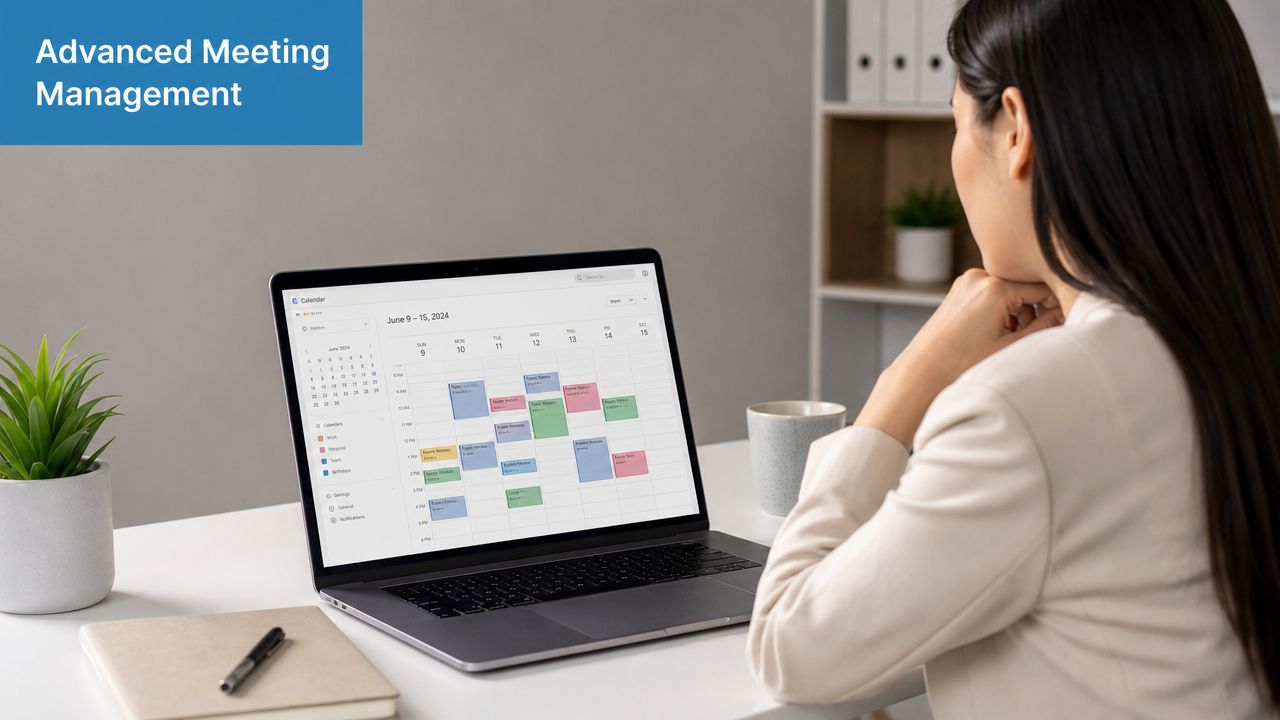
Recurring meetings work well for standups, department reviews, office hours, and client check-ins. They also create avoidable mess if the organizer edits the wrong layer of the series.
The rule is simple. Decide whether the change applies to one date or to the pattern itself.
- One occurrence: Use this for a holiday shift, a one-off time change, or a single canceled session
- The whole series: Use this when the meeting permanently moves, the attendee list changes long term, or the cadence changes
I treat recurring meetings as shared records, not disposable placeholders. If the Wednesday operations call moves to Thursday for one week, editing only that instance preserves the history and prevents Outlook from rewriting every future invite.
Rooms, resources, and hybrid details
For in-person or hybrid meetings, the invite is incomplete until the space, equipment, and join method all line up. A vague location field causes more friction than people expect, especially in offices where conference rooms are booked as resources through Outlook.
A clean hybrid setup usually includes three things:
- A real room reservation: Add the room mailbox or resource so availability is tracked, not guessed
- A clear attendance instruction: State who should attend on site and who should join remotely
- An audio check: Confirm the room mic, speaker output, and host device before the meeting starts
This is also where the virtual platform choice affects management. Teams works well if your organization already runs inside Microsoft 365 and wants meetings tightly tied to chat, files, and internal identity controls. AONMeetings can be the simpler option when the priority is secure external meetings, predictable pricing, or longer sessions without adding a broader collaboration stack. That trade-off matters in healthcare practices, schools, training businesses, and smaller companies that need the meeting room more than they need another workspace layer.
If hosts are preparing for a hybrid session, this guide on stopping microphone echo in online meetings is worth sending before the first attendee joins.
Reminders, tracking, and series cleanup
Reminder settings should match the job of the meeting. A 15-minute reminder can be enough for an internal weekly sync. A client review, campus advising session, or telehealth appointment often needs more lead time so attendees can prepare, travel, or test their connection.
Tracking responses is just as useful. Outlook shows who accepted, who marked tentative, and who has not replied. That gives the organizer a quick read on whether the meeting is ready to happen or needs intervention first.
For recurring meetings, cleanup matters too. End old series instead of letting them run forever. Cancel obsolete meetings rather than abandoning them. If the online link changes because you are switching from Teams to AONMeetings for a webinar, compliance review, or external training session, update the series carefully and call out the change in the body so attendees do not join the wrong room.
Meeting Etiquette for Senders and Attendees
A meeting often succeeds or fails before anyone joins. In Outlook, the mechanics are easy. The harder part is sending an invite that makes people clear on the purpose, the timing, and what is expected of them.
For senders, good etiquette starts with restraint. A precise subject line, a short agenda, and a tight attendee list usually produce better meetings than a vague invite sent to everyone available. If a person is not making a decision, presenting information, or directly affected by the outcome, they can often get the notes instead.
What senders should do
- Write a specific subject: “Budget approval for Q1 campaign” gives people context immediately.
- Keep the attendee list focused: Smaller groups make ownership clearer and discussion faster.
- Check conflicts before sending: If Outlook shows a key attendee is already booked, adjust the time or confirm priority first.
The Scheduling Assistant helps with the mechanics, but courtesy still matters. A visible free slot does not always mean the meeting belongs there. Senior leaders may block focus time. Clinicians may need charting time between appointments. Teachers and advisors may keep buffers between sessions for follow-up work. Good organizers treat calendars as signals, not permission slips.
A thoughtful invite shows respect before the meeting starts.
Attendees carry part of the load too. Accept should mean the time is committed. Tentative should signal a real scheduling question. Decline is often more helpful than no response, because it lets the organizer adjust the plan, invite a delegate, or move the meeting while there is still time.
If the issue is timing, use Propose New Time instead of sending a vague reply. That keeps the scheduling thread inside Outlook, where the organizer can compare options quickly. Teams that want cleaner habits for remote sessions should standardize around a short set of virtual meeting best practices for hosts and participants.
Platform choice affects etiquette too. If the meeting is external, regulated, or cost-sensitive, the sender should make joining simple and predictable. That is one reason some healthcare groups, schools, and smaller businesses schedule in Outlook but host in AONMeetings instead of defaulting to Teams. The trade-off is straightforward. Teams can make sense for organizations already committed to the Microsoft collaboration stack. AONMeetings can be easier to justify when the priority is a secure browser-based room, lower overhead, and fewer steps for outside guests.
The professionals who run meetings well are usually consistent in small ways. They send clear invites, respond promptly, arrive prepared, and clean up confusion before it spreads to everyone else.
