
A principal is trying to run a revision class online. Students keep joining late. One student can't find the chat. Another shares the wrong screen. The teacher wants to split the class into pairs, check understanding with a quick poll, and save the session for absent students. The video meeting works, but teaching inside it feels clumsy.
A clinic manager runs into a similar problem. A doctor can start a video call, but patient education, staff training, and group sessions need more structure. The team needs stronger access controls, easier joining, screen sharing, recordings, and clear moderation tools. A plain meeting room gets people connected. It doesn't always support the job they need to do.
That's where the question what is a virtual classroom becomes practical, not theoretical. A virtual classroom is an online space built for live instruction and guided interaction, not just conversation. It combines real-time communication with tools that help a teacher, trainer, or clinician run a session.
Beyond the Video Call An Introduction
In early 2020, schools and colleges didn't just experiment with online instruction. They moved at scale. 77% of U.S. public schools and 84% of college students reported shifting classes to online formats, and more than 1.5 billion students worldwide were affected by school closures at the peak of the disruption, according to the NCES COVID education summary.
Those numbers matter because they explain why so many people still confuse a video call with a classroom. When the shift happened fast, many organizations used whatever meeting tool they already had. That was enough to keep people talking. It wasn't always enough to keep people learning.
A virtual classroom solves a different problem than a standard meeting app. It helps one person guide a group through content, discussion, questions, activities, and follow-up. That means the host needs more than a camera and microphone. They need ways to direct attention, manage participation, and keep materials organized.
Practical rule: If your session depends on teaching, coaching, supervised discussion, or guided review, you're no longer just hosting a meeting.
Think of a math teacher working through a problem live. Students need to see the method, ask questions in the moment, respond to a prompt, and sometimes break into small groups. Or think of a therapist running a secure skills workshop for patients in different locations. The goal isn't just face time. The goal is structured participation.
That's the key idea. A virtual classroom is a purpose-built live learning environment. It may look similar to a meeting on the surface, but the reason it exists is different.
How a Virtual Classroom Actually Works
A simple video call is like renting an auditorium with a microphone. A virtual classroom is closer to a workshop room with tables, whiteboards, handouts, side conversations, and a way for the instructor to move everyone through the lesson together.
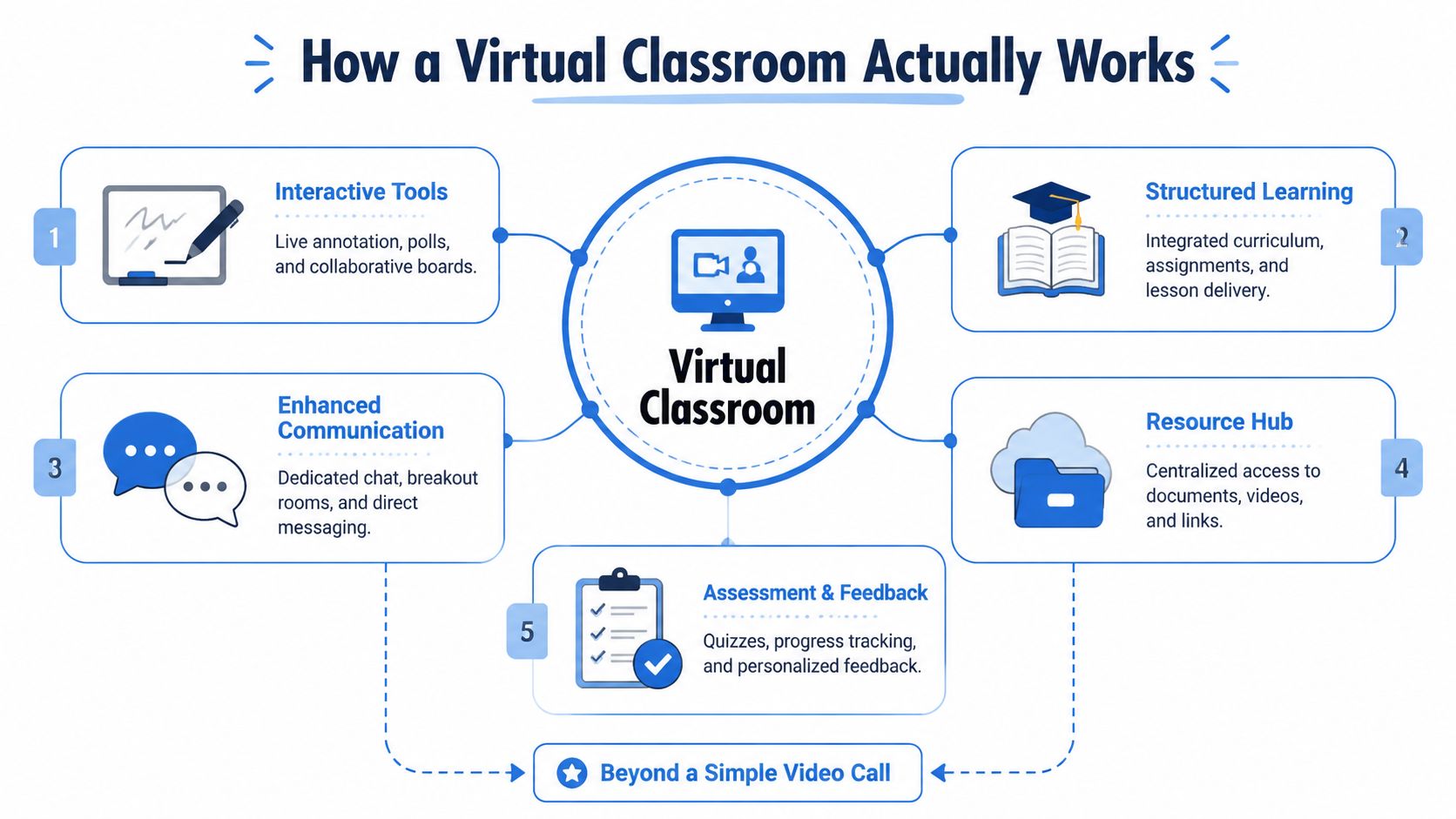
Technically, a virtual classroom is a synchronous learning environment that combines live video with tools like shared whiteboards, chat, screen sharing, and breakout rooms. Those components matter because they turn passive viewing into active instruction, as explained in Kaltura's overview of virtual classroom tools.
The live layer
The first layer is the live session itself. Audio and video let the instructor explain a concept, watch reactions, and correct misunderstandings immediately. That's what makes a virtual classroom useful for tutoring, language learning, exam prep, and staff training.
If a biology teacher notices blank faces during an explanation of cell division, they can stop, annotate a diagram on screen, and ask students to answer a quick question in chat. In a recorded-only course, that correction comes too late. In a classroom, it happens on the spot.
The interaction layer
The second layer is the set of tools around the conversation.
- Shared whiteboard: A teacher solves an algebra problem step by step while students mark where they got stuck.
- Chat: Learners who don't want to interrupt can ask questions without stopping the flow.
- Screen sharing: A trainer demonstrates software or shows a presentation live.
- Breakout rooms: Students practice in pairs, small teams, or role-play groups.
- Polls and quick checks: An instructor can test understanding before moving on.
These aren't extras. They're what make the room feel teachable.
A good virtual classroom lets the instructor change pace, not just talk longer.
The structure layer
There's also a management side that people often miss. A working classroom needs attendance, links to materials, assignments, recordings, and a way to keep sessions orderly. In many setups, that means the live room connects to a learning management system or another course hub.
That's why a virtual classroom usually works best when the teaching flow is planned. The host isn't just opening a link and hoping discussion happens. They're controlling access, guiding the activity, and deciding when participants watch, speak, write, or collaborate.
Core Features That Power Online Learning
When people ask what is a virtual classroom, they often expect a feature list. Features do matter, but only if you connect them to real teaching and care delivery.
Interaction tools that keep people involved
The most visible features are the ones learners touch during the session.
- Whiteboards and annotation: A tutor can underline sentence structure in a shared passage during an English lesson. A medical educator can mark up a diagram while explaining a procedure.
- Breakout rooms: A language teacher can pair students for conversation practice. A clinic educator can split staff into small groups to discuss case scenarios.
- Screen sharing: A pharmacist can review patient instructions on screen. A coding instructor can walk through a live debugging session.
- Polls and quizzes: A trainer can ask a comprehension question before moving to the next topic. That's especially useful when participants are quiet on camera.
- Chat and reactions: These give shy participants a lighter way to engage. In a large class, the chat often becomes the fastest signal that confusion is building.
Management tools that make sessions run smoothly
A classroom also needs host controls and workflow support.
A recording feature helps schools support absent students and lets clinics reuse educational sessions internally. Moderator controls matter just as much. The host may need to mute noise, manage who can share a screen, admit late arrivals, or lock the room once everyone has joined.
Small friction points add up fast. If you've ever had to spend the first ten minutes fixing microphone feedback, you know how quickly trust in the session drops. A practical resource like AONMeetings' guide on stopping echo on a mic is worth sharing with staff before launch because audio issues can derail a lesson before the content even begins.
For families choosing platforms and support tools around the classroom itself, Kubrio's guide for families gives a useful outside perspective on how broader learning systems fit into a child's day-to-day experience.
Security and compliance tools that matter more than most buyers expect
Here, many buyers under-evaluate the platform.
For schools, secure joining controls help prevent disruptions. In healthcare, security and compliance become even more vital. The platform may need encryption, waiting rooms, authenticated access, meeting locks, and compliance features that support protected conversations and records handling.
Examples make this clearer:
- A counselor running a group session needs control over who enters and when.
- A clinic trainer sharing patient-related material needs a secure environment with restricted access.
- A school administrator hosting parent meetings may want recordings, but only under clear permissions and controls.
Decision shortcut: If the session includes sensitive information, security is not an add-on feature. It's part of the classroom design.
Encryption helps protect the session in transit. Waiting rooms and passcodes help control entry. Meeting locks help the host stop unexpected joins after class begins. In healthcare settings, buyers should also confirm whether the platform supports HIPAA-related requirements before using it for patient-facing work.
Virtual Classroom vs Webinar vs LMS
Buyers often compare three tools that solve different problems. That confusion leads to bad purchases. A team buys a webinar product and then wonders why teaching feels stiff. Or they buy an LMS and then realize it doesn't handle live instruction well.
The clearest distinction is this: a virtual classroom includes pedagogical tools for live interaction with content, while a standard meeting tool mainly connects people. Kaltura makes that difference clearly in its explanation of what a virtual classroom is.
Platform Comparison Virtual Classroom vs Webinar vs LMS
| Criterion | Virtual Classroom | Webinar Platform | Learning Management System (LMS) |
|---|---|---|---|
| Primary goal | Live teaching, coaching, guided discussion | One-to-many presentation or event | Course organization, assignments, tracking |
| Interactivity | High. Whiteboards, breakout rooms, chat, polls | Usually lower and more host-led | Often asynchronous, with limited live interaction unless integrated |
| Best for | Tutoring, online classes, workshops, staff training | Public talks, product demos, large announcements | Semester-long courses, certification programs, content libraries |
| Host role | Instructor or facilitator | Presenter or panel host | Administrator, course designer, teacher |
| Typical pricing model | Often per host or per seat | Often based on host licenses, attendee capacity, or event tiers | Often subscription or institution-wide software licensing |
| What users expect | Participation | Viewing and Q&A | Access to materials, deadlines, grades |
When each one makes sense
A virtual classroom fits when people need to do something together live. That could be a teacher leading a lesson, a tutor correcting work in real time, or a clinic conducting staff education.
A webinar platform fits when the audience mostly watches. It's useful for orientation sessions, awareness talks, public briefings, or marketing events. Webinar features can still be valuable inside education and healthcare, especially for larger sessions where audience interaction is lighter.
An LMS is the backbone for course management. It stores materials, tracks progress, and handles assignments. But by itself, it usually isn't the live room. It's the cabinet around the classroom, not the classroom itself.
For schools comparing live-teaching options, this roundup of online teaching platforms can help separate classroom tools from broader meeting software.
What about price comparisons
Price comparisons in this category are tricky because vendors package tools differently. One platform may charge separately for webinars, recordings, storage, breakout rooms, or compliance controls. Another may bundle them.
That means the comparison isn't just sticker price. It's whether your cost includes the pieces you need. If you need live classes plus webinars for assemblies or community talks, a platform that includes both may be more practical than one that treats webinars as a separate product line.
Benefits and Challenges for Educators and Healthcare

The value of a virtual classroom changes depending on who's using it. A school wants continuity and participation. A clinic may care more about privacy, reliable access, and controlled communication.
For educators
Virtual classrooms help schools and tutors reach students who can't always be in the same room. A revision teacher can run an evening class for students across different neighborhoods. A coaching center can record the session so students can review the explanation later.
They also make some teaching moves easier. Chat gives quieter students a way to participate. Screen sharing helps with slides, software demos, and document review. Breakout rooms support pair practice, peer review, and group work that would otherwise disappear online.
But educators face real obstacles too:
- Device mismatch: Some students join from phones, while the teacher plans for laptops.
- Access friction: If joining takes too many steps, attendance drops and class starts late.
- Home environment issues: Noise, shared space, and unstable internet affect participation.
- Teacher workload: Preparing slides, links, breakout activities, and recordings can take more time than expected.
A virtual classroom works best when the setup reduces friction instead of adding more admin.
For healthcare providers
Healthcare teams often think first about telemedicine, but virtual classrooms are useful beyond one-to-one appointments. Clinics can run patient education sessions, support groups, onboarding for new staff, and continuing education workshops.
A few examples:
- A diabetes educator can hold a live nutrition class for patients in different areas.
- A therapist can run a secure group session with moderated entry.
- A clinic manager can train front-desk staff on a new intake process using screen sharing and recordings.
The upside is clear. Teams can deliver consistent instruction without travel, and patients can join from home. For some organizations, that improves access and makes recurring education much easier to maintain.
The challenges are also specific:
- Privacy concerns: Healthcare teams need clear policies for recordings, access, and participant identity.
- Technology hesitation: Some patients are comfortable with a link on their phone. Others need simple instructions and support.
- Compliance review: Not every video platform is suitable for protected health information.
- Session control: Group sessions require strong moderation to avoid accidental disruptions or oversharing.
In healthcare, the best virtual classroom is often the one patients can enter without confusion and staff can manage without improvising.
How to Choose and Set Up Your Virtual Classroom
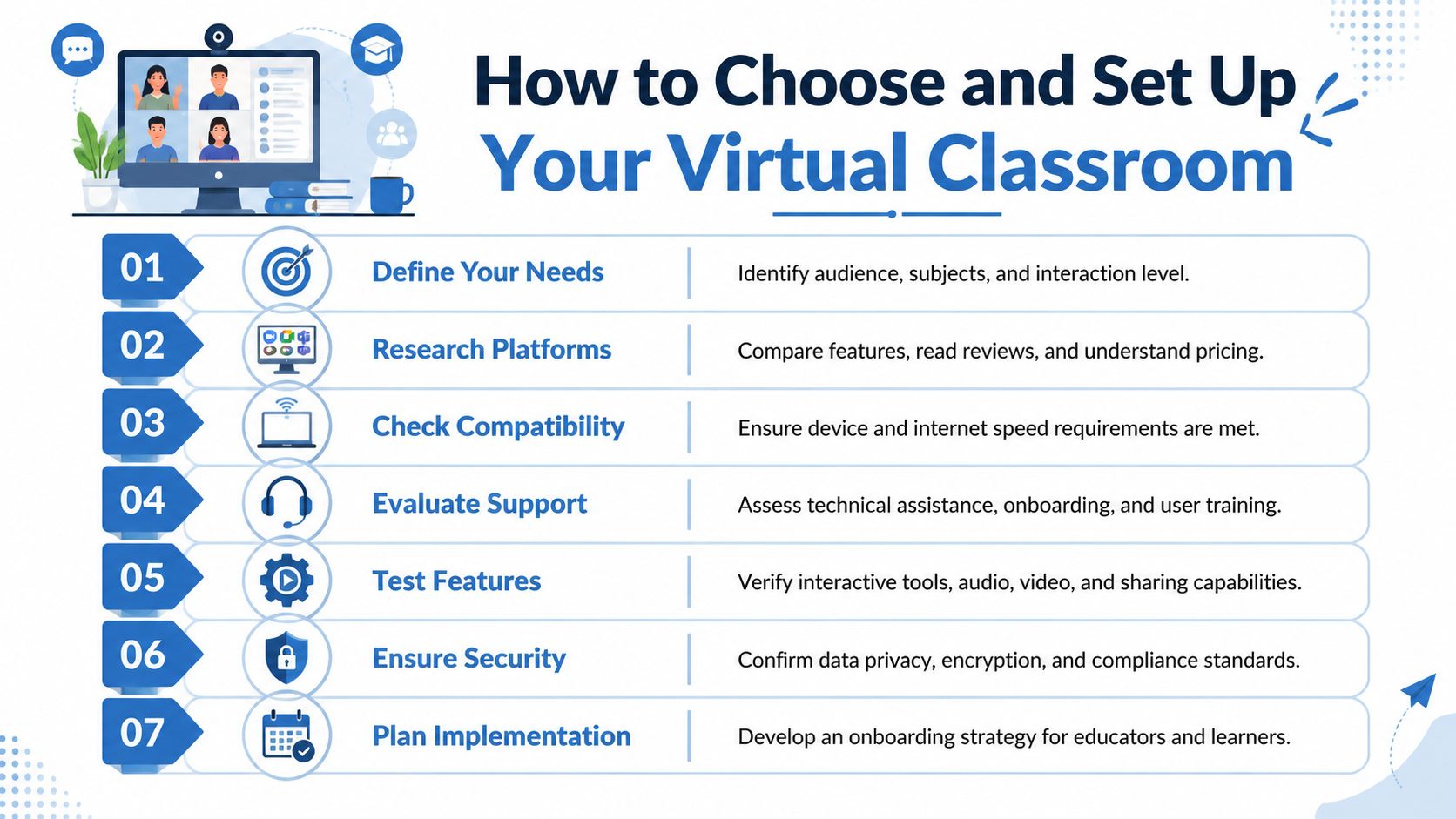
At 8:55 a.m., the teacher is ready, the nurse educator has the slides open, and participants are trying to join. One person is stuck on an app update. Another cannot find the chat. A third joins by phone and cannot see the worksheet. In that moment, the quality of your virtual classroom is no longer about feature count. It is about whether the system supports the session without creating extra work.
That is why buying decisions should start with use case and day-to-day administration, not with the longest feature list. A good platform works like a well-organized front office. People know where to enter, staff know who is allowed in, and common tasks do not require improvising.
What to check before you buy
Start with the sessions you run.
Match the platform to the teaching format
A small class, a staff training, and a public information event do not place the same demands on the software. If your team needs both interactive classes and one-to-many presentations, check whether webinars are included or sold as an extra product. That single detail can change both cost and workflow.Reduce join friction
Browser access often matters more than an extra teaching tool. In schools and clinics, every install step creates another chance for delay, confusion, or support calls. Easy entry is not a cosmetic benefit. It affects attendance and staff workload.Read the pricing model like an operations document
The monthly rate is only the first line. Check what happens with recordings, host licenses, webinar capacity, storage, and admin controls. Transparent pricing makes planning easier, especially for principals, program directors, and clinic managers who need predictable budgets.Review privacy and control settings early
Look for encryption, waiting rooms, passcodes, host permissions, and meeting locks. If the classroom will be used for patient education, therapy groups, or any protected health information, confirm HIPAA-related support before rollout rather than after a compliance review raises concerns.Check whether the platform supports teaching, not just talking
Screen sharing, whiteboards, moderated chat, breakout rooms, attendance tracking, and recordings all affect how well a session runs. A meeting tool can carry a conversation. A virtual classroom should also support instruction.
AONMeetings is one example of this packaging. It offers browser-based access, HIPAA-compliant meetings, built-in webinars, encryption, and publicly listed pricing, which can help buyers compare real costs without sorting through multiple add-ons. That combination will appeal more to teams trying to standardize operations than to teams shopping for isolated features.
If your instructors create short lesson clips before or after live sessions, Smooth Capture for Mac video is a practical reference for improving recordings outside the classroom platform itself.
A simple setup checklist for your first sessions
A calm first week usually comes from a repeatable setup process.
- Test audio and camera on the devices people will really use: A laptop in the office may behave differently from a tablet on clinic Wi-Fi or a teacher's home computer.
- Set host permissions in advance: Decide who can share screens, admit late arrivals, mute participants, use private chat, and start recordings.
- Prepare materials before the room opens: Keep slides, links, forms, and handouts in one place so the host is not searching while participants wait.
- Run one rehearsal with the actual presenters: Practice switching between slides, chat, breakout rooms, and attendance tasks. Small mistakes are easier to fix in rehearsal than in front of students or patients.
- Give participants a short join guide: One page is often enough. Include how to enter, what browser works best, and who to contact if audio fails.
- Train staff on the basics of screen sharing: A short walkthrough on how to share your screen can prevent a surprising number of delays.
Field note: Choose a setup that a substitute teacher, a new trainer, or a clinic coordinator can run correctly on a busy day. That is usually the clearest sign that the system fits your organization.
Frequently Asked Questions
Do participants need to install software to join a virtual classroom
Not always. Many platforms now support browser-based access, which is often the simplest option for schools, clinics, and community groups. That matters because every extra install step increases the chance that someone arrives late or gives up before joining.
If your audience includes parents, younger students, or patients, browser access is usually easier to support than a download-first workflow.
Can a virtual classroom be secure enough for therapy or patient education
It can be, but only if the platform includes the right controls and your team uses them properly. Look for encryption, waiting rooms, authenticated access, moderator permissions, meeting locks, and clear policies around recordings.
For healthcare settings, you should also confirm whether the platform supports HIPAA-related needs before using it for patient-facing sessions. Security isn't just about the software. It's also about how staff schedule, admit, record, and manage sessions.
Isn't a free meeting tool good enough
Sometimes it is. If you're running an informal conversation or a quick internal catch-up, a basic meeting room may be enough.
It usually stops being enough when you need structured teaching, repeatable workflows, access control, included webinars, dependable recordings, or compliance support. Free tools often work best for simple communication. Virtual classrooms are for guided learning and managed interaction.
What's the simplest way to tell if I need a virtual classroom
Ask one question: do participants need to actively learn, practice, or respond during the session?
If the answer is yes, you probably need more than a plain meeting room. You need a space built for instruction.
If you're comparing platforms for education, healthcare, or training, AONMeetings is one option to review. It offers browser-based meetings, HIPAA-compliant workflows, included webinars, encryption, and transparent pricing, which can make evaluation easier when you want a virtual classroom without a stack of separate add-ons.
