
You’re probably here because remote meetings have become part of daily work, but the terminology still feels blurry. One vendor says “conference call.” Another says “video meeting.” A clinic manager hears “telehealth visit.” A school admin hears “virtual classroom.” They overlap, but they aren’t identical.
A teleconference call is the broad category. It means multiple people connect from different locations using telecommunications technology, usually by audio, video, or both. In practice, that can be as simple as a dial-in team call or as advanced as a secure browser-based medical consultation with screen sharing, recordings, and moderator controls.
For a small business owner or clinic manager, the question usually isn’t just what a teleconference call is. It’s which kind you need, how it works, whether it’s secure enough, and what it will really cost once you account for everyday use.
What Is a Teleconference Call Really
A simple way to think about teleconferencing is this. It’s a shared meeting room built from communication technology instead of physical walls.
If three staff members join a call from different branches, that’s a teleconference. If a doctor, a patient, and a caregiver meet by secure video, that’s also a teleconference. If a trainer speaks to a larger online audience with limited audience interaction, that starts to move toward a webinar, which is related but slightly different.
The plain-English definition
A teleconference call is a meeting where people in different locations connect at the same time using phone or internet-based systems. The format can be:
- Audio only: People speak and listen, often by dial-in or internet audio.
- Video plus audio: People see and hear each other.
- Mixed access: Some join by phone, others by laptop or mobile device.
That “tele” part just means distance. The core idea is that the conversation happens live even though participants aren’t in the same room.
Where people get confused
Many readers assume “teleconference” means an old-style speakerphone call. That’s understandable, but the term is broader than that.
Today, when someone searches what is a teleconference call, they may be referring to any of these:
- A staff conference line for weekly updates
- A browser-based client meeting with screen sharing
- A telemedicine appointment
- An online class discussion
- A board meeting with recording and participant controls
Practical rule: If multiple people connect remotely for a live meeting by phone, internet audio, video, or a mix of those methods, you’re dealing with teleconferencing.
The technology can look modern or basic. The business question stays the same. Can people join easily, communicate clearly, and protect sensitive information while they do it?
The Evolution from Phone Lines to Pixels
A clinic manager in one town needs a quick case discussion with a specialist in another. A small business owner needs three branch managers on the same call before the day starts. Today, both expect that meeting to happen in minutes. That expectation is new.
Teleconferencing began as a costly engineering workaround, then became a standard business tool, and now sits inside software that also has to meet security, privacy, and budget requirements.
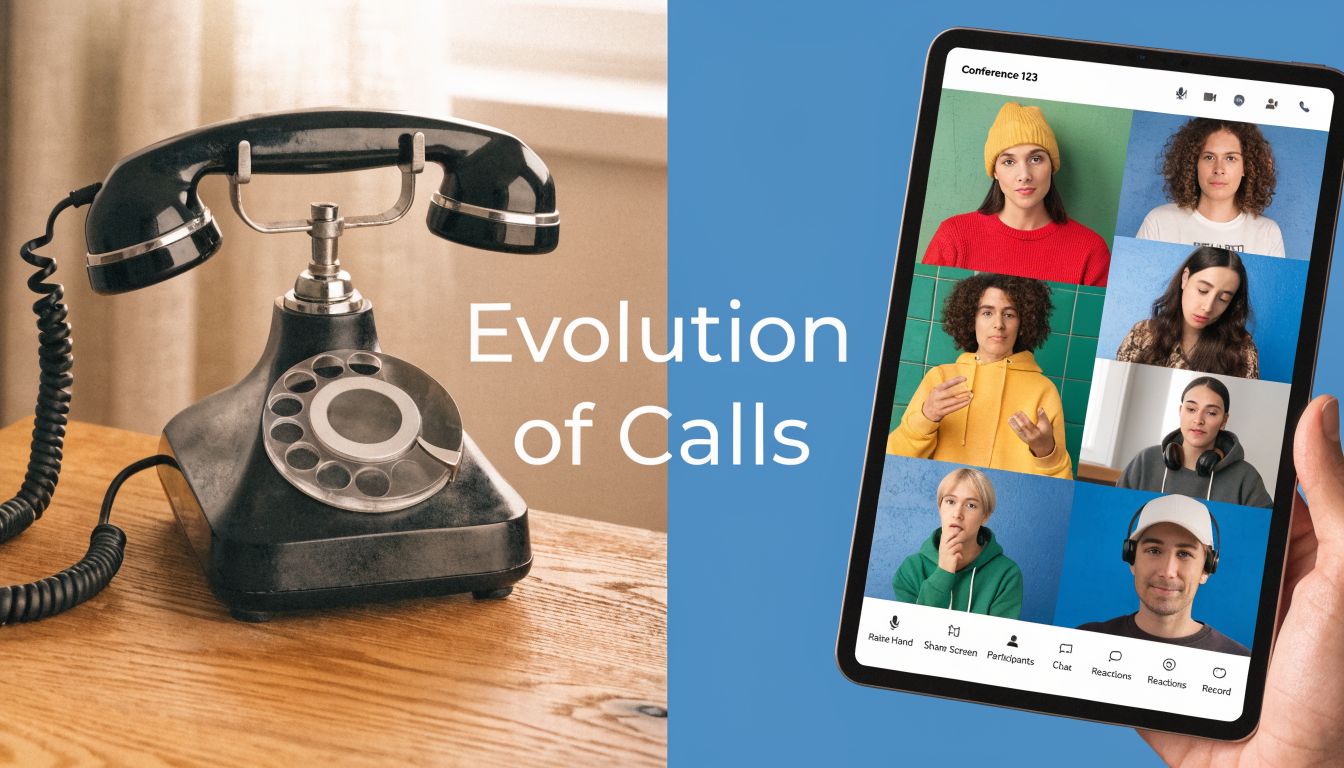
When conference calling was rare and expensive
Early conference calling depended on the public telephone network and a lot of manual coordination. RingCentral’s history of the conference call describes how expensive and slow those early multi-party calls could be. The cost was so high that organizations treated them like a formal event, not a routine check-in.
That detail matters because it explains the culture around older conferencing systems. If every added participant meant more setup, more operator involvement, and more cost, people were careful about who got invited.
A useful comparison is a private meeting room in a hotel. You would not book it for every quick question. You would save it for the meeting that justified the time and expense.
Better infrastructure changed how people worked
As phone networks improved, conference calling became easier to set up and cheaper to run. The big shift was not only technical. It was operational.
Once joining a group call stopped feeling complicated, organizations started using teleconferencing for ordinary work. Weekly staff updates, vendor check-ins, care coordination, and client reviews all became practical.
That shift still shapes buying decisions now. Many businesses no longer ask whether remote meetings are possible. They ask whether the platform is easy for staff, affordable at scale, and safe enough for sensitive discussions.
Audio stayed useful even after video arrived
For a long time, teleconferencing mostly meant audio. Dial-in numbers, passcodes, and a shared bridge line were familiar because they worked on nearly any phone. That is still valuable for teams with weak internet, traveling staff, or patients who are more comfortable with a regular phone call.
Video existed earlier than many people realize, but it was not broadly practical. AT&T’s Picturephone drew attention in the 1960s, and enterprise video systems followed later, yet adoption stayed limited because the equipment and calling costs were high.
Older managers who still view video meetings as expensive or fragile are not confused. They are remembering a time when that was true.
Software changed the economics
The major change came when conferencing moved from dedicated room hardware to personal computers and mobile devices. Once software handled more of the work, teleconferencing became much easier to distribute across a whole organization.
That is when the conversation changed from "Can we connect these people?" to "Which platform should we trust for daily use?"
For a small business, this meant fewer special-purpose systems and less dependence on telecom contracts. For a clinic, it meant remote communication could start to overlap with patient care workflows. If telehealth is part of your world, your virtual care guide shows how remote visits fit into that broader shift.
From hardware purchase to policy decision
Modern teleconferencing is no longer mainly a hardware story. It is a software, policy, and cost-control story.
The practical changes showed up in daily work:
- Staff could join from laptops, phones, tablets, or desk phones.
- Organizations could mix audio-only and video participants in the same meeting.
- IT teams and office managers had to pay attention to permissions, recordings, and user access.
- Buyers had to compare monthly pricing, hidden add-on fees, and compliance claims, not just call quality.
This is why the history matters beyond trivia. As teleconferencing became easier to use, the risks also changed. A poor line connection used to be the main headache. Now the bigger questions often involve meeting privacy, recording controls, admin settings, and whether the platform fits regulated work.
Even the old annoyances never fully disappeared. Audio echo, for example, is still one of the fastest ways to make a meeting feel disorganized. A practical fix starts with understanding how to stop echo on a mic during online meetings.
The move from phone lines to pixels made teleconferencing cheaper and easier. It also made platform selection far more important.
How Teleconferencing Technology Actually Works
The average user doesn’t need engineer-level detail. But a little technical understanding makes teleconferencing much less mysterious, especially when you’re troubleshooting poor audio, frozen video, or participant access problems.
The easiest model is to picture a virtual switchboard. Instead of an old telephone operator plugging cables into a panel, software handles the routing.
The bridge is the traffic manager
A teleconference system uses something called a teleconferencing bridge to connect multiple participants. The bridge receives everyone’s audio, manages who’s in the meeting, and routes the combined experience back out to each person. The EPA reference on teleconferencing bridges describes two common methods: meet me conferencing, where people dial in to a bridge themselves, and operator-assisted conferencing, where an administrator manually connects them.
That’s why a group call feels organized even though participants are scattered across different devices and locations. The bridge acts like the central meeting room.
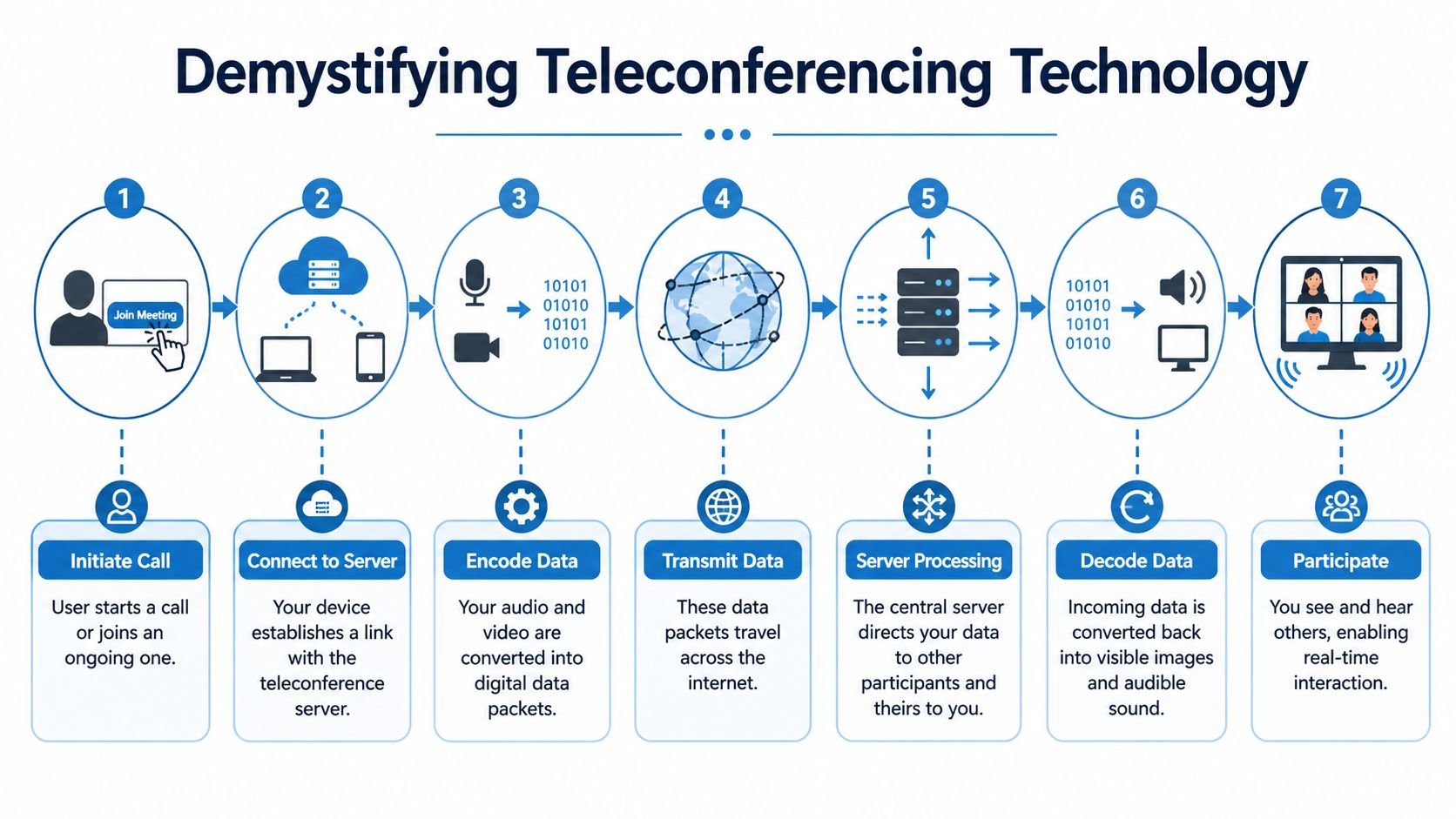
What happens when you click Join
Under the hood, a few things happen quickly:
Your device connects to the meeting service
Your browser, app, phone, or tablet reaches the platform.Your microphone and camera data get digitized
Audio and video become data packets.Those packets travel over the internet
Most modern platforms use VoIP, or Voice over Internet Protocol, which sends voice data through internet infrastructure instead of traditional phone circuits.The platform processes and routes the meeting
The bridge or server mixes audio, manages participants, and sends the right streams back to each attendee.Your device decodes what comes back
You hear voices and see video in near real time.
Why internet quality matters more for video
The Texas videoconferencing standards document gives a useful baseline. It states that non-HD group video calling needs a minimum of 1.0 Mbps upstream and 600 kbps downstream, while 720p HD video conferencing needs 2.6 Mbps upstream and 1.8 Mbps downstream.
That explains a common frustration. People often test their download speed and assume they’re ready for video meetings. But video calls also depend heavily on upload speed, because your camera and microphone have to send data out continuously.
For audio-only calls, platforms can also support standard phone dial-in through the public telephone network. That’s one reason audio teleconferencing remains valuable. It gives participants a fallback when internet conditions aren’t good enough for stable video.
If your video keeps breaking up but audio survives, the issue often isn’t the meeting itself. It’s that video asks much more of your connection in both directions.
Why echoes and odd sound issues happen
Teleconference platforms also have to handle room acoustics, microphone sensitivity, and active-speaker detection. That’s harder than it sounds in a busy office or clinic. A laptop mic picks up fan noise, a conference phone catches room reflections, and two nearby devices can create echo loops.
If your team struggles with that, this guide on how to stop echo on mic gives practical fixes that non-technical users can apply quickly.
Why this matters in healthcare and other sensitive settings
In virtual care, the meeting isn’t just a conversation. It’s part of service delivery. Audio clarity affects symptoms discussed, instructions heard, and trust built between people who may never meet in person.
If you work in telehealth, your virtual care guide is useful because it connects the meeting technology to the patient experience, not just the software screen.
Key Benefits and Real-World Use Cases
At 8:15 a.m., a clinic is confirming follow-up appointments, a tutor is preparing an evening lesson, and a small business owner is lining up a client review with a supplier call right after. They are all using teleconferencing, but they are not solving the same problem. One needs privacy and a simple patient join link. Another needs clear screen sharing. The business owner may care most about cost, call reliability, and not paying for features the team will never use.
That is why the value of teleconferencing is bigger than “meeting from different places.” A good setup saves travel time, shortens decision cycles, and lets the right people join at the right moment. The better question is which kind of teleconference fits your daily work without creating security risk or extra expense.

Healthcare and clinics
In healthcare, a teleconference call often acts like a digital exam room, staff room, or front office, depending on who is meeting.
A clinic manager might see all three in one day. A physician handles a follow-up visit by video. Later, a care coordinator joins a case discussion with an outside specialist. In the afternoon, the billing team meets briefly to clear up documentation questions before claims go out.
The tool may be the same, but the requirements are not.
A patient follow-up needs stable audio, easy access for people who are not technical, and privacy controls that fit healthcare rules. A clinician meeting may need screen sharing for care plans or imaging. An administrative call may place more weight on speed and lower cost than on camera quality.
Common healthcare uses include:
- Follow-up visits: Useful for discussions that do not require a hands-on exam or procedure.
- Care team coordination: Clinicians in different locations can review treatment plans together.
- Family-inclusive consultations: A caregiver can join from home, work, or another city.
- Staff training: Clinics can deliver policy updates and workflow refreshers without pulling everyone into one room.
For clinics, the benefit is more than just convenience. It is using one communication method for patient care, internal coordination, and training while still keeping an eye on compliance and budget.
Education and training
In education, teleconferencing works like a classroom, office hour desk, and parent meeting room combined into one service.
A teacher may run a live lesson in the morning, meet one student for extra help in the afternoon, and talk with parents in the evening. A tutor may switch between one-to-one coaching and a small group review session. A training manager may use the same platform for onboarding, policy reviews, and certification refreshers.
If you work in education, this flexible education guide is a helpful companion because it explains how remote learning works beyond the meeting itself.
A few examples show how the format changes the job:
- A virtual classroom usually needs recurring sessions, attendance visibility, and clear presentation tools.
- A parent meeting is shorter and more conversational.
- A guest lecture often needs stronger host controls so one presenter can lead without interruptions.
- A tutoring call usually depends on clear screen sharing and face-to-face discussion.
For instructors, one practical skill matters a lot. Showing material clearly. This guide on how to share your screen during an online lesson or tutoring session helps avoid the common stall where the teacher can talk, but the worksheet, slide deck, or whiteboard never appears.
In education, the meeting platform becomes part of the lesson itself. If students cannot hear clearly, see the material, or join without confusion, the teaching suffers even if the instructor is well prepared.
Small business and startup use
For a small business, teleconferencing often replaces several separate activities. Sales meetings, hiring interviews, internal planning, vendor check-ins, and client reviews can all happen through the same platform.
That matters because small teams usually do not have extra time or a dedicated IT department.
A founder may need a platform that is easy to set up, predictable in cost, and simple enough that clients can join without downloading complicated software. An accounting firm may care more about privacy during financial reviews. A design agency may put more weight on screen sharing and presentation quality.
The practical gains are easy to see:
- Faster decisions: Teams can meet quickly instead of waiting for calendars and travel to line up.
- Lower operating cost: Fewer in-person meetings can reduce travel, room, and scheduling overhead.
- Wider reach: Clients, freelancers, and partners in other cities can join without delay.
- Better continuity: Hybrid and remote staff can stay involved in daily work.
Cost matters here. So does fit. Paying for a large-enterprise platform can be wasteful for a ten-person company, while using a low-control tool for sensitive client conversations can create avoidable risk.
Families and community groups
Teleconferencing also supports everyday coordination outside formal business settings.
Families use it for check-ins, care planning, and celebrations. Community groups use it for committee meetings, volunteer coordination, and member updates. A neighborhood association, alumni group, or nonprofit board may not need advanced workflow tools, but they still benefit from reliable audio, simple invitations, and host controls that prevent confusion when many people join at once.
Here, the right platform is usually the one that keeps participation easy. If people struggle to join, they stop showing up.
What strong use cases have in common
The best teleconference setup is not the one with the longest feature list. It is the one that fits the job people need done.
Across healthcare, education, small business, and community use, the strongest setups usually share these traits:
- Joining is simple: Guests can get in without a long setup process.
- Audio is dependable: Clear sound affects trust, understanding, and meeting speed more than polished video does.
- The tools match the task: A patient consult, staff huddle, tutoring session, and sales demo should not all be configured the same way.
- Hosts stay in control: Mute, admit, lock, record, and sharing controls keep meetings organized.
- Security matches the sensitivity of the call: A casual volunteer update and a patient conversation should not be treated as if they carry the same risk.
Daily use reveals what matters. If the platform is confusing, costly, or weak on privacy controls, people feel that friction right away. If it is easy to join, easy to manage, and appropriate for the level of confidentiality involved, teleconferencing becomes a reliable part of how the organization runs.
Choosing Your Platform Security and Compliance
Security is where many teleconferencing guides become too shallow. They explain how to start a meeting, but they don’t help you judge whether the platform is appropriate for patient conversations, student records, financial reviews, or internal business decisions.
That gap matters. General teleconferencing guides often give little useful guidance on HIPAA, encryption, or privacy requirements for regulated sectors, as noted in the Wikipedia teleconference overview.
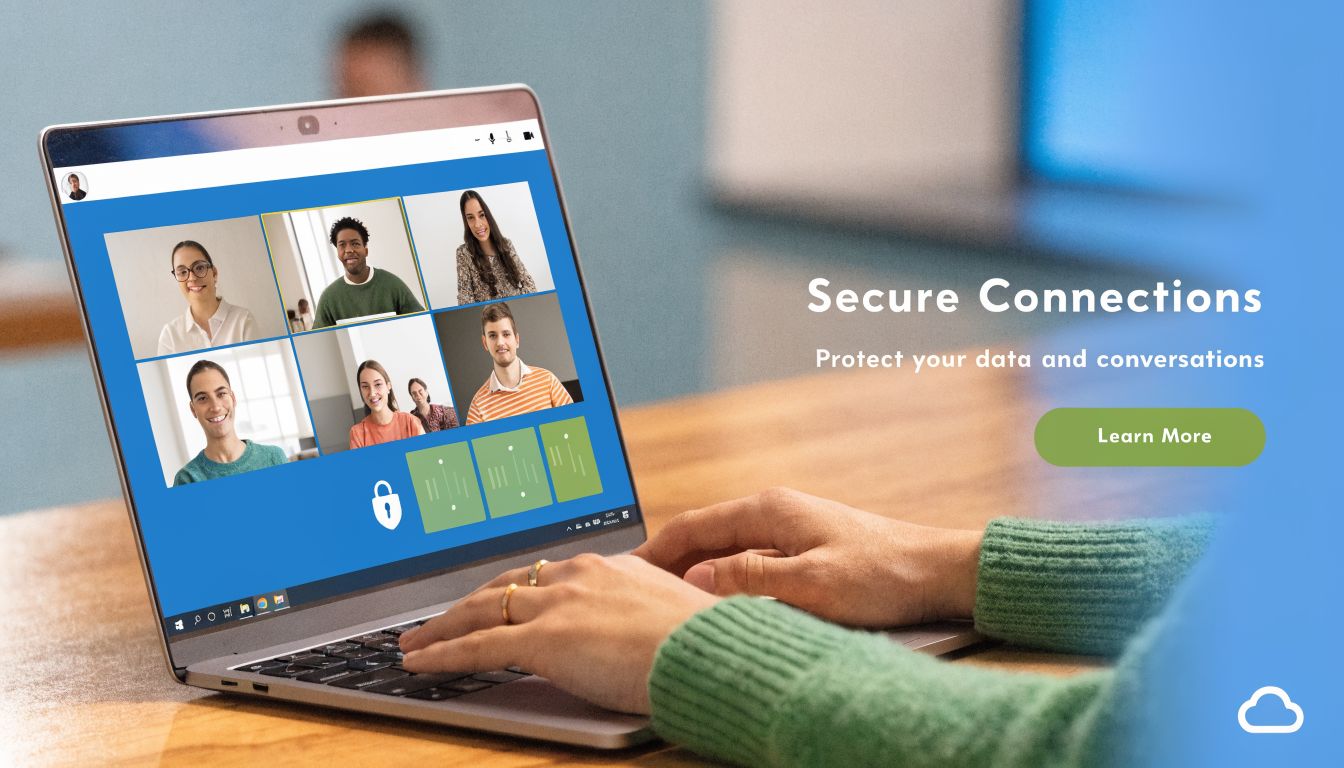
Security is not the same as convenience
Many platforms are easy to use. That doesn’t automatically make them suitable for sensitive work.
A casual team catch-up and a patient consultation may both happen over video, but the security expectations are different. If your organization handles protected health information, student records, legal matters, or confidential client discussions, your meeting platform becomes part of your risk surface.
The practical question isn’t “Does it have security?” Almost every platform claims that. The better question is, what protections are built in, what controls does the host get, and what commitments will the vendor put in writing?
What encryption means in practice
Encryption means the meeting data is scrambled so unauthorized parties can’t easily read it in transit. In buying conversations, you’ll often hear phrases like bank-level encryption. That phrase signals stronger protection, but buyers should still ask for plain-language details about how data is protected during meetings, recordings, and file sharing.
For non-technical teams, the easiest way to think about encryption is this. It’s the digital equivalent of sending your meeting through a locked channel rather than an open hallway.
Look for vendors that clearly explain:
- Data in transit protection: How live meeting traffic is secured.
- Access controls: Waiting rooms, meeting locks, passcodes, and moderator permissions.
- Recording controls: Who can record, where files are stored, and who can access them.
- User management: Whether hosts can control participant entry and permissions.
HIPAA and regulated use cases
For healthcare providers, security isn’t optional. A teleconferencing platform may be part of patient care delivery, which means compliance expectations can apply to how meetings are hosted, accessed, and documented.
If you’re evaluating a platform for healthcare, ask direct questions:
- Will the vendor support HIPAA-compliant use?
- Will they provide a Business Associate Agreement, if your workflow requires one?
- Can you control meeting access with waiting rooms, locks, and moderator tools?
- How are recordings handled, if you enable them at all?
- Can staff join in a browser without creating patient confusion or technical friction?
For schools, similar thinking applies even if the compliance framework differs. The platform should protect sensitive conversations and reduce accidental exposure of data.
Choose a platform as if a sensitive conversation will happen on it tomorrow, because eventually one probably will.
Security features that matter day to day
A secure platform shouldn’t force staff to become security analysts. It should make safer behavior easier by default.
Useful safeguards include:
- Waiting rooms: Hosts decide when participants enter.
- Meeting lock: Prevents unexpected joiners after everyone arrives.
- Moderator controls: Hosts can mute, remove, or restrict participants.
- Browser access: Reduces the friction of software installs for guests.
- Permissions separation: Hosts get stronger controls than ordinary attendees.
A small clinic, tutoring business, or law office does not need the most complex enterprise stack on earth. It needs a platform that protects sensitive communication in ways staff can use consistently.
Essential Features and Transparent Pricing Explained
Pricing is where buyers often get misled. A teleconferencing platform can look inexpensive at first glance, then become frustrating once you discover meeting limits, webinar add-ons, recording restrictions, support fees, or feature gates that affect daily work.
That’s one reason pricing discussions should focus on total cost of ownership, not only the monthly sticker price. General teleconferencing definitions often mention reduced travel but don’t help buyers compare hidden fees or pricing models, a gap highlighted by VoIPstudio’s teleconferencing discussion.
What you’re usually paying for
Most teleconferencing platforms package cost in one or more of these ways:
- Per-user subscription: Common for teams with regular hosts.
- Tiered plans: Lower tiers cover basics, higher tiers offer admin and event features.
- Freemium model: Good for testing, but often limited for business use.
- Add-on pricing: Webinars, recordings, storage, phone dial-in, or branding may cost extra.
A cheap plan can become expensive if the features you need sit behind separate upgrades. That’s especially true for organizations that run training sessions, host client presentations, or need recordings for documentation.
Price comparisons that matter
The author brief asked for price comparisons, and the safest way to handle that without inventing market-wide numbers is to compare pricing structures, not unsupported vendor averages.
Here’s the practical difference:
| Pricing approach | What it looks like in real life | Where costs can grow |
|---|---|---|
| Low entry plan | A basic monthly subscription | Meeting limits or missing business features |
| Feature-gated tiers | Different plan levels for different capabilities | You upgrade just to get one needed control |
| Add-on model | Base meetings plus webinar or recording extras | Separate charges stack over time |
| Transparent bundled plan | Core business features included upfront | Easier to forecast and budget |
For a clinic manager or small business owner, predictable billing often matters more than chasing the lowest advertised starting plan.
Features that actually change day-to-day value
Many feature lists are padded with items you may never use. Focus on what changes your working day.
Meeting essentials
These are the basics most organizations need consistently:
- Reliable audio and video: The foundation. Without this, other features don’t matter.
- Screen sharing: Necessary for presentations, reports, training, and demos.
- Recording options: Helpful for training, documentation, and missed meetings.
- Moderator controls: Useful for managing interruptions and privacy.
- Browser-based joining: Guests join faster when they don’t need complex setup.
Workflow features
These features become important once meetings are part of regular operations:
- Whiteboards: Useful for teaching, planning, and visual explanations.
- Document sharing: Helps teams review files in context.
- Breakout rooms: Useful for workshops, classrooms, and team exercises.
- Searchable recordings or summaries: Help staff revisit decisions without replaying an entire session.
Event and outreach value
Many buyers underestimate cost at this point. A team may start with internal meetings, then realize it also needs to host training events, product launches, onboarding sessions, or public information talks.
That’s why webinars included can be a strong value proposition. If webinar capability sits inside the same platform instead of requiring a separate product, your team avoids extra tools, extra billing, and extra host training.
One of the most expensive platform decisions is paying for a low-cost meeting tool, then buying a second tool for webinars a few months later.
A quick format comparison
A lot of confusion disappears when you separate similar formats by purpose.
| Format | Primary Use Case | Interactivity Level | Key Technology |
|---|---|---|---|
| Teleconference | Team meetings, group discussions, remote coordination | Medium to high | Audio conferencing, VoIP, sometimes video |
| Webinar | Training sessions, public presentations, marketing events | Lower for attendees, higher for host | Video platform with presentation and audience controls |
| Telemedicine Visit | Patient consultations and care follow-ups | High, but structured | Secure video conferencing with privacy-focused controls |
This table helps answer a common buyer question. “Do I just need a teleconference platform?” Sometimes yes. But if your organization regularly teaches, markets, or consults, you may need a platform that handles several meeting formats well.
Questions to ask before you buy
Before signing up, ask the vendor:
- Are webinars included or sold separately?
- Are recordings included, limited, or charged differently?
- Are there contracts or can we change plans easily?
- Are there hidden fees tied to scale, attendance, or advanced controls?
- Does the lowest plan support the way we run meetings?
If you’re evaluating options for a growing company, this guide to the best video conferencing for small business is a useful reference because it frames the choice around practical business fit rather than marketing slogans.
The cheapest plan isn’t always the lowest-cost platform
A clinic that needs secure patient calls, recordings, and easy browser access can lose time if staff constantly work around missing features. A coaching center that runs classes and promotional sessions may spend more by piecing together multiple tools. A sales team may choose a low-cost platform, then discover branded events and larger presentations require another subscription entirely.
That’s why good pricing feels boring in the best way. It should be easy to understand, easy to budget, and aligned with how your meetings happen.
How AONMeetings Delivers Secure and Affordable Conferencing
If you line up the needs that matter most, secure access, simple joining, predictable cost, and useful built-in features, a clear pattern appears. The best platform for many organizations isn’t the one with the longest enterprise brochure. It’s the one that removes friction without cutting corners on privacy or daily usability.
AONMeetings is built around that practical balance. It offers HIPAA-compliant meetings, bank-level encryption, browser-based access on any device, and built-in moderator tools that help hosts control who joins and what happens during the meeting. For clinics, educators, and small businesses, that matters because the platform needs to support sensitive conversations without creating technical headaches for guests.
The pricing model is also straightforward. Plans start at ₹179 per user per month, with no contracts, no hidden fees, and no 40-minute limits, based on the publisher information provided. That makes budgeting simpler for organizations that run frequent meetings and don’t want surprise charges tied to routine usage.
The value proposition gets stronger when you look at what’s included. All plans come with unlimited meeting time, webinar hosting, screen sharing, whiteboards, document sharing, recordings, and encryption. That bundled approach helps organizations avoid the common trap of buying one tool for meetings and another for webinars.
For teams that need more control, advanced tiers add capabilities such as breakout rooms, virtual backgrounds, meeting lock, live streaming to YouTube, multi-camera broadcast, and brandable interface themes. Those are useful additions for training businesses, online educators, healthcare teams, and event marketers who want one platform to cover multiple communication formats.
AONMeetings also keeps access simple. Users can join through the browser with instant links, and hosts get waiting rooms with music, moderator controls, SMS notifications, searchable recordings, smart meeting summaries, and team chat. In plain language, that means fewer barriers for attendees and less admin work for hosts.
When you judge a teleconferencing solution the way an operator would, not just the way a shopper would, the decision becomes clearer. Security has to be built in. Pricing has to be transparent. Webinar capability should add value instead of becoming a separate purchase. And the platform should work for real people on ordinary devices.
If you need a teleconferencing platform that combines HIPAA-compliant security, bank-level encryption, built-in webinars, unlimited meeting time, and straightforward pricing, AONMeetings is worth a closer look. It’s designed for clinics, educators, small businesses, and teams that want reliable conferencing without contracts, hidden fees, or unnecessary complexity.
