
The meeting invite is on your calendar already. The title says “Quick sync.” There's no agenda. Twelve people are invited. Two join late, one can't get screen share working, and the person who needed to approve the decision isn't there. Forty minutes later, everyone leaves with a different idea of what was decided.
That's the familiar version of “host a meeting”. It looks normal because it happens all the time. It's also expensive, frustrating, and avoidable.
I've seen the gap from both sides: internal team meetings that drift because no one owns the outcome, and high-stakes sessions like patient consults, classes, and client demos where the meeting has to be clear, secure, and easy to join on the first try. Good hosting isn't about sounding polished. It's about making decisions faster, protecting sensitive conversations, and removing friction for the people you invited.
Moving Beyond Inefficient Meetings
A meeting can fail before anyone says a word. The wrong attendee list, an unclear purpose, a buried join link, or five minutes lost to audio troubleshooting will sink a session fast. In healthcare, that can delay care. In education, it breaks attention. In community or nonprofit work, it can shut out people who were willing to show up but could not get in easily.

I have run internal standups, patient-facing video sessions, virtual classes, and public information meetings. The pattern is consistent. Inefficient meetings usually come from stacked small failures, not one dramatic mistake. Too many people are invited. No one knows whether the goal is a decision, an update, or a consultation. The host treats security, accessibility, and timing as add-ons instead of setup requirements.
That costs more than attention.
A loose internal meeting wastes payroll hours. A loose medical meeting risks privacy and forces patients to repeat themselves. A loose class burns instruction time and leaves quieter students behind. A loose community meeting often excludes attendees on older devices, weak connections, or captioning tools. Good hosting respects the fact that people are giving you time, trust, and sometimes protected information.
One rule helps immediately.
Practical rule: If you can't state the outcome in one sentence before sending the invite, you're not ready to host the meeting.
Strong hosts treat a meeting as an operating process with constraints. HIPAA-sensitive sessions need the right platform, access controls, and simple joining steps. Budget-conscious teams may need to work within lower-cost tools, but cheap only works if the setup is clear and the risk level fits the platform. Accessibility also has to be planned early, especially for captions, screen-reader-friendly materials, dial-in access, and clear turn-taking for larger groups.
That discipline is what improves outcomes. It shortens meetings, reduces follow-up confusion, and prevents the common failure where attendees leave with different versions of the same conversation. If you want a practical benchmark for setting up virtual sessions with less friction, these virtual meeting best practices are a useful reference.
The Pre-Meeting Blueprint for Success
Most meetings are won before anyone clicks Join. If you host a meeting without a defined outcome, you're asking the group to create the purpose live. That's where bloated agendas and vague next steps come from.
Start with the outcome
Write the meeting goal as a verb, not a topic.
“Marketing update” is weak. “Approve the webinar topic and assign promotion owners” is strong. “Patient follow-up” is weak. “Review symptoms, confirm next treatment step, and schedule lab work” tells people what the session has to produce.
A good agenda should answer three questions fast:
- Why are we meeting
- What has to be decided or completed
- Who owns each part
For decision-making meetings, McKinsey recommends keeping attendance to about five to seven people because discussions become unwieldy beyond that, and keeping the agenda to the minimum needed. McKinsey also separates “recommenders” who analyze options from “execution partners” who need implementation clarity, in its guidance on what makes an effective meeting.
That distinction is useful in real operations. If a product lead needs a decision on launch timing, the recommender might bring options and trade-offs. The execution partner might be customer support or sales enablement, who won't choose the date but will carry the consequences.
Build an agenda people can actually use
The host's agenda shouldn't be a list of subjects. It should be a timed run sheet.
A client demo agenda might look like this:
- Opening context: Confirm the client's use case and success criteria.
- Live walkthrough: Show only the workflow relevant to that client.
- Questions and objections: Handle adoption, security, or implementation concerns.
- Decision step: Confirm trial, follow-up, or stakeholder review.
An internal team sync looks different:
- Blockers first: Surface what's stuck.
- Dependencies next: Identify who needs what from whom.
- Decision items only: Resolve choices that can't be handled asynchronously.
- Action owners: End with names, not “the team.”
A short agenda with ownership beats a long agenda with ambition.
Be strict about who gets invited
Over-inviting is one of the fastest ways to slow a meeting down. Hosts often add people “just in case,” then wonder why discussion gets cautious and scattered.
Use three categories:
| Role | Should attend live | Better as follow-up |
|---|---|---|
| Decision-maker | Yes | No |
| Recommender | Yes, if presenting options | Sometimes |
| Observer | Rarely | Usually |
If someone only needs awareness, send notes afterward. That single habit keeps discussions sharper and more candid.
Send an invitation that removes friction
The calendar invite should contain the full operating context. Don't make attendees hunt through email.
Include:
- Exact purpose: One sentence on the desired outcome.
- Join details: The meeting link, dial-in option if relevant, and any access notes.
- Pre-read material: Attach docs or link them directly in the invite.
- Participation expectations: Tell people if cameras, questions, or screen sharing will be used.
- Timing boundaries: State the actual start and stop time.
For healthcare, also tell patients what device works best and what to do if they join by phone. For education, note whether the session will include chat, breakout work, or recording. For client meetings, say who should attend on their side if approval is needed.
Choosing Your Platform and Setting the Stage
A patient joins from a phone in a parking lot before an appointment. A parent connects to a school session from an older laptop. A community board member clicks from a browser at work and cannot install software. Platform choice decides whether those people get into the room quickly, hear clearly, and trust the process.
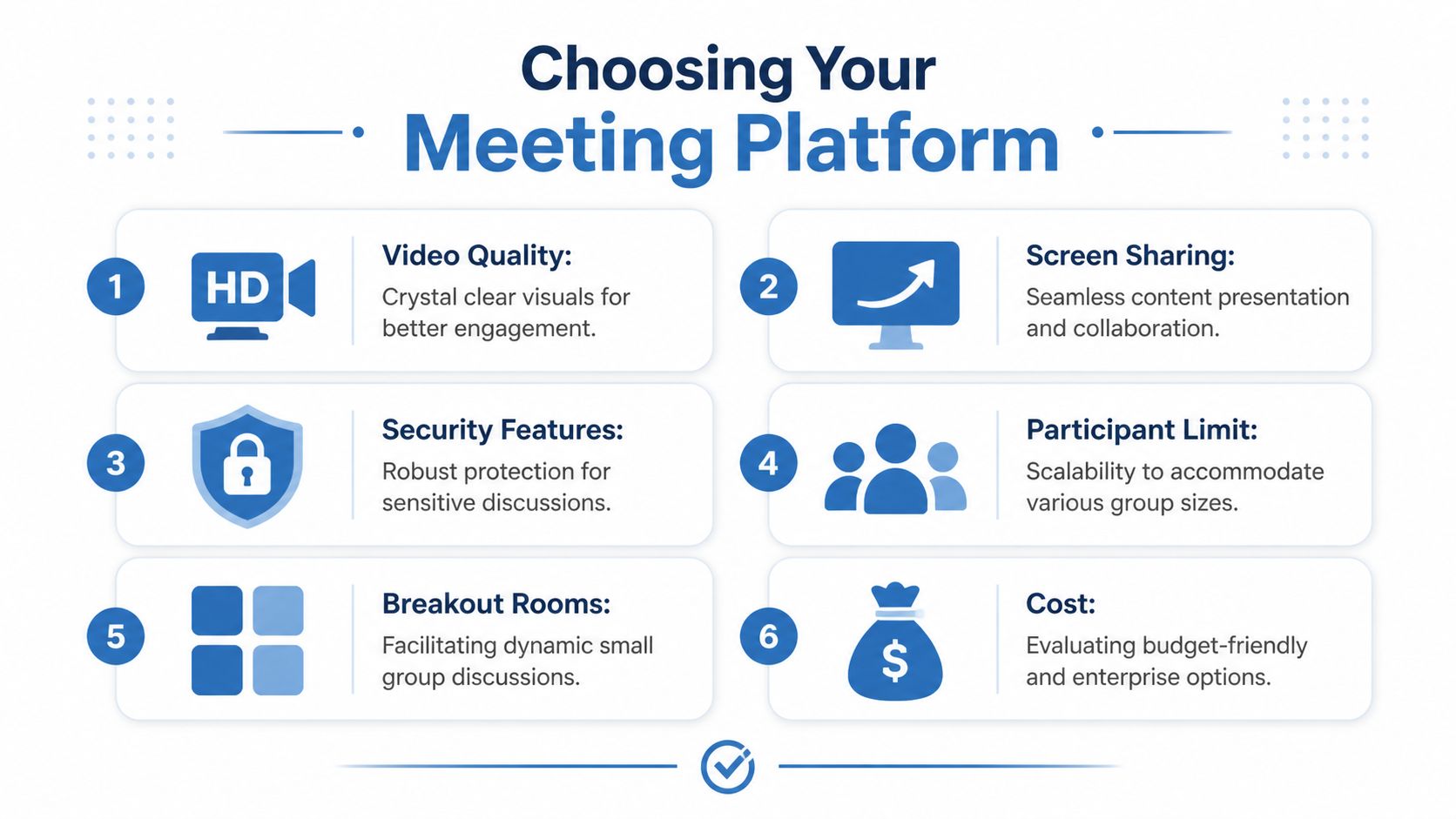
After running clinical consults, staff trainings, classes, and public webinars, I look at platforms through three filters first: joining friction, control, and risk. Fancy features matter less than whether a patient can join without help, whether a teacher can manage a noisy room fast, and whether protected information stays protected.
What to compare before you buy
Brand familiarity pushes a lot of purchases. Day-to-day hosting problems come from poor fit.
Use these criteria instead:
- HIPAA and security settings: If the meeting may involve protected health information or sensitive internal discussion, check for encryption, waiting rooms, host controls, recording permissions, and clear admin settings for compliance.
- Browser-based access: Patients, students, guest speakers, and community participants often join on borrowed devices or locked-down computers. Browser access lowers support requests.
- Moderator controls: Admit participants, mute all, limit screen sharing, assign co-hosts, and manage breakout rooms without hunting through menus.
- Webinar support: If you run both meetings and larger presentations, separate webinar upgrades can turn a cheap plan into an expensive stack.
- Recording and summaries: Searchable recordings and usable post-meeting summaries save coordinator time, especially for training, education, and recurring compliance reviews.
- Time limits and app friction: Forced downloads, short caps, and confusing rejoin flows waste minutes at the start of every session.
If you are comparing lower-cost options for a lean team, this guide to video conferencing for small business is a useful starting point.
Price and feature trade-offs
Cheap monthly pricing can hide expensive workarounds. I have seen teams pay for one platform for internal meetings, another for webinars, a transcription tool on top, and extra admin time to hold it all together.
That is why bundled features matter.
| Feature | AONMeetings (Pro) | Zoom (Pro) | Microsoft Teams (Essentials) |
|---|---|---|---|
| Price per user per month | ₹179 | Pricing varies by market and plan | Pricing varies by market and plan |
| Unlimited meeting time | Included | Varies by plan | Varies by plan |
| Webinar hosting | Included | Often plan-dependent or add-on dependent | Often depends on broader Microsoft stack or add-ons |
| HIPAA-oriented use case | Supported by product positioning | Depends on configuration and plan | Depends on configuration and organization setup |
| Encryption | Bank-level encryption included | Security features vary by plan and settings | Security features vary by plan and tenant settings |
| Screen sharing, whiteboards, recordings | Included | Commonly available | Commonly available |
| Breakout rooms | Available on advanced tiers | Available | Available |
| Browser-based joining | Supported | Supported in many workflows | Supported in many workflows |
| Contracts and hidden fees | Publisher states no contracts and no hidden fees | Depends on vendor terms | Depends on vendor terms |
For a small healthcare practice, school program, or nonprofit team, the central question is simple. Does one subscription cover the meetings you run every week without pushing you into extra tools later? Based on the publisher data, AONMeetings includes unlimited meeting time, webinar hosting, encryption, recordings, screen sharing, and browser-based joining from ₹179 per user per month. That makes it one practical option for teams trying to control costs while keeping security and host control in place.
If webinars are part of your mix, platform choice also affects registration flow, attendance quality, and follow-up. These strategies for boosting webinar conversion rates are worth reviewing before you commit to a tool that treats webinars as an afterthought.
Set the room before people arrive
Good hosts do setup work early because the first five minutes set the tone for the whole meeting. If people spend that time fixing audio, requesting screen share access, or wondering whether the session is private, trust drops fast.
Before opening the room:
- Test the exact device and network you will use: Bluetooth switching, browser permissions, and weak home Wi-Fi cause more failures than the platform itself.
- Prepare the screen you will share: Close unrelated tabs, turn off notifications, and open the exact file or chart you need.
- Assign roles in advance: Set co-hosts, presenters, or interpreters before attendees join.
- Load support materials: Whiteboards, polls, intake forms, slides, and videos should be ready to launch.
- Check participant naming rules: In medical, education, and community settings, clear names reduce confusion and help with attendance records.
- Open early for outside participants: Give patients, students, and guests a buffer to test audio or ask for help.
One more trade-off is worth stating plainly. The tighter the security settings, the more joining steps some attendees will face. For a clinical consult, that trade-off usually makes sense. For a public community update, too much friction can cut attendance. Match the room setup to the risk level of the meeting, not to habit.
Running an Engaging and Secure Meeting
The host's job changes once the meeting starts. Planning got everyone into the room. Facilitation decides whether the room produces anything useful.

Open with control, not small talk drift
Start on time. State the purpose, the end time, and how participation will work. If it's confidential, say so plainly and remind people about recording or screen-sharing boundaries.
For secure sessions, especially in healthcare or sensitive business reviews, use the basics every time:
- Waiting room enabled: Admit expected guests only.
- Participant mute controls: Prevent noise from taking over the room.
- Meeting lock when attendance is complete: Reduce unwanted interruptions.
- Restricted screen share: Limit sharing rights to hosts or approved presenters.
- Recording clarity: Tell participants whether recording is on and why.
Those steps sound simple because they are. They also prevent most of the common failures hosts blame on the platform.
Keep the middle structured
Leadership Strategies recommends breaking technical meetings into 30 to 45 minute chunks, checking for agreement before moving on, and posting decisions visibly during the discussion in its guidance on running technical meetings. That method works well outside technical meetings too.
Use it like this:
- Cover one agenda block.
- Summarize what was decided or what remains open.
- Ask for explicit agreement.
- Capture the decision where everyone can see it.
- Move on.
That last part matters. Many hosts hear silence and assume alignment. Silence usually means one of three things: people are confused, people privately disagree, or people stopped paying attention.
Don't ask, “Any thoughts?” Ask, “Are we aligned on option B, with Priya owning the follow-up?”
Match the tool to the moment
Different meeting formats need different engagement tools.
- Screen sharing works best for live demos, document review, and step-by-step training. If you're presenting software, share one window instead of your whole desktop.
- Whiteboards help when the group needs to build something together, like a workshop outline, care pathway, or product feature list.
- Breakout rooms work for training sessions, classes, and facilitated workshops where people need a smaller space to discuss a case or complete an exercise.
- Polls are useful for quick sentiment checks when you need directional input without opening a long debate.
- Raise hand and chat are often better than open interruption, especially in webinars and mixed seniority groups.
If you present visually during remote sessions, these practical tips on how to share your screen help avoid the usual dead air and wrong-tab mistakes. And if your meeting format extends into lead-generation or education events, these strategies for boosting webinar conversion rates are useful because they focus on registration-to-attendance flow, audience attention, and offer timing.
Designing for True Accessibility and Inclusion
Most hosts think accessibility means turning on captions and calling it done. That's a start, not a design standard.
Accessibility affects time, location, language, device choice, participation mode, and the physical or virtual room itself. A meeting can be technically available and still be hard to use. That happens all the time with patients joining by phone, students reviewing complex material, multilingual participants, and community members who can't attend at the organizer's preferred hour.

Build access into the design
Section 508 guidance says accessibility should be built in from the start, helping not only people with disabilities but also attendees with limited language proficiency or phone-only access. Community engagement guidance also recommends “pop-up” meetings in everyday places like grocery stores or libraries to reach people missed by standard formats, as outlined in Section 508's accessible meetings guidance.
That point changes how you host a meeting.
A clinic scheduling telehealth consults should ask whether the patient can join from a browser, whether captions help, and whether a phone fallback is available. A tutoring business should record sessions and provide materials in formats students can review later. A community organizer should question whether the default conference room or evening time slot excludes the very people they need to hear from.
Inclusion shows up in small operating choices
Some of the most effective changes are simple:
- Offer more than one participation channel: Let people speak, type in chat, or use raise-hand tools.
- Choose times around participants, not staff convenience: That matters for families, second-shift workers, and caregivers.
- Send materials in advance: People process information differently and may need more time.
- Describe what's happening on screen: This helps attendees who can't rely on visuals alone.
- Avoid forcing video: Some participants have bandwidth limits, privacy concerns, or device constraints.
Closed captions are part of this picture, especially for classes, webinars, and multilingual audiences. If you need a plain-language refresher on how captions work and where they help most, the Cloud Present guide to closed captions is a useful reference.
Accessibility isn't a settings menu. It's a host deciding that everyone invited should have a real path to participate.
Sometimes the right place isn't your usual place
Many meeting guides fall short. They assume the host chooses a room and everyone adjusts. In practice, turnout and trust change when you meet people where they already are.
For community engagement, that may mean a library room, a school, a park gathering, or a trusted local partner's space. For remote participation, it may mean a browser-first virtual option that doesn't require installation or technical confidence. For mixed in-person and virtual groups, it means checking that remote attendees can hear, contribute, and ask questions without becoming spectators.
After the Meeting Ends Follow-Up and Summaries
A meeting isn't finished when people leave. It's finished when the decisions become visible and the next actions are owned.
Send the short record fast
The best follow-up email is brief enough to read on a phone and specific enough to prevent reinterpretation. Send it while the discussion is still fresh.
Include:
- What was decided: Keep this factual and short.
- What remains open: Name unresolved points clearly.
- Who owns each action: Use names, not departments.
- When each action is due: Deadlines remove ambiguity.
- Where the materials live: Recording, deck, notes, and related documents.
This matters even more when some attendees joined late, had technical issues, or couldn't attend live.
Use summaries to reduce admin drag
Hosts lose a lot of time on note cleanup. Smart summaries, transcripts, and searchable recordings help when they're used as a draft, not as a substitute for judgment.
A useful summary should do four things well:
| Follow-up asset | What it should capture | Common mistake |
|---|---|---|
| Recording | Full context and demonstrations | Sending it with no explanation |
| Transcript | Searchable detail | Treating raw transcript as polished notes |
| Summary | Key decisions and action items | Omitting owners |
| Action list | Next steps with dates | Leaving tasks too vague |
Review the summary before sending it. Automated notes often capture words without capturing accountability. The host still needs to confirm what was agreed.
The meeting created value only if someone can tell, one day later, what changed and who does what next.
For recurring meetings, keep a running decision log. That single habit stops teams from reopening settled issues and helps new participants get context without replaying entire recordings.
If you need a platform for hosting secure, browser-based meetings with webinar support, recordings, moderator controls, and HIPAA-oriented workflows, AONMeetings is built for that mix of practical needs. It's especially relevant when you want straightforward pricing, encryption, and fewer joining barriers for patients, students, clients, or community participants.
