
Your receptionist reads an appointment confirmation on the front desk PC. Ten minutes later, the clinician checks the same mailbox on a phone and can’t find it. A billing coordinator files a patient email into a folder in Outlook, but that folder never appears on the owner’s laptop. Then someone asks the usual question: “Is the email server broken?”
Usually, it isn’t. The issue is the difference between IMAP and POP3.
These two protocols handle incoming mail in very different ways. One treats the server as the master copy and keeps devices aligned. The other pulls mail down to one device and often turns that device into the only complete record. For a clinic, school, consultancy, or small business, that choice affects more than convenience. It shapes how people search mail, recover deleted messages, document communications, and protect sensitive information.
If you manage regulated workflows, the decision gets more serious. Appointment reminders, patient follow-ups, webinar registrations, consent threads, client approvals, and internal coordination all move through email. A poor protocol fit creates hidden operational friction. A good fit ensures everyone works from the same mailbox reality.
The Modern Email Dilemma Sync or Download
A common setup looks harmless at first. Someone uses Outlook on a desktop in the office, Apple Mail on an iPhone, and a webmail tab when traveling. They assume email should behave like a shared notebook. Read a message on one device, and it should look read everywhere. Move it into “Invoices,” and everyone with access should see it there.
That assumption is only true with the right protocol.

Two different philosophies
POP3 is a download model. Imagine collecting letters from a physical mailbox and taking them home. Once they’re in your hand, the mailbox may no longer hold the full set.
IMAP is a sync model, similar to a shared file cabinet that every authorized person opens from different rooms. The cabinet stays in one place, and everyone sees the current version.
That sounds like a technical distinction, but it shows up in ordinary work:
- A clinic coordinator downloads a lab-related email to one PC and later can’t pull it up on a mobile device during a call.
- A school administrator marks parent inquiries as handled on one device, but another staff member still sees them as unread.
- A sales team tries to share a general inbox, but each person ends up with a different mailbox history.
| Feature | POP3 (Post Office Protocol 3) | IMAP (Internet Message Access Protocol) |
|---|---|---|
| Core model | Download to local device | Synchronize with server |
| Best fit | One primary device, offline-heavy use | Multiple devices, shared visibility |
| Server copy | Often removed after download | Kept on server |
| Folder behavior | Local folders | Server-synced folders |
| Recovery | Depends heavily on local backups | Easier when server remains authoritative |
| Team workflow | Weak | Strong |
The protocol choice isn’t a minor mail setting. It determines where your real mailbox lives.
For small teams, IMAP usually matches how people already expect email to work. POP3 still has a place, but only when the workflow revolves around one device, local archiving, and limited need for shared state.
Understanding POP3 The Download and Keep Model
A small medical practice often discovers POP3 the hard way. One front-desk computer downloads appointment emails, a billing question is filed into a local folder, and later the practice manager cannot see that same message from home or during a secure team meeting in AONMeetings. The email was not lost by the server. It was moved into one device’s private history.
POP3 stands for Post Office Protocol 3. It was standardized in RFC 1939 in 1996 and commonly uses port 110 for standard access and port 995 for SSL/TLS-secured access.

How POP3 works in practice
POP3 is a download-first protocol. An email app connects to the server, pulls messages onto a device, and in many setups removes them from the server after download. Some clients can be told to leave a copy on the server for a set number of days, but that does not turn POP3 into a sync system. It only delays the gap between devices.
That distinction matters in daily operations. The device that downloads the mail often becomes the closest thing to the primary archive. Read status, filed messages, and older correspondence can end up living on one workstation instead of in a mailbox the whole team can reference.
For a solo user with one main computer, that can be perfectly workable.
Where POP3 still makes sense
POP3 still fits a narrow set of workflows well:
- One-person mailbox management. A business owner or bookkeeper who works from a single office PC may prefer keeping mail local.
- Unreliable internet access. Downloaded messages remain available even if the connection drops for hours.
- Limited server quotas. If the mail host charges for storage or offers very little of it, POP3 reduces how much stays on the server long term.
- Deliberate local retention. Some organizations want certain mail stored inside their own desktop backup routine instead of accumulating indefinitely on a hosted mailbox.
That said, POP3 shifts responsibility. If you choose it, local backup quality starts to matter far more than people expect. A failed hard drive, a stolen laptop, or a badly handled PC replacement can also remove years of email history.
The trade-offs for compliance and team workflow
Small healthcare offices and other regulated teams need to be careful. POP3 can create fragmented records. One staff member may download a patient-related message, sort it into a local folder, and never realize that no one else can confirm the same record later from another device. That is a workflow problem first, but it can become a compliance problem when you need a complete communication trail.
POP3 also makes shared mailbox habits harder to manage. If several employees check the same inbox from different computers, each person can end up with a different version of what was received, answered, or archived. In a clinic, that can affect scheduling, billing follow-up, and patient communication. In a legal or financial office, it can complicate retention and audit preparation.
Security is mixed. Keeping mail off the server may sound safer, but local copies increase endpoint risk. If messages containing protected or confidential information are downloaded to unmanaged desktops, every one of those machines becomes part of your security scope.
Practical rule: POP3 works best when one person uses one primary device, the mailbox is not shared, and local backup and device security are handled consistently.
POP3 is not outdated so much as specialized. It suits a controlled, single-user setup. It starts causing friction as soon as a business expects cross-device visibility, shared accountability, or cleaner records for compliance reviews.
Understanding IMAP The Always-Synced Cloud Model
At 7:15 a.m., the front desk opens a patient email on a desktop, a nurse checks the same thread on a phone between rooms, and the office manager later confirms the reply from webmail at home. In a clinic or any regulated office, that only works cleanly if everyone is looking at the same mailbox record. IMAP is built for that model.
IMAP, or Internet Message Access Protocol, keeps email on the mail server and lets each approved device view and work with that same mailbox. The protocol was first defined in RFC 1064 in 1988 and later updated in RFC 3501 in 2003. It commonly uses port 143 for standard connections and port 993 for encrypted SSL/TLS connections.
The practical result is simple. A message can stay in one central place while Outlook, Apple Mail, mobile mail apps, and webmail all reflect the same mailbox state. For a small business, that means fewer "I answered that on my other computer" problems. For a healthcare practice, it also means the communication trail is easier to review, retain, and supervise.
Why IMAP fits real business workflow
IMAP works like a shared filing system with local viewing copies, not a one-time handoff to a single machine. Users can usually see the same inbox status, folder structure, sent items, and archives across devices. That matters when staff rotate duties, work partly remote, or need a manager to verify what was sent to a patient, vendor, or insurer.
It also supports a more controlled workflow for collaborative tools and shared operations. If your team runs scheduling, support, or event coordination through a shared mailbox tied to platforms such as AONMeetings, IMAP keeps the mailbox organized in one place instead of scattering records across individual PCs. One person can file confirmations, another can check replies, and a supervisor can audit the thread later without guessing which device holds the latest copy.
A few practical examples make the difference clearer:
- A clinic manager reviews an after-hours patient message from home and sees the same foldering and reply history the front desk saw earlier.
- A billing coordinator flags an insurance email for follow-up, and that status remains visible on other approved devices.
- A training or telehealth coordinator stores meeting confirmations in a shared folder, and coworkers can verify them without asking for forwarded copies.
Where IMAP helps with compliance
The usual explanation of IMAP is "it syncs across devices." That is true, but the more important point for regulated organizations is record consistency.
If your office needs to show who received a message, whether it was answered, and where it was filed, IMAP gives you a better starting point than a protocol that creates separate local versions. Centralized mailbox storage also makes retention policies, legal holds, mailbox backups, and access reviews easier to manage at the server level. That does not make IMAP automatically compliant with HIPAA or any other rule set. It does make compliance controls easier to apply consistently because the data is not immediately dispersed to unmanaged endpoints as the primary copy.
There is still a trade-off. Because the server remains the system of record, security depends heavily on the quality of your mail provider, encryption settings, access controls, MFA, and admin policies. If those controls are weak, IMAP can expose a lot of data in one place. If those controls are strong, IMAP is usually easier to govern than dozens of scattered local mail archives.
The operational trade-offs
IMAP is a strong fit for modern work, but it is not free of cost or complexity.
Server storage matters more. Poorly managed large mailboxes can grow quickly, especially if staff keep years of attachments. Performance also depends more on stable connectivity, although cached mode in common mail clients reduces much of that pain for day-to-day use. And if a team treats one shared inbox as a catch-all workflow tool without permissions, categories, or ownership rules, IMAP will preserve that mess very efficiently.
Practical rule: IMAP is usually the better choice when email needs to support multiple devices, shared visibility, centralized retention, and a cleaner audit trail. It works best when paired with strong mailbox governance, not just default settings.
For clinics, legal offices, financial firms, and any small business with collaborative inboxes, IMAP is often less about convenience and more about control.
IMAP vs POP3 A Detailed Feature Comparison
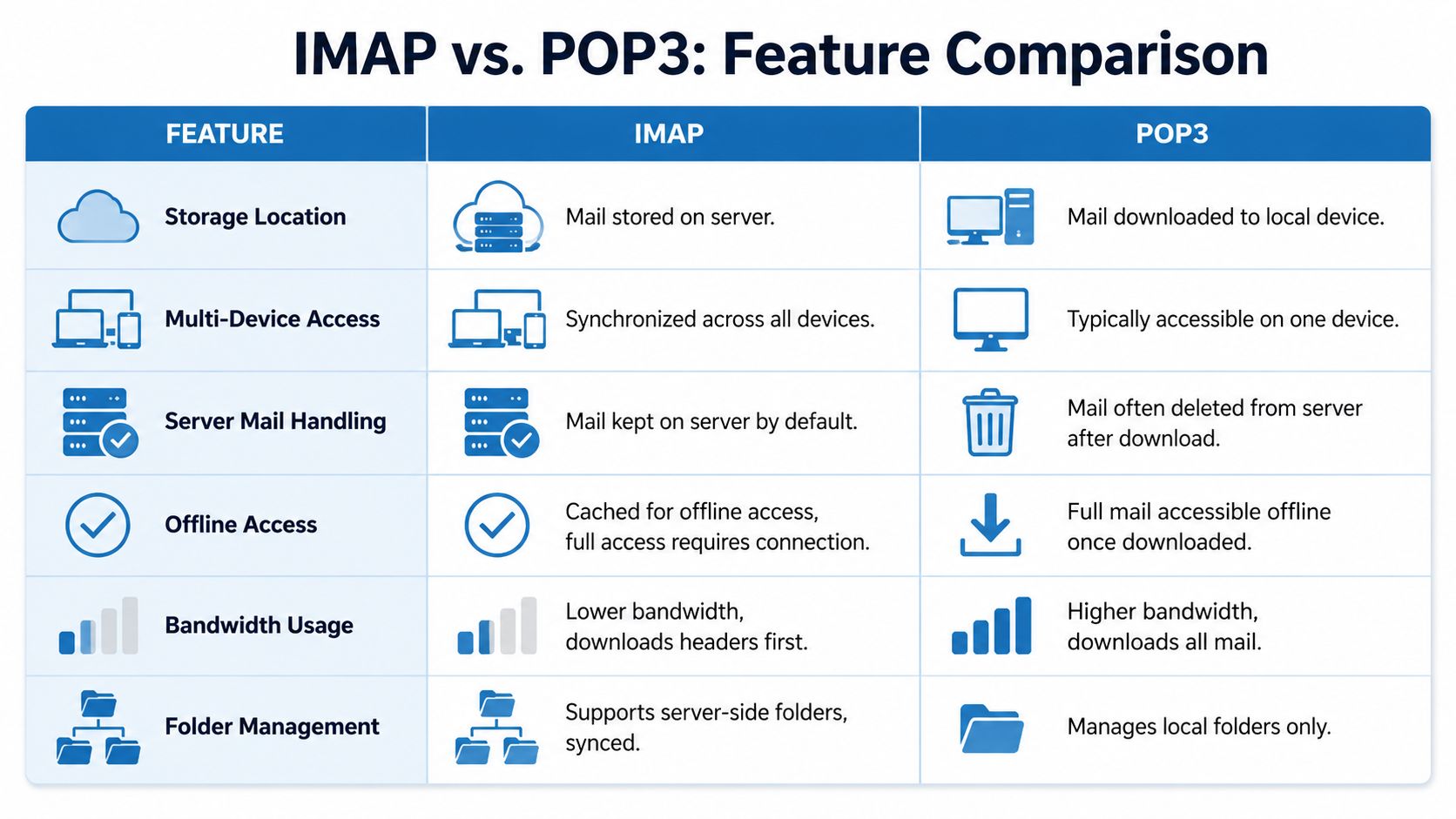
The difference between IMAP and POP3 becomes clearer when you stop thinking in protocol names and start thinking in daily work problems. Can your staff see the same folder structure? Can someone recover mail after a laptop fails? Does the mailbox support a shared process, or does it break into separate local copies?
Here’s the short version first.
| Feature | POP3 (Post Office Protocol 3) | IMAP (Internet Message Access Protocol) |
|---|---|---|
| Storage location | Downloaded to local device | Stored on server |
| Multi-device access | Usually poor | Strong |
| Mail handling after retrieval | Often removed from server | Remains on server |
| Offline use | Strong after download | Good with cached mail, best when connected |
| Folder management | Local only | Synced on server |
| Best operational fit | Individual, single-device workflows | Teams, mobility, shared organization |
Multi-device access
This is the first decision point for most businesses.
With IMAP, a message opened on Outlook at the office can appear read on a phone later. A folder created in Apple Mail can show up in webmail. That consistency matters when a user bounces between devices all day.
With POP3, each device can become its own island. One machine may hold downloaded messages that never appear elsewhere.
Server storage and mailbox growth
POP3 reduces pressure on the server because mail is commonly removed after download. If you’re working with limited hosting space and don’t need a server-side archive, that can be helpful.
IMAP keeps the mailbox on the server, which is better for continuity but increases storage requirements. That’s one reason email hosting plans built around bigger mailboxes often pair naturally with IMAP.
Backup and recovery
In this scenario, many small organizations underestimate risk.
If you use POP3 and the main computer dies, recovery depends on how well that local device was backed up. If no one has exported Outlook data files, backed up Apple Mail data, or maintained endpoint backups, the mailbox history may be difficult to reconstruct.
IMAP usually gives you a cleaner recovery path because the server remains the main record. Reinstall the mail client, reconnect, and much of the mailbox state returns.
If your recovery plan begins with “hopefully that laptop still works,” POP3 is carrying too much responsibility.
Performance and bandwidth
POP3 has one clear operational strength. Its simplicity can make first-time downloads faster in some cases, especially when the user wants everything stored locally from the start.
IMAP handles bandwidth more intelligently for large inboxes because it doesn’t need to fetch full messages immediately. That makes browsing and triage easier on mobile devices or slower links.
Folder management and workflow discipline
This is a major dividing line for administrative teams.
- With IMAP, folders such as “Patient Follow-Up,” “Pending Claims,” “Vendor Contracts,” or “Webinar Leads” can exist as shared, server-based organization.
- With POP3, folders mainly live inside the local mail client. One person’s tidy structure may be invisible to everyone else.
For collaborative work, that’s a serious limitation.
Central trade-off: IMAP gives you flexibility and a shared mailbox reality. POP3 gives you simplicity and local control.
Neither protocol is universally better. But once more than one device or person enters the workflow, IMAP usually stops being a convenience and starts becoming the practical default.
Security Privacy and Compliance Implications
The protocol decision becomes more consequential when email carries sensitive information. In healthcare, legal services, finance, and education, the issue isn’t just whether an inbox syncs. It’s whether the organization can control access, preserve records, and show a consistent chain of communication.

Encryption matters, but it’s not the whole story
Both protocols can use encrypted connections. POP3 commonly uses SSL-secured access on port 995, and IMAP commonly uses SSL-secured access on port 993. That’s important because credentials and mail access should never travel unprotected.
But encryption in transit is only one layer. The deeper question is where the data lives and who controls the authoritative copy.
With POP3, messages are often pulled down to a local machine and may no longer exist on the server in a complete, current form. If that device is poorly secured, shared among staff, or lost, the organization’s control over email records becomes fragmented.
With IMAP, the mailbox remains server-based. That usually makes it easier to apply centralized controls such as retention, consistent access policies, and organized review.
Why compliance teams usually favor IMAP
A telemedicine clinic needs more than convenience. It needs documentation that supports operations and compliance. Staff may need to review appointment requests, patient follow-ups, consent-related threads, and scheduling communications from different devices without creating conflicting mailbox histories.
A POP3 setup can break that continuity. One staff member downloads a message to a desktop, moves it into a local folder, and now the shared understanding of what happened lives on that one machine. That’s a weak position for any regulated workflow.
An IMAP setup is generally easier to align with disciplined operations because:
- The server remains the record. Staff aren’t each creating isolated mailbox realities.
- Review is more consistent. Supervisors and authorized users can inspect the same mailbox state.
- Retention is easier to manage. Messages aren’t disappearing into unmanaged local archives by default.
- Device replacement is less disruptive. A lost laptop doesn’t automatically mean a lost mailbox history.
For teams evaluating broader secure communication practices, this discussion sits alongside choices in video platforms, access control, and workflow design. A useful reference point is this guide to HIPAA-compliant video conferencing platforms, because email and meetings often form one connected patient communication process.
Privacy trade-offs are real
Some organizations like POP3 because local storage can reduce dependence on keeping large volumes of mail in the cloud. That instinct isn’t irrational. If the server stores less mail, there’s less sitting there long term.
The catch is operational discipline. Local-only privacy is only safer if the endpoint is well managed, encrypted, backed up, and access-controlled. In many small organizations, that’s the weakest part of the stack.
Security isn’t just “is it encrypted?” It’s also “can we manage, recover, and account for the mailbox consistently?”
For regulated teams, IMAP is often the safer operational answer, not because POP3 can’t be secured, but because POP3 puts more responsibility on each local device and each user’s habits.
Choosing the Right Protocol for Your Work
The right choice depends less on abstract features and more on how your team handles messages. Start with the workflow, not the protocol label.
For a telemedicine clinic
Choose IMAP.
A clinic rarely has the luxury of treating email as one person’s private archive. Front desk staff may confirm appointments, clinicians may review follow-ups, and administrators may need to verify what was sent and when. That process works better when the mailbox remains consistent across devices and users.
If your clinic also coordinates remote care, your communication stack should stay aligned across channels. Teams comparing software for distributed coordination can look at collaboration tools for remote teams as part of the bigger operational picture.
For educators and training teams
Choose IMAP in most cases.
A coaching center or school handling admissions queries, parent communication, assignment questions, and webinar sign-ups benefits from server-side folders and synchronized status. One person can sort mail on a laptop, and another can review the same categories from webmail without guessing where messages went.
This is especially useful when people use a mix of Gmail, Outlook, and mobile mail apps. IMAP smooths out those differences.
For small businesses with shared sales or support traffic
Again, IMAP is the stronger fit.
A mailbox like sales@ or support@ stops being useful if every team member sees a different version. Shared visibility matters. So does being able to search prior conversations from any authorized device.
A practical example: a client asks for the revised proposal that was emailed last week. With IMAP, the owner, account manager, and assistant are more likely to find the same thread history. With POP3, the message may exist only on whoever downloaded it first.
For a solo professional with one main desktop
In certain cases, POP3 can still make sense.
A consultant, bookkeeper, or administrator who works almost entirely from one office machine may prefer a local archive. If server storage is limited and the person wants mail available even when the connection is unstable, POP3 is still a legitimate option.
That said, the decision only works if the person is disciplined about local backups and understands that the mailbox won’t behave like a synced cloud account.
A simple decision filter
Use IMAP if these statements sound like your business:
- We use more than one device
- More than one person may need mailbox continuity
- Folders and read status should stay consistent
- We need easier recovery if a device fails
Use POP3 if this sounds closer:
- One person handles the mailbox
- One device is the main work machine
- Offline local storage matters more than synchronization
- We’re comfortable managing backups on that device
The best protocol is the one that matches your operating habits, not the one that sounds simpler on a setup screen.
For most clinics, schools, and collaborative businesses, IMAP is the safer default. POP3 remains useful, but mostly in narrow, intentional single-user environments.
Setup Migration and Cost Considerations
A mailbox migration usually goes wrong in the same place. The team adds the new IMAP account, sees fresh folders, and assumes the job is done. Two weeks later, billing asks for an old approval email, only to find that message still lives inside one receptionist’s old POP3 file on one PC.
That is not just inconvenient. In a clinic or any regulated office, it creates retention gaps, weakens audit trails, and turns a routine support task into a risk issue.
A practical POP3 to IMAP migration checklist
Treat the move as a small records project, not just an email setting change.
- Inventory where mail lives. Check Outlook data files, Apple Mail local folders, Thunderbird local folders, and any exported PST or MBOX archives. With older POP3 setups, historical mail is often split across multiple devices.
- Decide what must move to the server. For healthcare, finance, HR, or legal correspondence, move anything tied to patient communication, approvals, invoices, scheduling disputes, or staff decisions. Do not migrate blindly and do not leave regulated messages in a forgotten local archive.
- Create the IMAP mailbox first and let it finish syncing. Confirm folder structure, sent items behavior, and server quota before copying a single old message.
- Copy mail in batches by year or department. Large drag-and-drop moves can fail unnoticed. Smaller batches make it easier to spot duplicates, stalled uploads, or folder mapping problems.
- Verify from webmail and a second device. If the messages are visible there, the server copy is real. If they appear only in the desktop client, the move may not have completed.
- Back up the old POP3 store before cleanup. Keep the archive read-only for a defined period, then document who approved deletion or long-term retention.
One more point matters for shared work. After migration, test the mailbox with the actual workflow. Have the front desk flag a message, have billing reply from another device, then confirm everyone sees the same state. That matters if your team also relies on collaboration tools and shared scheduling around video conferencing for small business, because email gaps tend to show up first in handoffs.
Common migration mistakes that create cleanup work later
The biggest mistake is mixing old and new delivery without a cutover date. One device keeps pulling mail by POP3 while another starts using IMAP. Messages split between locations, sent items become unreliable, and nobody is sure which copy is complete.
Folder mapping causes trouble too. Outlook users often have local folders with names that do not match server folders. If those are copied casually, the team ends up with duplicate Sent, Sent Items, and Archive folders.
Watch mailbox quotas before migration day. If the server limit is too small, uploads stall halfway through and users assume the missing mail was transferred. It was not. Someone just ran out of space.
What setup work should include
For a regulated office, setup should include more than username, password, and port numbers.
- Retention rules: decide whether messages stay in the mailbox, move to an archive, or sync to a compliance system
- Shared mailbox access: confirm who needs read access, send-as rights, or delegated folder access
- Mobile device policy: require screen locks, device encryption, and remote wipe for phones that cache mail
- Backup scope: confirm whether backup covers only the server mailbox or also local OST, PST, and downloaded attachments
- Offboarding procedure: make sure mail remains with the organization when a staff member leaves
That last point gets missed often. POP3 setups tied to one person’s desktop are harder to hand over cleanly. IMAP is not automatic compliance, but it is easier to manage when ownership of a role-based mailbox changes.
Cost considerations beyond the mailbox fee
The direct cost difference is usually storage and administration time.
| Cost area | POP3 | IMAP |
|---|---|---|
| Server storage | Lower at first | Higher as mail stays on the server |
| Device support time | Higher when mail is spread across PCs | Lower when staff can verify mail from webmail or another device |
| Recovery after device failure | More expensive and uncertain | Usually faster if server copy is intact |
| Compliance review | Harder if records live in local files | Easier if the mailbox is centrally retained |
| Team handoff | Manual | Simpler |
A small mailbox plan can make POP3 look cheaper on paper. The hidden cost shows up later as IT labor, failed handoffs, missing history, and local backup management. I usually tell owners to price the protocol choice against one real incident: a lost laptop, a staff departure, or a records request. That comparison is more useful than comparing storage fees alone.
If you keep POP3 for a narrow single-user case, budget for endpoint backup, tested restore procedures, and documented ownership of that archive. If you move to IMAP, budget for enough mailbox space from the start so staff do not begin creating unmanaged local workarounds.
