

You’re usually reading about how to share screen on Zoom for one reason. A meeting starts in a few minutes, you need to show something important, and you don’t want the usual mistakes. The wrong tab. A private message popping up. No audio. A black screen where your demo should be.
That anxiety is justified. Screen sharing looks simple until the meeting matters.
I’ve seen the same pattern across clinics, coaching businesses, schools, and client-facing teams. People focus on where the Share button is. They should focus on what they’re exposing, who can share, whether system audio is necessary, and whether the content should be shown as a full desktop, a single app, or a tightly controlled area on screen.
Why Mastering Screen Sharing Is Non-Negotiable
A poor screen share changes how people judge the meeting. If a tutor spends the first few minutes hunting for the right window, students disengage. If a doctor accidentally shows the wrong part of an EHR workflow, trust drops immediately. If a sales lead shares the whole desktop and notifications start appearing, the room shifts from your message to your mistake.
That matters because screen sharing isn’t a side feature anymore. Zoom reported that daily meeting participants surged from about 10 million in December 2019 to more than 300 million by April 2020, a period when screen sharing became a primary workflow for remote work, online classes, and telehealth consultations, as noted in Zoom meeting statistics.
What competent sharing looks like
The people who handle this well don’t treat screen sharing as a button. They treat it as a presentation environment.
- Teachers open only the lesson materials they need and sequence them in advance.
- Clinicians strip the desktop down before the call starts and share only the patient-facing content.
- Consultants test whether they need computer audio before the client hears every system sound on their machine.
Practical rule: If you haven’t decided exactly what participants should see, you’re not ready to share.
For educators, this has a direct effect on attention and participation. If you’re building class flow around visuals, prompts, and transitions, these strategies to boost online learning participation pair well with disciplined screen-sharing habits.
The difference between awkward and professional usually comes down to four things. Choose the right share target, protect private information, handle audio intentionally, and know how to recover when Zoom misbehaves.
The Core Mechanics of Sharing Your Screen
The first decision is often underestimated. Share Desktop or share an Application Window.
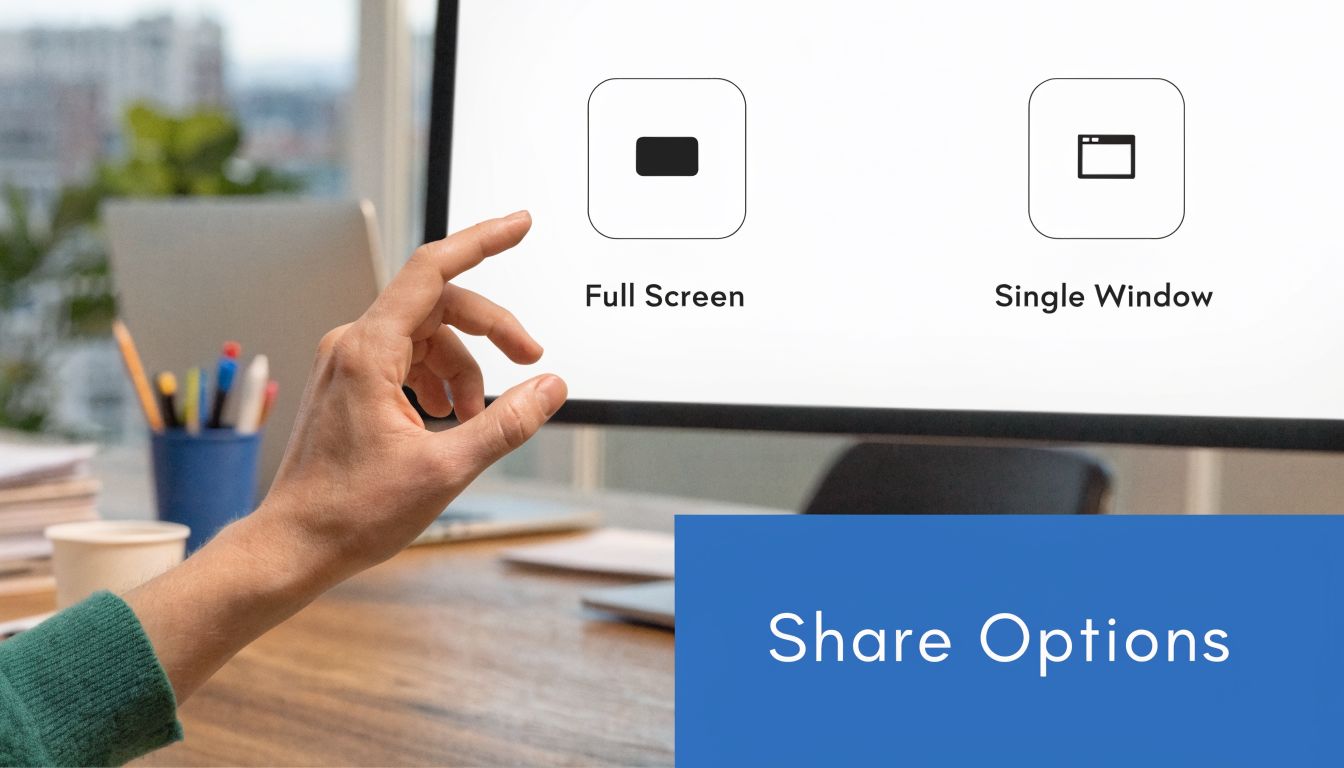
Desktop versus window sharing
Desktop sharing shows everything on that display. It’s useful when you need to move between tools during a live workflow. A software trainer might move from a browser to a spreadsheet to a support portal in one uninterrupted demonstration.
It’s also the riskiest option. Notifications, chat popups, open files, and unrelated browser tabs can all become visible.
Application Window sharing is the safer default for most meetings. If you’re presenting slides, reviewing a report, or demoing one app, this is usually the right choice. A clinician showing a patient education PDF can keep the rest of the desktop private. A tutor can share only the whiteboard app instead of the entire computer.
Share the smallest thing that accomplishes the task. That’s the cleanest habit for privacy and focus.
How to start on desktop and web
On Windows, macOS, and Linux, the flow is straightforward:
- Join or start the meeting and pause before clicking Share.
- Close unrelated apps and silence notifications first.
- Click Share Screen in the toolbar.
- Choose either Desktop or the specific Application Window.
- If needed, enable sound sharing only for content that contains audio.
- Start the share, then confirm participants can see the correct content.
On the browser version, the logic is similar, but your browser will usually ask what permission to grant. Pay attention to the prompt. If you choose an entire screen when you meant to choose a tab or app window, you’ve already expanded your exposure.
If you want a second walkthrough that mirrors this decision-making process, AONMeetings has a practical guide on how to share your screen.
How to think about mobile sharing
On iPhone, iPad, and Android, the challenge isn’t only where the option lives. It’s control. Mobile sharing is useful for showing a whiteboard app, a document, or a live app workflow, but it’s easier to reveal notifications or switch to the wrong thing by accident.
A few examples work well in practice:
- Doctor on iPad: Share only the patient-facing chart or educational image. Don’t move broadly through the device while sharing.
- Tutor on tablet: Open the whiteboard or notes app before the session, then begin sharing from that prepared screen.
- Field team on phone: Use mobile sharing for short, targeted visuals, not long multi-app presentations.
If the meeting is high stakes, desktop is usually easier to control than mobile. Mobile is best when mobility is the point.
Advanced Sharing Techniques for Professional Presentations
Once the basics are stable, the next level is control. Not flashy control. Useful control.
Use portion of screen when detail matters
If your audience only needs to see one chart, one interface panel, or one form section, don’t give them the rest of your screen. Portion of Screen keeps attention on the relevant area and reduces accidental exposure.
This is especially useful for:
- Financial reviews where only one table matters
- Telehealth demos where you want to isolate the patient-facing instruction area
- Software walkthroughs where menus and internal notes elsewhere on screen would distract
The practical trade-off is that you have to keep the content inside the selected area. If you move the wrong window or resize content carelessly, viewers lose track.
Share sound only when the content needs it
“Share Sound” is one of the most commonly mishandled settings in Zoom. It should be on for video playback, product clips, app sound demonstrations, or anything where participants need to hear audio generated by your computer.
It should usually stay off when you’re sharing slides, spreadsheets, dashboards, forms, or documents.
What goes wrong when people leave it on by habit? Participants hear notification pings, browser sounds, and stray media. What goes wrong when people forget to turn it on for a video? The room sees movement and hears silence.
Structure the presentation so people can actually follow it
A lot of presenters overload the share. They scroll too fast, stack multiple ideas on one screen, and start talking before the audience has oriented themselves.
That’s why disciplined pacing matters. In online focus groups, teams using structured screen sharing, presenting one stimulus at a time and allowing 30 to 60 seconds of silent viewing, reported 25 to 35% higher participant comprehension and 20 to 30% fewer clarification questions, according to this Zoom focus group walkthrough.
That applies far beyond research sessions.
- Teacher: Put one problem or concept on screen, let students read it, then discuss.
- Trainer: Show the workflow step first, then explain why it matters.
- Presenter: Add clear verbal transitions instead of jumping between tabs without context.
Give people a beat to look before you ask them to react. Most “engagement problems” are pacing problems.
If you coach students on speaking or structured presentations, this essential guide for MUN speech writing is a useful companion resource because the same principle applies. Sequence the material so the audience can absorb it in order.
Annotation works when you use it sparingly
Zoom’s annotation tools are useful for circling a field, underlining a phrase, or directing eyes to a button. They stop being useful when the screen turns into a mess of arrows and scribbles.
Use annotations for short interventions:
- circle the exact line item under discussion
- mark the confusing UI element during a demo
- highlight the answer path on a shared worksheet
For serious presentations, a clean screen plus one annotation beats constant markup every time.
Securing Your Shared Content for Compliance and Privacy
Security isn’t a layer you add after the meeting starts. It begins before you click Share.
If you work in healthcare, legal services, finance, HR, or any role that handles sensitive records, screen sharing can create risk faster than chat, audio, or file exchange. People often think of Zoom security as passwords and waiting rooms. The bigger operational risk is often much simpler. Someone shares the wrong thing.
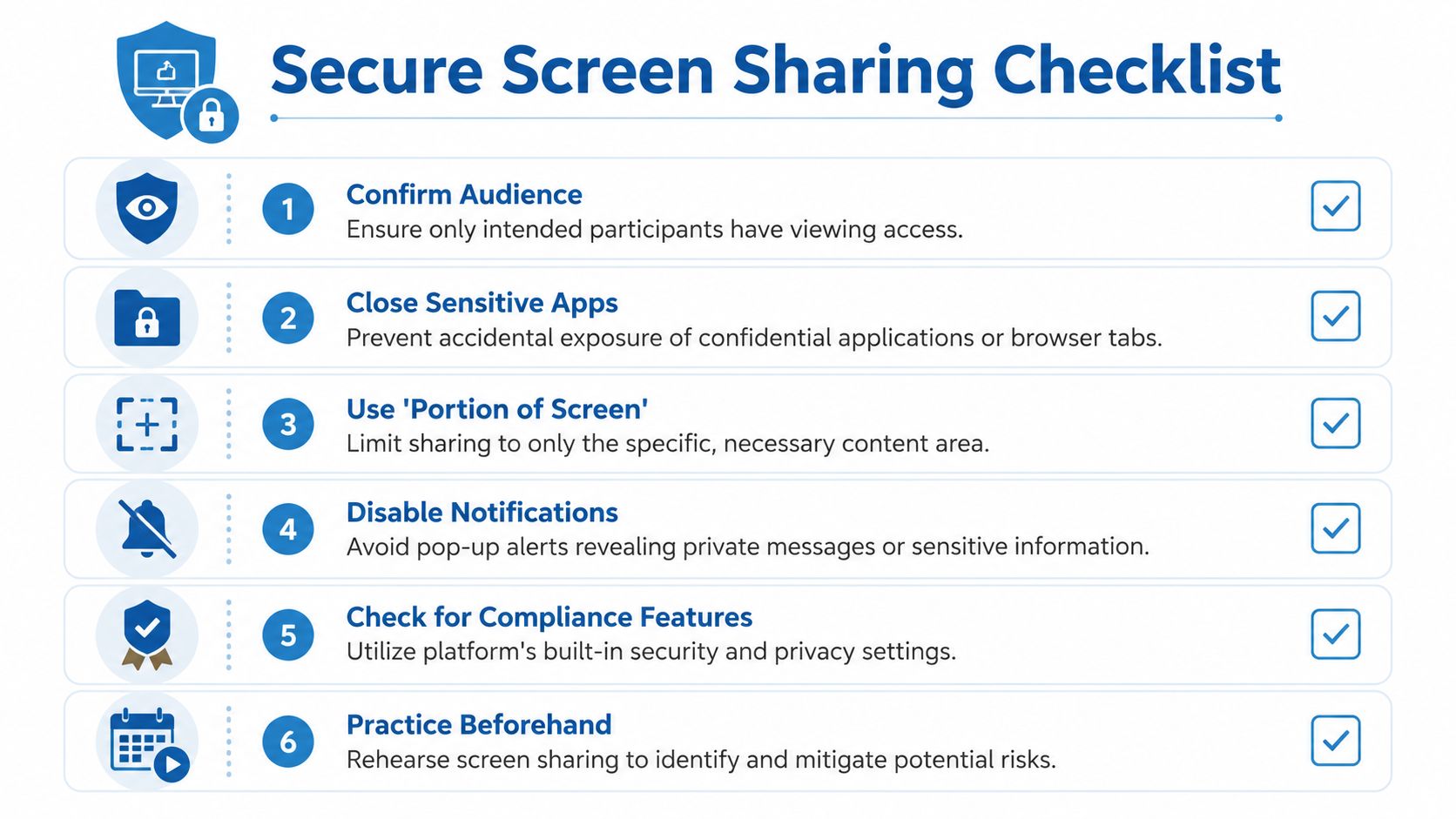
The settings that matter most
Start with host control. In sensitive meetings, set Who can share to Host Only unless there’s a clear reason to allow participant sharing. That prevents a patient, client, student, or guest from unexpectedly taking over the visual channel.
Then use a pre-share routine:
- Close unrelated tabs and apps so nothing private sits one click away.
- Disable notifications on the device you’re using.
- Choose Application Window over Desktop whenever possible.
- Rehearse the path you’ll take through the material before attendees join.
For telemedicine and other precise demonstrations, setup discipline also affects timing and clarity. Zoom support guidance around video sharing notes that selecting the correct share target and confirming that participants are seeing the intended content can support smoother playback, and disciplined setup has been associated with reducing latency-induced desynchronization between audio and shared video to below 100 ms in typical enterprise networks in this Zoom support article on sharing a video.
HIPAA thinking versus generic meeting thinking
A HIPAA-conscious presenter doesn’t ask, “Can I share my screen?” They ask, “What exact content is necessary for this patient to see right now?”
That changes behavior.
A therapist shares only the handout or intake document relevant to the session. A clinic trainer uses de-identified material for workflow demonstrations whenever possible. A lawyer avoids sharing the full desktop because unrelated case names in the file explorer may be visible even if no document is opened.
Compliance failures during screen sharing usually come from convenience. Professional habits remove convenience from the risky parts.
Encryption matters too, but encryption doesn’t fix careless sharing. It protects the meeting channel. You still need sharing discipline inside that channel.
Solving Common Screen Sharing Problems and Glitches
When screen sharing fails, the problem usually sits in one of three places. Permissions, audio configuration, or bandwidth.
The useful thing to remember is that plain screen sharing is relatively light compared with full video. According to Zoom data usage analysis from HighSpeedInternet.com, Zoom screen sharing typically uses 22.5 to 67.5 MB per hour, while a 720p group video call can reach about 1.35 GB per hour. The same analysis notes that switching from full video to audio plus screen sharing can cut bandwidth demand by over 90%.
If participants can’t see your screen
Start with the obvious checks first.
- Wrong share target: You may have selected the wrong window or display.
- Permission issue: On macOS in particular, screen recording permissions can block sharing.
- Paused share: Zoom may still be in a paused state from a previous action.
Ask one participant to confirm exactly what they do or don’t see. “Blank screen” and “I see the wrong file” are different problems.
If the shared content looks choppy
This often happens when someone tries to share motion-heavy content the same way they’d share a static slide. Reduce what the meeting is asking the connection to do.
Try this sequence:
- Turn off your camera if the visuals matter more than your face.
- Share the content without unnecessary movement across apps.
- Use the video-optimization setting only for actual video playback, not for code, text, or dense slides.
- Prefer wired or stable Wi-Fi for the host machine.
If audio is echoing or sounds wrong
Echo usually isn’t a screen-share problem by itself. It’s a meeting audio routing problem that becomes more obvious once shared media starts playing. If you’re troubleshooting that side of the experience, this guide on how to stop echo on mic covers the usual causes and fixes.
A final reality check helps. If your audience only needs to hear you and see the content, dropping camera video often stabilizes the meeting faster than endless setting changes.
A Smarter Alternative for Secure, Value-Driven Collaboration
A lot of advice around screen sharing assumes a stable desktop setup, strong connectivity, and a team that can absorb feature limitations without much friction. That leaves out clinics, tutors, small firms, and mobile-first teams. It also leaves out users working on constrained connections, which many guides still barely address, as noted in this discussion of low-bandwidth and mobile-first screen-sharing gaps.
For buyers comparing tools, the practical questions are simple. What’s included, what’s gated behind upgrades, and whether security features are standard or treated as add-ons.
One option in this category is AONMeetings, which offers browser-based meetings, screen sharing, built-in webinars, HIPAA-compliant meetings, and bank-level encryption with plans starting from ₹179 per user per month, based on the publisher information. That matters for teams that want predictable pricing and don’t want webinar capability split into a separate buying decision.
Zoom vs. AONMeetings Screen Sharing and Value Comparison 2026
| Feature | Zoom (Free/Pro) | AONMeetings (Standard) |
|---|---|---|
| Screen sharing | Available | Available |
| Meeting time limits | Free plan has a 40-minute limit | Unlimited meeting time |
| Webinar hosting | Typically plan-dependent | Included |
| HIPAA-focused positioning | Available through appropriate setup and plan choices | Included in platform positioning |
| Encryption | Security features available | Bank-level encryption included |
| Browser-based join | Available in some workflows | Browser-based access emphasized |
| Starting price comparison | Varies by tier | Starts at ₹179 per user per month |
If you’re comparing platforms for a small team, clinic, or training business, this overview of video conferencing for small business is a sensible next read.
If your meetings involve sensitive information, recurring demos, classes, or webinars, AONMeetings is worth evaluating for its combination of HIPAA-oriented security, built-in webinars, unlimited meeting time, browser-based access, and straightforward pricing.
