

Your patient is describing chest pain. You ask an important follow-up question. Then the screen freezes, the audio turns robotic, and both of you start saying, “Can you hear me now?”
The same thing happens in a paid webinar when you reach the key slide, or in an online class when a teacher explains the one concept students were already struggling with. In professional settings, buffering doesn’t feel like a minor tech issue. It feels like a breakdown in care, trust, and momentum.
That’s why streaming and buffering matter far beyond entertainment. If you understand what video is trying to do, why it stalls, and which fixes help, you can stop treating freezing calls like bad luck.
That Dreaded Spinning Wheel An Introduction to Buffering
A frozen face on screen creates a strange kind of stress. The meeting is technically still happening, but the useful part has stopped. The doctor can’t read tone. The teacher can’t tell if students are following. The presenter loses the room.
In entertainment, buffering is annoying. In work, healthcare, and education, it changes outcomes. A delayed answer in a telemedicine visit can interrupt care. A laggy paid webinar can make attendees leave before the offer, the Q and A, or the certificate instructions.
Buffering is the moment your call runs out of ready-to-play video and has to pause while it catches up.
Streaming and buffering are tightly connected. Streaming is the continuous delivery of audio and video to your device. Buffering is the small reserve your device keeps so tiny network hiccups don’t interrupt playback immediately.
When that reserve stays full enough, the call feels smooth. When it drains faster than new video arrives, the spinning wheel appears.
This catches people off guard because the problem often looks random. One call works fine in the morning, then freezes in the afternoon. One person in the meeting is clear, while another sounds underwater. A webinar host looks sharp on one network and blurry on another.
Most of that isn’t random at all. It’s the result of a few predictable limits in how video moves across networks, devices, and secure systems.
Understanding Streaming vs Buffering An Analogy
A simple factory analogy makes streaming and buffering easier to understand.

Think of video like a bottling line
Picture a bottling plant. Empty bottles move along a conveyor belt. A pipe above them fills each bottle with water. If the water supply stays steady, the line keeps moving and production looks smooth.
That steady filling process is like streaming. Your device keeps receiving tiny pieces of video and audio, then plays them in order so the conversation feels live.
Now picture a brief interruption in the water flow. The plant might keep running for a moment if it has a small reserve tank. That reserve is the buffer.
The buffer is helpful because networks are never perfectly even. Data can arrive a little early, a little late, or with small gaps between bursts. The buffer absorbs those small variations so you don’t notice them.
What buffering actually means
Buffering starts when the reserve runs low.
Your device is still trying to play the next moment of video, but the next chunk hasn’t arrived yet. So playback pauses and waits. On your screen, that pause shows up as a spinning wheel, a frozen image, broken audio, or a sudden drop in quality.
A lot of people get confused here and assume buffering means “the internet is off.” Usually, it doesn’t. More often, the connection still exists, but it isn’t delivering data fast or consistently enough for the quality level being requested.
Practical rule: Streaming is the flow. Buffering is the wait when the flow can’t keep up.
Why this matters more now
People have become used to smooth video everywhere. According to Nielsen’s May 2025 streaming milestone report, streaming reached 44.8% of total television usage and grew 71% from May 2021 to May 2025. That expectation carries into meetings, classes, consultations, and webinars.
So when a professional call buffers, people don’t think, “networks are complicated.” They think, “this platform isn’t working,” or “this session isn’t worth my time.”
That reaction is understandable. Video has become part of how people learn, buy, coordinate, and receive care. Once you see streaming and buffering as a supply problem instead of a mystery, the causes become much easier to spot.
The Technical Culprits Behind Glitchy Video
A frozen screen during a telemedicine visit or paid webinar usually comes from a small set of technical problems. You do not need a networking background to spot them. It helps to know which part of the system is acting like a bottleneck, a traffic jam, or an overloaded front desk.
This visual helps organize the main causes.
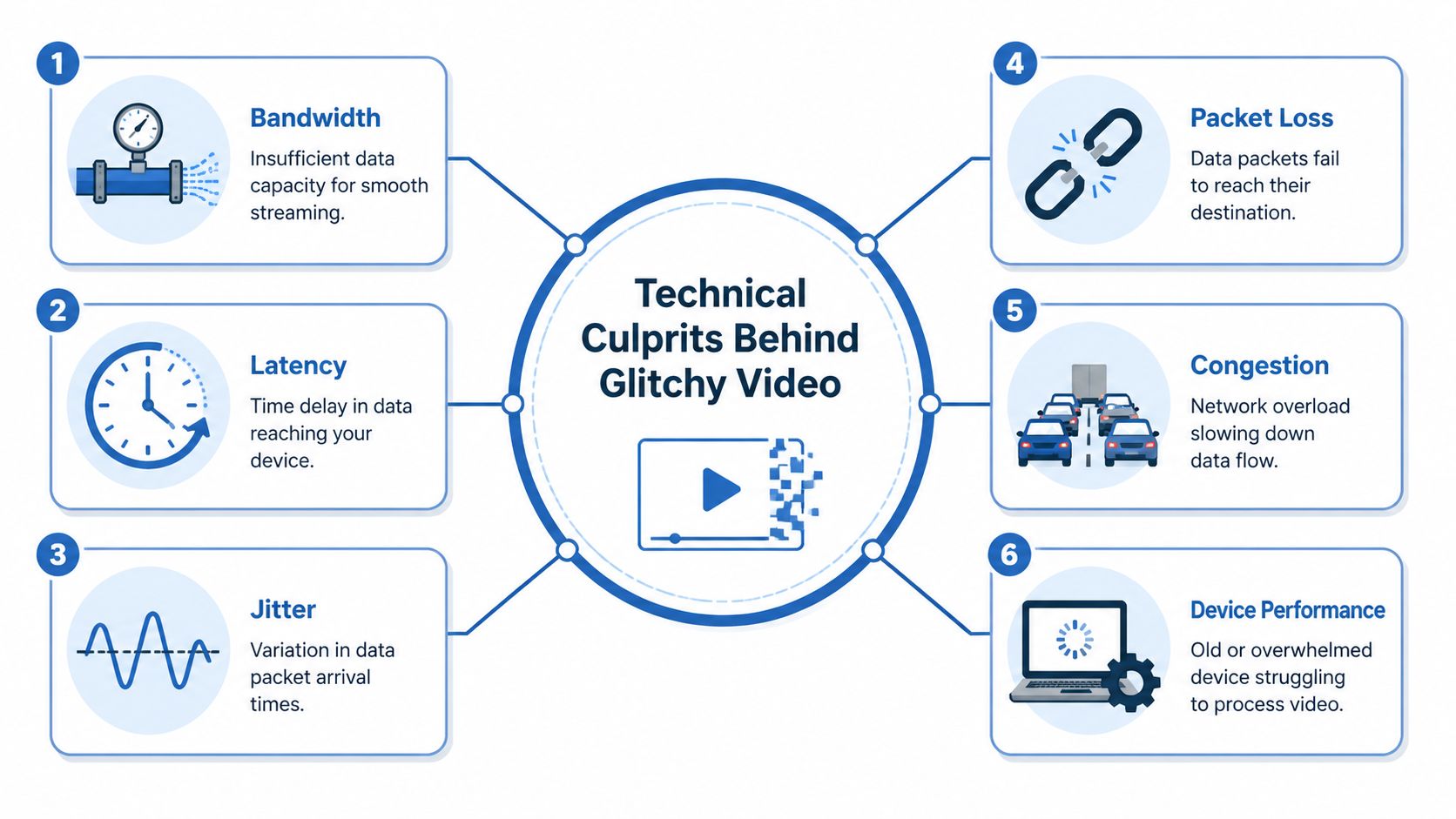
Bandwidth limits how much video can get through
Bandwidth is the amount of data your connection can carry at one time. A wider connection can carry more video, audio, screen sharing, and background activity without falling behind.
A video call works like a hallway with people carrying boxes. If too many boxes try to pass through a narrow space at once, the line slows down. In practical terms, HD video may stutter when someone else in the building starts a large upload, cloud backup, or software update.
This is why a call can look stable with cameras off, then struggle the moment everyone turns video on.
Latency slows the conversation
Latency is delay between sending and receiving data. In a live meeting, that delay shows up as people talking over each other, awkward pauses, or answers that arrive a beat too late.
For a doctor assessing symptoms or a presenter taking paid audience questions, timing is part of the experience. If the pause is long enough, people start wondering whether the other side heard them at all.
Jitter scrambles the rhythm
Jitter means the delay is uneven. One moment the data arrives on time. The next moment it arrives late. Then it speeds up again.
That uneven timing is hard on real-time communication because live platforms have to keep audio and video lined up second by second. A recorded movie can pause and refill more easily. A consultation or webinar has to continue in real time.
Packet loss removes pieces of the call
Packet loss happens when some packets never arrive. You hear this as clipped words, metallic audio, or sentences that seem to dissolve halfway through. You see it as blocky faces, frozen gestures, or a mouth that moves after the sound.
This often confuses people. They assume the whole connection failed, when the underlying problem is that small pieces went missing often enough to damage the call.
If participants are also hearing their own voice back, it can be useful to separate network trouble from audio setup trouble. A quick guide to stop microphone echo in video meetings can help rule out one common distraction.
Congestion happens inside and outside your office
Sometimes your internet plan is fine, but the connection is crowded. Shared office Wi-Fi, a busy clinic network, home devices streaming in the next room, or a large file sync can all compete with your meeting.
Congestion can also happen along the route between you and the video platform. Your device may be ready, but the path the data takes is busy or inefficient. That is one reason two people in the same meeting can have very different experiences.
The device itself can be the bottleneck
Glitchy video is not always a network problem. An older laptop, too many browser tabs, low memory, overheating, or a browser extension conflict can make video decoding choppy.
Encrypted professional calls add work for the device. In consumer streaming, a short quality drop may be tolerable. In telehealth and regulated client meetings, the platform is often handling encryption, authentication, and privacy protections while still trying to keep audio and video smooth. That extra processing load can expose weak devices faster.
A stable call depends on four parts working together:
- The connection must deliver enough data consistently.
- The timing must stay predictable enough for live conversation.
- The device must decode and display the stream in real time.
- The platform must manage video quality, encryption, and traffic without overloading the session.
If you are comparing platforms or checking recurring viewer complaints on connected TV setups, troubleshooting HoxyTV issues can be a useful reference for pattern-spotting, even though professional conferencing usually has stricter privacy and reliability requirements.
In healthcare, legal, education, and paid events, these issues carry more weight than they do during a movie night. The system is expected to protect private information and stay usable under normal network stress. That combination is what makes professional video conferencing feel less forgiving.
Why Buffering Derails Professional Video Calls and Webinars
Buffering causes more than irritation. It breaks the normal signals people depend on during live communication.
A doctor listens for hesitation, breathing changes, and tone. A teacher watches whether students look lost or ready to move on. A sales lead notices whether the buyer is leaning in or checking out. When video stalls or audio tears, those signals disappear.
In healthcare, interruptions can affect care quality
A telemedicine visit depends on continuity. If the patient’s image freezes while describing symptoms, the clinician may miss visual context. If audio drops during medication instructions, the patient may leave unsure what to do next.
In HIPAA-sensitive environments, the stakes are even higher because the platform must protect privacy while still performing well. Clinics can’t treat encryption like an optional add-on. They need secure calls that remain usable under ordinary network stress.
In education and webinars, attention vanishes fast
A paid webinar has a rhythm. The host opens strong, teaches, builds trust, answers objections, and invites action. Buffering breaks that sequence.
The same goes for online classes. Once the lesson flow breaks, students start multitasking. The teacher may still be talking, but the shared focus is gone.
That reaction has a measurable cost. According to Streaming Media’s analysis of the economics of buffering, 70% of viewers abandon a live stream if it buffers more than twice.
A buffering problem is rarely judged as “just a technical issue.” Attendees experience it as unreliability.
In business meetings, credibility slips quietly
A glitchy product demo doesn’t always end with someone complaining. Often the prospect just loses confidence. The team presenting may never hear why the deal cooled off.
That’s what makes buffering dangerous in professional contexts. It damages outcomes indirectly:
- Trust drops: People assume a disorganized experience reflects a disorganized service.
- Attention breaks: Once someone reopens email during a freeze, getting them back is hard.
- Key moments get lost: The answer to an objection, a safety instruction, or a contract detail may land badly or not at all.
The frustrating part is that many teams only think about buffering after a bad session. By then, the damage has already happened in front of patients, students, clients, or paying attendees.
Practical Fixes for Participants Experiencing Buffering
A frozen screen during a movie is annoying. A frozen screen during a patient follow-up, a paid training session, or a compliance webinar can cause confusion fast. Participants need simple fixes they can try in order, especially on platforms that add encryption and privacy protections for healthcare and other sensitive work.

Check the connection first
Start with the path the call takes to reach you.
Video meetings work like a live delivery service. Audio, video, captions, and screen sharing all need to arrive in the right order and on time. In a secure telehealth or webinar platform, that traffic may also be encrypted end to end or in transit, which adds processing work for the device and leaves less room for a weak connection to hide.
Try this sequence:
- Run a speed test before the meeting. Look for stability across two or three tests, not just the highest number.
- Move closer to the router. One wall or a bit of distance can weaken Wi-Fi enough to affect live video.
- Use Ethernet if you can. A wired connection usually cuts down on random drops, delay, and jitter.
- If possible, rejoin once after switching networks. Moving from weak Wi-Fi to a wired link or stronger network often clears the issue faster than changing app settings first.
Reduce competition on your network
Buffering often starts because your call is sharing the same internet pipe with other heavy tasks.
At home, that might be a TV stream, a game download, or a phone backing up photos. In a clinic or school office, it might be a file sync, software update, or another person on the same network joining a video call. During encrypted professional meetings, that competition matters more because the platform cannot cut corners on privacy just to keep video looking sharp.
Check for these common drains:
- Cloud backup or file sync tools
- Streaming on another device
- Large downloads or software updates
- Security scans or browser tabs playing media in the background
If the call improves right after you pause another task, you found the bottleneck.
Lower strain on your device
Sometimes the internet is good enough, but the laptop or tablet is struggling to keep up. That happens often on older devices, or when you are running many apps while the meeting platform is also handling video, audio, screen sharing, and encryption.
A few changes can help quickly:
- Close extra browser tabs
- Quit apps you do not need
- Restart the browser or meeting app
- Switch to another device if one is available
- Turn off HD video if the platform allows it
For a medical consult or paid webinar, clear audio usually matters more than a perfectly sharp face on screen. If you have to choose, protect continuity first.
Fix audio clutter too
Participants often focus on the spinning wheel and miss a second problem happening at the same time. Echo, feedback, or a bad microphone setup can make a call feel unstable even after the video improves.
If your meeting sounds messy after buffering settles down, this guide on stopping echo on your mic can help you clean up the audio side of the experience.
Use support resources when one platform keeps failing
If every service buffers, the issue is usually your connection or device. If one platform struggles while others work, look at app-specific settings, browser compatibility, or device support.
That is common in professional environments. A secure webinar or telehealth platform may use stricter browser rules, heavier encryption, or different video handling than a consumer streaming app. Vendor help pages are often the fastest way to confirm whether the problem is tied to a certain TV device, browser, or app version. If you need an example of a step-by-step diagnostic flow, this guide for troubleshooting HoxyTV issues shows the kind of checks that help isolate buffering problems without changing everything at once.
Keep the process simple. Test the connection. Reduce network competition. Lighten the device load. Then rejoin and see what changed.
How to Host Flawless Buffer-Free Meetings and Webinars
Participants can fix a lot from their side. Hosts carry the bigger responsibility because they shape the environment everyone joins. If you’re running telemedicine sessions, paid webinars, internal training, or client demos, prevention matters more than rescue.
Start with meeting design, not just platform choice
Hosts often think buffering starts at go-live. It starts earlier, when the session is planned.
A few choices make a real difference:
- Keep slides simple when possible: Dense animations, embedded videos, and rapid screen switching increase load.
- Test from the same network you’ll use: A rehearsal on office fiber doesn’t help much if the live event happens from home Wi-Fi.
- Decide what matters most: In a webinar, clear audio and stable screen sharing usually matter more than perfect camera sharpness.
For presenters who rely on demos or walkthroughs, clear screen sharing is part of call quality. Before the event, it helps to review practical screen-sharing habits such as those covered in this guide to sharing your screen effectively.
Don’t treat encryption as optional
This matters for healthcare, legal, finance, and any business discussing confidential information.
Encryption protects the meeting content in transit. That protection is a feature, not a burden. But hosts should understand the trade-off: secure professional video systems must handle privacy safeguards while still delivering smooth real-time performance.
That’s one reason consumer-style advice often falls short. A casual streaming guide might say “just lower quality and disable extras.” In regulated settings, you still need privacy controls, access management, and dependable delivery. The right question isn’t whether to use encryption. It’s whether your platform handles encryption efficiently enough for live communication.
Security and performance shouldn’t be competing goals in a professional meeting stack.
Build a host checklist for high-stakes events
For webinars, consultations, and training sessions, a repeatable checklist helps more than improvisation.
Before the session
- Run a full rehearsal: Use the actual camera, microphone, browser, and network.
- Check host device health: Restart the machine if it’s been running all day.
- Close sync-heavy apps: File backup and cloud sync can interfere with uploads.
- Prepare backup content paths: If a video clip fails, have a slide version or document version ready.
During the session
- Watch attendee feedback early: If people report blur or lag in the opening minutes, adjust quickly.
- Prioritize audio continuity: If needed, reduce camera quality before you let speech become choppy.
- Avoid unnecessary multitasking: The host machine shouldn’t also be downloading, rendering, or updating.
After recurring issues
If the same office, classroom, or clinic has repeated buffering, look beyond one meeting. Review local Wi-Fi placement, network contention at certain times of day, and whether staff are joining from overloaded devices. Repeated symptoms usually point to a repeated condition.
Price comparison matters because hidden add-ons create friction
A lot of teams compare meeting tools by headline price and miss actual cost drivers. Webinar add-ons, recording restrictions, time limits, and security-related upgrades often turn a “cheap” option into an expensive workflow.
The table below is intentionally qualitative where competitor pricing bundles vary by region, billing cycle, and add-on structure. The point is to compare what’s included, not to invent numbers.
| Feature | AONMeetings Pro | Zoom Pro | Microsoft Teams Essentials + Webinars |
|---|---|---|---|
| Starting annual pricing approach | Starts from ₹179 per user per month | Higher-cost stack once webinar-related needs are added | Often requires combining base plan with webinar capability |
| Unlimited meeting time | Included | May vary by plan and setup | Depends on plan structure |
| Webinars included | Included | Commonly treated as a separate layer or add-on | Often tied to extra configuration or added capability |
| Bank-level encryption | Included | Available, but feature mix varies by plan | Available within Microsoft ecosystem |
| Browser-based joining | Included | Available in many cases | Available |
| HIPAA-oriented fit | Designed for HIPAA-compliant use cases | Possible with the right setup | Possible with the right setup |
| Hidden-fee risk | Lower, with straightforward packaging | Can rise as features are layered on | Can rise when combining products |
For many small clinics, educators, and webinar hosts, the value question is simple. Do you want one plan that already includes secure meetings, webinars, and core collaboration features, or do you want to assemble that experience from separate pieces?
Focus on resilience, not perfection
No host can control every attendee’s home network. You can control the platform, the setup, the event design, and the margin for error.
The best hosts assume some viewers will join from weak Wi-Fi, older laptops, crowded coworking spaces, or mobile devices. That assumption changes how they prepare. They simplify visual load, test carefully, use stable equipment, and choose tools that include the features they’ll need instead of forcing upgrades midstream.
That’s how you get closer to buffer-free meetings and webinars in practice. Not by hoping for ideal conditions, but by designing for ordinary ones.
Conclusion Building a Buffer-Free Future
Streaming and buffering don’t have to feel mysterious. A freezing call usually comes from something understandable: not enough bandwidth, unstable delivery, device overload, or a setup that wasn’t built for a secure live session.
Once you know what to watch for, the fixes get simpler. Participants can reduce local strain. Hosts can design stronger events. Teams can choose tools that support reliable, encrypted communication instead of forcing trade-offs.
For anyone running recurring sessions, it also helps to build a process for reviewing and recording webinars for later analysis, so technical problems become easier to spot and prevent next time.
If you need a platform built for secure, reliable calls without the usual friction, AONMeetings offers unlimited meeting time, built-in webinars, bank-level encryption, recordings, screen sharing, and browser-based access starting from ₹179 per user per month. It’s a practical fit for clinics, educators, businesses, and trainers who want dependable video without contracts, hidden fees, or separate webinar add-ons.
